Notiz
Zougrëff op dës Säit erfuerdert Autorisatioun. Dir kënnt probéieren, Iech unzemellen oder Verzeechnesser ze änneren.
Zougrëff op dës Säit erfuerdert Autorisatioun. Dir kënnt probéieren, Verzeechnesser ze änneren.
The Lakehouse integrates with lifecycle management in Microsoft Fabric. You can connect a lakehouse to a git repository for version control, and deploy it across development, test, and production workspaces by using deployment pipelines. Only metadata is tracked — git and deployment operations never overwrite data in tables or files.
What is tracked?
The following table summarizes which lakehouse items and subitems are tracked in git-connected workspaces and deployment pipelines.
| Item / subitem | Git | Deployment pipelines | Release status | Notes |
|---|---|---|---|---|
| Lakehouse metadata (display name, description, logical GUID) | ✅ Tracked | ✅ Tracked | GA | Cross-workspace identifier for source control |
| OneLake shortcuts metadata | ✅ Tracked | ✅ Tracked | GA | Stored in shortcuts.metadata.json |
| External shortcuts: ADLS Gen2, S3, Dataverse, Google Cloud Storage | ✅ Tracked | ✅ Synced across stages | GA | Definition only. Same targets across all stages unless remapped with Variable Library |
| External shortcuts: SharePoint, Azure Blob Storage, OneDrive | ❌ Not tracked | ❌ Not overwritten | Not supported | Data always preserved during operations |
| Internal OneLake shortcuts | ✅ Tracked | ✅ Automatically remapped across stages | GA | Definition only. Requires valid targets in workspace |
| OneLake security data access roles (DAR) metadata | ✅ Tracked | ✅ Tracked | Preview | Stored in data-access-roles.json |
| Tables (Delta and non-Delta) | ❌ Not tracked | ❌ Not overwritten | Not supported | Data always preserved during operations |
| Spark views | ❌ Not tracked | ❌ Not overwritten | Not supported | Data always preserved during operations |
| Folders in Files section | ❌ Not tracked | ❌ Not overwritten | Not supported | Data always preserved during operations |
Choose which object types to track
You can choose which object types are tracked in git and deployment pipelines. This gives your team two benefits:
- Flexibility — Choose which object types to track based on your workflows. Some teams orchestrate certain object types through external tools or scripts. Some object types might not be relevant for every deployment stage.
- Gradual adoption — New object types can be introduced for tracking incrementally, so you can adapt existing workflows and automations before opting in.
Open Lakehouse settings and enable or disable the object types you want to track.
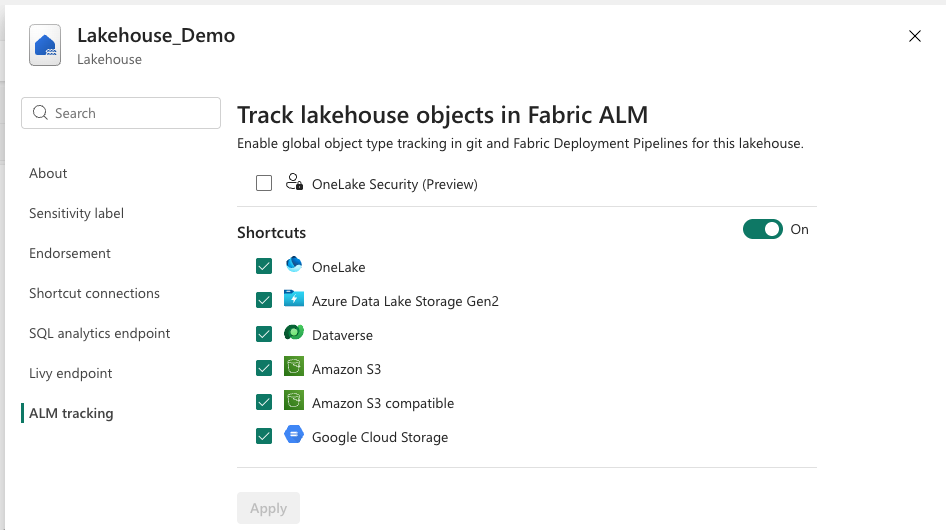
Select or clear the checkbox for each object type to control whether it's tracked:
- Select — When you select an object type and sync to git, its current metadata is serialized and stored in git. Future changes are tracked and synchronized across deployment pipeline stages.
- Clear — When you clear an object type, its metadata is removed from git. Future changes are no longer tracked or synchronized.
Defaults for new and existing lakehouses:
- New lakehouses have all general availability (GA) object types selected by default. Preview object types aren't selected by default.
- Existing lakehouses keep their current tracking state unless you change it.
The tracking configuration is stored in alm.settings.json under the lakehouse folder in git. You can edit this file directly in the git repository and apply changes back to the workspace.
Git integration
When you connect a workspace to git, the lakehouse metadata is serialized to a JSON representation. The following metadata is tracked:
- Display name
- Description
- Logical GUID (an automatically generated cross-workspace identifier for source control)
- SQL analytics endpoint metadata
- OneLake shortcuts metadata (see OneLake shortcuts)
Several workspace objects can reference a lakehouse, including dataflows, pipelines, Spark Job Definitions, notebooks, and semantic models. These references are maintained across git operations. Renaming a lakehouse in git also renames the corresponding SQL analytics endpoint.
Important
Tables (Delta and non-Delta) and folders in the Files section aren't tracked or versioned in git. Data in these items is always preserved during git operations.
Deployment pipelines
The lakehouse is supported in Microsoft Fabric deployment pipelines, which enable environment segmentation across development, test, and production workspaces.
Deployment pipeline capabilities:
- Default behavior — If no dependency mapping is configured, a new empty lakehouse with the same name is created in the target workspace. Notebooks and Spark Job Definitions are remapped to reference the new lakehouse.
- Custom mapping — If the lakehouse dependency is mapped to a different lakehouse (for example, the upstream lakehouse), a new empty lakehouse with the same name is still created, but notebook and Spark Job Definition references point to the mapped lakehouse instead.
- SQL analytics endpoints and semantic models are provisioned as part of the lakehouse deployment.
- Lakehouse name changes are synchronized across workspaces.
OneLake shortcuts
OneLake shortcut definitions in both the Tables and Files sections are stored in shortcuts.metadata.json under the lakehouse folder in git. Addition, deletion, and updates of shortcuts are tracked automatically. You can make changes in the Fabric portal or edit the shortcuts.metadata.json file directly.
Shortcuts in git integration
Shortcuts with internal targets (OneLake shortcuts) are automatically updated during git sync. For the shortcut to be valid, the target must exist in the workspace. If a target is invalid for a shortcut in the lakehouse tables section, the shortcut is moved to the Unidentified section until the reference is resolved.
Important
Use caution when editing shortcut properties directly in shortcuts.metadata.json. Incorrect changes to properties, especially GUIDs, can make the shortcut invalid when updates are applied back to the workspace. A git update overrides the state of shortcuts in the workspace — all shortcuts are created, updated, or deleted based on the incoming state from git.
Shortcuts in deployment pipelines
Shortcut definitions are synced across deployment pipeline stages:
- Shortcuts with external targets (ADLS Gen2, S3, and others) keep the same targets across all stages after deployment.
- Shortcuts with internal targets (OneLake shortcuts) in the same workspace are automatically remapped across stages. The target tables, folders, and files aren't created automatically — you must create them in the target workspace after deployment.
- If a shortcut needs to point to different locations in different stages (for example, an Amazon S3 folder in development and an ADLS Gen2 folder in production), use variables in the shortcut definition. For more information, see What is a Variable library? (preview). Alternatively, update the shortcut definition manually after deployment, either in the Fabric portal or by using OneLake APIs.
Important
A deployment overrides the state of shortcuts in the target workspace. All shortcuts in the target lakehouse are updated or deleted based on the source lakehouse, and new shortcuts are created. Always select Review changes to understand the changes before deploying.
OneLake security data access roles
Data access role (DAR) definitions are stored in data-access-roles.json under the lakehouse folder in git. Addition, deletion, and updates of data access roles are tracked automatically. You can also edit this file directly in the repository and apply changes back to the workspace.
Important
Only users with the Admin or Member workspace role can synchronize data access role definitions to git or deployment pipelines.
When the source workspace has DAR tracking and opt-in enabled, the sync behavior depends on the target workspace:
| Target workspace | Git integration | Deployment pipeline |
|---|---|---|
| New (no lakehouse) | ✅ DAR tracking enabled automatically | ✅ DAR tracking enabled automatically |
| DAR tracking disabled | ✅ Both DAR tracking and opt-in enabled | ✅ Both DAR tracking and opt-in enabled |
| DAR enabled, opt-in disabled | ⚠️ Prompts to enable opt-in (override or cancel) | ❌ Error 1 |
| DAR + opt-in enabled | ✅ Normal sync | ✅ Normal sync |
1 When a deployment pipeline shows an error, manually enable DAR tracking and opt-in on the target workspace and reconcile the roles before retrying the deployment.
Important
Microsoft Entra member IDs aren't tracked in git for security reasons. During git and deployment pipeline operations, members are preserved between workspaces only if role names match exactly. Use caution when renaming roles that have members assigned to them.