Pastaba.
Prieigai prie šio puslapio reikalingas įgaliojimas. Galite bandyti prisijungti arba pakeisti katalogus.
Prieigai prie šio puslapio reikalingas įgaliojimas. Galite bandyti pakeisti katalogus.
Predictive optimization automatically runs OPTIMIZE, VACUUM, and ANALYZE on Unity Catalog managed tables (Delta Lake and Iceberg) on Azure Databricks, eliminating manual maintenance and time spent tracking performance issues.
Note
Predictive optimization is enabled by default for accounts created on or after November 11, 2024. Databricks is enabling existing accounts with a gradual rollout. This rollout is expected to complete by August 2026. To check whether your account is already enabled, see Verify whether predictive optimization is enabled.
With predictive optimization enabled, Databricks automatically does the following:
- Identifies tables that would benefit from maintenance operations and queues those operations to run.
- Collects statistics when data is written to a managed table.
This eliminates unnecessary maintenance runs and the burden of tracking and troubleshooting performance manually.
Databricks recommends predictive optimization for all Unity Catalog managed tables. For example, automatic liquid clustering uses intelligent optimization of data layout based on your data usage patterns. See Use liquid clustering for tables.
What operations does predictive optimization run?
Predictive optimization runs the following operations on Unity Catalog managed tables:
| Operation | Description |
|---|---|
OPTIMIZE |
Triggers incremental clustering for enabled tables. See Use liquid clustering for tables. Improves query performance by optimizing file sizes. See Optimize data file layout. |
VACUUM |
Reduces storage costs by deleting data files no longer referenced by the table. See Remove unused data files with vacuum. |
ANALYZE |
Scans the table and collects statistics to improve query performance. See ANALYZE TABLE … COMPUTE STATISTICS. To remove statistics collected by predictive optimization, see ANALYZE TABLE … DROP STATISTICS. |
Note
OPTIMIZE does not run ZORDER when executed by predictive optimization. On tables that use Z-order, predictive optimization ignores Z-ordered files.
If automatic liquid clustering is enabled, predictive optimization might select new clustering keys before clustering data. See Automatic liquid clustering.
Warning
The retention window for VACUUM is determined by the delta.deletedFileRetentionDuration table property, which defaults to 7 days. VACUUM removes data files no longer referenced by a Delta table version within that window. To retain data for longer durations (for example, to support extended time travel), set this property before you enable predictive optimization:
ALTER TABLE table_name SET TBLPROPERTIES ('delta.deletedFileRetentionDuration' = '30 days');
Compute and billing
Predictive optimization runs ANALYZE, OPTIMIZE, and VACUUM operations using serverless compute for jobs. Your account is billed for this compute using a serverless jobs SKU.
See pricing for Databricks managed services. See Track predictive optimization with system tables.
Prerequisites
The following requirements must be met to use predictive optimization:
- Your Azure Databricks workspace must be on the Premium plan in a supported region.
- You must use SQL warehouses or Databricks Runtime 12.2 LTS or above.
- Only Unity Catalog managed tables are supported.
- If you require private connectivity for your storage accounts, configure serverless private connectivity. See Configure private connectivity to Azure resources.
Enable predictive optimization
You can enable predictive optimization for an account, a catalog, a schema, or a table. All Unity Catalog managed tables inherit the account value by default. You can override the account default at the catalog, schema, or table level.
You must have the following privileges to enable or disable predictive optimization:
| Unity Catalog object | Privilege |
|---|---|
| Account | Account admin |
| Catalog | Catalog owner, or a user with MANAGE privilege on the catalog |
| Schema | Schema owner, or a user with MANAGE privilege on the schema |
| Table | Table owner, or a user with MANAGE privilege on the table |
Enable or disable predictive optimization for your account
An account admin can enable predictive optimization for all metastores in an account. Catalogs and schemas inherit this setting by default, but you can override it at either level.
- Go to the accounts console.
- Navigate to Settings, then Feature enablement.
- Select the option you want (for example, Enabled) next to Predictive optimization.
Note
- Metastores in regions that don't support predictive optimization aren't enabled.
- Disabling predictive optimization at the account level does not disable it for catalogs or schemas that have specifically enabled it.
Enable or disable predictive optimization for a catalog, schema, or table
Predictive optimization uses an inheritance model. When enabled for a catalog, schemas in that catalog inherit the setting, and tables within an enabled schema inherit it as well. You can explicitly enable or disable predictive optimization for a catalog, schema, or table to override this behavior.
Note
You can disable predictive optimization at the catalog, schema, or table level before enabling it at the account level. If predictive optimization is later enabled at the account level, it remains blocked for objects that have specifically disabled it.
Use the following syntax to enable, disable, or reset predictive optimization to inherit from the parent object:
ALTER CATALOG [catalog_name] { ENABLE | DISABLE | INHERIT } PREDICTIVE OPTIMIZATION;
ALTER { SCHEMA | DATABASE } schema_name { ENABLE | DISABLE | INHERIT } PREDICTIVE OPTIMIZATION;
ALTER TABLE table_name { ENABLE | DISABLE | INHERIT } PREDICTIVE OPTIMIZATION;
See ALTER TABLE.
Verify whether predictive optimization is enabled
The Predictive Optimization field is a Unity Catalog property that shows whether predictive optimization is enabled. If the setting is inherited from a parent object, the field value indicates this.
Use the following syntax to check the status:
DESCRIBE (CATALOG | SCHEMA | TABLE) EXTENDED name
Check why predictive optimization skipped a table
On Databricks Runtime 18 and above, after predictive optimization evaluates a managed table, DESCRIBE TABLE EXTENDED ... AS JSON shows a Predictive Optimization Evaluations section in the output. This section lists each operation type and the reason it skipped any operations.
To check evaluation results for a table, run the following:
DESCRIBE TABLE EXTENDED catalog_name.schema_name.table_name AS JSON
The evaluation section shows the most recent result for each operation type. Results are point-in-time: only the latest evaluation is shown, with no history. Results might take up to 24 hours to appear.
The evaluation output does not show skip reasons for ANALYZE operations.
Use the history tab in Catalog Explorer
You can view skip reasons in the History tab for a table in Catalog Explorer. In the Operation column, the Auto label indicates the operation ran, and the Not applied label indicates the operation was skipped. The Auto label includes predictive optimization and other automatic operations, such as streaming auto-compaction.
To view the skip reason, click a row with the Not applied label in the Operation column.
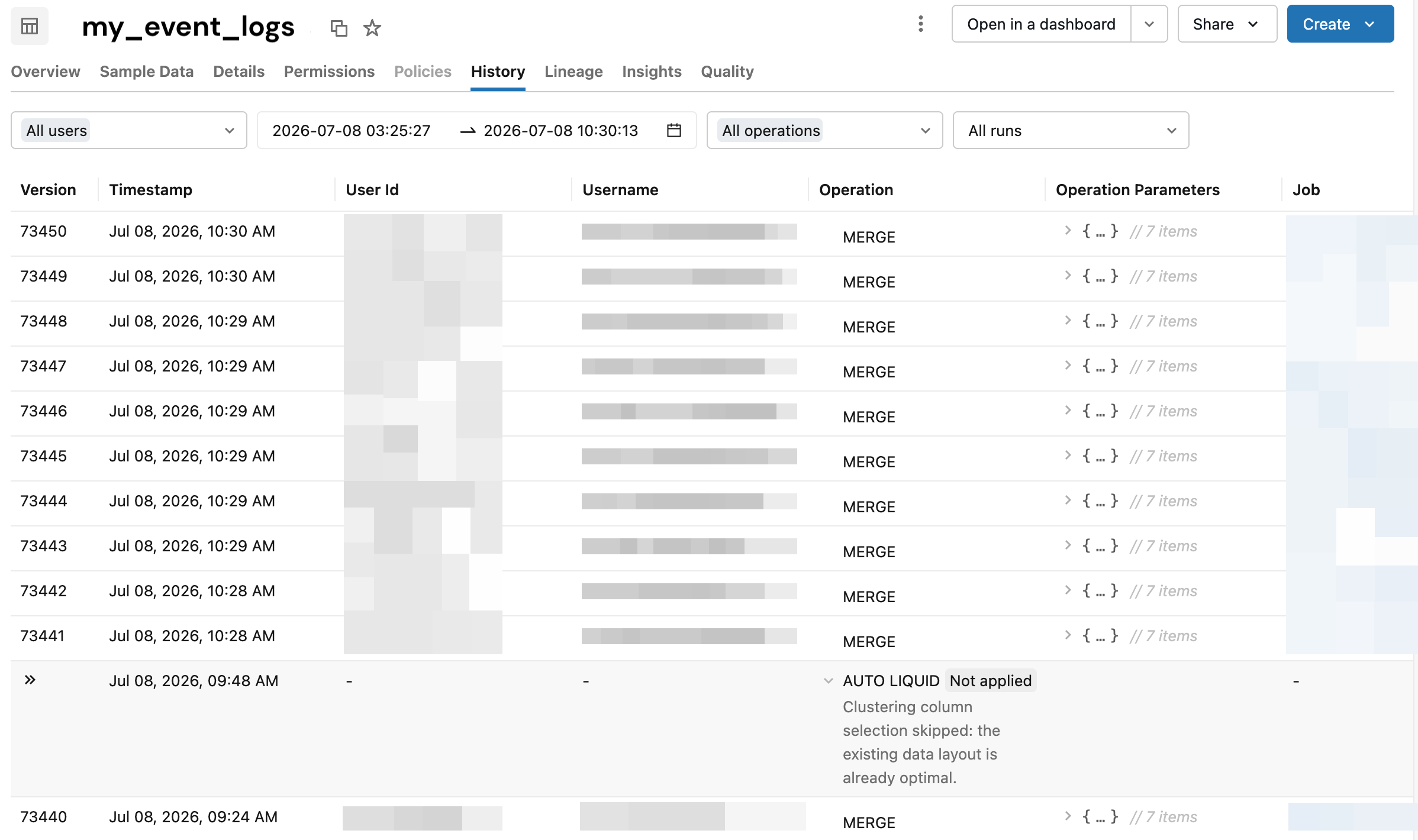
The following table shows how the operation types in the DESCRIBE TABLE EXTENDED output map to operations shown in Catalog Explorer:
DESCRIBE TABLE EXTENDED operation type |
Catalog Explorer operation | Description |
|---|---|---|
COMPACTION |
OPTIMIZE |
File compaction to improve query performance |
CLUSTERING |
OPTIMIZE |
Incremental liquid clustering |
AUTO_CLUSTERING_COLUMN_SELECTION |
AUTO LIQUID |
Evaluation or evolution of liquid clustering keys |
VACUUM |
VACUUM |
Removal of data files no longer referenced by the table |
Track predictive optimization with system tables
Databricks provides the system table system.storage.predictive_optimization_operations_history for observability into predictive optimization operations, costs, and impact. See Predictive optimization system table reference.
Private link error message
If the system table marks operations as failed with FAILED: PRIVATE_LINK_SETUP_ERROR, serverless private link might not be correctly configured. See Configure private connectivity to Azure resources.
Limitations
Predictive optimization does not run on the following table types:
- Tables loaded to a workspace as OpenSharing recipients
- External tables