Pastaba.
Prieigai prie šio puslapio reikalingas įgaliojimas. Galite bandyti prisijungti arba pakeisti katalogus.
Prieigai prie šio puslapio reikalingas įgaliojimas. Galite bandyti pakeisti katalogus.
Microsoft Defender for Endpoint Device Control feature enables you to audit, allow, or prevent the read, write, or execute access to removable storage, and allows you to manage iOS and Portable device and Bluetooth media with or without exclusions.
The procedures in this article require Microsoft Intune. Intune is a separate product that isn't part of Microsoft Defender for Endpoint, and it isn't included in all subscriptions. To use Intune, you need a subscription that includes it, or you can buy it separately as a standalone subscription or add-on. If you don't have Intune, you can deploy device control with Jamf Pro or deploy it manually. For more information, see Microsoft Intune licensing.
Licensing requirements
Before you get started with Removable Storage Access Control, you must confirm your Microsoft 365 subscription. To access and use Removable Storage Access Control, you must have Microsoft 365 E3.
Deploy policy by using Intune
Step 1: Build mobileconfig file
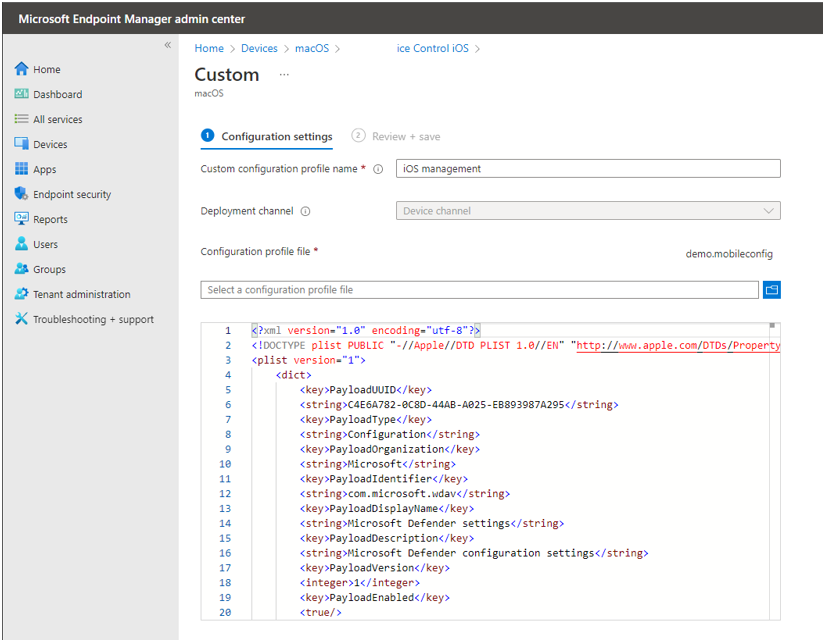
Now, you have groups, rules, and settings, replace the mobileconfig file with those values and put it under the Device Control node. Here's the demo file: mdatp-devicecontrol/demo.mobileconfig at main - microsoft/mdatp-devicecontrol (github.com). Make sure validate your policy with the JSON schema and make sure your policy format is correct: mdatp-devicecontrol/device_control_policy_schema.json at main - microsoft/mdatp-devicecontrol (github.com).
Note
See Device Control for macOS for information about settings, rules, and groups.
Deploy the mobileconfig file using Intune
You can deploy the mobileconfig file through https://intune.microsoft.com/ > Devices > macOS:
- select 'Create profile'
- select 'Templates' and 'Custom'