Pastaba.
Prieigai prie šio puslapio reikalingas įgaliojimas. Galite bandyti prisijungti arba pakeisti katalogus.
Prieigai prie šio puslapio reikalingas įgaliojimas. Galite bandyti pakeisti katalogus.
Use this guide to connect a Databricks workspace to Microsoft Agent 365. After you connect, Agent 365 synchronizes the workspace's Genie agents into the Microsoft 365 agent registry and collects their conversation activity for observability.
Note
Databricks Genie observability is available through the Frontier program.
Note
Databricks renamed Genie spaces to Genie agents. Some Databricks APIs and documentation still use the term Genie space.
How the connection works
Agent 365 signs in to the workspace as a Databricks service principal by using OAuth machine-to-machine (M2M) authentication. The connection uses these values:
| Connection field | Databricks value | Where to find it |
|---|---|---|
| Workspace URL | The workspace URL with only the scheme and host | Get the workspace URL |
| Client ID | The service principal's application ID | Create a service principal |
| Client secret | An OAuth secret for the service principal | Generate an OAuth secret |
With these credentials, Agent 365:
- Lists the Genie agents that the service principal can access and reads their details.
- Reads the Genie conversations and messages of each synchronized agent when Collect agent observability data is selected, and shows the activity on the agent's Activity tab.
Agent 365 doesn't ask Genie agents questions, run SQL queries, or change Genie agents. The only exception is when an administrator removes a synchronized agent in Agent 365 and the service principal has Can Manage permission on the Genie agent. In that case, Agent 365 moves the Genie agent to the trash in Databricks.
Before you begin
- Confirm that the Agent 365 AI administrator can create connections in the Microsoft 365 admin center.
- Identify the Databricks workspace that contains the Genie agents you want to synchronize. Each connection covers one workspace.
- Ask a Databricks workspace admin to complete the Databricks steps in this article. Workspace admins can create service principals, generate OAuth secrets, and share Genie agents.
- Confirm that Genie works in the workspace.
Get the workspace URL
Sign in to the Databricks workspace.
Copy the URL from the browser address bar.
Keep only the scheme and host. Remove any path or query string, such as
/genieor?o=1234567890123456.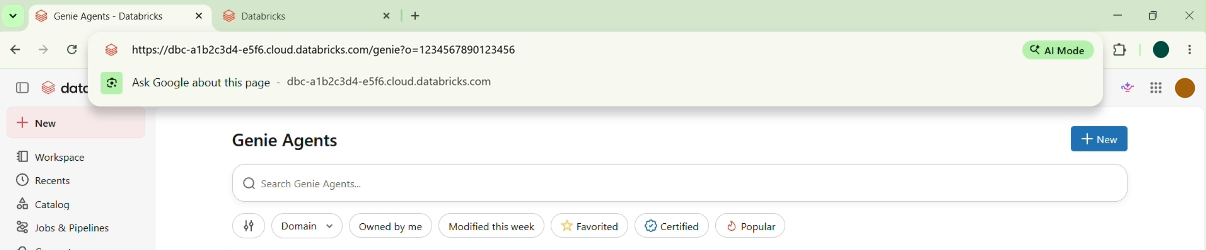
The workspace URL format depends on the cloud that hosts the workspace:
| Cloud | Example workspace URL |
|---|---|
| AWS | https://dbc-a1b2c3d4-e5f6.cloud.databricks.com |
| Azure | https://adb-1234567890123456.7.azuredatabricks.net |
| Google Cloud | https://1234567890123456.7.gcp.databricks.com |
Account admins can also find the workspace URL in the Databricks account console under Workspaces.
Create a service principal
Create a dedicated service principal for Agent 365 so that you can audit and revoke its access independently of other integrations.
In the Databricks workspace, select your username in the top bar, and then select Settings.
Select Identity and access. Next to Service principals, select Manage.
Select Add service principal.
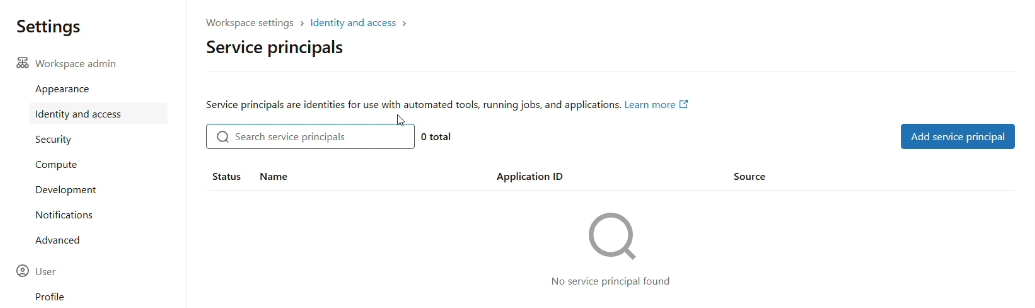
Create a new service principal with a descriptive name, such as
agent365-connector. In Azure Databricks, select Add new, and then select Databricks managed.Turn on the Databricks SQL access and Workspace access entitlements. Agent 365 doesn't need Consumer access. Turn on Admin access only if you choose to make the service principal a workspace admin.
You can set entitlements when you add the service principal, or later on the service principal's Configurations tab.
Open the service principal and copy its Application ID. Use this value as the client ID for the connection.
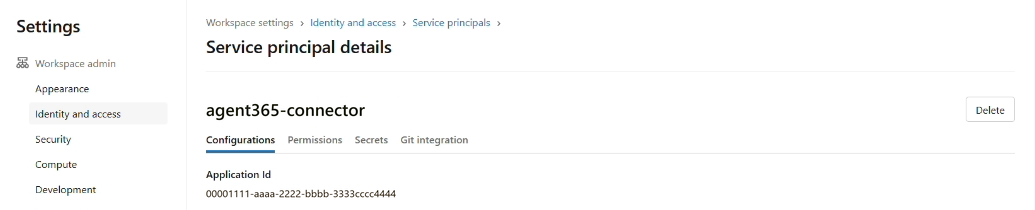
For more information, see Manage service principals.
Generate an OAuth secret
On the service principal's details page, select the Secrets tab, and then select Generate secret.
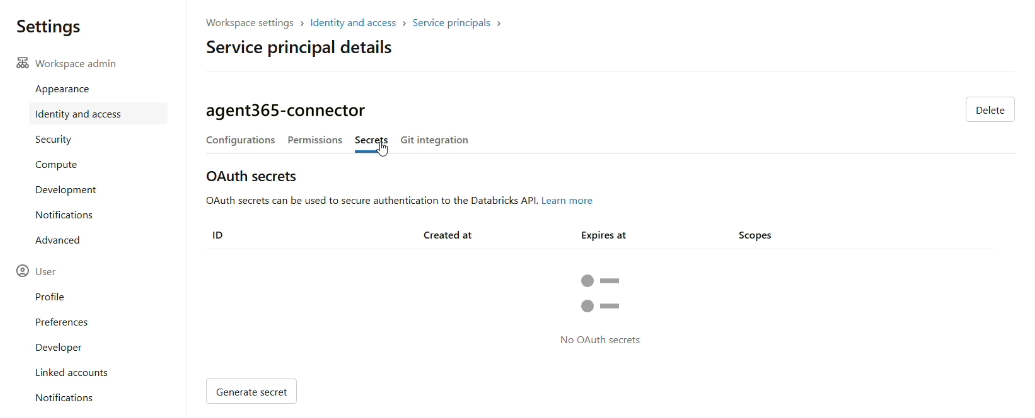
In Lifetime (days), enter how long the secret is valid. The maximum is 730 days.
Under Scope, select Other APIs, select Add scope, and then select all-apis.
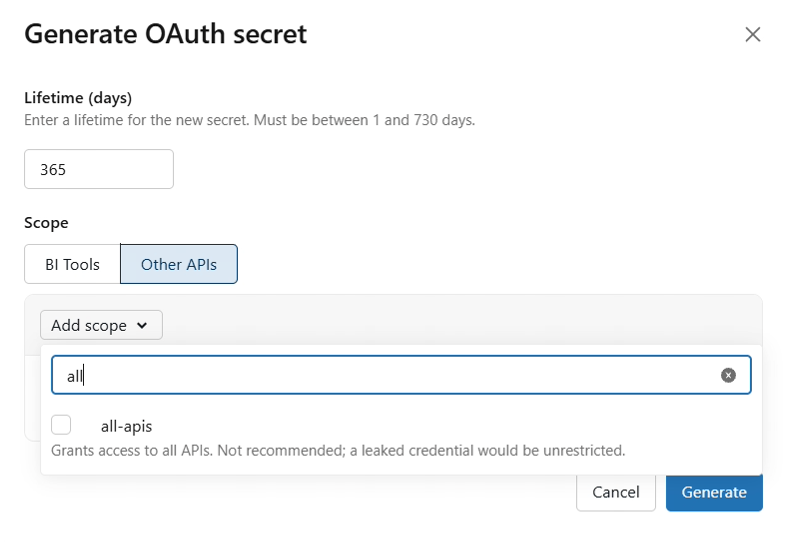
Select Generate.
Copy the secret and the client ID, and then select Done.
Important
Databricks shows the secret only once. Store it in a secure location, and don't share it in email, chat, or support requests. If you lose the secret, generate a new one. The client ID is the same as the service principal's application ID.
The dialog marks all-apis as not recommended. The service principal's entitlements and Genie agent permissions still limit what Agent 365 can read. Note the secret's expiration date so that you can rotate it before it expires.
Give the service principal access to Genie agents
Agent 365 synchronizes and monitors only the Genie agents that the service principal can access. Choose one of the following options.
Share Genie agents with the service principal
This option is recommended because it grants access only to the Genie agents that you choose.
- In the Databricks workspace, select Genie Agents in the sidebar, and then open a Genie agent.
- Select Share.
- Enter the service principal's name, select Add, and then set the permission level. To collect activity, select Can Manage.
- Repeat these steps for each Genie agent that you want to synchronize.
The permission level determines what Agent 365 can do:
| Permission | What Agent 365 can do |
|---|---|
| Can View | Synchronize the agent with its name, description, and the workspace's cloud and region. |
| Can Edit | Also read the agent's instructions and data sources, which appear as the agent's instructions and knowledge sources. |
| Can Manage | Also read the agent's sharing details, collect conversation activity from all users of the agent, and move the agent to the trash when an administrator removes it in Agent 365. |
Activity requires Can Manage. Databricks returns the conversations of all users of a Genie agent only to principals that have Can Manage permission. With a lower permission, the agent synchronizes, but no activity appears.
Tip
Genie agents inherit permissions from their workspace folder. To share several Genie agents at once, keep them in a folder and share the folder with the service principal.
After you share a Genie agent, it can take a minute or two before the service principal can list it.
Make the service principal a workspace admin
To cover every Genie agent in the workspace, including Genie agents that are created later, turn on Admin access for the service principal instead of sharing Genie agents individually.
Caution
Workspace admins have full administrative control of the workspace, including Can Manage permission on every Genie agent. Use this option only if your organization's security policy allows it.
- On the service principal's details page, select the Configurations tab.
- Select Admin access, and then select Update. Databricks adds the
service principal to the workspace
adminsgroup. - To confirm, go to Settings > Identity and access. Next to Groups, select Manage. Open the admins group and check that the service principal is listed on the Members tab.
Permission changes can take a few minutes to apply.
Create the connection
Open the Microsoft 365 admin center.
Select Agents > All agents.
In Connected platforms, select Manage.
Select + Connect a platform.
Enter a Name and Description for the connection.
In External platform, select Databricks Genie. The authentication method is OAuth (Service principal).
Enter the Workspace URL, Client ID, and Client secret.
Ensure that Collect agent observability data is selected.
Select Verify authentication.
When Connection verified successfully appears, select Save.
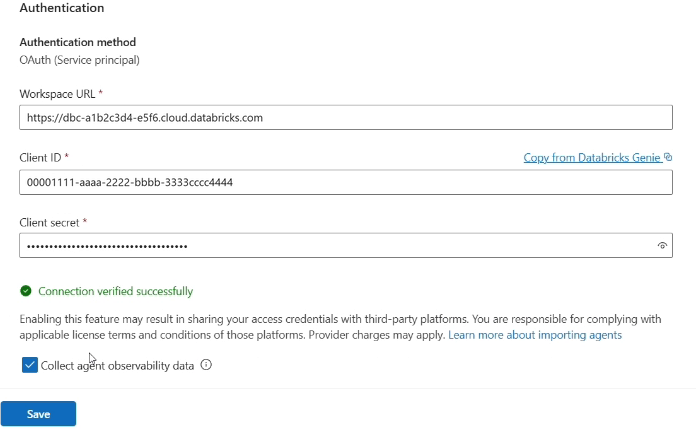
Verification confirms that Agent 365 can sign in to the workspace and list Genie agents. It succeeds even if the service principal can't access any Genie agents yet.
Synchronize agents
When you save the connection, the details pane opens and starts the first synchronization. When synchronization finishes, the pane shows **Sync
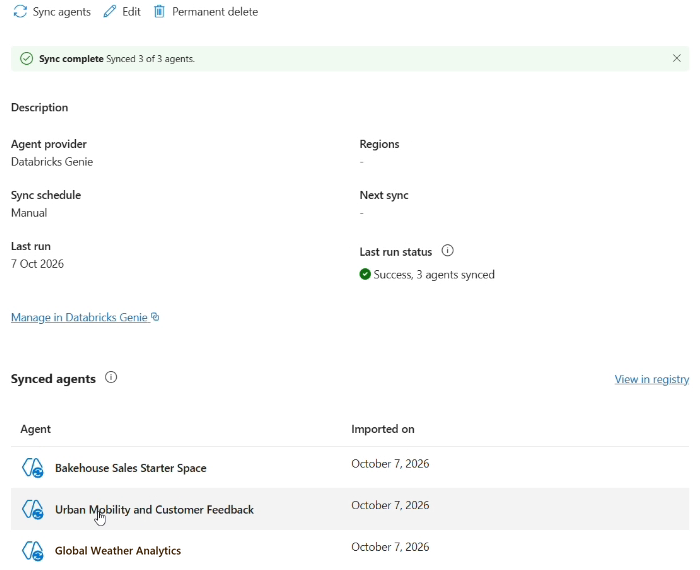
Agent 365 synchronizes every Genie agent that the service principal can access. Synchronized agents appear in the Microsoft 365 agent registry. To find them, go to Agents > All agents, and filter Platform by Databricks Genie. They also appear in a Databricks Genie cluster on the Agent map.
To synchronize after you create or share more Genie agents, open the connection and select Sync agents.
Verify activity
In Databricks, open a synchronized Genie agent and ask it a few questions. Skip this step if the agent already has recent conversations.
In the Microsoft 365 admin center, open the agent from the connection's Synced agents list or from Agents > All agents.
Select the Activity tab. When activity is collected, Sessions shows one or more.
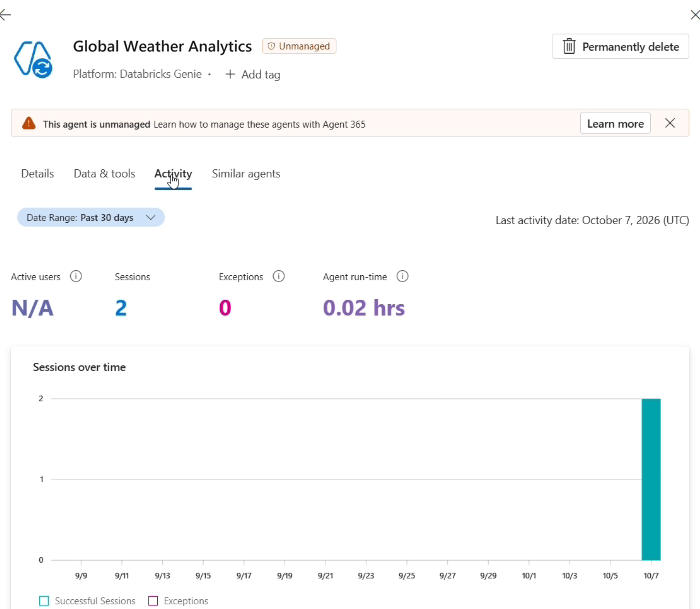
Activity can take some time to appear after a conversation. Databricks doesn't provide Microsoft Entra user identities, so Active users shows N/A. For metric definitions, see Third-party agent observability (Frontier).
Rotate or revoke access
To rotate the client secret:
- In Databricks, generate a new OAuth secret for the service principal. A service principal can have up to five secrets, so you can create the new secret before you delete the old one.
- In the Microsoft 365 admin center, open the connection and select Edit. Enter the new client secret, select Verify authentication, and then save the connection.
- In Databricks, delete the old secret from the service principal's Secrets tab.
To revoke access:
- To stop access to a specific Genie agent, remove the service principal from the Genie agent's sharing settings.
- To stop all access, delete the service principal's OAuth secrets, or remove the service principal from the workspace.
Troubleshoot
| Symptom | Likely cause | Resolution |
|---|---|---|
| Verify authentication fails | The client ID or secret is incorrect or includes extra spaces, the secret expired or was deleted, or the workspace URL belongs to a different workspace | Copy the values again, generate a new secret if needed, and enter the workspace URL with only the scheme and host. |
| Verification succeeds, but no agents or only some agents synchronize | The service principal can't access the Genie agents, or the agents were shared moments ago | Share the Genie agents with the service principal or make it a workspace admin. Wait a minute or two, and then select Sync agents. |
| Agents don't show instructions or knowledge sources | The service principal has only Can View permission | Grant Can Edit or Can Manage on the Genie agent, and then synchronize again. |
| Agents synchronize, but Activity shows no sessions | Collect agent observability data is cleared, the service principal doesn't have Can Manage, nobody has used the agent, or processing is still in progress | Select Collect agent observability data on the connection, grant Can Manage, interact with the agent, and check again later. |
| Genie agents are unavailable in Databricks | Partner-powered AI features are turned off for the account or workspace | Ask a Databricks account admin to turn on partner-powered AI features. |
| The client secret is lost | Databricks shows a secret only once | Generate a new secret and update the connection. |
Test the credentials outside Agent 365
If verification keeps failing, a Databricks admin can test the credentials
directly. Set the DATABRICKS_CLIENT_ID and DATABRICKS_CLIENT_SECRET
environment variables, and then request an access token from the workspace.
Replace <workspace-host> with the host of the workspace URL.
curl --request POST "https://<workspace-host>/oidc/v1/token" \
  --user "$DATABRICKS_CLIENT_ID:$DATABRICKS_CLIENT_SECRET" \
  --data "grant_type=client_credentials&scope=all-apis"
A successful response is a JSON object that contains an access_token value
and a token_type of Bearer. To check which Genie agents the service
principal can access, set the DATABRICKS_TOKEN environment variable to the
access_token value, and then list the Genie agents:
curl --request GET "https://<workspace-host>/api/2.0/genie/spaces" \
  --header "Authorization: Bearer $DATABRICKS_TOKEN"
Don't save or share the access token.
For connection issues that aren't specific to Databricks Genie, see Troubleshoot connected platforms.