Pastaba.
Prieigai prie šio puslapio reikalingas įgaliojimas. Galite bandyti prisijungti arba pakeisti katalogus.
Prieigai prie šio puslapio reikalingas įgaliojimas. Galite bandyti pakeisti katalogus.
Applies to:  SQL Server
Azure SQL Database
Azure Synapse Analytics
SQL Server
Azure SQL Database
Azure Synapse Analytics
Anyone can contribute to SQL Server documentation. This includes correcting typos, suggesting better explanations, and improving technical accuracy. This article explains how to get started with content contributions and how the process works.
There are two main workflows you can use to contribute:
| Workflow | Description |
|---|---|
| Edit in your browser | Good for small, quick edits of any article. |
| Edit locally with tools | Good for more complex edits, edits involving multiple articles, and frequent contributions. |
The Data Docs content team validates all public contributions for technical accuracy and consistency.
Edit in your browser
You can make simple edits to SQL Server content in your browser and then submit them to Microsoft. For more information, see the contributor guide overview.
The following steps summarize the process:
- On the page you want to suggest a change for, select the Kebab (three vertical dots) near In this article.
- Select Edit. The browser takes you to the GitHub repository for that article source file.
- In the source file, select the Pencil icon at the top right. If this icon doesn't appear, you might need to sign in to your GitHub account first. GitHub returns the editing page.
- Edit the text to propose changes. If you need help with formatting the new or changed text, see the Markdown Cheatsheet.
- After you make your edits, scroll back to the top of the page and select Commit changes.
- In the Commit message dialog box, provide a name for your pull request, such as Fixing typo.
- In the Add an optional extended description box, provide a brief explanation of your change.
- Select Propose changes to go to the Comparing changes page.
- On the Comparing changes page, select Create pull request to go to the Open a pull request page.
- On the Open a pull request page, select Create pull request to submit your pull request to the content team.
The following GIF demonstrates the end-to-end process for submitting changes in your browser:
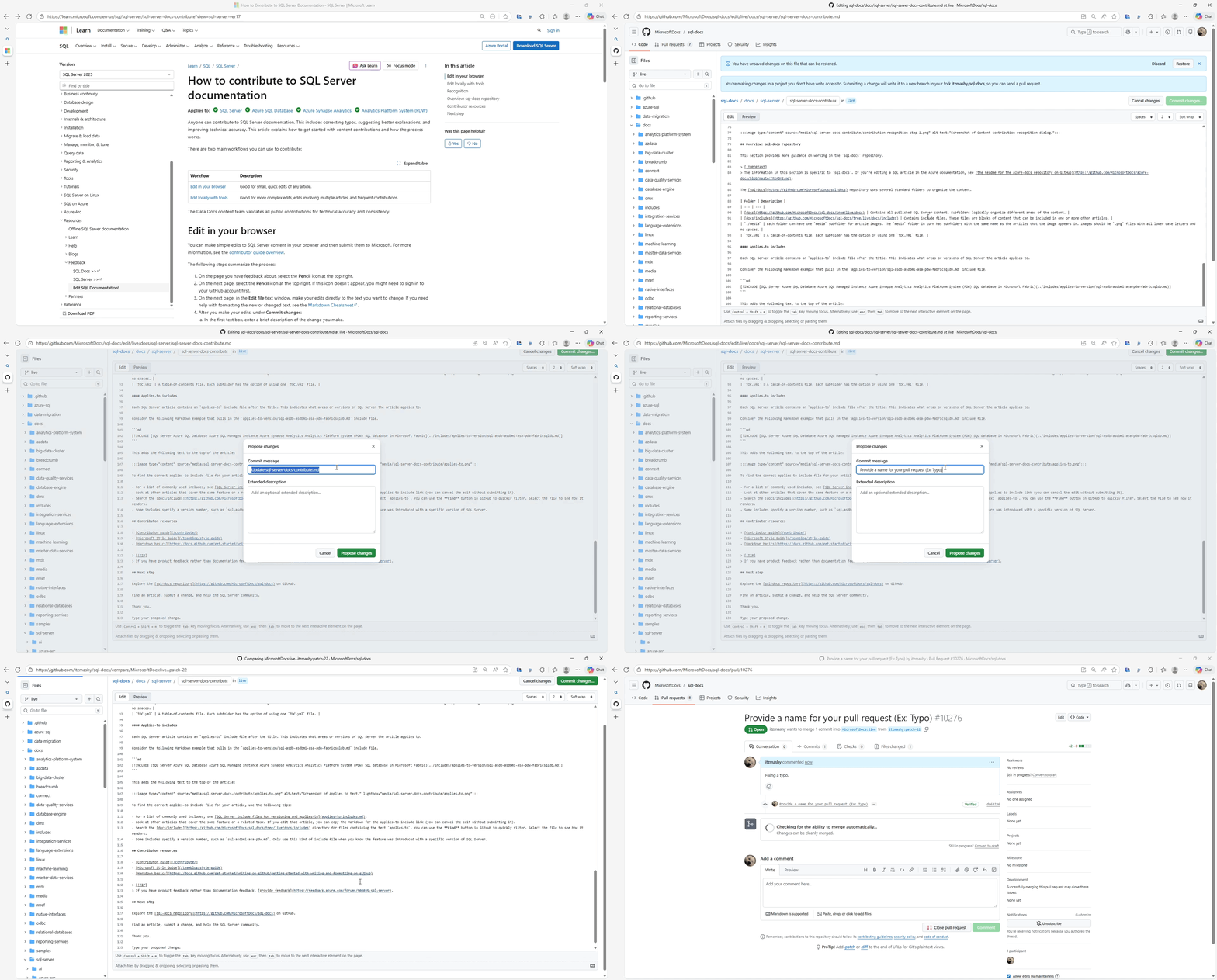
After you create your pull request, the content team reviews your proposed changes. If they accept your changes, they merge them into the documentation and publish them. You receive email notifications about the status of your pull request, depending on your Github notification settings.
Edit locally by using tools
Another option is to fork the sql-docs or azure-docs repositories and clone them locally to your machine. You can then use a Markdown editor and a git client to submit the changes. This workflow is good for edits that are more complex or involve multiple files. It's also good for frequent contributors to Microsoft technical documentation.
To contribute with this method, see the following articles:
- Create a GitHub account
- Install content authoring tools
- Set up a Git repository locally
- Use tools to contribute
If you submit a pull request with significant changes to documentation, you receive a comment in GitHub that asks you to submit an online Contribution License Agreement (CLA). You must complete the online form before your pull request can be accepted.
Overview: sql-docs repository
This section provides more guidance on working in the sql-docs repository.
Important
The information in this section is specific to sql-docs. If you're editing a SQL article in the Azure documentation, see the Readme for the azure-docs repository on GitHub.
The sql-docs repository uses several standard folders to organize the content.
| Folder | Description |
|---|---|
| docs | Contains all published SQL Server content. Subfolders logically organize different areas of the content. |
| docs/includes | Contains include files. These files are blocks of content that can be included in one or more other articles. |
./media |
Each folder can have one media subfolder for article images. The media folder in turn has subfolders with the same name as the articles that the image appears in. Images should be .png files with all lowercase letters and no spaces. |
TOC.yml |
A table-of-contents file. Each subfolder has the option of using one TOC.yml file. |
Contributor resources
Tip
If you have product feedback instead of documentation feedback, provide feedback.
Next step
Find an article, submit a change, and help the SQL Server community.