Valoda
Piezīmes
Lai piekļūtu šai lapai, ir nepieciešama autorizācija. Varat mēģināt pierakstīties vai mainīt direktorijus.
Lai piekļūtu šai lapai, ir nepieciešama autorizācija. Varat mēģināt mainīt direktorijus.
This tutorial shows how to automate unit testing by adding a test project to a solution.
Prerequisites
This tutorial works with the solution that you create in Create a .NET class library.
Create a unit test project
Unit tests provide automated software testing during your development and publishing. MSTest is one of three test frameworks you can choose from. The others are xUnit and nUnit.
Start Visual Studio.
Open the
ClassLibraryProjectssolution you created in Create a .NET class library.Add a new unit test project named "StringLibraryTest" to the solution.
Right-click on the solution in Solution Explorer and select Add > New project.
On the Add a new project page, enter mstest in the search box. Choose C# or Visual Basic from the Language list, and then choose All platforms from the Platform list.
Choose the MSTest Test Project template, and then choose Next.
On the Configure your new project page, enter StringLibraryTest in the Project name box. Then choose Next.
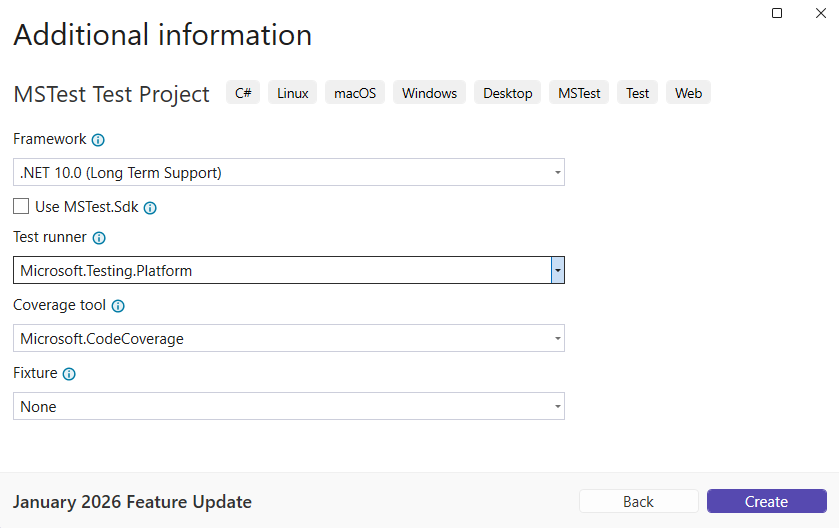
On the Additional information page, select .NET 10 in the Framework box, select Microsoft.Testing.Platform (MTP) for the Test runner, and then choose Create.
Visual Studio creates the project and opens the class file in the code window with the following code. If the language you want to use isn't shown, change the language selector at the top of the page.
namespace StringLibraryTest
{

    [TestClass]
    public sealed class Test1
    {
        [TestMethod]
        public void TestMethod1()
        {
        }
    }
}
Imports Microsoft.VisualStudio.TestTools.UnitTesting Namespace StringLibraryTest <TestClass> Public Class Test1 <TestMethod> Sub TestSub() End Sub End Class End NamespaceThe source code created by the unit test template does the following:
- Includes Microsoft.VisualStudio.TestTools.UnitTesting in the StringLibraryTest project file in C#, and imports Microsoft.VisualStudio.TestTools.UnitTesting in Visual Basic.
- Applies the TestClassAttribute attribute to the
Test1class. - Applies the TestMethodAttribute attribute to define
TestMethod1in C# orTestSubin Visual Basic.
Each method tagged with [TestMethod] in a test class tagged with [TestClass] executes automatically when the unit test runs.
Start Visual Studio Code.
Open the
ClassLibraryProjectssolution you created in Create a .NET class library.From Solution Explorer, select New Project, or from the Command Palette select .NET: New Project.
Select MSTest Test Project, name it "StringLibraryTest", select the default directory, and select Create Project.
The project template creates StringLibraryTest/Test1.cs with the following code:
namespace StringLibraryTest;

[TestClass]
public class Test1
{
    [TestMethod]
    public void TestMethod1()
    {
    }
}
The source code created by the unit test template does the following:
- It applies the TestClassAttribute attribute to the
Test1class. - It applies the TestMethodAttribute attribute to define
TestMethod1. - It imports the Microsoft.VisualStudio.TestTools.UnitTesting namespace, which contains the types used for unit testing. The namespace is imported via a
global usingdirective in GlobalUsings.cs.
Each method tagged with [TestMethod] in a test class tagged with [TestClass] is run automatically when the unit test is invoked.
- It applies the TestClassAttribute attribute to the
Open the terminal and navigate to the tutorials folder containing the StringLibrary and ShowCase projects.
Create a new MSTest test project:
dotnet new mstest -n StringLibraryTestThe project template creates StringLibraryTest/Test1.cs with the following code:
namespace StringLibraryTest;

[TestClass]
public class Test1
{
    [TestMethod]
    public void TestMethod1()
    {
    }
}
The source code created by the unit test template does the following:
- It applies the TestClassAttribute attribute to the
Test1class. - It applies the TestMethodAttribute attribute to define
TestMethod1. - It imports the Microsoft.VisualStudio.TestTools.UnitTesting namespace, which contains the types used for unit testing.
Each method tagged with [TestMethod] in a test class tagged with [TestClass] is run automatically when the unit test is invoked.
- It applies the TestClassAttribute attribute to the
Add a project reference
For the test project to work with the StringLibrary class, add a reference in the StringLibraryTest project to the StringLibrary project.
In Solution Explorer, right-click the Dependencies node of the StringLibraryTest project and select Add Project Reference from the context menu.
In the Reference Manager dialog, select the box next to StringLibrary.
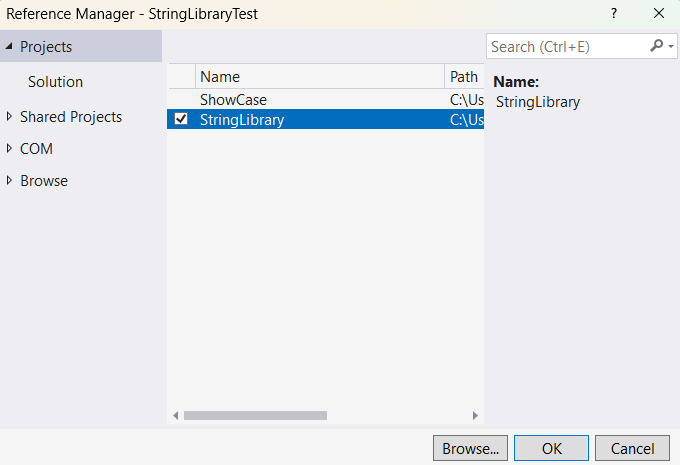
Select OK.
From Solution Explorer right click on the 'StringLibraryTest' Project and select Add Project Reference.
Select "StringLibrary".
Navigate to the StringLibraryTest folder and add the project reference:
cd StringLibraryTest
dotnet add reference ../StringLibrary/StringLibrary.csproj
Add and run unit test methods
When a unit test runs, each method marked with the TestMethodAttribute attribute in a class marked with the TestClassAttribute attribute executes automatically. A test method ends when the first failure is found or when all tests contained in the method succeed.
The most common tests call members of the Assert class. Many assert methods include at least two parameters, one of which is the expected test result and the other of which is the actual test result. Some of the Assert class's most frequently called methods are shown in the following table:
| Assert methods | Function |
|---|---|
Assert.AreEqual |
Verifies that two values or objects are equal. The assert fails if the values or objects aren't equal. |
Assert.AreSame |
Verifies that two object variables refer to the same object. The assert fails if the variables refer to different objects. |
Assert.IsFalse |
Verifies that a condition is false. The assert fails if the condition is true. |
Assert.IsNotNull |
Verifies that an object isn't null. The assert fails if the object is null. |
You can also use the Assert.Throws method in a test method to indicate the type of exception it's expected to throw. The test fails if the specified exception isn't thrown.
In testing the StringLibrary.StartsWithUpper method, you want to provide a number of strings that begin with an uppercase character. You expect the method to return true in these cases, so you can call the Assert.IsTrue method. Similarly, you want to provide a number of strings that begin with something other than an uppercase character. You expect the method to return false in these cases, so you can call the Assert.IsFalse method.
Since your library method handles strings, you also want to make sure that it successfully handles an empty string (String.Empty) and a null string. An empty string is one that has no characters and whose Length is 0. A null string is one that hasn't been initialized. You can call StartsWithUpper directly as a static method and pass a single String argument. Or you can call StartsWithUpper as an extension method on a string variable assigned to null.
You'll define three methods, each of which calls an Assert method for each element in a string array. You'll call a method overload that lets you specify an error message to be displayed in case of test failure. The message identifies the string that caused the failure.
To create the test methods:
In the Test1.cs or Test1.vb code window, replace the code with the following code:
using UtilityLibraries;

namespace StringLibraryTest
{
    [TestClass]
    public sealed class Test1
    {
        [TestMethod]
        public void TestStartsWithUpper()
        {
            // Tests that we expect to return true.
            string[] words = ["Alphabet", "Zebra", "ABC", "Αθήνα", "Москва"];
            foreach (var word in words)
            {
                bool result = word.StartsWithUpper();
                Assert.IsTrue(result, $"Expected for '{word}': true; Actual: {result}");
            }
        }

        [TestMethod]
        public void TestDoesNotStartWithUpper()
        {
            // Tests that we expect to return false.
            string[] words = ["alphabet", "zebra", "abc", "αυτοκινητοβιομηχανία", "государство",
                          "1234", ".", ";", " "];
            foreach (var word in words)
            {
                bool result = word.StartsWithUpper();
                Assert.IsFalse(result, $"Expected for '{word}': false; Actual: {result}");
            }
        }

        [TestMethod]
        public void DirectCallWithNullOrEmpty()
        {
            // Tests that we expect to return false.
            string?[] words = [string.Empty, null];
            foreach (var word in words)
            {
                bool result = StringLibrary.StartsWithUpper(word);
                Assert.IsFalse(result, $"Expected for '{word ?? "<null>"}': false; Actual: {result}");
            }
        }
    }
}
Imports Microsoft.VisualStudio.TestTools.UnitTesting Imports UtilityLibraries Namespace StringLibraryTest <TestClass> Public Class UnitTest1 <TestMethod> Public Sub TestStartsWithUpper() ' Tests that we expect to return true. Dim words() As String = {"Alphabet", "Zebra", "ABC", "Αθήνα", "Москва"} For Each word In words Dim result As Boolean = word.StartsWithUpper() Assert.IsTrue(result, $"Expected for '{word}': true; Actual: {result}") Next End Sub <TestMethod> Public Sub TestDoesNotStartWithUpper() ' Tests that we expect to return false. Dim words() As String = {"alphabet", "zebra", "abc", "αυτοκινητοβιομηχανία", "государство", "1234", ".", ";", " "} For Each word In words Dim result As Boolean = word.StartsWithUpper() Assert.IsFalse(result, $"Expected for '{word}': false; Actual: {result}") Next End Sub <TestMethod> Public Sub DirectCallWithNullOrEmpty() ' Tests that we expect to return false. Dim words() As String = {String.Empty, Nothing} For Each word In words Dim result As Boolean = StringLibrary.StartsWithUpper(word) Assert.IsFalse(result, $"Expected for '{If(word Is Nothing, "<null>", word)}': false; Actual: {result}") Next End Sub End Class End NamespaceThe test of uppercase characters in the
TestStartsWithUppermethod includes the Greek capital letter alpha (U+0391) and the Cyrillic capital letter EM (U+041C). The test of lowercase characters in theTestDoesNotStartWithUppermethod includes the Greek small letter alpha (U+03B1) and the Cyrillic small letter Ghe (U+0433).On the menu bar, select File > Save Test1.cs As or File > Save Test1.vb As. In the Save File As dialog, select the arrow beside the Save button, and select Save with Encoding.
In the Confirm Save As dialog, select the Yes button to save the file.
In the Advanced Save Options dialog, select Unicode (UTF-8 with signature) - Codepage 65001 from the Encoding drop-down list and select OK.
If you fail to save your source code as a UTF8-encoded file, Visual Studio might save it as an ASCII file. When that happens, the runtime doesn't accurately decode the UTF8 characters outside of the ASCII range, and the test results aren't correct.
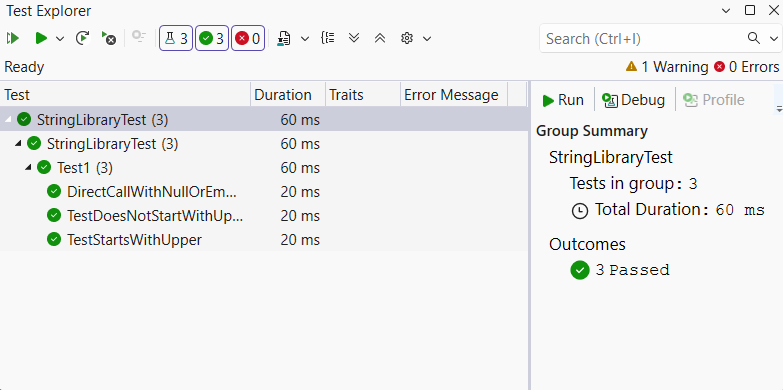
On the menu bar, select Test > Run All Tests. If the Test Explorer window doesn't open, open it by choosing Test > Test Explorer. The three tests are listed in the Passed Tests section, and the Summary section reports the result of the test run.
Open StringLibraryTest/Test1.cs and replace all of the code with the following code.
using UtilityLibraries;

namespace StringLibraryTest
{
    [TestClass]
    public sealed class Test1
    {
        [TestMethod]
        public void TestStartsWithUpper()
        {
            // Tests that we expect to return true.
            string[] words = ["Alphabet", "Zebra", "ABC", "Αθήνα", "Москва"];
            foreach (var word in words)
            {
                bool result = word.StartsWithUpper();
                Assert.IsTrue(result, $"Expected for '{word}': true; Actual: {result}");
            }
        }

        [TestMethod]
        public void TestDoesNotStartWithUpper()
        {
            // Tests that we expect to return false.
            string[] words = ["alphabet", "zebra", "abc", "αυτοκινητοβιομηχανία", "государство",
                          "1234", ".", ";", " "];
            foreach (var word in words)
            {
                bool result = word.StartsWithUpper();
                Assert.IsFalse(result, $"Expected for '{word}': false; Actual: {result}");
            }
        }

        [TestMethod]
        public void DirectCallWithNullOrEmpty()
        {
            // Tests that we expect to return false.
            string?[] words = [string.Empty, null];
            foreach (var word in words)
            {
                bool result = StringLibrary.StartsWithUpper(word);
                Assert.IsFalse(result, $"Expected for '{word ?? "<null>"}': false; Actual: {result}");
            }
        }
    }
}
The test of uppercase characters in the
TestStartsWithUppermethod includes the Greek capital letter alpha (U+0391) and the Cyrillic capital letter EM (U+041C). The test of lowercase characters in theTestDoesNotStartWithUppermethod includes the Greek small letter alpha (U+03B1) and the Cyrillic small letter Ghe (U+0433).Save your changes.
Build and run your tests
In Solution Explorer, right-click the solution and select Build or from the Command Palette, select .NET: Build.
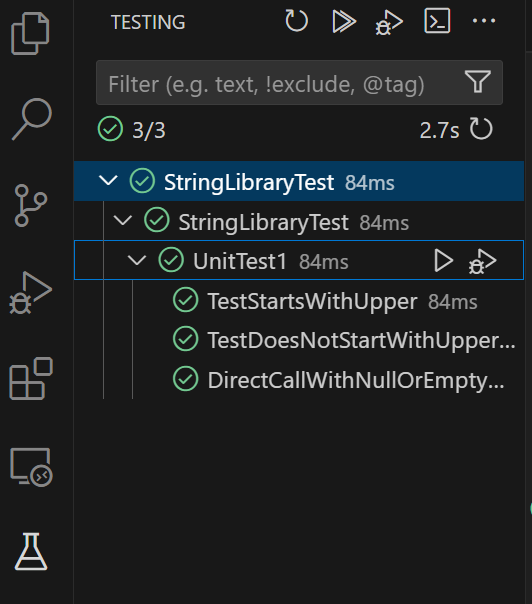
Select the Testing window, select Run Tests or from the Command Palette, select Test: Run all Tests.
Open StringLibraryTest/Test1.cs and replace all of the code with the following code:
using UtilityLibraries;

namespace StringLibraryTest
{
    [TestClass]
    public sealed class Test1
    {
        [TestMethod]
        public void TestStartsWithUpper()
        {
            // Tests that we expect to return true.
            string[] words = ["Alphabet", "Zebra", "ABC", "Αθήνα", "Москва"];
            foreach (var word in words)
            {
                bool result = word.StartsWithUpper();
                Assert.IsTrue(result, $"Expected for '{word}': true; Actual: {result}");
            }
        }

        [TestMethod]
        public void TestDoesNotStartWithUpper()
        {
            // Tests that we expect to return false.
            string[] words = ["alphabet", "zebra", "abc", "αυτοκινητοβιομηχανία", "государство",
                          "1234", ".", ";", " "];
            foreach (var word in words)
            {
                bool result = word.StartsWithUpper();
                Assert.IsFalse(result, $"Expected for '{word}': false; Actual: {result}");
            }
        }

        [TestMethod]
        public void DirectCallWithNullOrEmpty()
        {
            // Tests that we expect to return false.
            string?[] words = [string.Empty, null];
            foreach (var word in words)
            {
                bool result = StringLibrary.StartsWithUpper(word);
                Assert.IsFalse(result, $"Expected for '{word ?? "<null>"}': false; Actual: {result}");
            }
        }
    }
}
The test of uppercase characters in the
TestStartsWithUppermethod includes the Greek capital letter alpha (U+0391) and the Cyrillic capital letter EM (U+041C). The test of lowercase characters in theTestDoesNotStartWithUppermethod includes the Greek small letter alpha (U+03B1) and the Cyrillic small letter Ghe (U+0433).Save your changes and run the tests:
dotnet testThe tests should pass.
Handle test failures
If you're doing test-driven development (TDD), you write tests first and they fail the first time you run them. Then you add code to the app that makes the test succeed. For this tutorial, you created the test after writing the app code that it validates, so you haven't seen the test fail. To validate that a test fails when you expect it to fail, add an invalid value to the test input.
Modify the
wordsarray in theTestDoesNotStartWithUppermethod to include the string "Error".string[] words = { "alphabet", "Error", "zebra", "abc", "αυτοκινητοβιομηχανία", "государство", "1234", ".", ";", " " };Dim words() As String = { "alphabet", "Error", "zebra", "abc", "αυτοκινητοβιομηχανία", "государство", "1234", ".", ";", " " }
Run the test by selecting Test > Run All Tests from the menu bar. The Test Explorer window indicates that two tests succeeded and one failed.
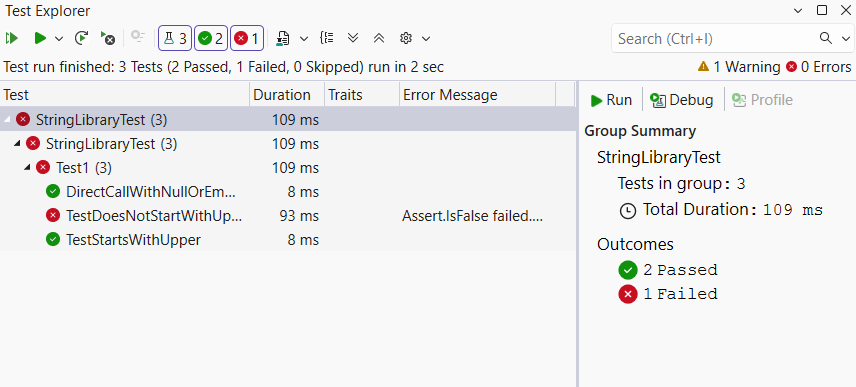
Select the failed test,
TestDoesNotStartWith.The Test Explorer window displays the message produced by the assert: "Assert.IsFalse failed. Expected for 'Error': false; actual: True." Because of the failure, the strings in the array after "Error" weren't tested.
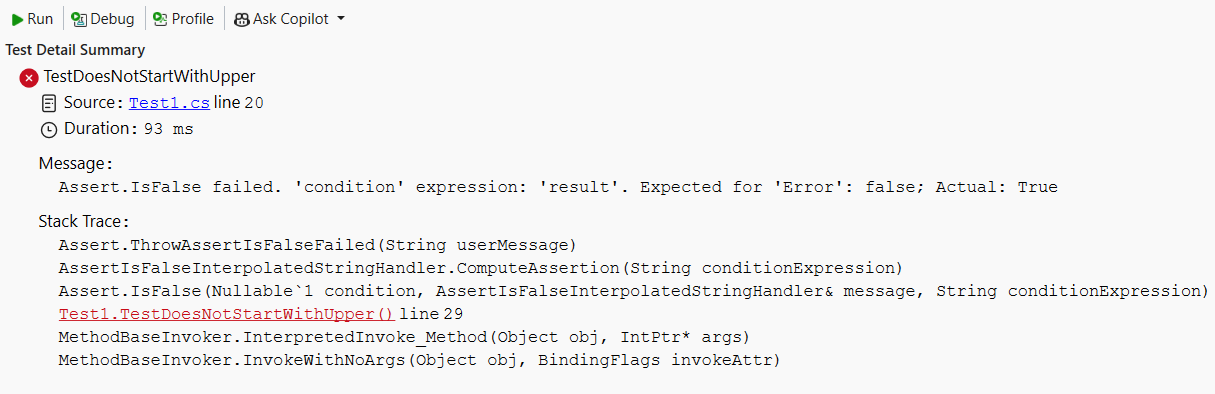
Run the tests by clicking on the green error next to the test in the editor.
The output shows that the test fails, and it provides an error message for the failed test: "Assert.IsFalse failed. Expected for 'Error': false; actual: True". Because of the failure, no strings in the array after "Error" were tested.
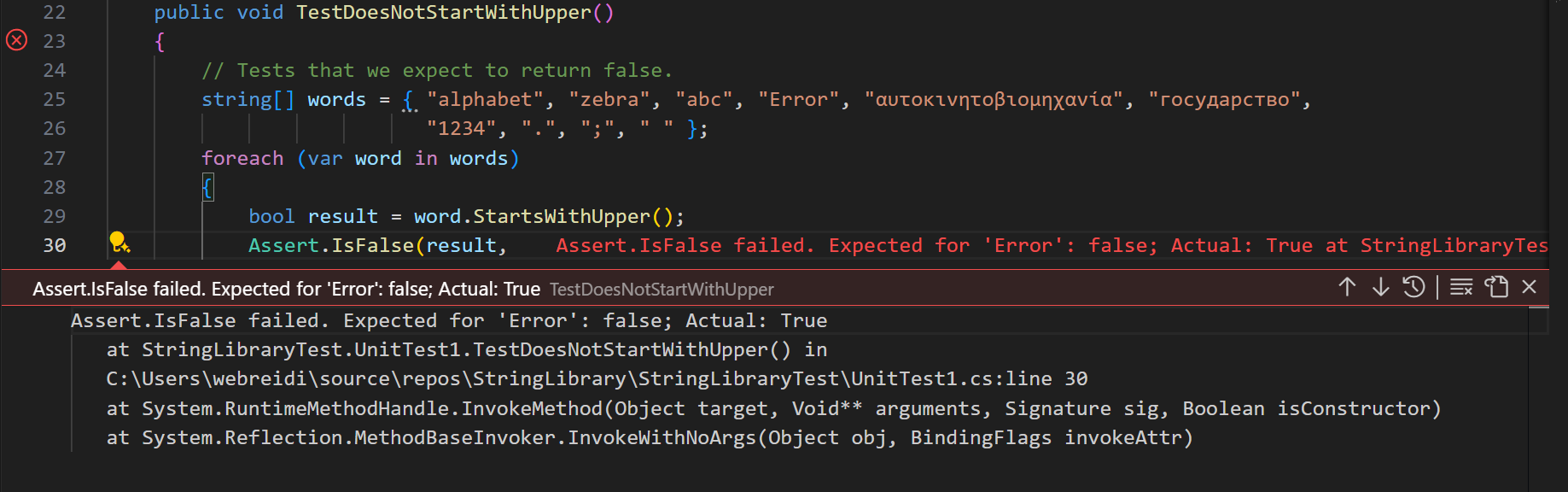
Run the tests:
dotnet testThe output shows that the test fails, and it provides an error message for the failed test: "Assert.IsFalse failed. Expected for 'Error': false; actual: True". Because of the failure, no strings in the array after "Error" were tested.
Remove the string "Error" that you added.
Rerun the test and the tests pass.
Test the Release version of the library
Now that the tests have all passed when running the Debug build of the library, run the tests an additional time against the Release build of the library. A number of factors, including compiler optimizations, can sometimes produce different behavior between Debug and Release builds.
To test the Release build:
In the Visual Studio toolbar, change the build configuration from Debug to Release.
In Solution Explorer, right-click the StringLibrary project and select Build from the context menu to recompile the library.
Run the unit tests by choosing Test > Run All Tests from the menu bar. The tests pass.
Run the tests with the Release build configuration:
dotnet test StringLibraryTest/StringLibraryTest.csproj --configuration Release
The tests pass.
Run the tests with the Release build configuration:
dotnet test --configuration Release
The tests pass.
Debug tests
If you're using Visual Studio as your IDE, you can use the same process shown in Tutorial: Debug a .NET console application to debug code using your unit test project. Instead of starting the ShowCase app project, right-click the StringLibraryTests project, and select Debug Tests from the context menu.
Visual Studio starts the test project with the debugger attached. Execution stops at any breakpoint you've added to the test project or the underlying library code.
If you're using Visual Studio Code as your IDE, you can use the same process shown in Debug a .NET console application to debug code using your unit test project. Instead of starting the ShowCase app project, open StringLibraryTest/Test1.cs, and select Debug Tests in current file between lines 7 and 8. If you're unable to find it, press Ctrl+Shift+P to open the command palette and enter Reload Window.
Visual Studio Code starts the test project with the debugger attached. Execution will stop at any breakpoint you've added to the test project or the underlying library code.
Additional resources
Cleanup resources
GitHub automatically deletes your Codespace after 30 days of inactivity. If you plan to explore more tutorials in this series, you can leave your Codespace provisioned. If you're ready to visit the .NET site to download the .NET SDK, you can delete your Codespace. To delete your Codespace, open a browser window and navigate to your Codespaces. You see a list of your codespaces in the window. Select the three dots (...) in the entry for the learn tutorial codespace. Then select "Delete".
Next steps
In this tutorial, you unit tested a class library. You can make the library available to others by publishing it to NuGet as a package. To learn how, follow a NuGet tutorial:
If you publish a library as a NuGet package, others can install and use it. To learn how, follow a NuGet tutorial:
A library doesn't have to be distributed as a package. It can be bundled with a console app that uses it. To learn how to publish a console app, see the earlier tutorial in this series:
Sadarbojieties ar mums vietnē GitHub
Šī satura avotu var atrast vietnē GitHub, kur varat arī izveidot un pārskatīt problēmas un atgādāšanas pieprasījumus. Lai iegūtu papildinformāciju, skatiet mūsu līdzstrādnieku rokasgrāmatu.
