Piezīmes
Lai piekļūtu šai lapai, ir nepieciešama autorizācija. Varat mēģināt pierakstīties vai mainīt direktorijus.
Lai piekļūtu šai lapai, ir nepieciešama autorizācija. Varat mēģināt mainīt direktorijus.
You can add comments to reports, including Power BI reports, within the web portal of a report server. The comments are stored with the report, and anyone with the Comment on reports or Manage comments role assignment can see the comments for the report. For more information, see the Permissions for report comments section.
Note
As of June 2025, the comments feature is deprecated and disabled by default in all versions of Reporting Services later than 2019 and in Power BI Report Server. To enable the feature again, see Server properties advanced page for the controlling property.
The comments feature will be removed completely in a future version of Power BI Report Server.
Add or view comments
Open a paginated or Power BI report on a report server.
In the upper-right corner, select Comments.
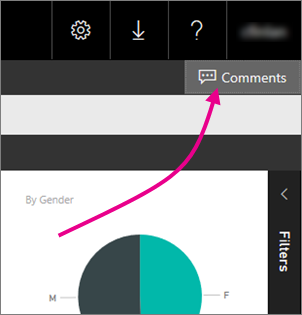
In the Comments pane, you can see any existing comments.
Write your comment, and then select Post Comment.
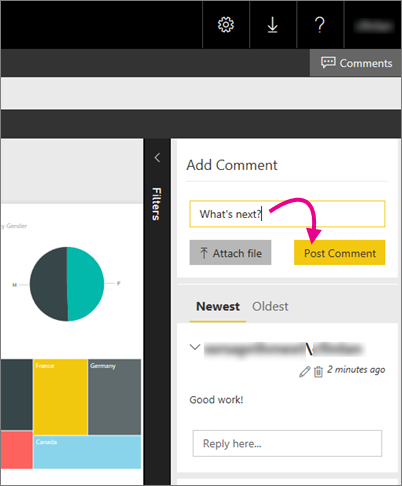
Your comment appears in the Comments pane on the web portal, along with any previous comments. Comments don't appear with the report in the Power BI mobile apps.
Tip
Did you know? You can annotate Power BI reports in the Power BI mobile apps and share the annotated reports with others.
Permissions for report comments
In Power BI Report Server, your ability to see, edit, delete, and manage comments depends on the tasks included in your role assignment.
- To see all comments and post, edit, and delete your own comments, your role assignment must include the Comment on reports task.
- To see all comments; post, edit, and delete your own comments; and delete other people's comments, your role assignment must include the Manage comments task.
For more information about permissions related to comments, see Tasks and Permissions - Item-Level Tasks in the SQL Server Reporting Services documentation.