Note
Access to this page requires authorization. You can try signing in or changing directories.
Access to this page requires authorization. You can try changing directories.
Use this article to troubleshoot common Microsoft 365 usage analytics errors in Power BI and the Microsoft 365 admin center.
We are unable to process your request. You have to first subscribe to this data from the Microsoft 365 admin center
Error code: 422
Where you see this message: In Power BI when you connect to the Microsoft 365 Usage Analytics template app, or when you directly call the Microsoft 365 Reporting APIs.
Cause: Before you can connect to the app, you need to subscribe to the data from the Microsoft 365 admin center. If you don't complete this step, you can't connect to the template app, even if you provide your Microsoft 365 tenant ID.
To fix this error: To subscribe to the data:
Sign in to the Microsoft 365 admin center.
From the left navigation bar, select … Show all, and then select Reports to expand it.
Under Reports, select Usage.
In the Microsoft 365 usage analytics section of the Usage page, select Get Started.
Under Enable Power BI for usage analytics in the Reports pane, select Make organizational usage data available to Microsoft 365 usage analytics for Power BI, and then select Save.
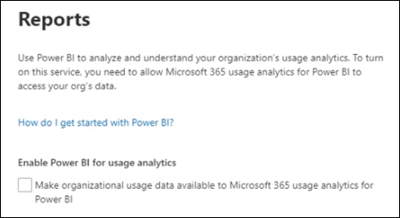
Selecting this option starts a process to make your organization's data accessible for this report. You might see a message that states We're getting your data ready for Microsoft 365 usage analytics. This process can take up to 24 hours to complete.
We are processing your data
Where you see this message: In the Microsoft 365 usage analytics tile, on the Usage dashboard in the Microsoft 365 admin center.
Cause: When you opt in to seeing data in the template app from the Microsoft 365 admin center, the Microsoft 365 system starts generating historical usage data for your organization. Depending on the size of your tenant, this step can take anywhere from 2 hours to 48 hours.
To fix this issue: The data appears within three days. However, if the message doesn't change to Your data is ready after three days, contact Microsoft 365 for business support.
We are unable to process your request at this time. We are still preparing the data for your organization
Error code: 423
Where you see this message: In Power BI, when you're connecting to the Microsoft 365 Usage Analytics template app or when directly calling the Microsoft 365 Reporting APIs.
Cause: When you opt in to seeing data in the template app from the admin center, the Microsoft 365 system starts generating historical usage data for your organization. Depending on the size of your tenant, this step can take anywhere from two hours to 48 hours.
To fix this issue: The data appears within three days. However, if the message doesn't change to Your data is ready after three days, contact Microsoft 365 for business support.
The tenant ID you provided is not in the correct format
Error code: 400
Where you see this message: In Power BI, when you're connecting to the Microsoft 365 Usage Analytics template app or when directly calling the Microsoft 365 Reporting APIs.
Cause: The tenant ID is a GUID and must be in the format of xxxxxxxx-xxxx-xxxx-xxxx-xxxxxxxxxxxx. If you enter any other string in the tenant input box, you get this error.
To fix this error:
Sign in to the Microsoft 365 admin center.
From the left navigation bar, select … Show all, and then select Reports to expand it.
Under Reports, select Usage.
In the Microsoft 365 usage analytics section of the Usage page, the tenant ID is listed on the tile. You can copy it from here and paste it in the dialog box for connecting to the template app.
The tenant ID you provided is not recognized by our system
Error code: 404
Where you see this message:
- When you connect to the Microsoft 365 Usage Analytics template app in Power BI.
- When you directly call the Microsoft 365 Reporting APIs.
Cause: The tenant ID you provided isn't valid or doesn't exist.
To fix this error:
Sign in to the Microsoft 365 admin center.
From the left navigation bar, select … Show all, and then select Reports to expand it.
Under Reports, select Usage.
In the Microsoft 365 usage analytics section of the Usage page, the tenant ID is listed on the tile. You can copy it from here and paste it in the dialog box for connecting to the template app.
Please re-enter your credentials to sign in to Power BI again
Error code: 302
Where you see this message:
- When you connect to the Microsoft 365 Usage Analytics template app in Power BI.
- When you directly call the Microsoft 365 Reporting APIs.
Cause: The authorization code failed and can require you to enter your credentials again.
To fix this error: Sign out of Power BI, and then sign in again.
You do not have the right authorization to access to this data. To be able to gain access to the data from this service you need to be either a global admin or any one of the product admins
Error code: 403
Where you see this message:
- When you connect to the Microsoft 365 Usage Analytics template app in Power BI.
- When you directly call the Microsoft 365 Reporting APIs.
Cause: The authorization code fails because the user who tries to connect to the template app doesn't have the right level of authorization to access this data.
To fix this error: To connect to the template app, provide the credentials of a user who has one of the following roles in Microsoft 365:
- Exchange Administrator.
- Skype for Business Administrator.
- SharePoint Administrator.
- Global Reader.
- Reports Reader.
For more information, see About administrator roles in the Microsoft 365 admin center.
Important
Microsoft recommends that you use roles with the fewest permissions. Using roles with the fewest permissions helps improve security for your organization. Global Administrator is a highly privileged role that should be limited to emergency scenarios when you can't use an existing role. For more information, see About administrator roles in the Microsoft 365 admin center.
Refresh failed
Where you see this message: Email from Power BI or failed status in the refresh history.
Cause: Sometimes, the credentials of the user who connects to the template app reset but don't update in the connection settings of the template app. This problem causes the user to see refresh failure errors.
To fix this error:
- In Power BI, find the dataset corresponding to the Microsoft 365 Usage Analytics template app.
- Select schedule refresh.
- Enter your admin credentials.
If that step doesn't work, clear the cache, and re-create the template app.