Note
Access to this page requires authorization. You can try signing in or changing directories.
Access to this page requires authorization. You can try changing directories.
Archive a file (preview)
On sites with file-level archive enabled, users can manually archive files that they have edit permissions for. Users select one or more files and choose the 'Archive' action. After a file is archived, it requires reactivation before it can be read. Files that were recently archived can be reactivated instantly.
To learn more about archive states, see Archive states in Microsoft 365 Archive.
Archive a site
SharePoint Administrators or Global Administrators can archive both non-group-connected sites and group-connected sites from the SharePoint admin center. When a group-connected site is archived, only the site is archived and the rest of the group remains active. After a site is archived, it stops consuming active storage quota and begins consuming Microsoft 365 Archive storage. Changes in storage usage might take time to appear in the SharePoint admin center.
Important
Microsoft recommends that you use roles with the fewest permissions. This helps improve security for your organization. Global Administrator is a highly privileged role that should be limited to emergency scenarios when you can't use an existing role.
To learn more about archive states, see Archive states in Microsoft 365 Archive.
When a site is archived, compliance features such as eDiscovery and retention labels continue to apply.
In the SharePoint admin center, go to Active sites, and sign in with an account that has admin permissions for your organization.
Note
If you have Office 365 operated by 21Vianet (China), sign in to the Microsoft 365 admin center, then browse to the SharePoint admin center and open the Active sites page.
In the left column, select one or more sites.
Select Archive, and to confirm, select Archive.
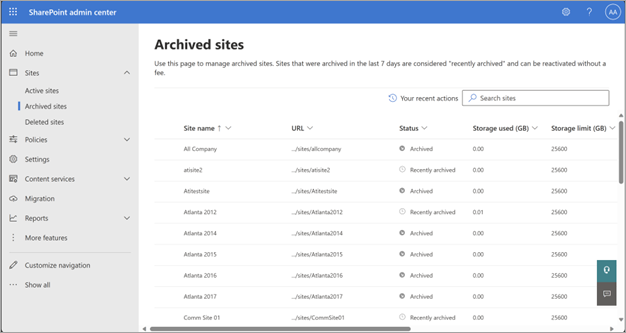
Archived sites can be seen on the Archived sites page in the SharePoint admin center.
Note
To archive a hub site, you first need to unregister it as a hub site. Archiving Microsoft Teams-connected sites is only partially supported. For more information, see Archive a site connected to Teams.
Archive a site connected to Teams
Sites associated with Teams that use only standard channels are supported for archiving.
Sites associated with Teams that include private or shared channels are only partially supported:
SharePoint admin center: Archiving a site with channel sites is not possible. (Message: "The group connected site with channel sites associated can't be archived.")
PowerShell and Graph API: Archiving a site with channel sites isn’t blocked. Only the main site associated with the Team and its standard channels is archived. Private and shared channel sites remain active. Archiving channel sites directly isn’t possible because these sites use unsupported site templates.
Manage file-level archive (preview)
For the public preview of file-level archive starting at the end of March 2026, admins must explicitly enable file-level archiving for the tenant by using PowerShell. When file-level archive moves from public preview to general availability, this behavior changes. After general availability, file-level archiving is enabled by default for all SharePoint sites when Microsoft 365 Archive is enabled.
SharePoint Administrators or Global Administrators can choose whether to deploy file-level archiving by enabling or disabling it. Admins can allow file-level archiving for all SharePoint sites, a subset of sites, or not at all. Admins can also choose whether new sites are enabled for file-level archiving. When file-level archiving is enabled for a site, end users with edit permissions can archive files.
Important
Microsoft recommends that you use roles with the fewest permissions. This helps improve security for your organization. Global Administrator is a highly privileged role that should be limited to emergency scenarios when you can't use an existing role.
To control which sites can use file-level archive, admins have three PowerShell tools they can utilize.
Tenant-level enablement. To only utilize Site archive and not allow any user to archive files, disable file-level archive entirely for your tenant. This capability is controlled via the -AllowFileArchive property flag of the Set-SPOTenant cmdlet. This property will override the site-level property with the same name. This flag was introduced into SPO admin PowerShell starting in version 16.0.26714.12000. By default, this property is set to True, meaning that the tenant can archive files. When set to False, no new files can be archived by users, but existing archived files can be reactivated.
Set-SPOTenant -AllowFileArchive $trueSite-level enablement. To control which sites have file-level archive enabled, enable or disable specific sites from being able to archive new files. This capability is controlled via the -AllowFileArchive property flag of the Set-SPOSite cmdlet. This flag was introduced into SPO admin PowerShell starting in version 16.0.26211.12000. By default, this property is set to True, meaning that the site can archive files. When set to False, no new files can be archived by users on this site, but existing archived files can be reactivated.
Set-SPOSite -Identity <site_url> -AllowFileArchive $trueDefaults for new sites. To control the value of the -AllowFileArchive flag for sites created in the future, tenants can utilize a new flag on the Set-SPOTenant cmdlet called -AllowFileArchiveOnNewSitesByDefault. By default, this property is set to True, meaning that new sites will be able to archive files by default. This property’s value will be copied to future created sites' -AllowFileArchive property flag, dictating whether those sites allow file archive.
Set-SPOTenant -AllowFileArchiveOnNewSitesByDefault $trueAdmins can also utilize PowerShell to view usage of file-level archive. SharePoint Administrators or Global Administrators can see how much total storage is consumed by file-level archiving for a given site. The 'ArchivedFileDiskUsed' property of the Get-SPOSite cmdlet indicates the storage consumed by all archived files on that site in bytes.
Get-SPOSite -Identity <site_url>
Manage archived sites
Archived sites can be reactivated or deleted. Deletion of archived sites follows the same behavior as that of active sites; that is, a site doesn't need to be reactivated before being deleted. However, sites in the "Reactivating" state can't be deleted until reactivation completes.
Admins can view details of the site, such as the URL, Archive Status, or Storage, from the Archived sites page.
Reactivate a file (preview)
When a user needs to regain access to an archived file, they can easily reactivate it in the web version of SharePoint or OneDrive, depending on where the file is hosted. Any user with read access to an archived file is able to reactivate it.
There is no fee for reactivating an archived file.
Reactivate a site
If there's a need to access the site content again, the sites need to be reactivated. The activation time depends on the archive state of the site ("Recently archived" or "Archived"). For more information, see the Archive states in Microsoft 365 Archive.
After reactivation, the site moves back to the Active sites page. The site resumes its normal function, and the users have the same access rights to the site and its content as they did before the site was archived. After reactivation is complete, the storage consumed by the site will accrue to your storage quota consumption.
In the SharePoint admin center, go to Active sites, and sign in with an account that has admin permissions for your organization.
Note
If you have Office 365 operated by 21Vianet (China), sign in to the Microsoft 365 admin center, then browse to the SharePoint admin center and open the Active sites page.
In the left column, select a site that needs to be reactivated.
On the command bar, select Archive.
On the Archive pane, select Reactivate.
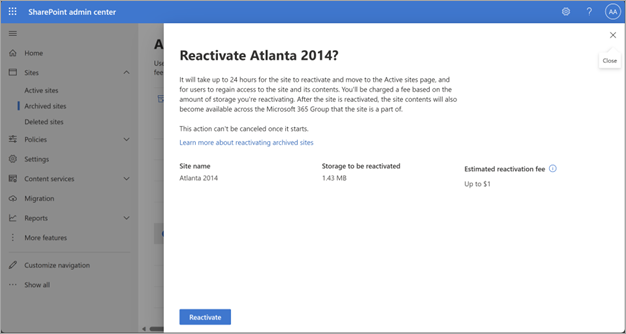
If you're trying to reactivate a site from "Archived" state, you see a confirmation pop-up that shows an estimated price for reactivation. Select Confirm to reactivate. The site enters the "Reactivating" state. It moves to active sites once reactivation is complete.
When you reactivate a site, its permissions, lists, pages, files, folder-structure, site-level policies, and other metadata will revert to the prearchival state, except if files are deleted from archived sites. The only two exceptions are when files are deleted while the site is archived:
- Content in the recycle bin expires naturally, and that expiration continues while archived.
- Content marked to be deleted by retention policies will still be deleted as normal.
Other than these two exceptions, you can expect the site to be unchanged.
Change the archive status of a site via PowerShell
You can archive and reactivate sites by using the PowerShell cmdlet Set-SPOSiteArchiveState.
Change the archive status of a site via Graph API
You can archive a site by using the Graph API beta endpoint site: archive or reactivate it by using the Graph API beta endpoint site: unarchive.
Site templates supported
| Template ID | Template | Template name |
|---|---|---|
| 1 | Team site (classic experience) | STS#0 |
| 1 | Blank Site | STS#1 |
| 1 | Document Workspace | STS#2 |
| 1 | Team site | STS#3 |
| 68 | Communication site | SITEPAGEPUBLISHING#0 |
| 64 | Teams site | GROUP#0 |
| 32 | News site | SPSNEWS#0 |
| 33 | News site | SPSNHOME#0 |
| 4 | Wiki site | WIKI#0 |
| 56 | Enterprise Wiki | ENTERWIKI#0 |
| 7 | Document center | BDR#0 |
| 14483 | Records Center | OFFILE#0 |
| 14483 | Records Center | OFFILE#1 |
Note
OneDrive accounts (site template 21) can't be archived by admins. Some accounts will be put into archive by the OneDrive service when they are unlicensed for 93 days or more. When the service archives these accounts, admins can reactivate the accounts via PowerShell. Learn more about unlicensed OneDrive accounts.