Nota
Capaian ke halaman ini memerlukan kebenaran. Anda boleh cuba mendaftar masuk atau menukar direktori.
Capaian ke halaman ini memerlukan kebenaran. Anda boleh cuba menukar direktori.
This article provides information on how to define exclusions that apply to on-demand scans, and real-time protection and monitoring. The scan exclusions described in this article don't apply to other Defender for Endpoint on macOS capabilities, including endpoint detection and response (EDR). Files that you exclude using the methods described in this article can still trigger EDR alerts and other detections.
You can exclude certain files, folders, processes, and process-opened files from Defender for Endpoint on macOS scans. Exclusions can help avoid incorrect detections on files and software that are unique to your organization. Exclusions can also be useful for mitigating performance issues caused by Defender for Endpoint on macOS.
To narrow down which process and/or path and/or extension you need to exclude, use real-time-protection-statistics.
Warning
Defining exclusions lowers the protection offered by Defender for Endpoint on macOS. You should always evaluate the risks that are associated with implementing exclusions, and you should only exclude files that you're confident aren't malicious.
Important
If you want to run multiple security solutions side by side, see Considerations for performance, configuration, and support.
You might have already configured mutual security exclusions for devices onboarded to Microsoft Defender for Endpoint. If you still need to set mutual exclusions to avoid conflicts, see Add Microsoft Defender for Endpoint to the exclusion list for your existing solution.
Supported exclusion types
The following table shows the exclusion types supported by Defender for Endpoint on macOS.
| Exclusion | Definition | Examples |
|---|---|---|
| File extension | All files with the extension, anywhere on the machine | .test |
| File | A specific file identified by the full path | /var/log/test.log |
| Folder | All files under the specified folder (recursively) | /var/log/ |
| Process | A specific process (specified either by the full path or file name) and all files opened by it | /bin/cat |
File, folder, and process exclusions support the following wildcards:
| Wildcard | Description | Examples |
|---|---|---|
| * | Matches any number of any characters including none (note if this wildcard isn't used at the end of the path then it substitutes only one folder) | /var/*/tmp includes any file in /var/abc/tmp and its subdirectories, and /var/def/tmp and its subdirectories. It doesn't include /var/abc/log or /var/def/log
|
| ? | Matches any single character | file?.log includes file1.log and file2.log, but not file123.log |
Note
When the * wildcard appears at the end of a path, the pattern matches all files and subdirectories under the wildcard's parent directory.
Defender for Endpoint on macOS attempts to resolve firm links when evaluating exclusions. Firm link resolution doesn't work when the exclusion contains wildcards or the target file (on the Data volume) doesn't exist.
Best practices for adding anti-malware exclusions for Microsoft Defender for Endpoint on macOS
Follow these best practices when adding anti-malware exclusions on macOS:
Write down why an exclusion was added to a central location where only SecOps and/or Security Administrator have access. For example, list the submitter, date, app name, reason, and exclusion information.
Make sure to have an expiration date* for the exclusions
*except for apps that the ISV stated that there's no other tweaking that could be done to prevent the false positive or higher cpu utilization from occurring.
Avoid migrating non-Microsoft anti-malware exclusions since they might no longer be applicable nor applicable to Microsoft Defender for Endpoint on macOS.
Order of exclusions to consider top (more secure) to bottom (least secure):
Indicators - Certificate - allow
- Add an extended validation (EV) code signing.
Indicators - File hash - allow
- If a process or daemon doesn't change often, for example, the app doesn't have a monthly security update.
Path & Process
Process
Path
Extension
How to configure the list of exclusions
You can configure exclusions by using the Security Settings management console, another management console such as JAMF or Intune, or the Defender for Endpoint app interface.
Use the Microsoft Defender for Endpoint Security Settings management console
To create a policy that defines antivirus exclusions for macOS devices, complete the following steps:
Sign in to the Microsoft Defender portal.
Go to Configuration management > Endpoint Security Policies > Create new Policy.
- Select Platform: macOS
- Select Template: Microsoft Defender Antivirus exclusions
Select Create Policy.
Enter a name and description and select Next.
Expand Antivirus engine, and then select Add.
Select Path or File extension or File name.
Select Configure instance and add the exclusions as needed. Then select Next.
Assign the exclusion to a group and Select Next.
Select Save.
Configure exclusions from JAMF, Intune, or another management console
For more information on how to configure exclusions from JAMF, Intune, or another management console, see Set preferences for Defender for Endpoint on Mac.
Configure exclusions from the Defender for Endpoint app
To add exclusions directly in the Defender for Endpoint app, follow these steps:
Open the Defender for Endpoint application and navigate to Manage settings > Add or Remove Exclusion..., as shown in the following screenshot:
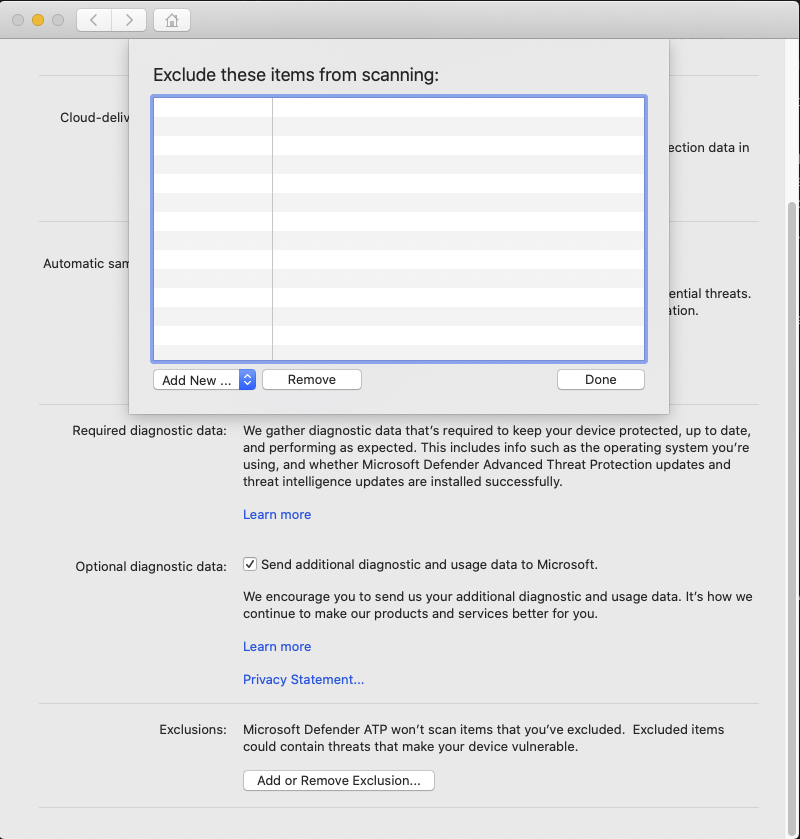
Select the type of exclusion that you wish to add and follow the prompts.
Validate exclusions lists with the EICAR test file
You can validate that your exclusion lists are working by using curl to download a test file.
In the following Bash snippet, replace test.txt with a file that conforms to your exclusion rules. For example, if you have excluded the .testing extension, replace test.txt with test.testing. If you're testing a path, ensure that you run the command within that path.
curl -o test.txt https://secure.eicar.org/eicar.com.txt
If Defender for Endpoint on macOS reports malware, then the rule isn't working. If there's no report of malware, and the downloaded file exists, then the exclusion is working. You can open the file to confirm that the contents are the same as what is described on the EICAR test file website.
If you don't have Internet access, you can create your own EICAR test file. Write the EICAR string to a new text file with the following Bash command:
echo 'X5O!P%@AP[4\PZX54(P^)7CC)7}$EICAR-STANDARD-ANTIVIRUS-TEST-FILE!$H+H*' > test.txt
You can also copy the string into a blank text file and attempt to save it with the file name or in the folder you're attempting to exclude.
Allow threats in Microsoft Defender for Endpoint on macOS
In addition to excluding certain content from being scanned, you can also configure the product not to detect some classes of threats (identified by the threat name). You should exercise caution when using this functionality, as it can leave your device unprotected.
Allow a threat by name
To add a threat name to the allowed list, execute the following command:
mdatp threat allowed add --name [threat-name]
To obtain the threat name associated with a detection on your device, run mdatp threat list:
mdatp threat list
For example, to add EICAR-Test-File (not a virus) (the threat name associated with the EICAR detection) to the allowed list, execute the following command:
mdatp threat allowed add --name "EICAR-Test-File (not a virus)"