Nota
Capaian ke halaman ini memerlukan kebenaran. Anda boleh cuba mendaftar masuk atau menukar direktori.
Capaian ke halaman ini memerlukan kebenaran. Anda boleh cuba menukar direktori.
Applies to:  Windows
Linux
macOS
Windows
Linux
macOS
The Visual Studio Code extension is the recommended way to install Power Platform CLI. This extension upgrades automatically when new versions are released. You also have the options to install a previous version or side-load the extension.
Prerequisites
Download and install Visual Studio Code.
Install
You can install the Microsoft Power Platform CLI by using the Visual Studio Code extension from the Visual Studio Marketplace or from Visual Studio Extensions.
Install from the Visual Studio Marketplace
- Go to Power Platform Tools.
- Select Install.
- Select Continue if the Visual Studio Code is required to install this extension dialog appears.
- Select Open if the This site is trying to open Visual Studio Code dialog appears.
- In Visual Studio Code, select Install.
Install from Visual Studio Code extensions
- In Visual Studio Code, select the Extensions icon in the navigation bar.
- Search for 'power platform tools'.
- Select the Install button in the search results.
Install a previous version
If there's a problem with the current version, revert to an earlier version.
In Visual Studio Code, select Extensions.
Search for 'power platform tools'.
In the main window, select the drop-down arrow on the Uninstall button.
Select Install Another version....
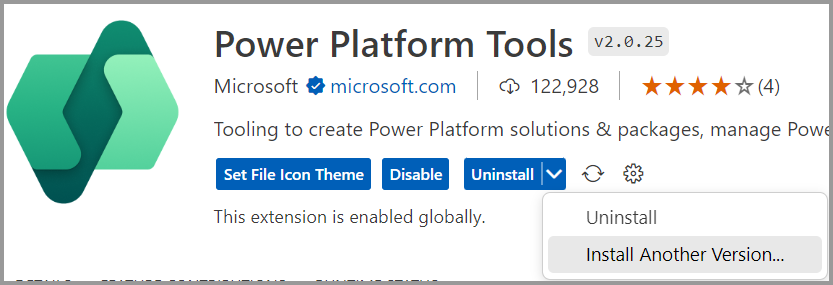
Select the previous version you want to install.
After the installation finishes, select Reload Required.
When you select this option, the extension gives you the option to Update and ignores automatic updates. To resume automatic updates:
- While viewing the Power Platform Tools extension in Visual Studio Code, select the drop-down arrow on the Update button.
- Clear the Ignore Updates check box.
- Close and reopen Visual Studio Code to trigger the update.
Side-load install
Some organizations prohibit downloading or initiating an install over the web. In most cases, the organization downloads the installation media, stores it in a secure location, and verifies that it works according to their standards before distributing it within the organization. Use the following instructions to support this type of installation.
On the right side, in the Resources group, select the Download Extension link.
This action downloads a file named
microsoft-IsvExpTools.powerplatform-vscode-x.x.xx.vsixwherex.x.xxis the current version.In Visual Studio Code, select Extensions.
Select the ellipsis on the Extensions side bar, and then select Install from VSIX....
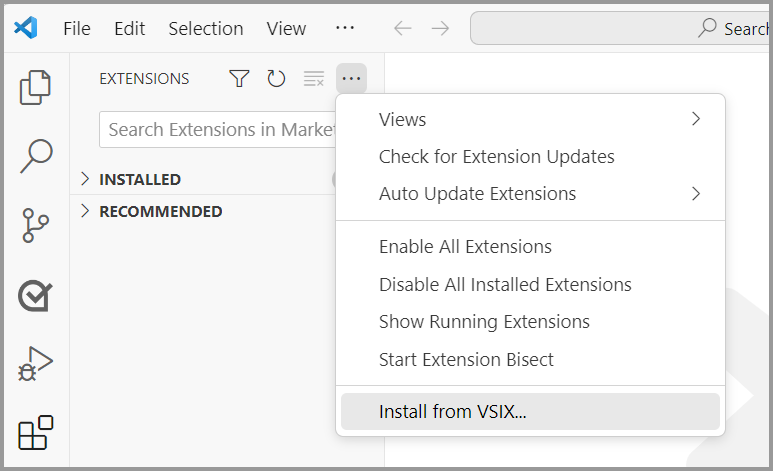
Select the downloaded file.
When installation is complete, you see a notification saying Completed installing Power Platform Tools extension from VSIX.
Update
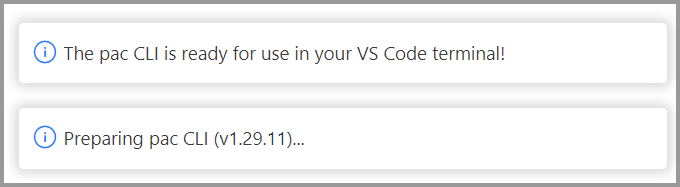
There's usually no need to update. The extension updates automatically as new versions are released. When you open Visual Studio Code, you see a notification like this:
If you choose to install a previous version, you need to re-enable automatic updates.
Uninstall
- In Visual Studio Code, select Extensions.
- Search for 'power platform tools'.
- In the main window, select Uninstall.
Enable PAC CLI in Command Prompt (CMD) and PowerShell terminals for Windows
By default, the Visual Studio Code extension only enables commands by using the Visual Studio Code PowerShell terminal.
To enable using PAC CLI in Command Prompt (CMD) and PowerShell terminals for Windows, use any of the following options:
- Install Power Platform CLI with .NET Tool
- Install Power Platform CLI using Windows MSI
- Add the PAC CLI executable to the Windows environment PATH.
Authentication profile management
When you install the Visual Studio Code extension, you can view and manage authentication profiles.
See also
What is Microsoft Power Platform CLI?
Install Power Platform CLI with .NET Tool
Install Power Platform Tools for Windows