Nota
L-aċċess għal din il-paġna jeħtieġ l-awtorizzazzjoni. Tista’ tipprova tidħol jew tibdel id-direttorji.
L-aċċess għal din il-paġna jeħtieġ l-awtorizzazzjoni. Tista’ tipprova tibdel id-direttorji.
This page explains how to test a Genie Space, review and edit responses, and monitor space usage.
Test your Genie Space
Most user interactions take place in the chat window. The best way to learn if your space is working as you want is to test it with realistic questions that you expect your business users to ask.
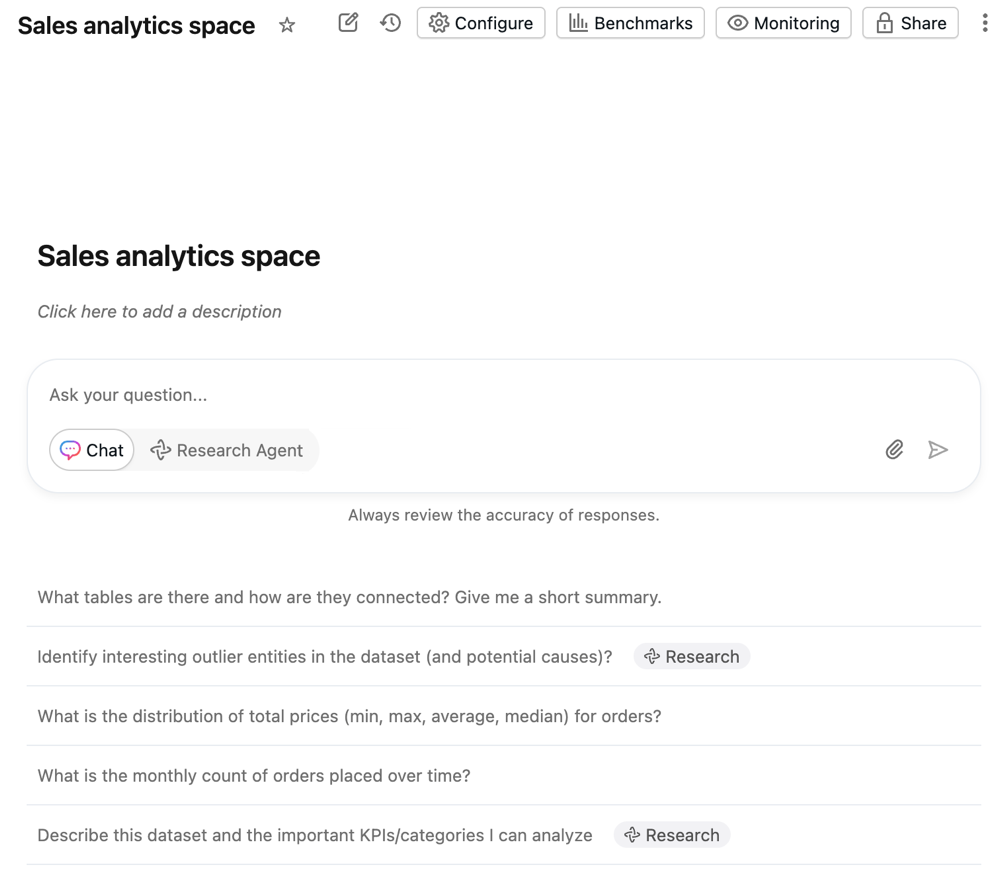
Sample questions configured in the space settings appear in the chat window. Genie can also generate sample questions based on the space's context to help users begin exploring the data. Users can click a sample question or enter their own questions in the text field at the bottom of the screen.
Responses appear above the text field. After a user enters a question, it is saved to the chat history.
To start a new conversation:
- Click New chat to start a new chat. Click
 to open a previous conversation.
 - Type your question into the Ask your question… text entry field.
Review responses
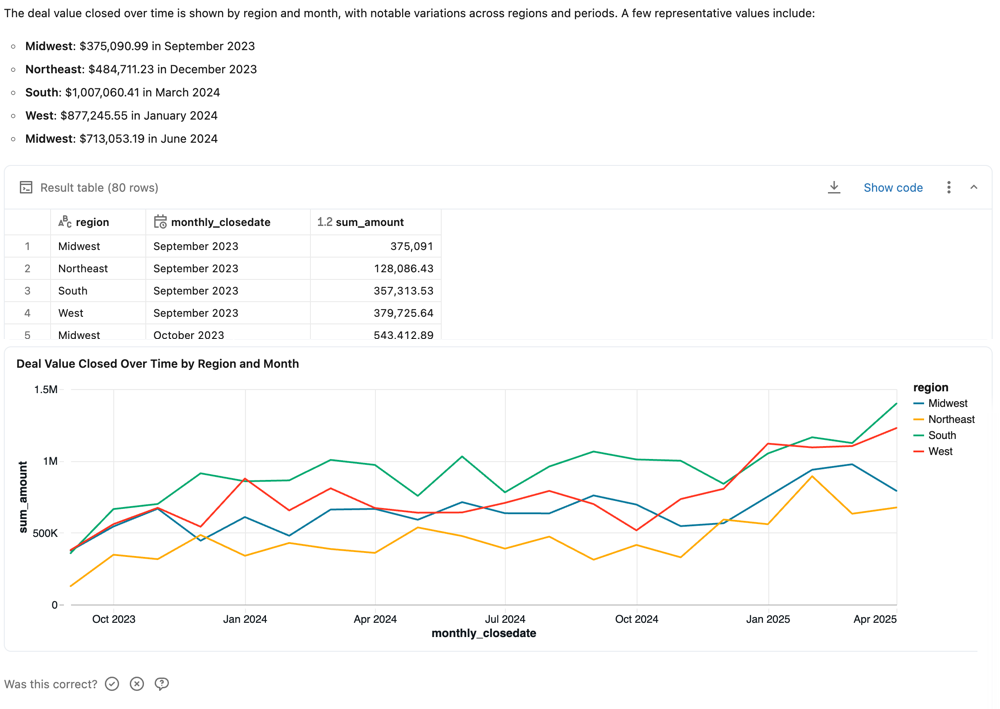
Responses are typically delivered as natural language answers to the questions and a table showing the relevant result set. When Genie detects that a visualization could improve response clarity, it also returns a visualization. The precise response structure varies based on the question. If a SQL query was generated to answer the question, it is included in the response.
Note
Like other large language models (LLMs), Genie can exhibit non-deterministic behaviors. This means that you might occasionally receive different outputs when submitting the same prompt multiple times. Providing example SQL queries that Genie can learn from can help make Genie more consistent. See Add example SQL queries and functions.
Response feedback
Each response prompts the user to answer Is this correct?. Users can respond in one of the following ways:
- Yes: Confirms the response appears accurate.
- Fix it: Flags the response as incorrect. Users can select from common issues or enter their own explanation. They can then:
- Click Submit and try again to regenerate the response using the provided feedback.
- Click Submit to send the feedback without regenerating the response.
- Request review: Flags the response for manual review. Users can add an optional comment to give you additional context.
As an editor, you can view feedback and flagged responses in the Genie interface. Your Genie Space's behavior does not change based on user feedback alone. You should use feedback to identify improvement opportunities or respond directly to user questions. Databricks recommends encouraging users to provide feedback on the space using this mechanism.
Business users can view updates to the questions they've marked for review on their Monitor page. Users with at least CAN MANAGE permission on the Genie Space can review the specific exchange, comment on the request, and confirm or correct the response. They can access feedback and review requests on the monitoring page. Then you can use that feedback to tune responses and iterate on your space. See Monitor the space.
Other response actions
For responses that include generated SQL, additional options allow you to interact with the returned data.
Copy CSV: Space users can download up to approximately 1GB of results data as a CSV. The final file download size might be slightly more or less than 1GB, as the 1GB limit is applied to an earlier step than the final file download. To download results, click the download icon in the response.
Show code: Click Show code to view the generated query. This can be useful for troubleshooting unreliable responses. See Edit and save queries.
The
 kebab menu: Access the following actions:
- Copy CSV: Copy the response CSV to your clipboard.
- Add as instruction: For interactions that might be useful for teaching Genie how to answer similar questions, click Add as instruction. This opens the UI for saving example SQL queries, populated with the question and generated SQL. You can leave the example as written, or edit and save to make changes. See Add example SQL queries and functions.
- Add as benchmark: Add the question as a benchmark question. See Use benchmarks in a Genie Space.
- Refresh data: Refresh the data by running the previously generated query.
- Regenerate response: Submit the question again and have Genie regenerate the response.
Edit and save queries
Genie's SQL queries can be reviewed for accuracy and edited as necessary. Genie Space authors typically know the domain and data that allows them to recognize when Genie is generating an incorrect answer. Often, errors can be fixed with a small amount of manual tuning to the generated SQL query. Click Show generated code to inspect the query and view the generated SQL for any response.
You can edit the generated SQL statement to correct it if you have CAN EDIT or greater privileges on the Genie Space. After you've made your corrections, run the query. Then, you can save it as an instruction to teach Genie how to answer in the future. To save your edited query, click Add as instruction.
Monitor the space
A Genie Space can be thought of as a long-term collaboration tool between data teams and business users. It accumulates knowledge over time rather than serving as a one-time deployment. As users ask new questions, you can refine the space to improve coverage and accuracy.
Use the Monitor tab to review individual questions and responses, view user feedback, and identify responses flagged for review.
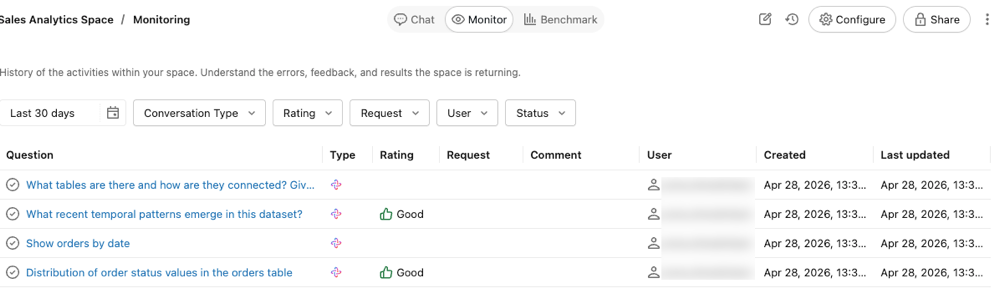
The monitor tab shows all of the questions and answers that have been asked in the space. You can filter questions by time, rating, user, or status. By monitoring the space, users with CAN MANAGE permissions can proactively understand the queries raised by business users and how the Genie Space responded.
Identifying the questions that Genie struggles with can help you update the Genie Space with specific instructions to improve its responses. Click a question to open the question and response text and view the complete chat thread.
Review usage and trends
Use the Weekly digest section of the Monitor tab to review weekly message volume, active users, and thumbs up/down feedback. To identify top usage trends and common issues, click Analyze space usage. This launches Genie Code, which analyzes your space's monitoring data and summarizes usage patterns and areas for improvement.

Review conversations for quality
Important
This feature is in Beta. Workspace admins can control access to this feature from the Previews page. See Manage Azure Databricks previews.
When a conversation is set to Reviewable by space managers, users with the CAN MANAGE permission can open the conversation from the monitoring tab to review the full exchange. This allows you to assess Genie's response quality, respond to user feedback, and identify areas where additional instructions or example queries would improve accuracy. For conversations set to Private, space managers can see user prompts in the monitoring tab but cannot view the full conversation or results. For more information, see Share a conversation.
Note
Conversations created before the Beta was enabled remain Private. Conversations created after it was enabled default to Reviewable by space managers.