Nota
L-aċċess għal din il-paġna jeħtieġ l-awtorizzazzjoni. Tista’ tipprova tidħol jew tibdel id-direttorji.
L-aċċess għal din il-paġna jeħtieġ l-awtorizzazzjoni. Tista’ tipprova tibdel id-direttorji.
Note
The Retail Interest Group by Dynamics 365 Commerce has moved from Yammer to Viva Engage. If you don't have access to the new Viva Engage community, fill out this form (https://aka.ms/JoinD365commerceVivaEngageCommunity) to be added and stay engaged in the latest discussions.
This article describes how to create a new module in Microsoft Dynamics 365 Commerce.
To create a new module in Dynamics 365 Commerce, use the online software development kit (SDK) add-module command-line interface (CLI) command. When you run the command, replace MODULE_NAME with the name that you want to give to the new module.
yarn msdyn365 add-module MODULE_NAME
Example
The following example shows how to create a module that is named product-feature.
yarn msdyn365 add-module product-feature
After the command finishes running, you find the new module in the \src\modules\ directory.
Preview a module
To preview the new module in a local web browser, follow these steps:
At a command prompt, go to your root SDK folder, and run the yarn start command. Here's an example.
c:\repos\Msdyn365.Commerce.Online\yarn startIn a web browser, open the following URL to view the module:
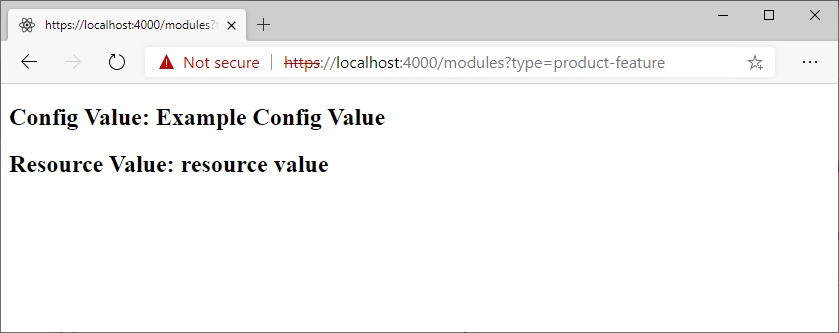
https://localhost:4000/modules?type=product-feature. Notice the module name in the type=MODULE_NAME query string parameter.
Module naming conventions
Module names aren't case-sensitive. Use whole words for module names whenever you can.
Deferred module rendering
By default, the server renders all modules. However, you might need to defer loading some modules to improve page load performance. For more information, see Page load data actions.
To help prevent unexpected rendering behavior, such as page flicker and Document Object Model (DOM) mismatch problems, handle any references to window or document objects that are available only in the context of a browser during server-side rendering. Use the MsDyn365.isBrowser SDK utility function for this purpose, as shown in the following example.
import MsDyn365 from '@msdyn365-commerce/core';

if (MsDyn365.isBrowser) {
    return new URL(window.location.href);
}
Module error handling
If a module encounters an error during server-side rendering, the process wraps the failed module into an ErrorModule component to prevent any module-level render error from breaking the page. For example, a module uses window or document objects during a server-side render. The render fails because these objects don't exist on the server side. In this case, the process wraps the module in an error component. The module tries to render again on the client. In development mode, use a ?debug=true query string parameter to determine if a module failed on the server side.
Additional resources
Add module configuration fields
Test modules by using module mocks
Test modules by using page mocks
Create a layout container module