Nota
L-aċċess għal din il-paġna jeħtieġ l-awtorizzazzjoni. Tista’ tipprova tidħol jew tibdel id-direttorji.
L-aċċess għal din il-paġna jeħtieġ l-awtorizzazzjoni. Tista’ tipprova tibdel id-direttorji.
Applies to: Dynamics 365 Customer Service and Dynamics 365 Contact Center—standalone only
Sentiment analysis provides customer service representatives (service representatives or representatives) and supervisors with real-time insights into customer interactions with service representatives during conversations.
Specific licensing requirements apply when you enable real-time sentiment. Learn more in Dynamics 365 Licensing Guide.
Important
This feature is intended to help customer service managers or supervisors enhance their team's performance and improve customer satisfaction. This feature isn't intended for use in making, and customers shouldn't use it to make, decisions that affect the employment of an employee or group of employees, including compensation, rewards, seniority, or other rights or entitlements. Customers are solely responsible for using Dynamics 365 Customer Service, this feature, and any associated feature or service in compliance with all applicable laws. This responsibility includes laws that relate to accessing individual employee analytics and monitoring, recording, and storing communications with end users. This responsibility also includes the requirement that customers adequately notify end users that their communications with customer service representatives might be monitored, recorded, or stored and, as required by applicable laws, and obtain consent from end users before they use the feature with them. Customers are also encouraged to have a mechanism in place to inform their customer service representatives that their communications with end users may be monitored, recorded, or stored.
Sentiment analysis
To let service representatives and supervisors view the customer's satisfaction level during a conversation, enable sentiment analysis.
Note
Sentiment analysis is enabled by default.
Enable sentiment analysis
You can enable sentiment analysis in the Copilot Service admin center app.
In the site map, select Insights in Operations.
In the Sentiment analysis section, select Manage.
Set Monitor real-time customer sentiment to Yes, and then select Save.
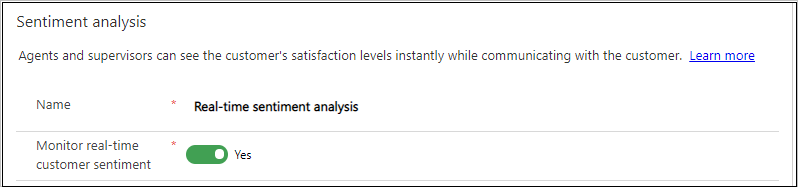
After you enable real-time customer sentiment, you can view scores in the Omnichannel Insights dashboards.
Service representative settings
Service representatives can view customer sentiment in the communication panel for an active conversation that's in focus. For a session that isn't in focus, the alert appears on the session panel.
You can show alerts when a customer's sentiment decreases to or below a selected value. The available values are:
- Don't show alerts
- Slightly negative
- Negative
- Very negative
For example, if you set the threshold to Slightly negative, an alert appears when the customer's sentiment reaches Slightly negative or a lower value.
Go to the Sentiment analysis page.
In the Agent settings section, select a value from Show alerts when a customer's sentiment decreases to or below:
- Don't show alerts
- Slightly negative
- Negative
- Very negative
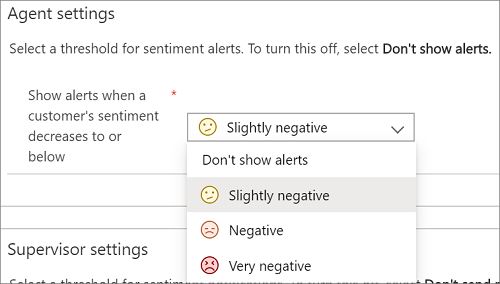
To turn off service representative alerts, select Don't show alerts.
Supervisor settings
Supervisors can use the Ongoing conversations report to view customer sentiment during conversations between customers and service representatives.
You can show notifications when a customer's sentiment decreases to or below a selected value. The supervisor receives threshold alerts only when their presence is Available or Busy and they're assigned to a queue.
The available values are:
- Don't show notifications
- Slightly negative
- Negative
- Very negative
For example, if you set the threshold to Slightly negative, a notification appears when the customer's sentiment reaches Slightly negative or a lower value.
Go to the Sentiment analysis page.
In the Supervisor settings section, select a value from Send notifications when a customer's sentiment decreases to or below:
- Don't send notifications
- Slightly negative
- Negative
- Very negative
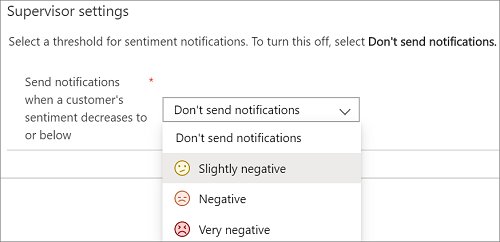
To turn off supervisor notifications, select Don't send notifications.
Multilingual sentiment
Multilingual sentiment scoring is enabled by default. Conversations in more than 40 languages are scored. The languages listed in the following table are supported in the analytics features.
| Arabic Bulgarian Chinese (Hong Kong SAR) Catalan Chinese Simplified Chinese Traditional Croatian Czech Danish Dutch English Estonian Finnish French |
German Greek Hebrew Hindi Hungarian Indonesian Italian Japanese Korean Latvian Lithuanian Malay Norwegian Polish |
Portuguese Romanian Russian Serbian (Cyrillic) Serbian (Latin) Slovak Slovenian Spanish Swedish Thai Turkish Ukrainian Vietnamese |
Related information
Monitor, assign, and transfer conversations
Language availability