Nota
L-aċċess għal din il-paġna jeħtieġ l-awtorizzazzjoni. Tista’ tipprova tidħol jew tibdel id-direttorji.
L-aċċess għal din il-paġna jeħtieġ l-awtorizzazzjoni. Tista’ tipprova tibdel id-direttorji.
Create reports or dashboards in Power BI to analyze and act on inspection responses from technicians. When you enable this feature, the system stores all responses entered for an inspection in Microsoft Dataverse and can parse them into individual question responses.
The system saves the questions and responses into the following Dataverse tables:
- Customer Voice survey question (msfp_question): Each inspection question.
- Customer Voice survey response (msfp_surveyresponse): A response to an inspection.
- Customer Voice survey question response (msfp_questionresponse): Each individual response to each inspection question.
The system stores each image uploaded in inspections as an annotation in the Inspection Attachment (msdyn_inspectionattachment) table. You can retrieve these images by using Microsoft Power Automate flows.
Prerequisites
- You have admin privileges in Dynamics 365 Field Service.
- You have access to Microsoft Power Apps.
- You have access to Microsoft Power Automate.
Enable analysis on inspection responses
Configure how often Field Service parses inspection responses and organizes them in a Dataverse table.
In Field Service, change to the Settings area.
Go to Field Service Settings and select the Inspection tab.
Ensure Analytics enabled is set to Yes.
For Analytics frequency, select how often to parse inspection responses:
- Daily: Daily based on the Record generation start time.
- Immediately: As soon as an inspection is marked complete.
- Custom: A custom frequency between one and 365 days.
Note
When you set the analytics frequency to Immediately, Field Service parses and persists the inspection response as soon as the service task is completed. The parsed responses aren't updated even if the technician makes changes and completes the inspection again. However, if you set the analytics frequency to Daily or Custom, Field Service stores the responses from the latest completion of the service task before the flow start time.
View inspection questions and responses
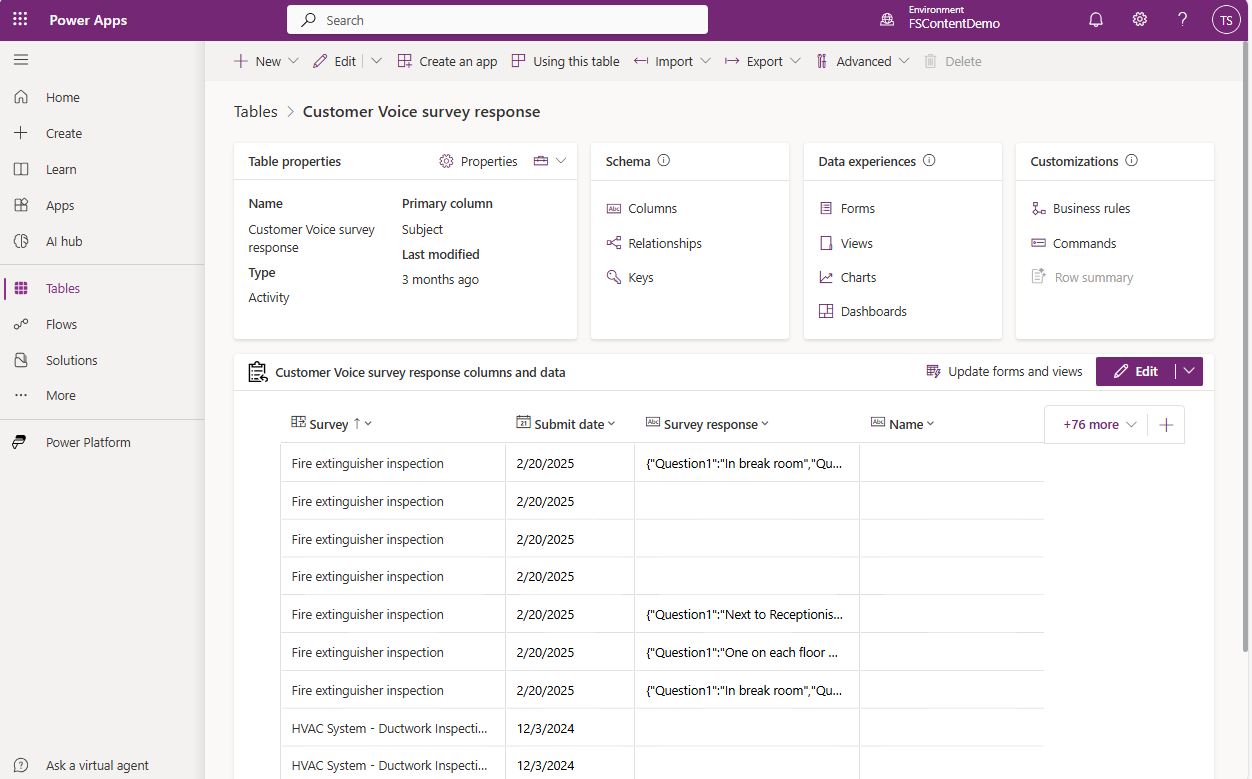
Field Service stores questions on inspections in Dataverse. You can find these questions in the table in Power Apps.
Sign in to Power Apps and select your environment.
Select Tables and then All.
Search for and select the table you want to view. For example, Customer Voice survey response. This table is empty until an inspection is completed.
View the status of the inspection flows
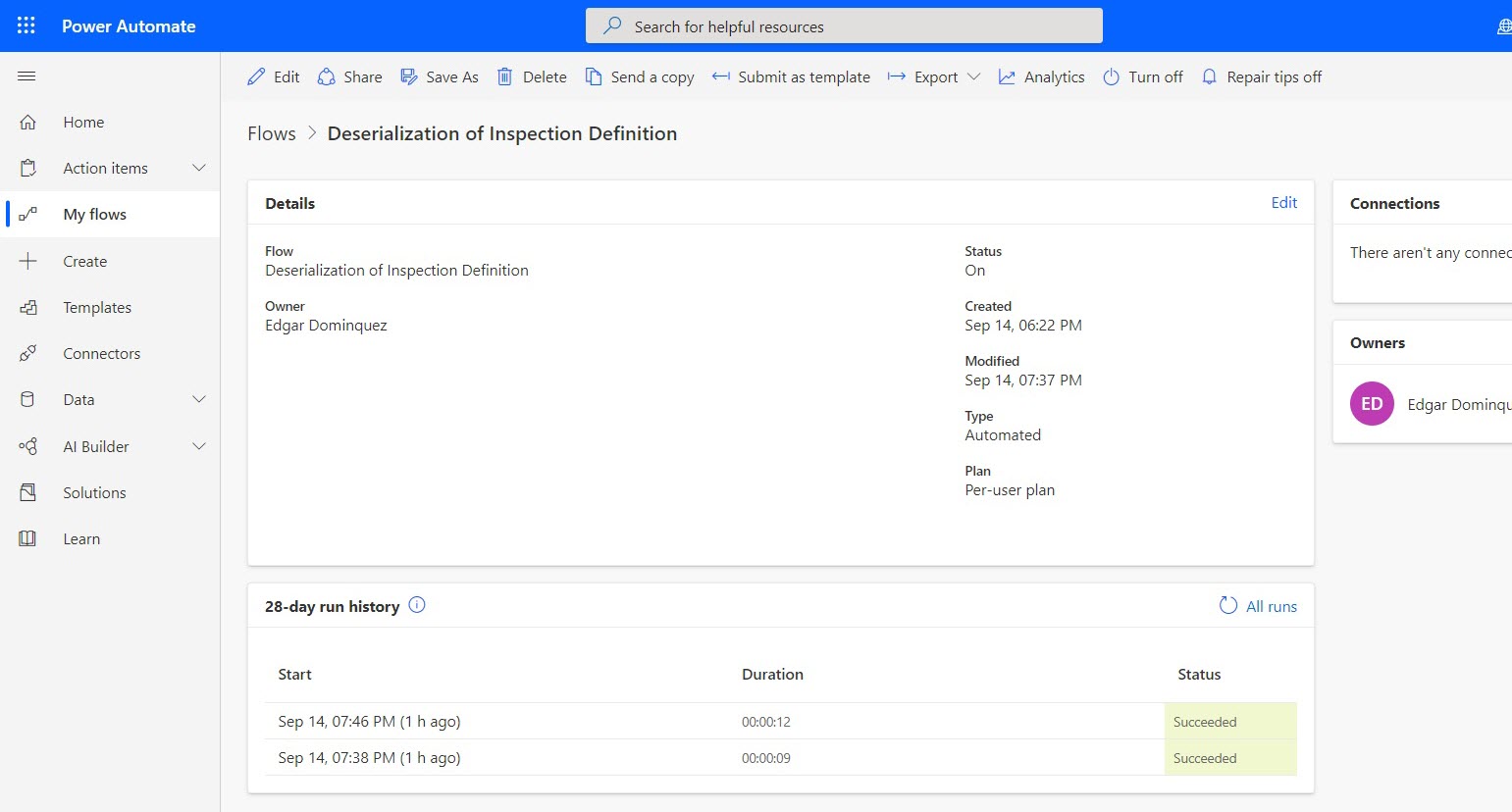
Inspections use Power Automate flows, which are part of the out-of-the-box inspection capability. The following flows are used:
- Deserialization of Inspection Definition Flow: This flow triggers when a technician publishes an inspection. It populates inspection questions into the Customer Voice survey question (msfp_question) table.
- Deserialization of Inspection Response – Recurrent Flow: This flow is triggered when the frequency is set to Daily or Custom. It updates the parsed inspection response JSON into Customer Voice survey response (msfp_surveyresponse) and creates new records for responses and corresponding questions in the Customer Voice survey question response (msfp_questionresponse) table.
- Deserialization of Inspection Response Flow: This flow handles response parsing when frequency is set to Immediately.
To view the status of the flows, sign in to Power Automate, select your Field Service environment, and then select My flows. Open one of the flows.
Use a Power Automate flow to parse inspection responses (deserialization of responses)
When a technician fills out an inspection, the answers to each inspection question are stored as JSON in the Inspection Response (msdyn_inspectionresponse) table. You can use a Power Automate flow to run a workflow on inspection responses. For example, if a technician responds 'Yes' to the inspection question Is a follow-up required? then a new follow-up work order service task could be added to the related work order. For more information, watch the video on running workflows on Inspection responses or go to Create a cloud flow in Power Automate.
Note
You can't customize out-of-the-box flows. To customize them, create or copy a Power Automate flow.