Nota
L-aċċess għal din il-paġna jeħtieġ l-awtorizzazzjoni. Tista’ tipprova tidħol jew tibdel id-direttorji.
L-aċċess għal din il-paġna jeħtieġ l-awtorizzazzjoni. Tista’ tipprova tibdel id-direttorji.
The Fabric Data Engineering VS Code extension offers two ways to work with Fabric workspaces. In local mode, you download items to your machine and sync changes back. In VFS (Virtual File System) mode, you open and edit workspace items directly as remote files—nothing is downloaded to disk.
VFS mode is a good choice when you want to:
- Work across multiple workspaces in the same VS Code window.
- Edit notebooks, environments, and lakehouses without managing local copies.
- Quickly browse workspace contents without setting up a local work folder.
This article explains how to enter VFS mode and how to add or remove workspaces.
Prerequisites
- Install the Fabric Data Engineering VS Code extension and sign in to your account. For setup steps, see Get started with the Fabric Data Engineering VS Code extension.
Enter VFS mode
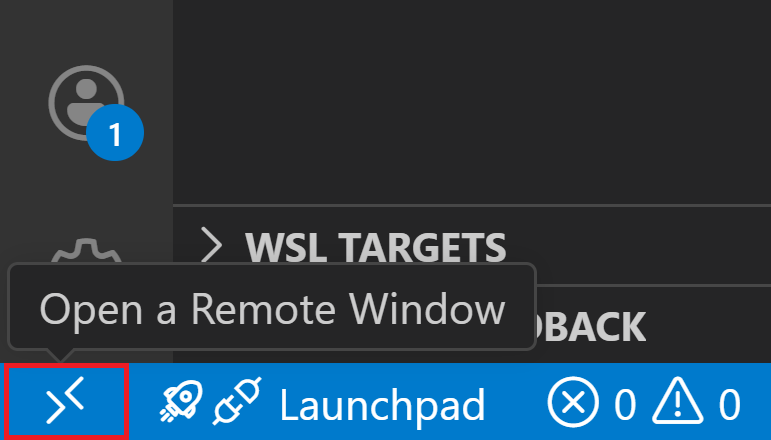
Select the Open a Remote Window button in VS Code.
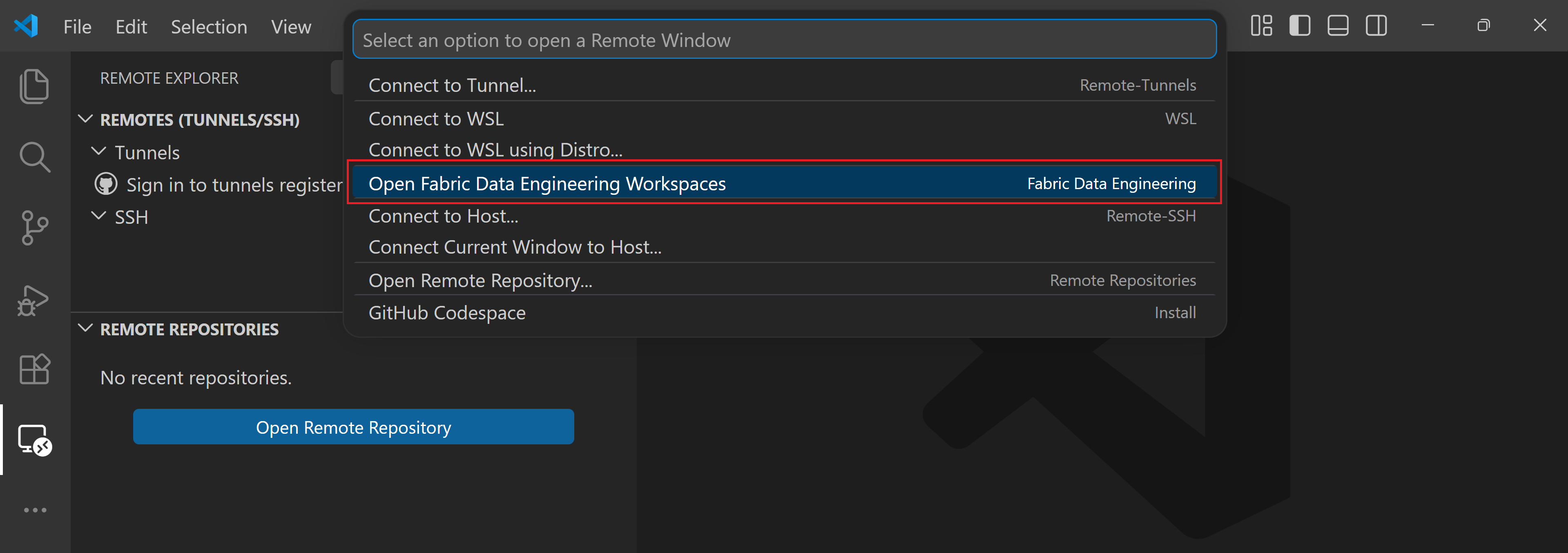
Select Open Fabric Data Engineering Workspaces.
Tip
After you enter VFS mode for the first time, you can return to it quickly by selecting File > Open Recent and choosing the entry marked /Workspaces [Fabric Data Engineering]. You can also enter VFS mode from the Fabric portal by selecting Open In VS Code (Desktop) on a notebook.
Add a workspace
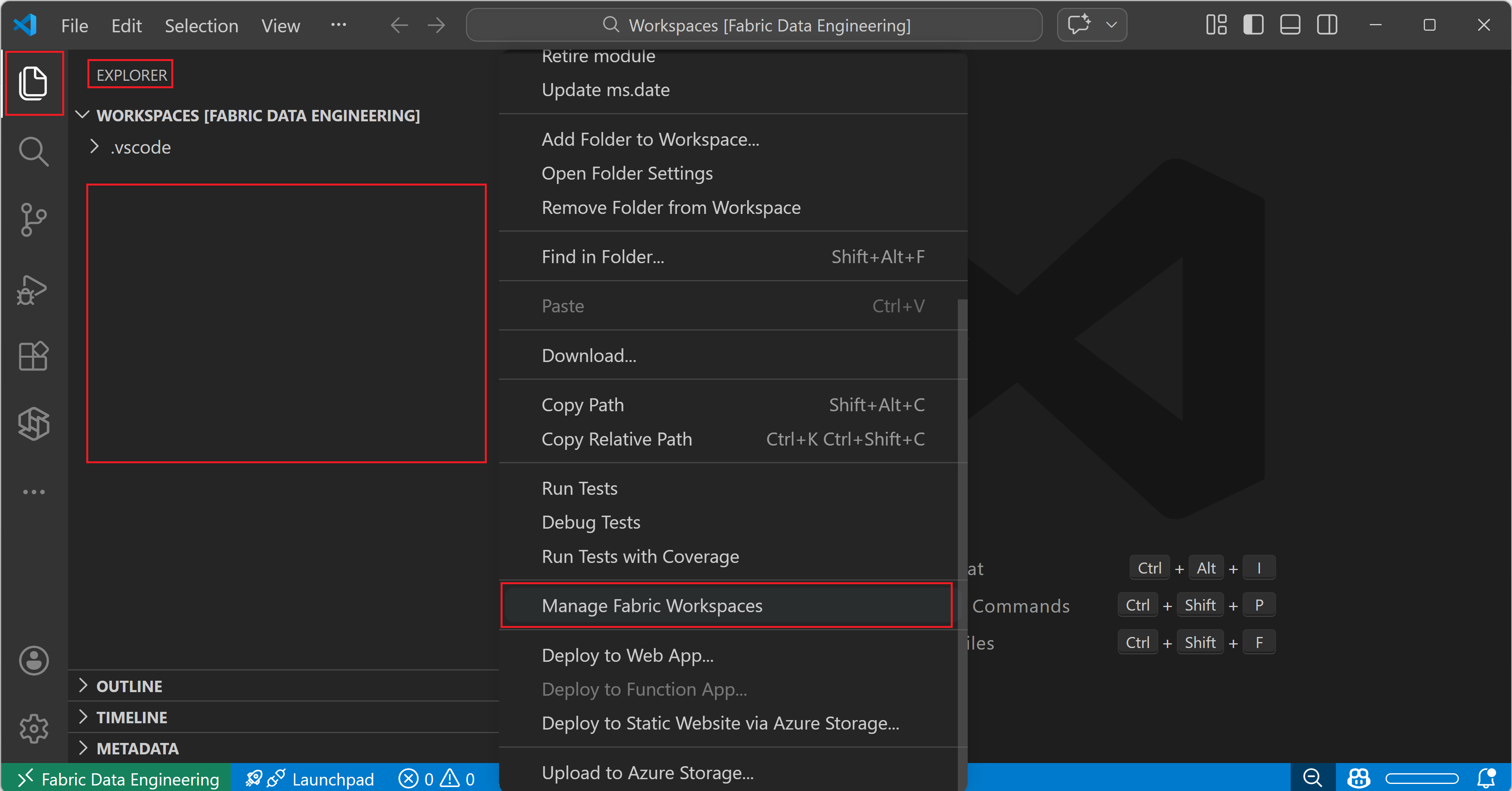
Select the Explorer icon in the activity bar (or press Ctrl+Shift+E) to open the Explorer view in the side bar.
Right-click any empty area in the Explorer view (or press Shift+F10) to open the context menu. Scroll down if needed and select Manage Fabric Workspaces.
Select Add Workspace, then choose the workspace from the list.
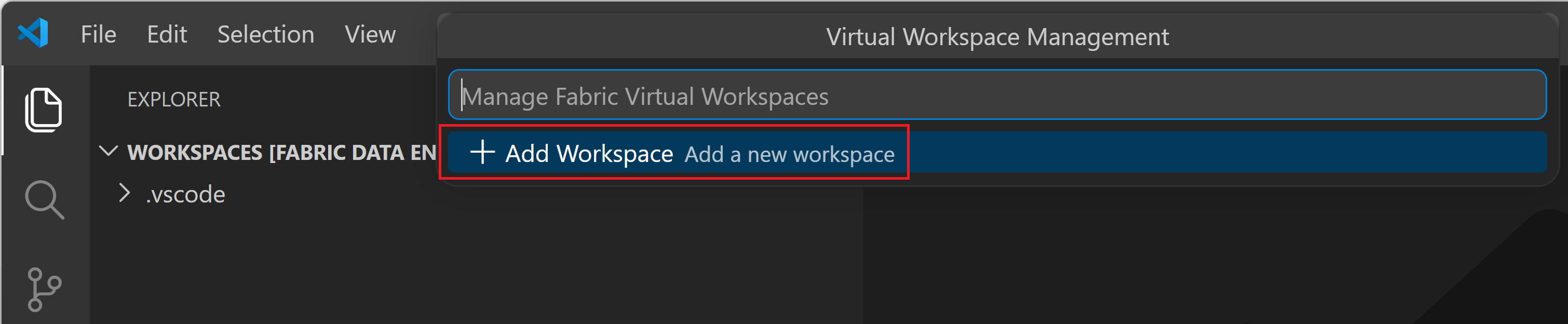
After you add a workspace, expand its tree node in the Explorer panel to view and manage the items in that workspace.
Remove a workspace
Select the Explorer icon in the activity bar (or press Ctrl+Shift+E) to open the Explorer view.
Right-click any empty area in the Explorer view (or press Shift+F10) to open the context menu. Scroll down if needed and select Manage Fabric Workspaces.
In the workspace list that appears, select the x button next to the workspace you want to remove.
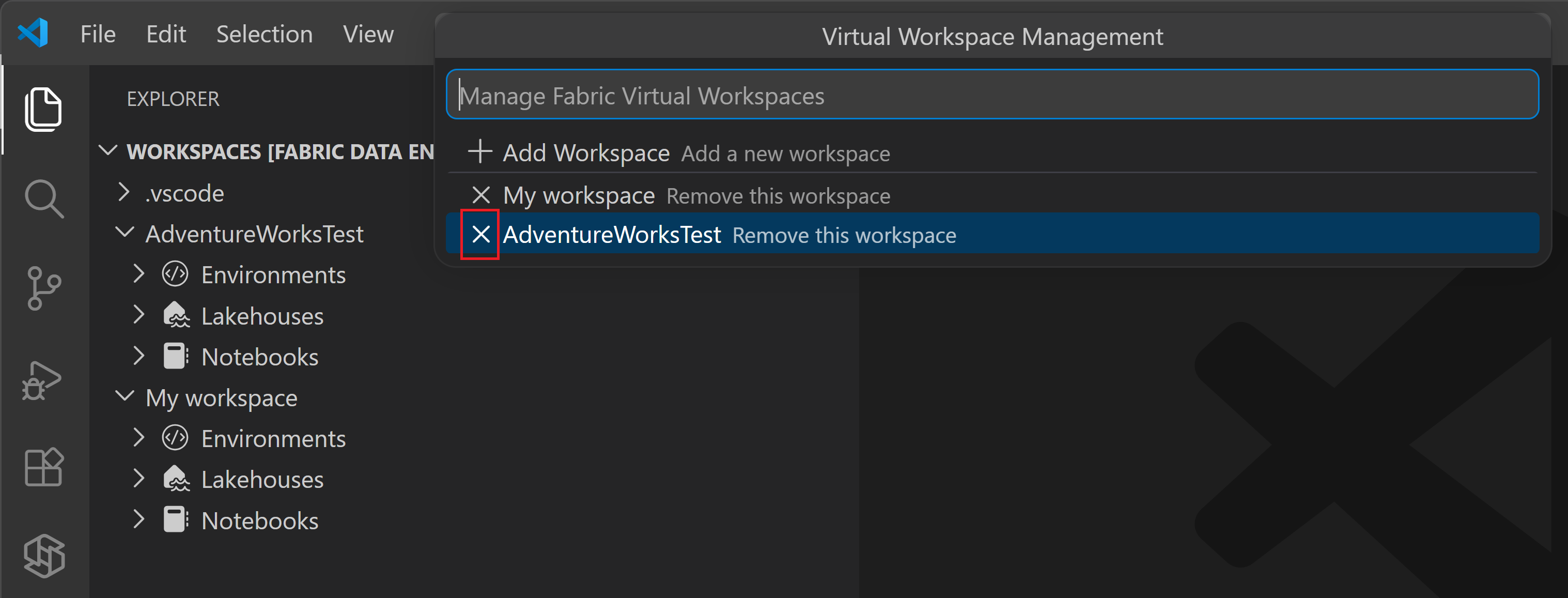
Removing a workspace from VS Code doesn't delete the workspace or its items; it only disconnects the workspace from your VS Code window.