Nota
L-aċċess għal din il-paġna jeħtieġ l-awtorizzazzjoni. Tista’ tipprova tidħol jew tibdel id-direttorji.
L-aċċess għal din il-paġna jeħtieġ l-awtorizzazzjoni. Tista’ tipprova tibdel id-direttorji.
Use Create database from bacpac/dacpac to create an empty database with the New Database dialog, then apply a .dacpac or .bacpac file with the Apply wizard.
Note
The Create database from bacpac/dacpac command is in preview.
Prerequisites
- SQL Server Management Studio (SSMS).
- A connection to SQL Server or Azure SQL Managed Instance.
- Permissions to create a database and apply the package. See Create a database and the Apply wizard prerequisites.
- A local
.dacpacor.bacpacfile.
This command uses the existing New Database dialog. It isn't available for Azure SQL Database. To apply a package to an existing Azure SQL Database, use Apply a DACPAC or BACPAC to an existing database.
Create the database
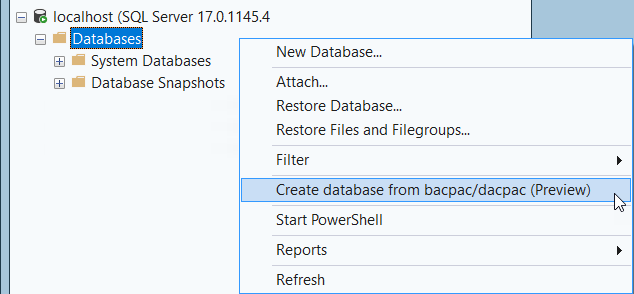
In Object Explorer, right-click the Databases folder and select Create database from bacpac/dacpac (Preview).
In the New Database dialog, enter the Database name. Configure the owner, database files, options, and filegroups as needed.
Important
Select the same collation as defined in the bacpac/dacpac file.
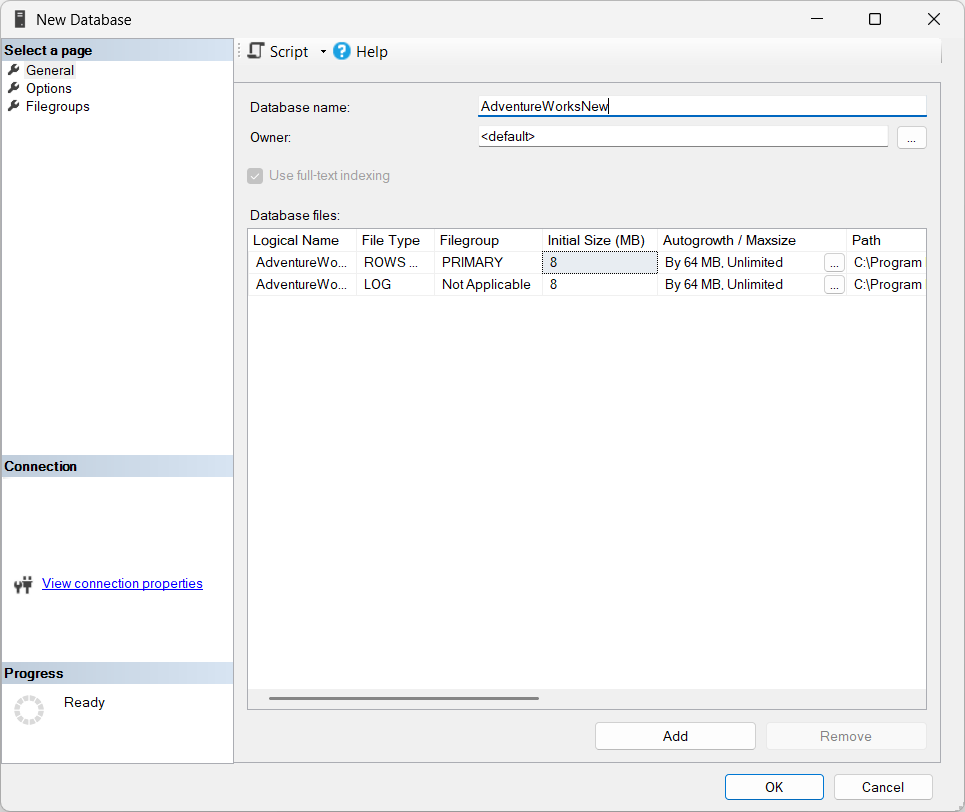
Select OK to create the database. When creation succeeds, the Apply wizard opens with the new database selected as the target.
Apply the package
In the Apply wizard, select Bacpac or Dacpac, and enter the local file path or select Browse.
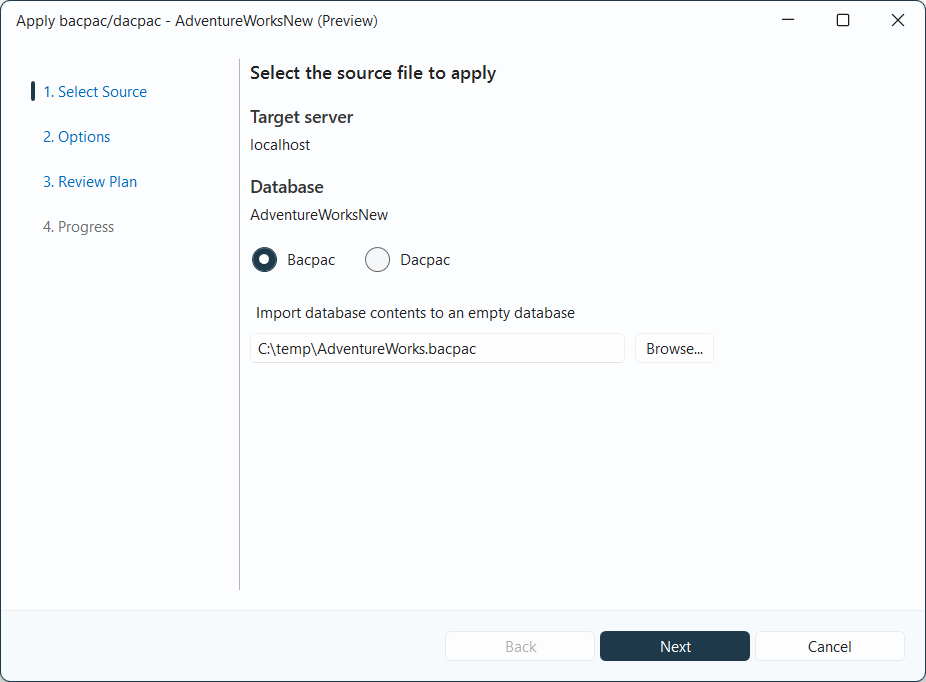
The remaining steps are the same as Apply a DACPAC or BACPAC to an existing database.
Note
Database creation and package application are separate operations. If you cancel the Apply wizard or the package application fails, the created database remains.