Merk
Tilgang til denne siden krever autorisasjon. Du kan prøve å logge på eller endre kataloger.
Tilgang til denne siden krever autorisasjon. Du kan prøve å endre kataloger.
This article explains how to use budgets to track spending in your Azure Databricks account.
Budgets enable you to monitor usage across your account. You can set up budgets to either track account-wide spending, or apply filters to track the spending of specific teams, projects, or workspaces. For budgets scoped to Unity Gateway, you can track each user's spend against daily and monthly per-user thresholds.
Budgets are measured in USD and use the list price of the SKU, including platform add-ons.
Requirements
- You must be an account admin to create and manage budgets.
- Workspace admins can create and manage budgets scoped to workspaces they administer using Governance Hub.
To let other users view or manage a budget, grant them a budget role. See Manage budget permissions.
Create a budget
In the account console sidebar, click Usage.
Click the Budgets tab then click Add budget.
Enter a Name for your budget.
In the Definitions section you can limit the budget's tracked spending based on product, workspace, and custom tags. If you leave these fields blank, your budget will measure usage across your whole account.
In the Workspaces drop-down, select the workspaces you would like to include in your budget. Leave the field empty to track your entire account's usage.
In the Resource types drop-down, select All to track spend across every Azure Databricks product, or Unity Gateway to track only spend through Unity Gateway endpoints.
(Optional) In the Resource tags section, you can scope the budget to a selection of custom tags. If you add tags to this section, the budget will only track usage that includes the specified custom tags. For Unity Gateway budgets, tags are matched against endpoint tags.
Warning
Tag data is stored as plain text and may be replicated globally. Do not use tag names, values, or descriptors that could compromise the security of your resources. For example, do not use tag names, values or descriptors that contain personal or sensitive information.
Create up to four shared thresholds, which monitor monthly spend against a specified threshold. For each threshold:
- Click the Add threshold button.
- Enter a dollar amount in the Monthly threshold field.
- (Optional) Check Send email and enter a comma-separated list of email addresses. These addresses receive alerts when spending exceeds the threshold. If you don't send email, you can still track the budget in the account console.
- (Optional) Check Block usage to prevent users from making further requests through Unity Gateway when the threshold is reached. Only one shared threshold can block usage, and it must be the highest shared threshold.
- (Optional) Check Trigger webhook and select one or more destinations to send a webhook payload when the threshold is reached. See Trigger custom webhooks.
- Click Add.
(Budgets for Unity Gateway only) Optionally, in the Groups and users section, set per-user thresholds. A per-user threshold tracks each user's Unity Gateway spend within the budget's scope, and each user gets their own copy of the threshold. You can set a daily threshold, a monthly threshold, or both. Daily thresholds track spend for each UTC calendar day and reset at 00:00 UTC. Monthly thresholds reset on the first day of each month.
Click Add default threshold. The default thresholds apply to every user in the budget's scope who isn't covered by an override.
Under Daily threshold, Monthly threshold, or both, click Add default and enter a dollar amount. Set the daily threshold lower than the monthly threshold.
Click Save.
(Optional) To give a user or group a higher limit than the default, add an override:
- Click Add group or user and select the user or group in the Group or user drop-down.
- Under Daily threshold or Monthly threshold, click Add override and enter an amount greater than the default for that period. If a user belongs to multiple groups, the highest threshold for each period applies.
- Click Save. Repeat for each user or group.
Under Actions, click Edit actions. For the Daily period, the Monthly period, or both, select one or more actions. The actions for a period apply to the default threshold and all overrides for that period.
Send email: Enter a comma-separated list of email addresses in the Email addresses field. These addresses receive alerts when a user's spending exceeds their threshold. The notification identifies the user, the period, their spend, and the budget.
Important
Budget email notifications and webhook payloads include the budget name, workspace filter, user identity for per-user thresholds, and defined custom tags. Email recipients do not need to be Azure Databricks users, and webhook destinations can be external endpoints. Ensure you are protecting sensitive data when naming the budget, selecting tags, adding email recipients, and choosing webhook destinations.
Trigger webhook: Select one or more destinations to send a webhook payload when a user reaches their threshold. See Trigger custom webhooks.
Block usage: Prevent the user from making further requests through Unity Gateway when they reach their threshold, until the period resets.
Click Save.
Click Create.
Trigger custom webhooks
Important
This feature is in Beta. Account admins can manage access to this feature from the account console Previews page. See Manage account-level previews.
A budget threshold can send an HTTP POST request to a webhook when it's reached, so you can route budget events to incident management, ticketing, or automation tools. To use this feature, an account admin must turn on the Account-level Webhook Destinations preview.
Budget webhooks use account-level notification destinations. Account admins create these destinations in the account console. After a destination is created, any user in the account can view it and select it as a threshold action. Account-level notification destinations support webhooks only. Workspace-level notification destinations can't be used in budgets.
Create a webhook destination
You must be an account admin to create a webhook destination.
Open the notification destinations page in the account console.
Go directly to the notification destinations page, or:
- In the account console sidebar, click Settings.
- Click the Notifications tab.
Click Add destination.
Enter a Name and the webhook URL. The URL must use HTTPS.
(Optional) Enter a Username and Password to authenticate requests with HTTP basic authentication.
Click Create.
Account-level webhook destinations work like workspace-level webhook destinations. See Manage notification destinations.
Webhook payload
When a budget threshold with Trigger webhook enabled is reached, Azure Databricks sends a JSON payload to each selected destination. The payload includes the budget, the threshold (quantity_threshold), the near real-time spend (current_spend), and an event_id you can use to discard duplicate deliveries. For per-user thresholds, the payload also includes the principal_id and user_name of the user who reached the threshold, and the threshold and spend values are that user's for the period.
The following example shows a payload for a shared threshold. Amounts are decimal strings in US dollars at list price, and times are RFC 3339 timestamps in UTC.
{
  "event_type": "budgets.on_threshold_exceeded",
  "event_id": "<event-id>",
  "schema_version": "1",
  "account_id": "<account-id>",
  "budget": {
    "budget_configuration_id": "<budget-id>",
    "display_name": "ML team AI Gateway budget",
    "resource_type": "BUDGET_RESOURCE_TYPE_UNITY_AI_GATEWAY",
    "filter": {
      "workspace_id": { "operator": "IN", "values": [1234567890123456] },
      "tags": [{ "key": "team", "value": { "operator": "IN", "values": ["ml"] } }]
    }
  },
  "alert": {
    "alert_configuration_id": "<alert-configuration-id>",
    "scope_type": "ALERT_CONFIGURATION_SCOPE_TYPE_SHARED",
    "time_period": "MONTH",
    "trigger_type": "CUMULATIVE_SPENDING_EXCEEDED",
    "quantity_type": "LIST_PRICE_DOLLARS_USD"
  },
  "evaluation": {
    "evaluated_at": "2026-10-12T00:00:00Z",
    "quantity_threshold": "50.00",
    "current_spend": "50.02",
    "period": {
      "start": "2026-10-01T00:00:00Z",
      "end": "2026-11-01T00:00:00Z"
    }
  }
}
For a per-user threshold, scope_type is ALERT_CONFIGURATION_SCOPE_TYPE_PER_USER and the payload adds a principal object:
{
  "principal": {
    "principal_id": 1234567890,
    "user_name": "user@example.com"
  }
}
What a Unity Gateway budget covers
When you scope a budget to the Unity Gateway product, the budget tracks all spend associated with Unity Gateway endpoints defined in the scope. This covers Pay-Per-Token (also called pay-as-you-go), ai_query (batch) inference, and optional external model usage through model provider services.
Endpoint and Unity Catalog tags are respected. If you add a tag filter to the budget (for example, team=ml-platform), only Unity Gateway endpoints carrying that tag count toward the budget. Request tags don't affect budget matching.
Provisioned throughput inference requests are not tracked by Unity Gateway budgets.
For deeper cost analysis of Unity Gateway spend, including dashboards and usage details, see Analyze Unity Gateway cost.
Account and workspace admins can view a summary of budget status and overall spend on the Cost page in Governance Hub.
For budgets that track Genie usage, see Manage budgets and cost controls for Genie.
View budget details
You can use email notifications to learn when spending has surpassed a budget threshold.
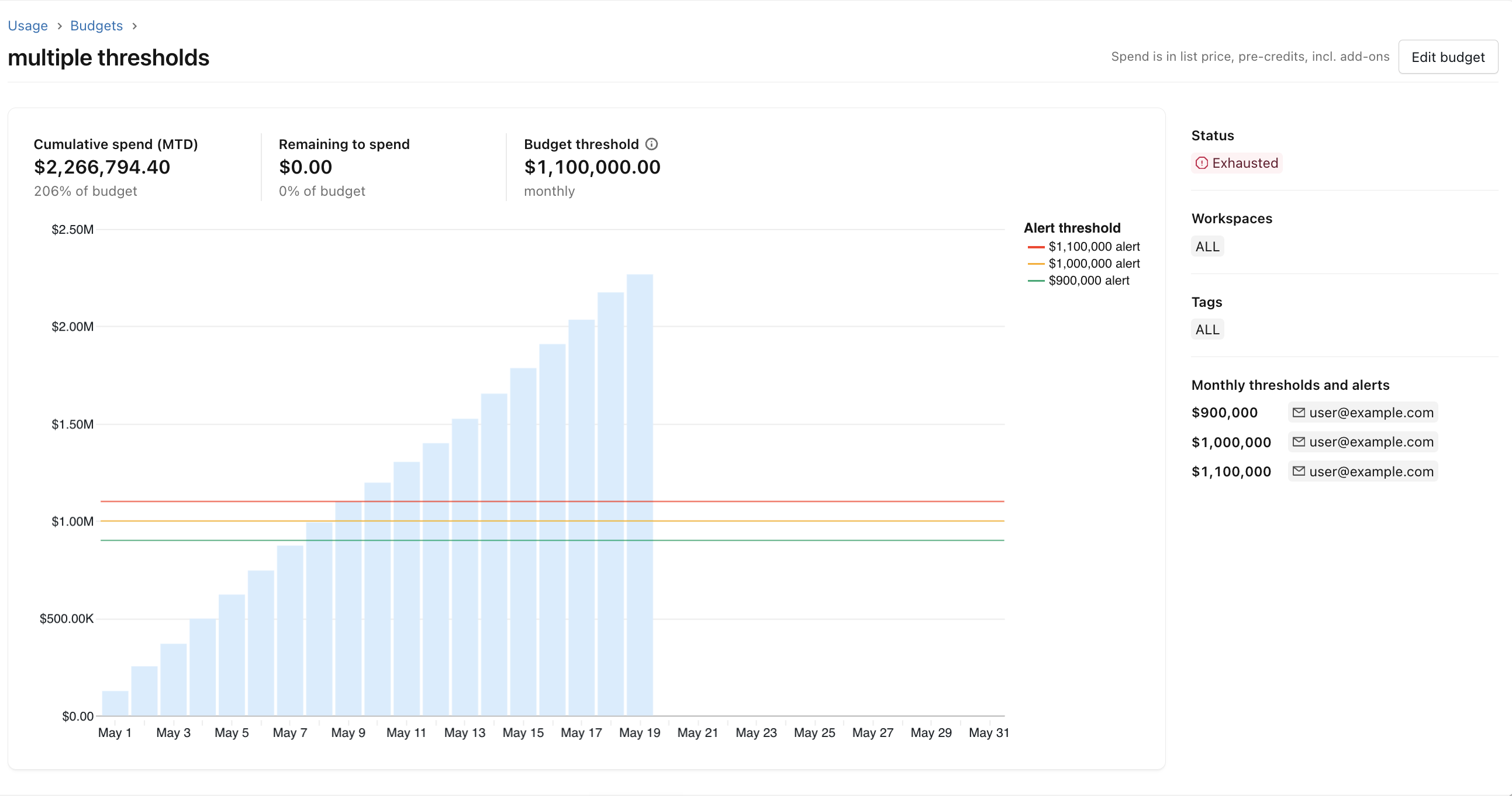
You can also track the status of a budget by clicking the budget name in the account console. The budget details page displays the current month's spend, the remaining budget, and a visualization of the day-to-day cumulative spend. Alert thresholds appear as dotted lines on the chart.
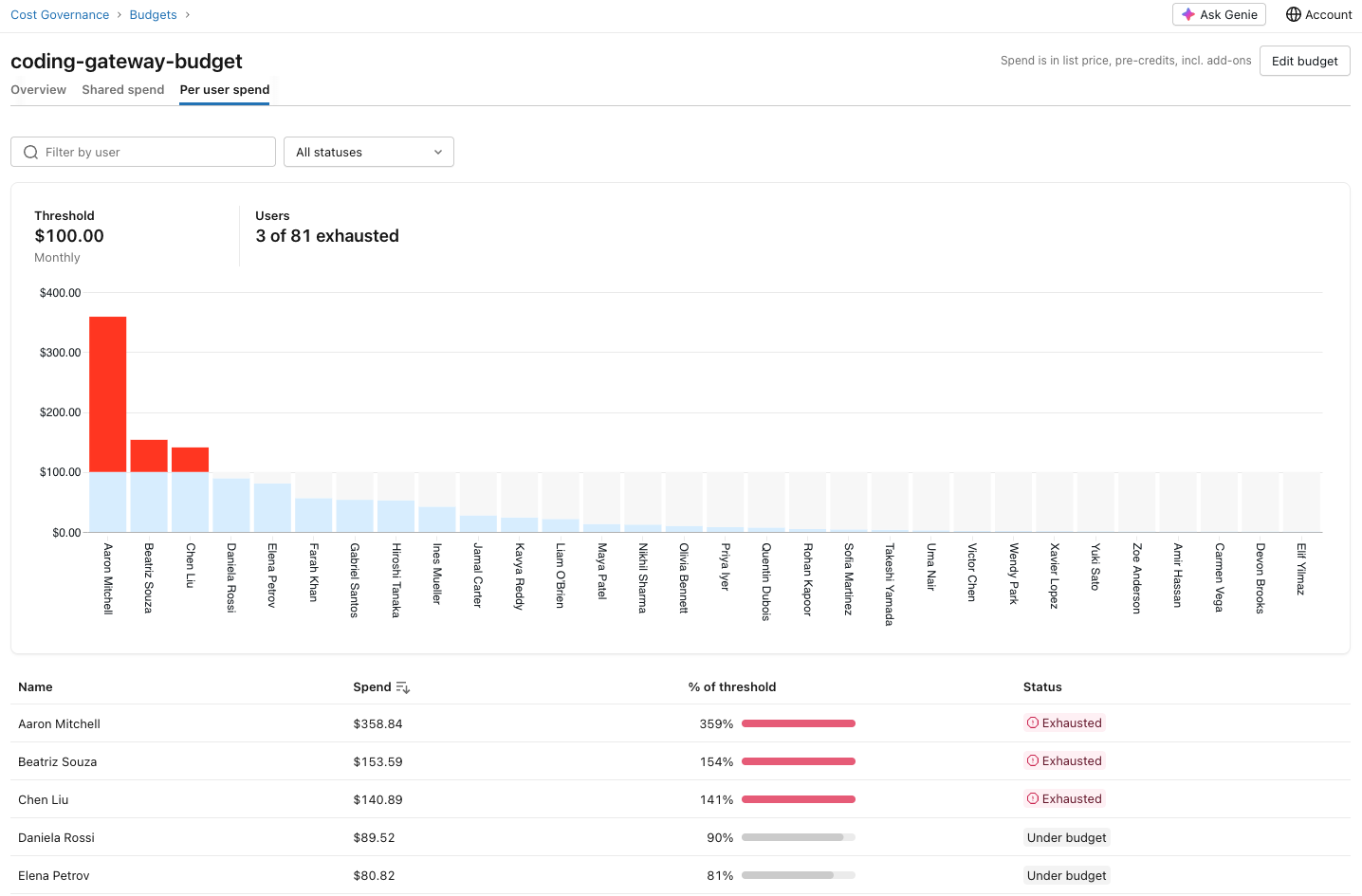
For budgets scoped to Unity Gateway, the budget details page also shows a per-user spend table. The table lists every user who has Unity Gateway usage within the budget scope, their spend for each period that has a per-user threshold, and their status against their daily or monthly threshold (under, approaching, or exceeded).
Update or delete a budget
To update or delete a budget, click the  kebab menu in the rightmost column of the budget's row and select Edit budget or Delete budget.
Monitor serverless compute budgets
If your account uses serverless compute, you can use serverless usage policies to attribute your account's serverless usage. See Attribute usage with serverless usage policies.
For more information about serverless compute usage monitoring, see Monitor the cost of serverless compute.
Known limitations
Important
Budgets for Unity Gateway provide a near real-time estimate of the spend tracked against the configured thresholds, and actual costs incurred may differ from configured thresholds. This feature is intended to help with near real-time cost control. Do not use this feature as a way to ensure an absolute spend cap on final billed amounts. Azure Databricks is not responsible for costs incurred in excess of configured budget thresholds.
You can configure a maximum of four shared thresholds per budget. Each shared threshold must have a unique monthly threshold value. Shared thresholds are monthly only.
Budgets for Unity Gateway can also have one default daily per-user threshold and one default monthly per-user threshold, which don't count toward the shared threshold limit. Per-user overrides for specific users or groups must be higher than the default per-user threshold for the same period. To add an override for a period, the budget must have a default per-user threshold for that period. Removing a default threshold also removes its overrides.
Only one shared threshold per budget can block usage, and it must be the threshold with the highest value.
Your account can have a maximum of 1,000 budgets.
There could be up to a 24-hour delay between usage occurring and an email notification being sent. For Unity Gateway budgets, this delay is considerably shorter and near real-time.
After you create a new budget, there could be a delay before you can see the budget details.
Budget webhooks aren't available in government or regulated environments.
Budgets do not factor in any billing credits or negotiated discounts your account might have. The spent amount is calculated by multiplying usage by the SKU list price.
Block usage thresholds are enforced approximately. Enforcement uses a near-real-time estimate of cost, so actual spend may vary above or below the configured threshold. This means:
- A user may be blocked before their actual spend reaches the threshold.
- An amount of spend over the threshold may occur before enforcement takes effect. Active requests in progress when the threshold is reached are not interrupted.
system.billing.usageremains the source of truth for actual billable usage. For discrepancies between usage tracked against a budget and actual costs, Azure Databricks may retroactively adjust budget estimates to reconcile them.Spend amounts in the budget alert emails, budget details page, and
system.billing.usagemay differ when compared at the same point in time. This is expected, because each source updates at a different rate:- Budget alert emails: Reflect spend at the moment the alert was triggered.
- Budget details page: Updates frequently but may show a lower amount than a recent alert email when viewed shortly after.
system.billing.usage: Updates every few hours. Querying system tables shortly after receiving an alert may return a lower spend figure than the budget details page or alert emails.
For Unity Gateway and Genie budgets, enforcement (usage blocking and alert thresholds) is based on near real-time spend tracking and is not affected by system table refresh timing.