Merk
Tilgang til denne siden krever autorisasjon. Du kan prøve å logge på eller endre kataloger.
Tilgang til denne siden krever autorisasjon. Du kan prøve å endre kataloger.
Budgets help you monitor and control Unity Gateway spend, including Azure Databricks-hosted usage and, when enabled, external model spend. You can scope a budget specifically to the Unity Gateway product to track only Unity Gateway spending, or include Unity Gateway in an account-wide budget.
Account and workspace admins can view a summary of AI budget status and spend on the AI page in Governance Hub.
Tip
For budgets scoped to Unity Gateway, enforcement and alerts are near real-time. When spend crosses a threshold, usage blocking and alert emails go into effect within moments. Budget near-real-time monitoring is independent of system.billing.usage refresh timing.
For details on creating and monitoring budgets, see Create and monitor budgets. To delegate who can view and manage a budget, see Manage budget permissions.
Requirements
- Unity Gateway enabled for your account.
What do budgets for Unity Gateway cover?
Unity Gateway budgets cover spend that flows through Unity Gateway:
- pay-per-token usage
- AI Functions. See View costs for AI Function workloads.
- Genie. See Manage budgets and cost controls for Genie.
- (Optional) external model providers (model provider services).
These budgets don't cover the following:
- Provisioned throughput
- Traffic sent directly to standalone Model Serving endpoints that doesn't flow through Unity Gateway
Common budget setups
Budgets give you a single cost-control plane over traffic routed through Unity Gateway, covering Azure Databricks-hosted usage and, when enabled, external model spend. Use them to keep AI spend predictable and prevent unexpected costs.
Each setup below defines where a budget applies (its scope) and the limits it enforces (its thresholds). Amounts are examples. To configure a budget, see Create a budget for Unity Gateway.
| Goal | Budget setup |
|---|---|
| Cap your organization's total AI spend | Scope the budget to the whole account. Add shared thresholds that send email at $40,000 and $45,000 and block usage at $50,000 a month. Set a $200 monthly per-user threshold, with a higher group override for power users. |
| Give each team its own allocation | Create a budget for each team's workspace. Add a shared threshold at the team's monthly allocation that blocks usage, and a lower one that emails the team lead. |
| Stop a user's runaway spend before it uses up their monthly budget | Add a daily per-user threshold that blocks usage, such as $25, alongside a monthly per-user threshold. A user whose spend spikes is blocked until 00:00 UTC instead of exhausting their monthly allowance. Add a group override with a higher daily limit for users who need it. |
| Limit use of your most expensive models | Tag those model services (for example, tier=frontier) and scope a budget to the tag. Add a low monthly per-user threshold that blocks usage. Users who reach it can still use other models. |
| Let everyone try new models without risking your budget | Tag new models' services (for example, tier=experimental) and scope a budget to the tag. Add a monthly per-user threshold that blocks usage. When you promote a model, remove the tag so new requests count toward your standard budgets. |
Budgets are additive: a request counts toward every budget whose scope matches it. For example, an organization-wide cap can run alongside separate budgets for frontier and experimental models.
Account or workspace budgets
Where a budget lives and who owns it depends on how your organization governs spend:
- Centralized (account-level): A single budget managed at the account level. Best when you want uniform governance and don't want individual workspaces managing their own limits. At scale, segment users into tiers (for example, by role or cost center) instead of setting a limit per user.
- Decentralized (workspace-level): Each workspace owns and manages its own budget. Best when teams or projects have independent ownership and accountability, such as when each workspace maps to one project and environment.
- Hybrid: An account-level budget and workspace-level budgets coexist. A common pattern uses the account-level budget as a governance backstop that keeps spend governed even when a workspace hasn't set up its own budget, while workspaces manage their own day-to-day limits.
Note
An account-level budget and a workspace-level budget are additive, not hierarchical. They apply independently and don't override each other.
Create a budget for Unity Gateway
When creating a budget, select Unity Gateway as the resource type to track only Unity Gateway spending.
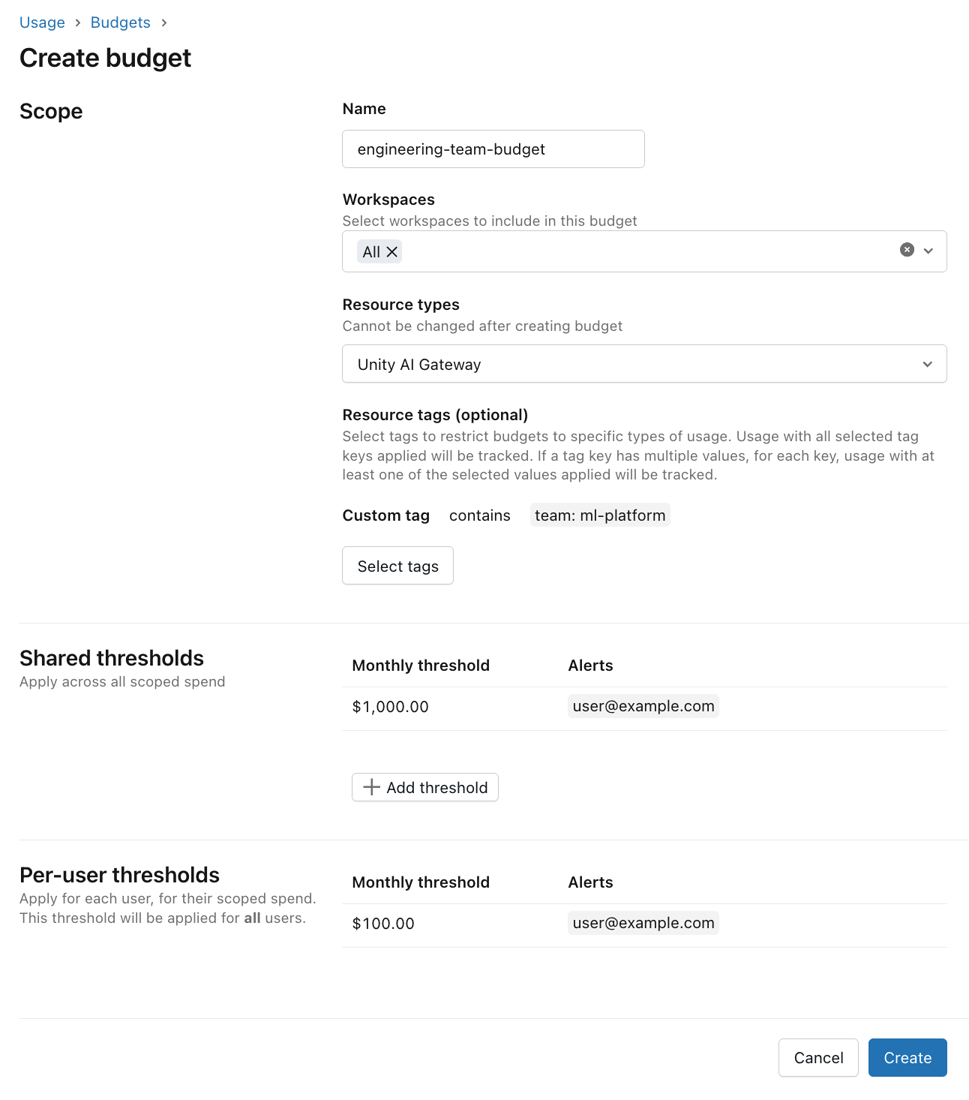
Threshold types: For budgets scoped to Unity Gateway, you can configure:
- Shared thresholds: A collective monthly spending limit for all users within the budget scope.
- Per-user thresholds: A daily limit, a monthly limit, or both, that applies to each individual user. Daily thresholds track spend for each UTC calendar day and reset at 00:00 UTC. Monthly thresholds reset on the first day of each month.
- Per-user overrides: Grant specific users or groups a higher daily or monthly spending limit than the default per-user threshold for that period. Users covered by an override can spend up to the override amount rather than the default per-user limit. If a user belongs to multiple override groups, the highest threshold for each period applies.
For shared and per-user thresholds, you can configure one or more of the following actions when a threshold is reached. For per-user thresholds, you configure actions separately for the daily and monthly periods.
- Send email: Sends an email notification to configured addresses. Users retain access to Unity Gateway.
- Block usage: Prevents the user from making further requests through Unity Gateway. The user sees a message that their budget is exhausted. Access resumes after the threshold's period resets or an admin increases the threshold.
- Trigger webhook (Beta): Sends a JSON payload to one or more account-level webhook destinations. For per-user thresholds, the payload identifies the user who reached the threshold. See Trigger custom webhooks.
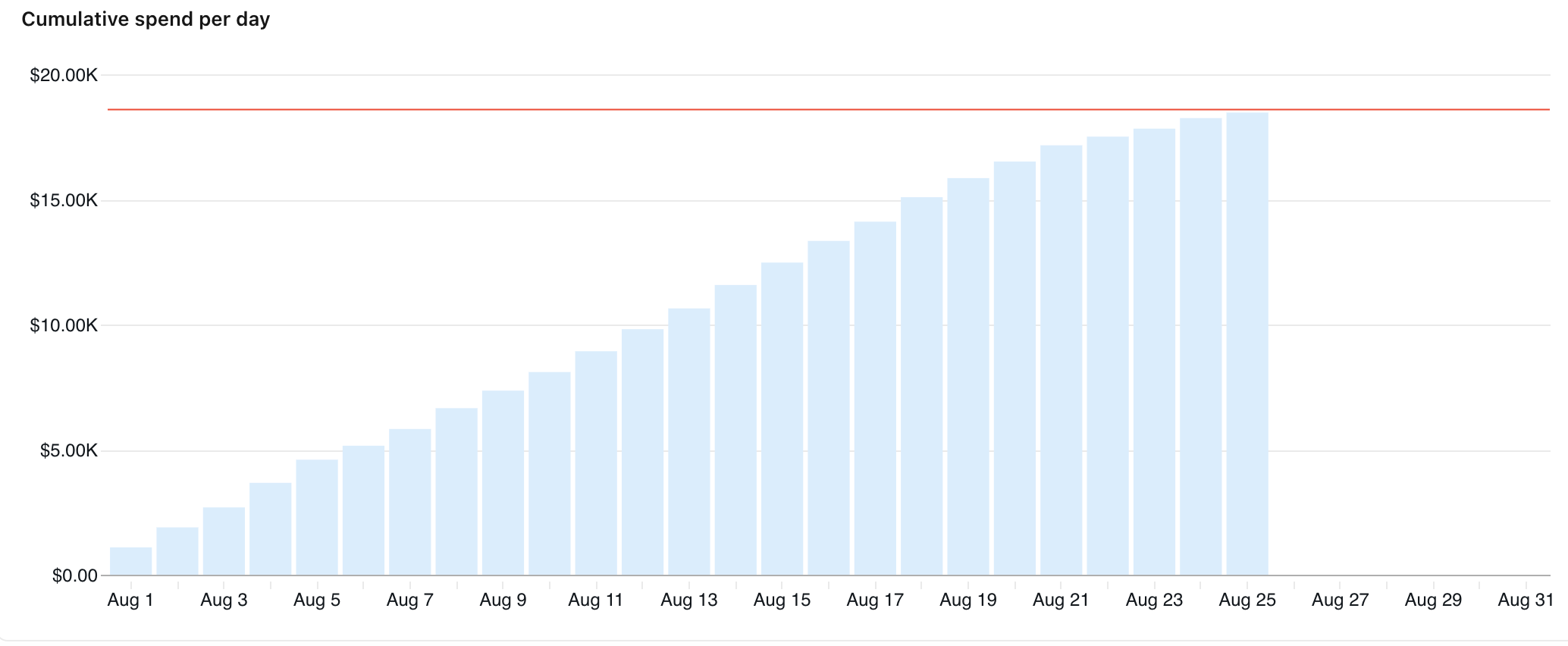
Account admins can view near real-time estimated spend on the budget details page.
Include external model usage
Important
This feature is in Beta. Account admins can manage access to this feature from the account console Previews page. See Manage account-level previews.
When you create a Unity Gateway budget, select Include external model usage to include estimated spend from requests routed to external models through model provider services.
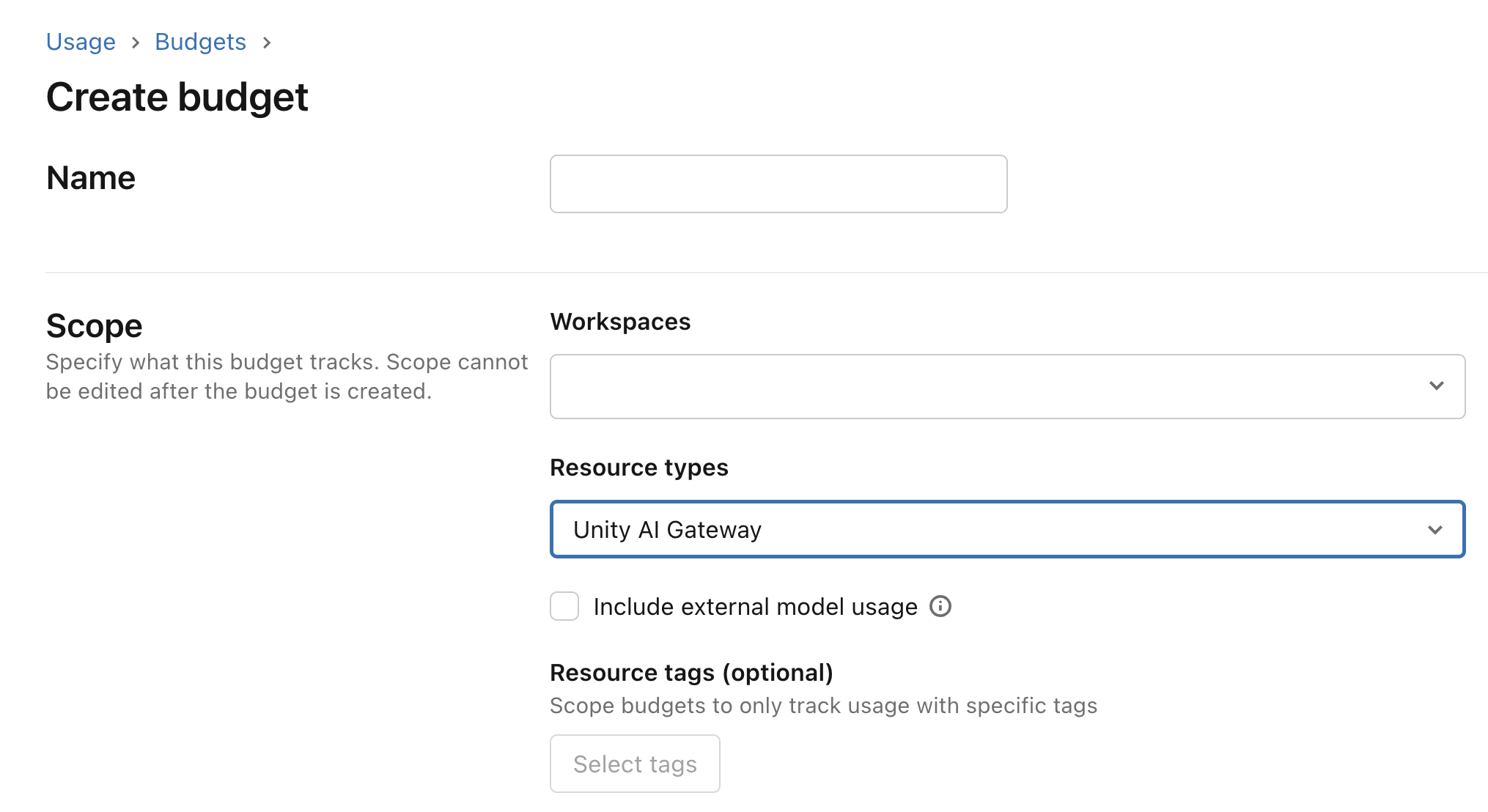
When enabled, external model spend counts toward the budget's shared and per-user thresholds. The configured alert and block usage actions apply when the combined spend reaches a threshold. If you don't select this option, the budget excludes external model spend but continues to include Azure Databricks-hosted model usage.
Azure Databricks estimates external model spend from token usage and the external provider's published prices. These estimates might differ from your final provider invoice. For historical analysis of external model spend, query the system.ai_gateway.external_model_spend system table. See External models. External model spend included in the budget reflects any price multiplier configured on the model provider service.
Budget tag filters apply to model service tags. Request tags are available in the external model spend system table, but don't affect budget matching.
Example: Set up a workspace ceiling with per-user limits
This walkthrough configures the most common pattern: a workspace-wide spending ceiling combined with a per-user allowance, so total spend stays controlled and no single user consumes the budget. For full details on each field, see Create and monitor budgets.
The steps use an example workspace named ml-prod with a $10,000 monthly ceiling, a $200 monthly default limit for each user, and a higher limit for one group. Replace these values with your own.
- On the AI page in Governance Hub, create a budget and select Unity Gateway as the resource type.
- Scope the budget to the
ml-prodworkspace. - Add a shared threshold of $10,000 and set its action to Block usage, so Unity Gateway blocks new requests when combined workspace spend reaches the threshold.
- Add a monthly per-user threshold of $200 so no single user consumes the shared pool. Set its action to Send email to notify the configured email addresses when a user reaches the limit, or Block usage to stop the user at it. To also limit how much a user can spend in a single day, add a daily per-user threshold.
- (Optional) Add a per-user override for users or groups that need more. For example, give the
ml-engineersgroup a $1,000 monthly limit. - Save the budget, then confirm its status on the budget details page.
With this budget, the ml-prod workspace has a $10,000 ceiling, each user has a $200 monthly limit, and members of the ml-engineers group can spend up to $1,000 each per month.
Best practices
- Grant overrides to groups, not individual users. Apply an override to a group so you can add more users to that group without creating a new override for each one. This scales better than direct per-user overrides, which each count toward the limit of 100 per budget. A practical way to define groups is by an attribute you already track, such as cost center, team, or role.
- Keep an account-level backstop. When individual workspaces own their budgets, add an account-level budget as a backstop so that spend is still governed if a workspace hasn't set up its own budget.
- Remember budgets are additive. In hybrid setups, account-level and workspace-level budgets both apply. One doesn't override the other.
Limitations
Important
Budgets for Unity Gateway provide a near real-time estimate of the spend tracked against the configured thresholds, and actual costs incurred may differ from configured thresholds. This feature is intended to help with near real-time cost control. Do not use this feature as a way to ensure an absolute spend cap on final billed amounts. Azure Databricks is not responsible for costs incurred in excess of configured budget thresholds.
Provisioned throughput inference is not currently tracked.
Task-specific AI Functions requests count toward Unity Gateway budgets, but aren't recorded in the
system.ai_gateway.usagetable. To view billed usage, querysystem.billing.usage. See View costs for AI Function workloads.Each budget supports a maximum of four shared thresholds and 100 per-user overrides.
Your account can have a maximum of 1,000 budgets.
Block usage thresholds are enforced approximately. Enforcement uses a near-real-time estimate of cost, so actual spend may vary above or below the configured threshold. This means:
- A user may be blocked before their actual spend reaches the threshold.
- An amount of spend over the threshold may occur before enforcement takes effect. Active requests in progress when the threshold is reached are not interrupted.
system.billing.usageremains the source of truth for actual Databricks-billed usage. For discrepancies between usage tracked against a budget and actual costs, Azure Databricks may retroactively adjust budget estimates to reconcile them. For external model usage, the external provider invoice is the source of truth for actual provider charges.Spend amounts in budget alert emails, the budget details page,
system.billing.usage, andsystem.ai_gateway.external_model_spendmay differ when compared at the same point in time. This is expected, because each source updates at a different rate:- Budget alert emails: Reflect spend at the moment the alert was triggered.
- Budget details page: Updates frequently but may show a lower amount than a recent alert email when viewed shortly after.
system.billing.usage: Updates every few hours. Querying system tables shortly after receiving an alert may return a lower spend figure than the budget details page or alert emails.system.ai_gateway.external_model_spend: Updates hourly with estimated external model spend. The estimates might differ from your final provider invoice.
Budget enforcement, including usage blocking and alert thresholds, is based on near real-time spend tracking and is not affected by system table refresh timing.