Notitie
Voor toegang tot deze pagina is autorisatie vereist. U kunt proberen u aan te melden of mappen te wijzigen.
Voor toegang tot deze pagina is autorisatie vereist. U kunt proberen om mappen te wijzigen.
Van toepassing op:✅ Fabric Data Engineering and Data Science
Meer informatie over het verzenden van Spark-sessietaken met behulp van de Livy-API voor Fabric Data Engineering.
Vereisten
Fabric Premium of Trial capaciteit met een Lakehouse
Een externe client, zoals Visual Studio Code met Jupyter Notebooks, PySpark en de Microsoft Authentication Library (MSAL) voor Python
Een Microsoft Entra app-token. Register van een toepassing met de Microsoft identity platform
Of een Microsoft Entra SPN-token. Toevoegen en beheren van toepassingsreferenties in Microsoft Entra
Bepaalde gegevens in uw lakehouse, in dit voorbeeld wordt NYC Taxi & Limousine Commission green_tripdata_2022_08 een parquet-bestand geladen in de lakehouse
De Livy-API definieert een uniform eindpunt voor bewerkingen. Vervang de tijdelijke aanduidingen {Entra_TenantID}, {Entra_ClientID}, {Fabric_WorkspaceID}, {Fabric_LakehouseID} door de juiste waarden wanneer u de voorbeelden in dit artikel volgt.
Visual Studio Code configureren voor uw Livy API-sessie
Selecteer Lakehouse Settings in uw Fabric Lakehouse.

Navigeer naar de Livy endpoint-sectie.
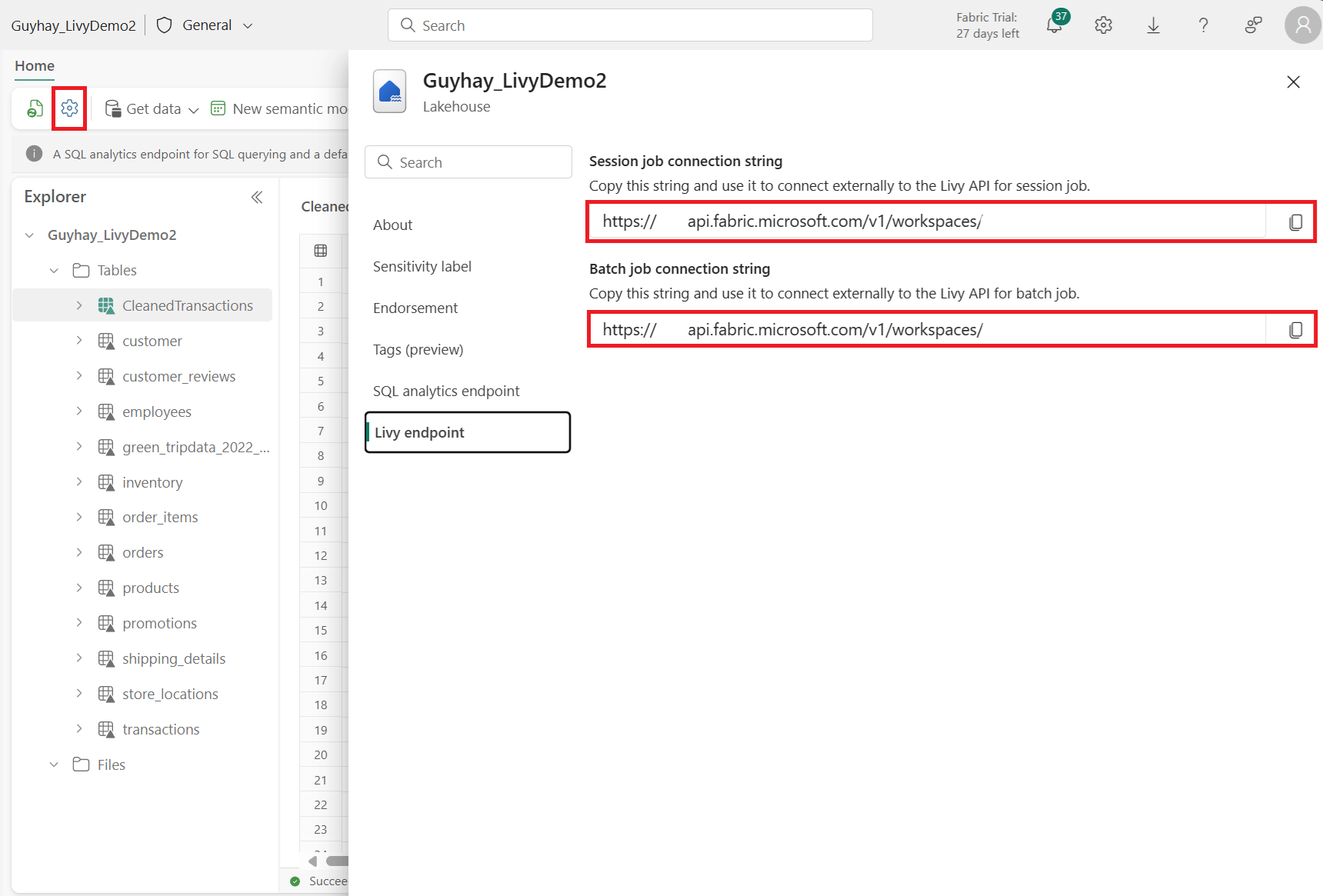
Kopieer de session job verbindingsreeks (eerste rode vak in de afbeelding) naar uw code.
Navigeer naar Microsoft Entra-beheercentrum en kopieer zowel de toepassings-id (client-id) als de map-id (tenant) naar uw code.
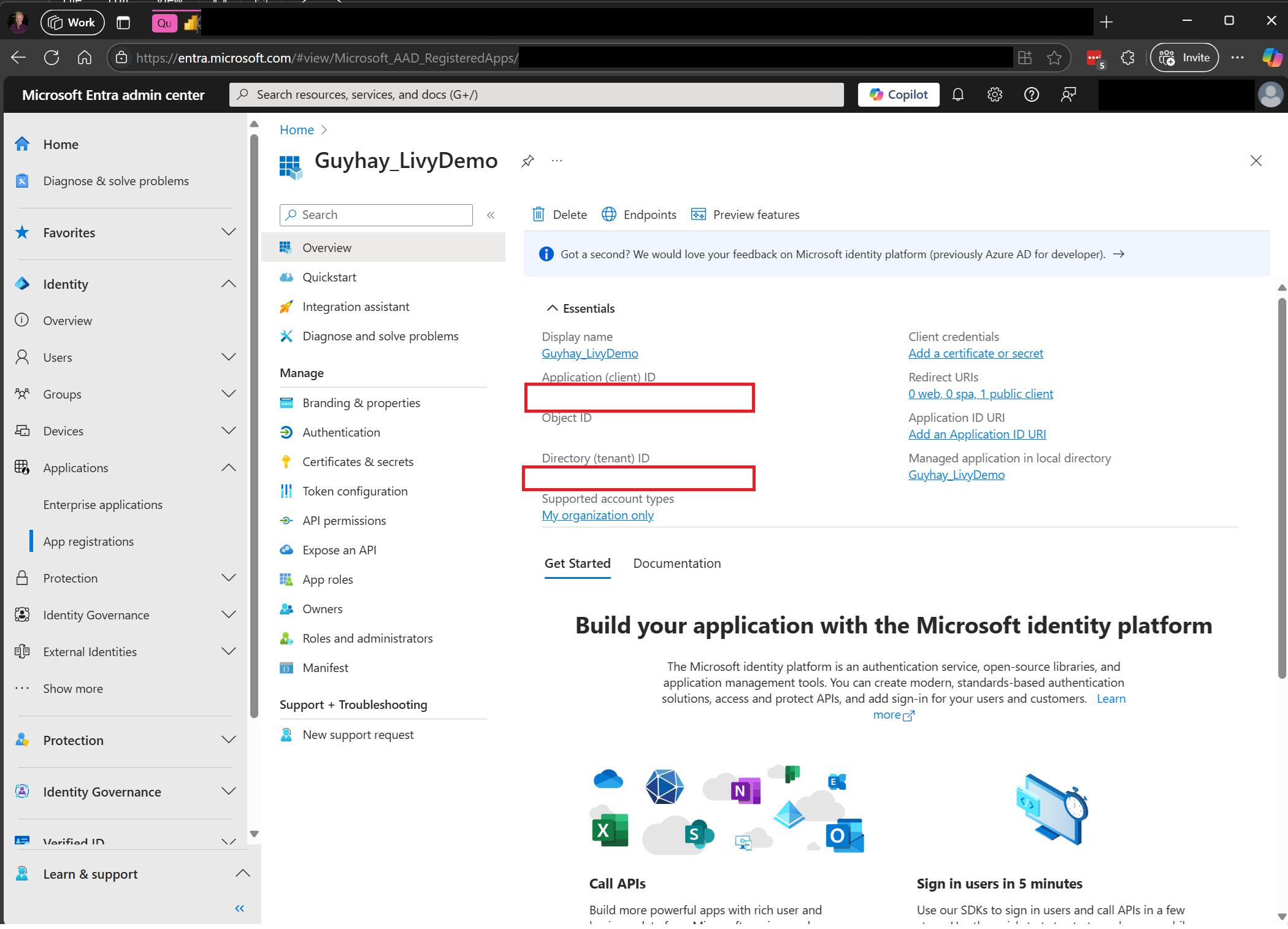
Een Livy API Spark-sessie verifiëren met behulp van een Microsoft Entra gebruikerstoken of een Microsoft Entra SPN-token
Een Livy API Spark-sessie verifiëren met behulp van een Microsoft Entra SPN-token
Maak een
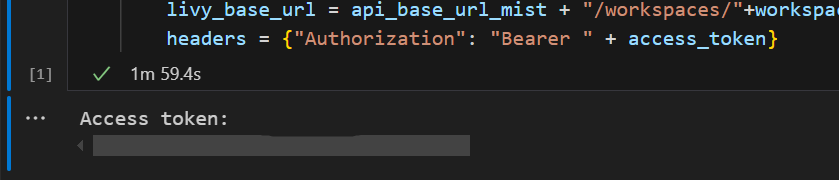
.ipynb-notebook in Visual Studio Code en voeg de volgende code in.import sys from msal import ConfidentialClientApplication # Configuration - Replace with your actual values tenant_id = "Entra_TenantID" # Microsoft Entra tenant ID client_id = "Entra_ClientID" # Service Principal Application ID # Certificate paths - Update these paths to your certificate files certificate_path = "PATH_TO_YOUR_CERTIFICATE.pem" # Public certificate file private_key_path = "PATH_TO_YOUR_PRIVATE_KEY.pem" # Private key file certificate_thumbprint = "YOUR_CERTIFICATE_THUMBPRINT" # Certificate thumbprint # OAuth settings audience = "https://analysis.windows.net/powerbi/api/.default" authority = f"https://login.windows.net/{tenant_id}" def get_access_token(client_id, audience, authority, certificate_path, private_key_path, certificate_thumbprint=None): """ Get an app-only access token for a Service Principal using OAuth 2.0 client credentials flow. This function uses certificate-based authentication which is more secure than client secrets. Args: client_id (str): The Service Principal's client ID audience (str): The audience for the token (resource scope) authority (str): The OAuth authority URL certificate_path (str): Path to the certificate file (.pem format) private_key_path (str): Path to the private key file (.pem format) certificate_thumbprint (str): Certificate thumbprint (optional but recommended) Returns: str: The access token for API authentication Raises: Exception: If token acquisition fails """ try: # Read the certificate from PEM file with open(certificate_path, "r", encoding="utf-8") as f: certificate_pem = f.read() # Read the private key from PEM file with open(private_key_path, "r", encoding="utf-8") as f: private_key_pem = f.read() # Create the confidential client application app = ConfidentialClientApplication( client_id=client_id, authority=authority, client_credential={ "private_key": private_key_pem, "thumbprint": certificate_thumbprint, "certificate": certificate_pem } ) # Acquire token using client credentials flow token_response = app.acquire_token_for_client(scopes=[audience]) if "access_token" in token_response: print("Successfully acquired access token") return token_response["access_token"] else: raise Exception(f"Failed to retrieve token: {token_response.get('error_description', 'Unknown error')}") except FileNotFoundError as e: print(f"Certificate file not found: {e}") sys.exit(1) except Exception as e: print(f"Error retrieving token: {e}", file=sys.stderr) sys.exit(1) # Get the access token token = get_access_token(client_id, audience, authority, certificate_path, private_key_path, certificate_thumbprint)Voer de notebookcel uit. U zou het Microsoft Entra-token moeten zien terugkeren.

Een Livy API Spark-sessie verifiëren met behulp van een Microsoft Entra gebruikerstoken
Maak een
.ipynb-notebook in Visual Studio Code en voeg de volgende code in.from msal import PublicClientApplication import requests import time # Configuration - Replace with your actual values tenant_id = "Entra_TenantID" # Microsoft Entra tenant ID client_id = "Entra_ClientID" # Application ID (can be the same as above or different) # Required scopes for Livy API access scopes = [ "https://api.fabric.microsoft.com/Lakehouse.Execute.All", # Required — execute operations in lakehouses "https://api.fabric.microsoft.com/Lakehouse.Read.All", # Required — read lakehouse metadata "https://api.fabric.microsoft.com/Code.AccessFabric.All", # Required — general Fabric API access from Spark Runtime "https://api.fabric.microsoft.com/Code.AccessStorage.All", # Required — access OneLake and Azure storage from Spark Runtime ] # Optional scopes — add these only if your Spark jobs need access to the corresponding services: # "https://api.fabric.microsoft.com/Code.AccessAzureKeyvault.All" # Optional — access Azure Key Vault from Spark Runtime # "https://api.fabric.microsoft.com/Code.AccessAzureDataLake.All" # Optional — access Azure Data Lake Storage Gen1 from Spark Runtime # "https://api.fabric.microsoft.com/Code.AccessAzureDataExplorer.All" # Optional — access Azure Data Explorer from Spark Runtime # "https://api.fabric.microsoft.com/Code.AccessSQL.All" # Optional — access Azure SQL audience tokens from Spark Runtime def get_access_token(tenant_id, client_id, scopes): """ Get an access token using interactive authentication. This method will open a browser window for user authentication. Args: tenant_id (str): The Microsoft Entra tenant ID client_id (str): The application client ID scopes (list): List of required permission scopes Returns: str: The access token, or None if authentication fails """ app = PublicClientApplication( client_id, authority=f"https://login.microsoftonline.com/{tenant_id}" ) print("Opening browser for interactive authentication...") token_response = app.acquire_token_interactive(scopes=scopes) if "access_token" in token_response: print("Successfully authenticated") return token_response["access_token"] else: print(f"Authentication failed: {token_response.get('error_description', 'Unknown error')}") return None # Uncomment the lines below to use interactive authentication token = get_access_token(tenant_id, client_id, scopes) print("Access token acquired via interactive login")Voer de notebookcel uit. U zou het Microsoft Entra-token moeten zien terugkeren.
Inzicht in Code.* scopes voor de Livy API
Wanneer uw Spark-taken worden uitgevoerd via de Livy-API, bepalen de Code.* toegangsrechten tot welke externe services de Spark Runtime namens de geverifieerde gebruiker toegang kan krijgen. Er zijn twee vereist; de rest is optioneel, afhankelijk van uw workload.
Vereiste code.* bereiken
| Scope | Beschrijving |
|---|---|
Code.AccessFabric.All |
Maakt het mogelijk om toegangstokens tot Fabric te krijgen. Vereist voor alle Livy-API-bewerkingen. |
Code.AccessStorage.All |
Hiermee kunt u toegangstokens krijgen tot OneLake en Azure-opslag. Vereist voor het lezen en schrijven van gegevens in lakehouses. |
Optionele code.* bereiken
Voeg deze scopes alleen toe als uw Spark-taken tijdens de uitvoering toegang nodig hebben tot de bijbehorende Azure services.
| Scope | Beschrijving | Wanneer gebruiken |
|---|---|---|
Code.AccessAzureKeyvault.All |
Hiermee kunt u toegangstokens ophalen voor Azure Key Vault. | Met uw Spark-code worden geheimen, sleutels of certificaten opgehaald uit Azure Key Vault. |
Code.AccessAzureDataLake.All |
Hiermee kunt u toegangstokens ophalen voor Azure Data Lake Storage Gen1. | Uw Spark-code leest van of schrijft naar Azure Data Lake Storage Gen1 accounts. |
Code.AccessAzureDataExplorer.All |
Hiermee kunt u toegangstokens ophalen voor Azure Data Explorer (Kusto). | Uw Spark-code voert query's uit of neemt gegevens op van/naar Azure Data Explorer clusters. |
Code.AccessSQL.All |
Hiermee kunt u toegangstokens ophalen voor Azure SQL. | Uw Spark-code moet verbinding maken met Azure SQL databases. |
Opmerking
De Lakehouse.Execute.All en Lakehouse.Read.All bereiken zijn vereist, maar maken geen deel uit van de Code.* familie. Ze verlenen respectievelijk machtigingen voor het uitvoeren van bewerkingen in en het lezen van metagegevens uit Fabric lakehouses.
Een Livy API Spark-sessie maken
Aanbeveling
Als voor uw workload gelijktijdig meerdere Spark-instructies moeten worden uitgevoerd, kunt u in plaats daarvan overwegen om sessies met hoge gelijktijdigheid te gebruiken. HC-sessies bieden onafhankelijke uitvoeringscontexten die parallel worden uitgevoerd terwijl het systeem hergebruik van onderliggende Livy-sessies beheert.
Voeg nog een notebookcel toe en voeg deze code in.
import json
import requests

api_base_url = "https://api.fabric.microsoft.com/"  # Base URL for Fabric APIs

# Fabric Resource IDs - Replace with your workspace and lakehouse IDs
workspace_id = "Fabric_WorkspaceID"
lakehouse_id = "Fabric_LakehouseID"

# Construct the Livy API session URL
# URL pattern: {base_url}/v1/workspaces/{workspace_id}/lakehouses/{lakehouse_id}/livyapi/versions/{api_version}/sessions
livy_api_session_url = (f"{api_base_url}v1/workspaces/{workspace_id}/lakehouses/{lakehouse_id}/"
                       f"livyapi/versions/2023-12-01/sessions")

# Set up authentication headers
headers = {"Authorization": f"Bearer {token}"}

print(f"Livy API URL: {livy_api_session_url}")
print("Creating Livy session...")

try:
    # Create a new Livy session with default configuration
    create_livy_session = requests.post(livy_api_session_url, headers=headers, json={})

    # Check if the request was successful
    if create_livy_session.status_code == 202:
        session_info = create_livy_session.json()
        print('Livy session creation request submitted successfully')
        print(f'Session Info: {json.dumps(session_info, indent=2)}')

        # Extract session ID for future operations
        livy_session_id = session_info['id']
        livy_session_url = f"{livy_api_session_url}/{livy_session_id}"

        print(f"Session ID: {livy_session_id}")
        print(f"Session URL: {livy_session_url}")

    else:
        print(f"Failed to create session. Status code: {create_livy_session.status_code}")
        print(f"Response: {create_livy_session.text}")

except requests.exceptions.RequestException as e:
    print(f"Network error occurred: {e}")
except json.JSONDecodeError as e:
    print(f"JSON decode error: {e}")
    print(f"Response text: {create_livy_session.text}")
except Exception as e:
    print(f"Unexpected error: {e}")
Voer de notebookcel uit en u zult zien dat er één regel wordt afgedrukt zodra de Livy-sessie is aangemaakt.

U kunt verifiëren of de Livy-sessie is aangemaakt door gebruik te maken van [Het controleren van uw taken in de Bewakingshub](#View uw taken in de Monitoring Hub).
Integratie met Fabric-omgevingen
Deze Livy API-sessie wordt standaard uitgevoerd op basis van de standaardstartgroep voor de werkruimte. Alternatief kun je Fabric Environments Create, configureren en een omgeving in Fabric gebruiken om de Spark-pool aan te passen die de Livy API-sessie gebruikt voor deze Spark-taken. Als u een Fabric Environment wilt gebruiken, werkt u de vorige notebookcel bij met deze json-payload.
create_livy_session = requests.post(livy_base_url, headers = headers, json = {
    "conf" : {
        "spark.fabric.environmentDetails" : "{\"id\" : \""EnvironmentID""}"}
        }
)
Een spark.sql-instructie verzenden met behulp van de Spark-sessie van de Livy-API
Voeg nog een notebookcel toe en voeg deze code in.
    # call get session API
import time

table_name = "green_tripdata_2022"

print("Checking session status...")

# Get current session status
get_session_response = requests.get(livy_session_url, headers=headers)
session_status = get_session_response.json()
print(f"Current session state: {session_status['state']}")

# Wait for session to become idle (ready to accept statements)
print("Waiting for session to become idle...")
while session_status["state"] != "idle":
    print(f"   Session state: {session_status['state']} - waiting 5 seconds...")
    time.sleep(5)
    get_session_response = requests.get(livy_session_url, headers=headers)
    session_status = get_session_response.json()

print("Session is now idle and ready to accept statements")

# Execute a Spark SQL statement
execute_statement_url = f"{livy_session_url}/statements"

# Define your Spark SQL query - Replace with your actual table and query
payload_data = {
    "code": "spark.sql(\"SELECT * FROM {table_name} WHERE column_name = 'some_value' LIMIT 10\").show()",
    "kind": "spark"  # Type of code (spark, pyspark, sql, etc.)
}

print("Submitting Spark SQL statement...")
print(f"Query: {payload_data['code']}")

try:
    # Submit the statement for execution
    execute_statement_response = requests.post(execute_statement_url, headers=headers, json=payload_data)

    if execute_statement_response.status_code == 200:
        statement_info = execute_statement_response.json()
        print('Statement submitted successfully')
        print(f"Statement Info: {json.dumps(statement_info, indent=2)}")

        # Get statement ID for monitoring
        statement_id = str(statement_info['id'])
        get_statement_url = f"{livy_session_url}/statements/{statement_id}"

        print(f"Statement ID: {statement_id}")

        # Monitor statement execution
        print("Monitoring statement execution...")
        get_statement_response = requests.get(get_statement_url, headers=headers)
        statement_status = get_statement_response.json()

        while statement_status["state"] != "available":
            print(f"   Statement state: {statement_status['state']} - waiting 5 seconds...")
            time.sleep(5)
            get_statement_response = requests.get(get_statement_url, headers=headers)
            statement_status = get_statement_response.json()

        # Retrieve and display results
        print("Statement execution completed!")
        if 'output' in statement_status and 'data' in statement_status['output']:
            results = statement_status['output']['data']['text/plain']
            print("Query Results:")
            print(results)
        else:
            print("No output data available")

    else:
        print(f"Failed to submit statement. Status code: {execute_statement_response.status_code}")
        print(f"Response: {execute_statement_response.text}")

except Exception as e:
    print(f"Error executing statement: {e}")
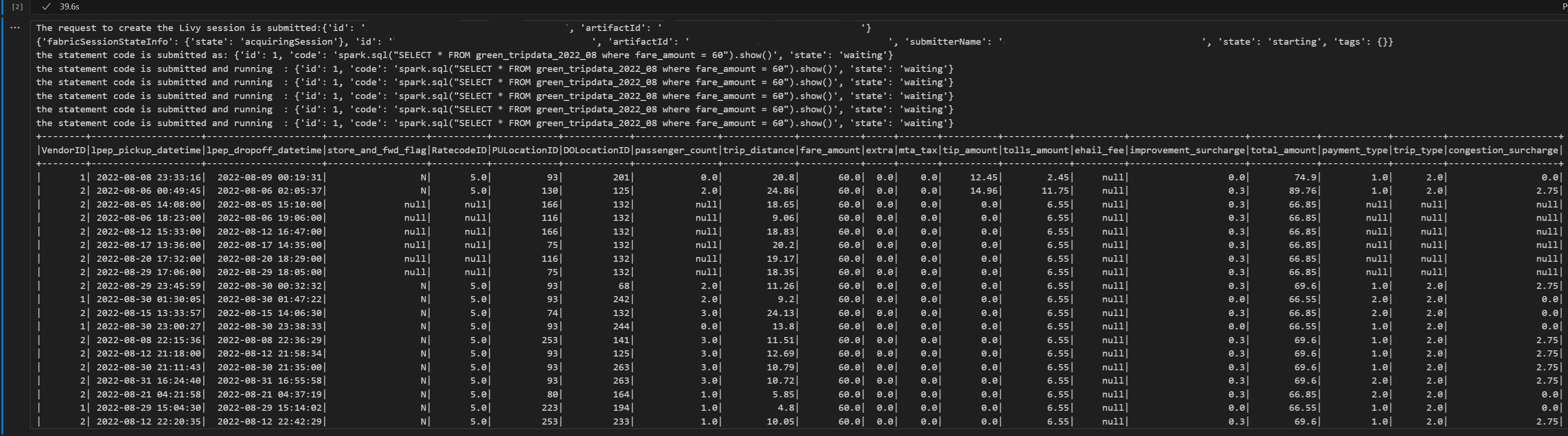
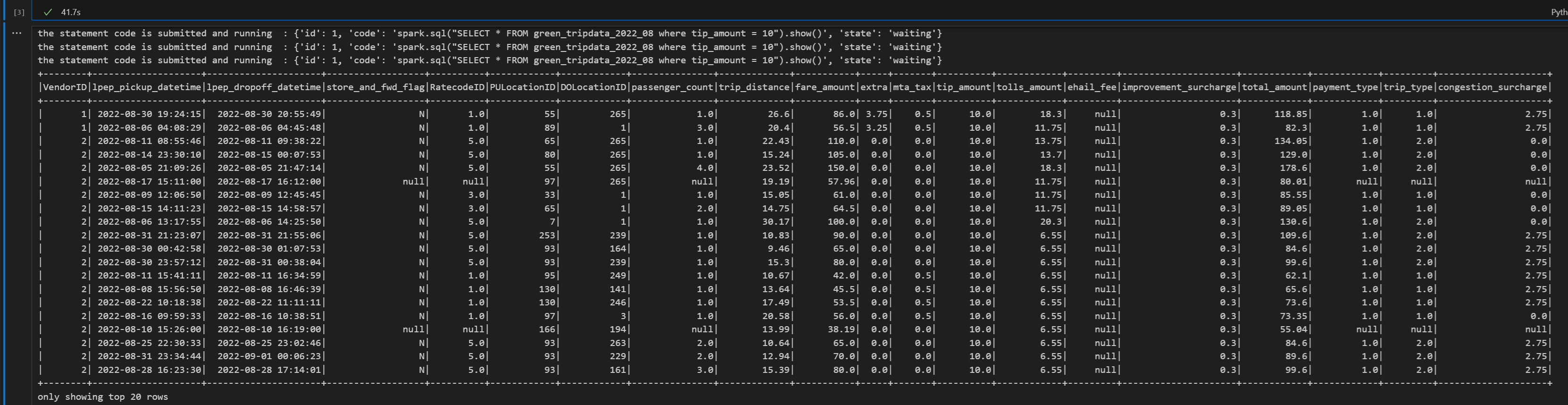
Voer de notebookcel uit. U zou meerdere oplopende regels moeten zien terwijl de taak wordt ingediend en de resultaten worden geretourneerd.
Een tweede spark.sql-instructie verzenden met behulp van de Spark-sessie van de Livy-API
Voeg nog een notebookcel toe en voeg deze code in.
print("Executing additional Spark SQL statement...")

# Wait for session to be idle again
get_session_response = requests.get(livy_session_url, headers=headers)
session_status = get_session_response.json()

while session_status["state"] != "idle":
    print(f"   Waiting for session to be idle... Current state: {session_status['state']}")
    time.sleep(5)
    get_session_response = requests.get(livy_session_url, headers=headers)
    session_status = get_session_response.json()

# Execute another statement - Replace with your actual query
payload_data = {
    "code": f"spark.sql(\"SELECT COUNT(*) as total_records FROM {table_name}\").show()",
    "kind": "spark"
}

print(f"Executing query: {payload_data['code']}")

try:
    # Submit the second statement
    execute_statement_response = requests.post(execute_statement_url, headers=headers, json=payload_data)

    if execute_statement_response.status_code == 200:
        statement_info = execute_statement_response.json()
        print('Second statement submitted successfully')

        statement_id = str(statement_info['id'])
        get_statement_url = f"{livy_session_url}/statements/{statement_id}"

        # Monitor execution
        print("Monitoring statement execution...")
        get_statement_response = requests.get(get_statement_url, headers=headers)
        statement_status = get_statement_response.json()

        while statement_status["state"] != "available":
            print(f"   Statement state: {statement_status['state']} - waiting 5 seconds...")
            time.sleep(5)
            get_statement_response = requests.get(get_statement_url, headers=headers)
            statement_status = get_statement_response.json()

        # Display results
        print("Second statement execution completed!")
        if 'output' in statement_status and 'data' in statement_status['output']:
            results = statement_status['output']['data']['text/plain']
            print("Query Results:")
            print(results)
        else:
            print("No output data available")

    else:
        print(f"Failed to submit second statement. Status code: {execute_statement_response.status_code}")

except Exception as e:
    print(f"Error executing second statement: {e}")
Voer de notebookcel uit. U zou meerdere oplopende regels moeten zien terwijl de taak wordt ingediend en de resultaten worden geretourneerd.
De Livy-sessie beëindigen
Voeg nog een notebookcel toe en voeg deze code in.
print("Cleaning up Livy session...")

try:
    # Check current session status before deletion
    get_session_response = requests.get(livy_session_url, headers=headers)
    if get_session_response.status_code == 200:
        session_info = get_session_response.json()
        print(f"Session state before deletion: {session_info.get('state', 'unknown')}")

    print(f"Deleting session at: {livy_session_url}")

    # Delete the session
    delete_response = requests.delete(livy_session_url, headers=headers)

    if delete_response.status_code == 200:
        print("Session deleted successfully")
    elif delete_response.status_code == 404:
        print("Session was already deleted or not found")
    else:
        print(f"Delete request completed with status code: {delete_response.status_code}")
        print(f"Response: {delete_response.text}")

    print(f"Delete response details: {delete_response}")

except requests.exceptions.RequestException as e:
    print(f"Network error during session deletion: {e}")
except Exception as e:
    print(f"Error during session cleanup: {e}")
Uw taken weergeven in de Bewakingshub
U hebt toegang tot de Bewakingshub om verschillende Apache Spark-activiteiten weer te geven door Monitor te selecteren in de navigatiekoppelingen aan de linkerkant.
Wanneer de sessie wordt uitgevoerd of de voltooide status heeft, kunt u de sessiestatus bekijken door naar Monitor te navigeren.
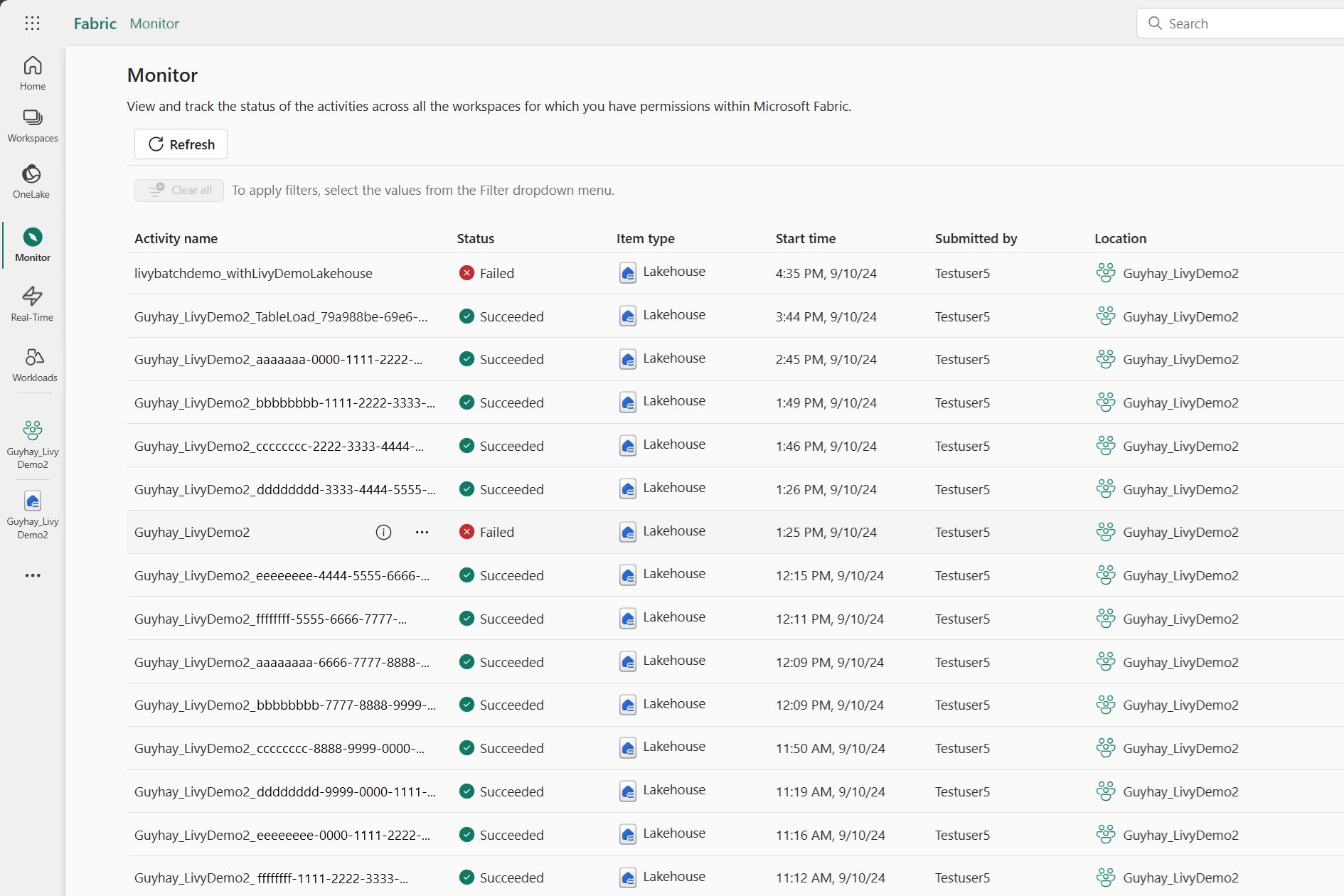
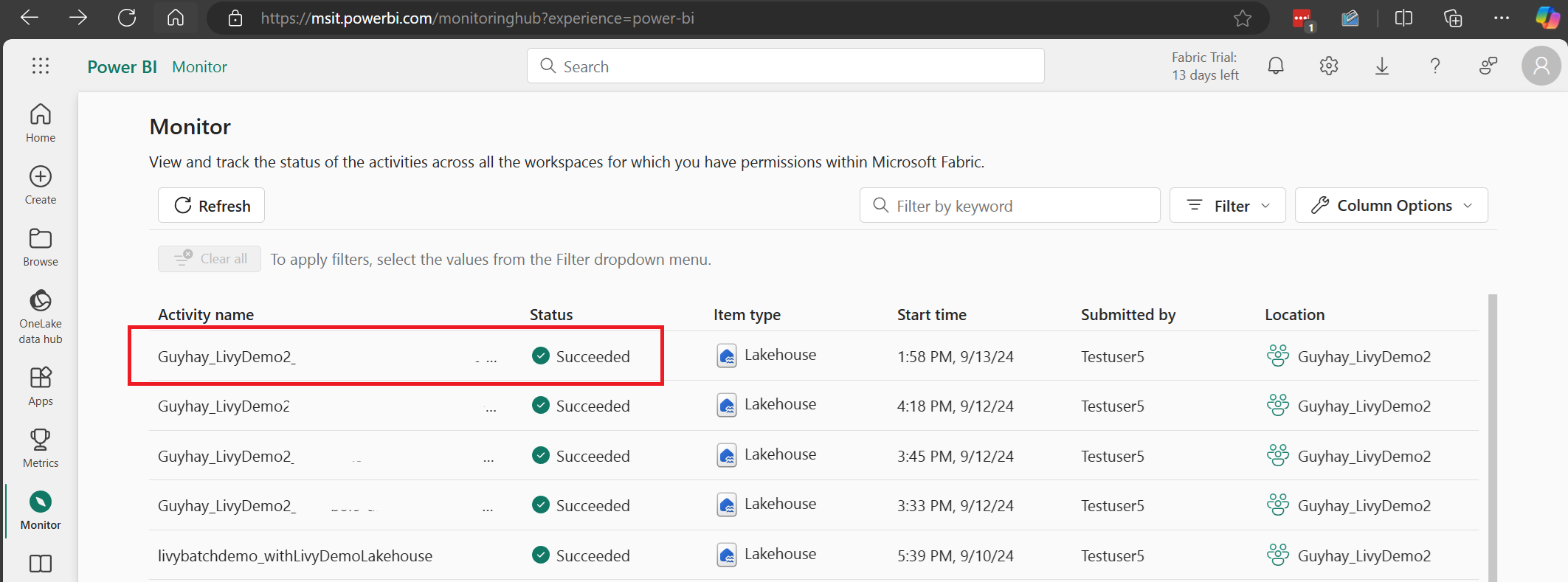
Selecteer en open de naam van de meest recente activiteit.
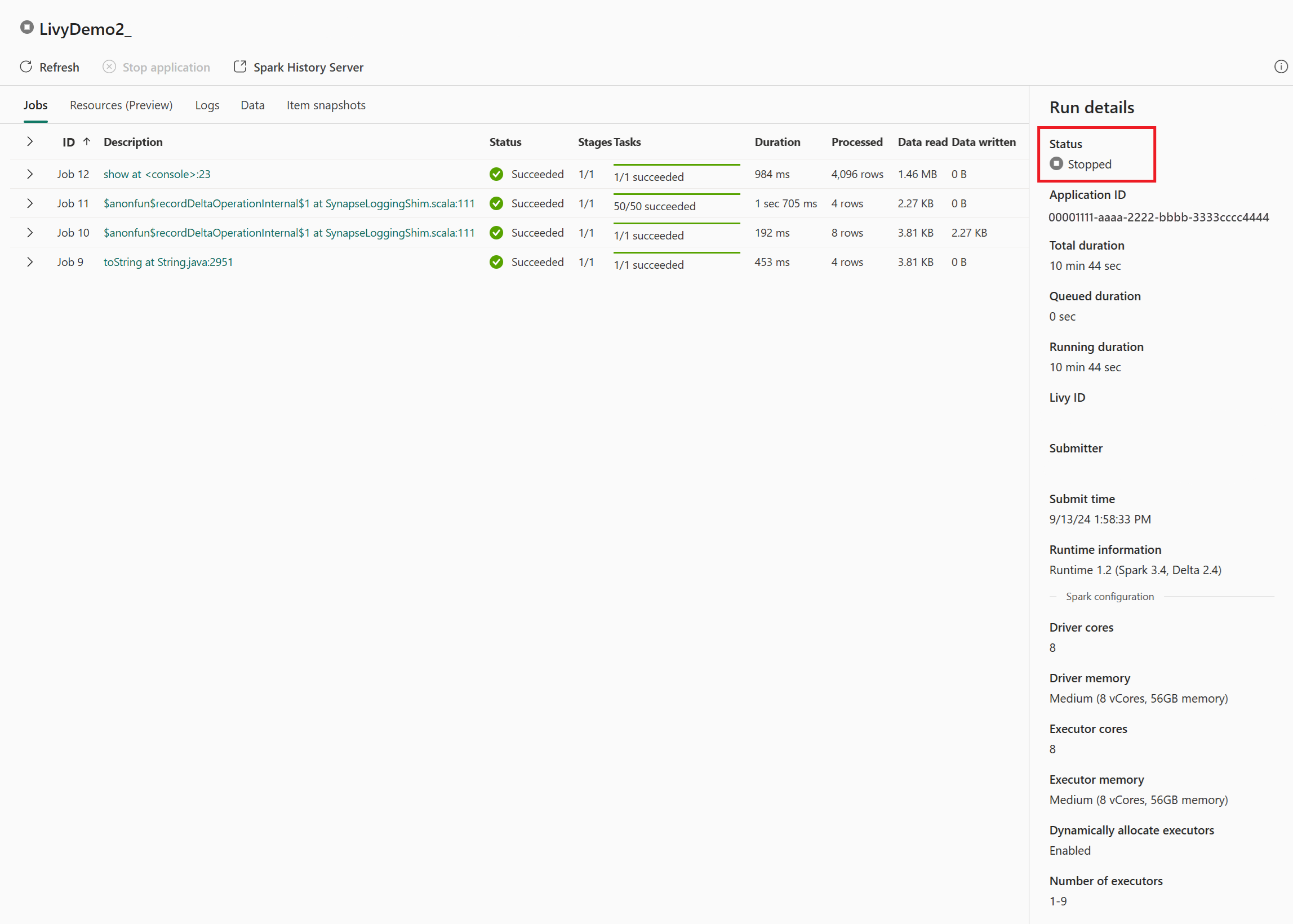
In dit geval van livy-API-sessie kunt u uw eerdere sessies zien, details uitvoeren, Spark-versies en configuratie. Let op de gestopte status rechtsboven.
Als u het hele proces wilt invatten, hebt u een externe client nodig, zoals Visual Studio Code, een Microsoft Entra-app/SPN-token, de URL van het Livy-API-eindpunt, verificatie voor uw Lakehouse en ten slotte een Session Livy-API.