Notitie
Voor toegang tot deze pagina is autorisatie vereist. U kunt proberen u aan te melden of de directory te wijzigen.
Voor toegang tot deze pagina is autorisatie vereist. U kunt proberen de mappen te wijzigen.
In dit artikel wordt beschreven hoe u Microsoft Azure Backup Server (MABS) configureert om SQL Server-databases in Azure Stack te beveiligen.
Beveiligingswerkstroom voor SQL Server-databases
Beheer van de back-up van de SQL Server-database naar Azure en herstel vanuit Azure omvat:
- Een back-upbeleid maken om SQL Server-databases te beveiligen
- Back-ups op aanvraag maken
- Herstel de database vanaf schijven en Azure
Ondersteunde scenario's en beperkingen voor back-ups van SQL Server in Azure Stack
Bekijk de volgende ondersteunde scenario's en beperkingen voordat u een back-up maakt van SQL Server in Azure Stack:
- Als u een database met bestanden op een externe bestandsshare hebt, mislukt de beveiliging met fout-id 104. MABS biedt geen ondersteuning voor beveiliging voor SQL Server-gegevens op een externe bestandsshare.
- MABS kan databases die zijn opgeslagen op externe SMB-shares niet beveiligen.
- Zorg ervoor dat de replica's van de beschikbaarheidsgroep zijn geconfigureerd als alleen-lezen.
- U moet het systeemaccount NTAuthority\System expliciet toevoegen aan de Sysadmin-groep op SQL Server.
- Wanneer u een herstel van een alternatieve locatie uitvoert voor een gedeeltelijk ingesloten database, moet u ervoor zorgen dat voor het doel-SQL-exemplaar de functie Ingesloten databases is ingeschakeld.
- Wanneer u een alternatieve locatieherstel uitvoert voor een bestandsstroomdatabase, moet u ervoor zorgen dat het doel-SQL-exemplaar de databasefunctie voor bestandsstreams heeft ingeschakeld.
- Beveiliging voor SQL Server AlwaysOn:
- MABS detecteert beschikbaarheidsgroepen bij het uitvoeren van een onderzoek bij het maken van een beveiligingsgroep.
- MABS detecteert een failover en blijft de beveiliging van de database uitvoeren.
- MABS ondersteunt clusterconfiguraties met meerdere sites voor een exemplaar van SQL Server.
- Wanneer u databases beveiligt die gebruikmaken van de functie AlwaysOn, gelden de volgende beperkingen voor MABS:
- MABS volgt als volgt het back-upbeleid voor beschikbaarheidsgroepen die zijn ingesteld in SQL Server op basis van de back-upvoorkeuren:
- Voorkeur secundair: back-ups moeten worden uitgevoerd op een secundaire replica, behalve wanneer de primaire replica de enige onlinereplica is. Als er meerdere secundaire replica's beschikbaar zijn, wordt het knooppunt met de hoogste back-upprioriteit geselecteerd voor back-up. Als alleen de primaire replica beschikbaar is, moet de back-up worden uitgevoerd op de primaire replica.
- Alleen secundair: back-up mag niet worden uitgevoerd op de primaire replica. Als de primaire replica de enige online replica is, mag de back-up niet plaatsvinden.
- Primair: back-ups moeten altijd plaatsvinden op de primaire replica.
- Elke replica: back-ups kunnen plaatsvinden op een van de beschikbaarheidsreplica's in de beschikbaarheidsgroep. Het knooppunt waarvan een back-up gemaakt moet worden, is afhankelijk van de back-upprioriteiten van elk van de knooppunten.
-
Opmerking
- Back-ups kunnen worden uitgevoerd vanaf elke leesbare replica: oftewel een primaire, synchrone secundaire of asynchrone secundaire replica.
- Als een replica wordt uitgesloten van een back-up, bijvoorbeeld Replica uitsluiten is ingeschakeld of als niet leesbaar is gemarkeerd, wordt die replica niet geselecteerd voor back-up onder een van de opties.
- Als er meerdere replica's beschikbaar en leesbaar zijn, wordt het knooppunt met de hoogste back-upprioriteit geselecteerd voor back-up.
- Als de back-up op het geselecteerde knooppunt mislukt, mislukt de back-upbewerking.
- Herstel naar de oorspronkelijke locatie wordt niet ondersteund.
- MABS volgt als volgt het back-upbeleid voor beschikbaarheidsgroepen die zijn ingesteld in SQL Server op basis van de back-upvoorkeuren:
- Problemen met back-ups van SQL Server 2014 of hoger:
- SQL Server 2014 heeft een nieuwe functie toegevoegd om een database te maken voor on-premises SQL Server in Microsoft Azure Blob Storage. MABS kan niet worden gebruikt om deze configuratie te beveiligen.
- Er zijn enkele bekende problemen met de back-upvoorkeur "Voorkeur secundair" voor de SQL Always On-optie. MABS maakt altijd een back-up van secundaire gegevens. Als er geen secundaire is gevonden, mislukt de back-up.
Vereiste voorwaarden
Voordat u een back-up maakt van SQL Server in Azure Stack, installeert en bereidt u Azure Backup Server voor.
Een back-upbeleid maken voor SQL Server-databases in Azure Stack
Voer de volgende stappen uit om een back-upbeleid te maken voor het beveiligen van SQL Server-databases in Azure:
Selecteer op de Azure Backup-server de werkruimte Protection .
Selecteer Nieuw in het taakmenu om een nieuwe beveiligingsgroep te maken.
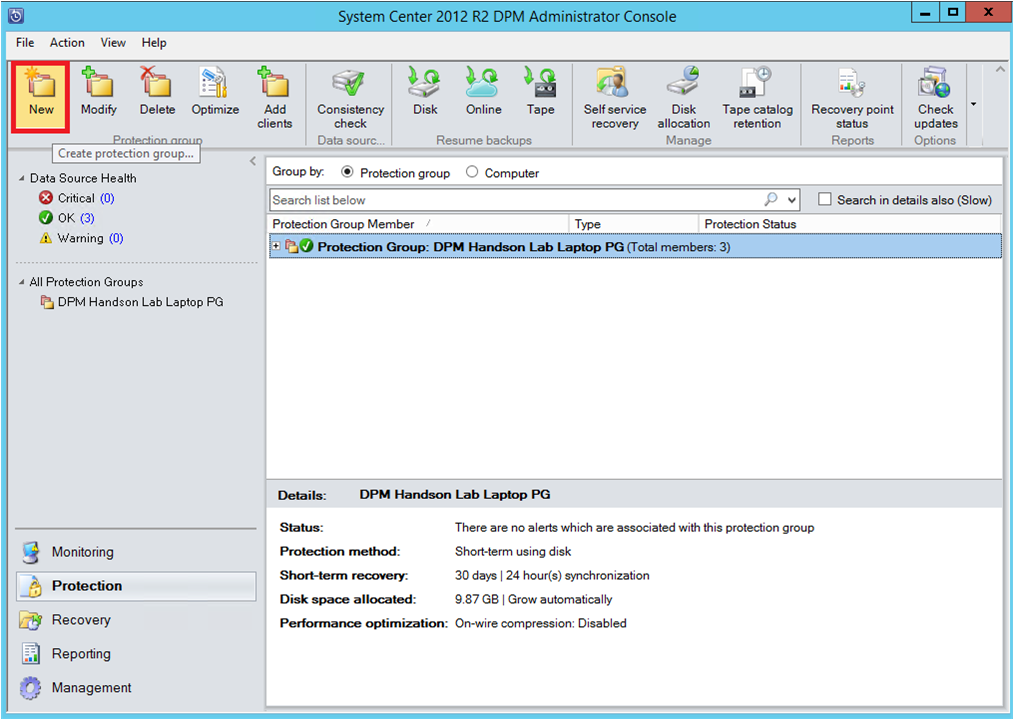
Azure Backup Server start de wizard voor de Beschermingsgroep, waarmee u een beschermingsgroep maakt. Kies Volgende.
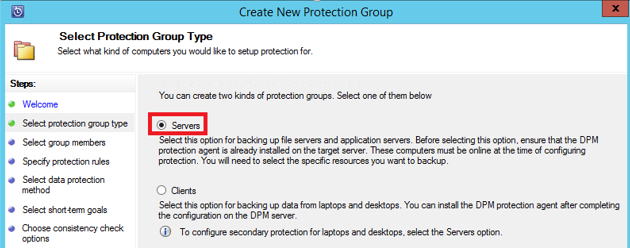
Selecteer op de Beveiligingsgroeptype selecteren blade Servers.
Op de blade Groepsleden selecteren wordt in de lijst Beschikbare gegevensbronnen de verschillende gegevensbronnen weergegeven. Selecteer + deze optie om een map uit te vouwen en de submappen weer te geven. Schakel het selectievakje in om een item te selecteren.
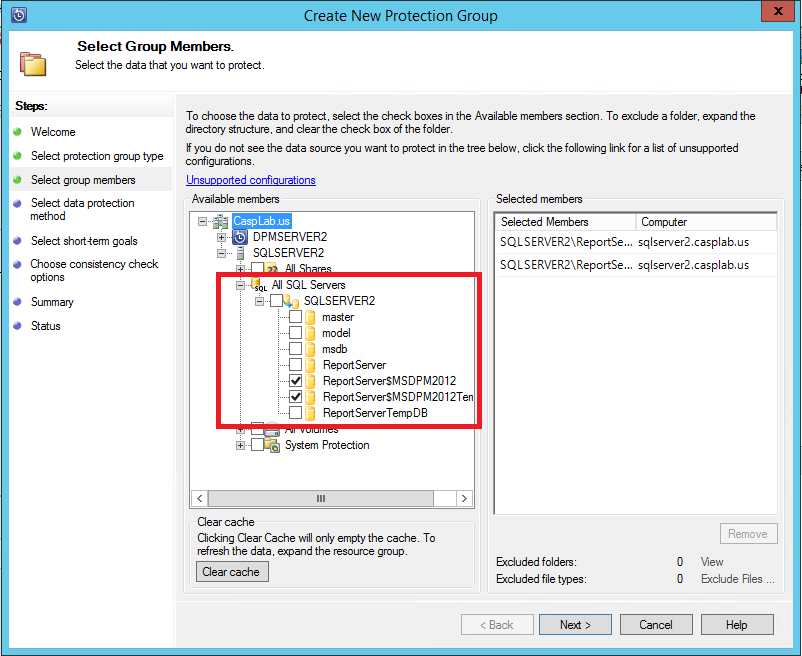
Alle geselecteerde items worden weergegeven in de lijst geselecteerde leden. Nadat u de servers of databases hebt geselecteerd die u wilt beveiligen, selecteert u Volgende.
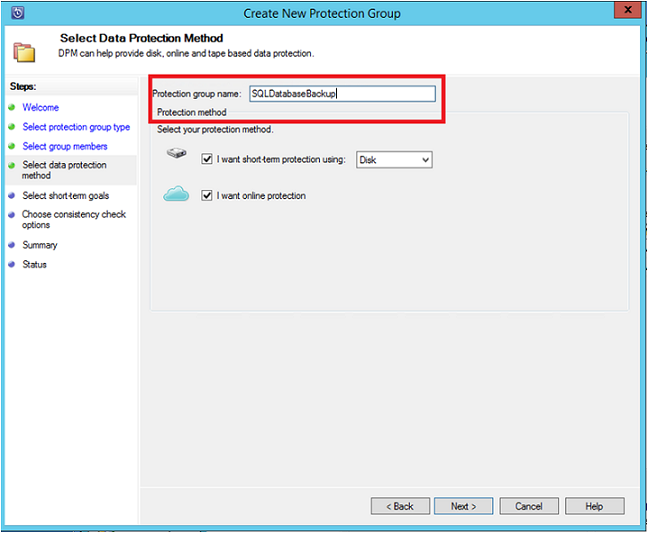
Voorzie de Select Data Protection Method-blade van een naam voor de beveiligingsgroep en schakel het selectievakje Online bescherming gewenst in.
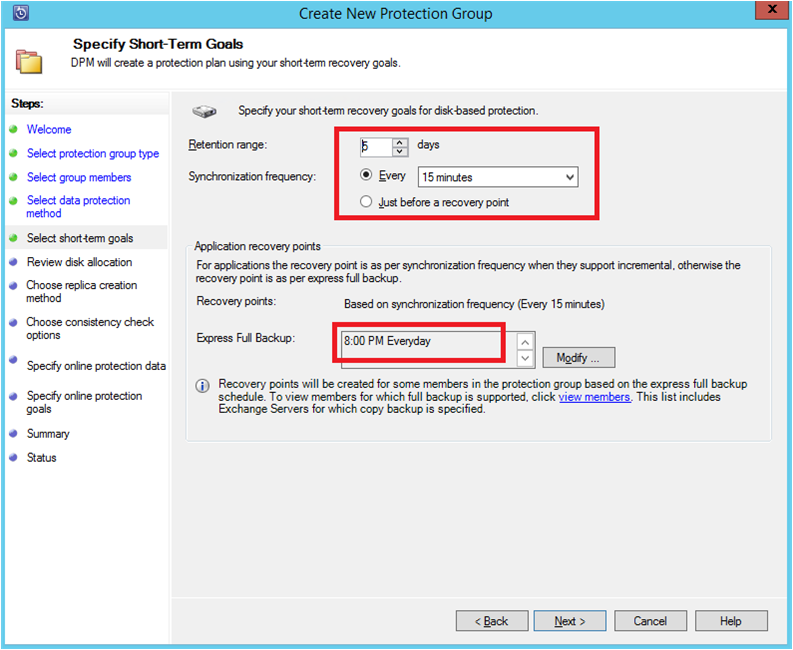
Voeg op het tabblad Short-Term Doelen opgeven de benodigde invoer toe om back-uppunten op de schijf te creëren en selecteer Volgende.
In het voorbeeld is het retentiebereikvijf dagen, de synchronisatiefrequentie is eenmaal per 15 minuten, wat de back-upfrequentie is. Snelle volledige back-up is ingesteld op 18:00 uur
Opmerking
In het voorbeeld dat wordt weergegeven, wordt elke dag om 18:00 uur een back-uppunt gemaakt door de gewijzigde gegevens van het back-uppunt van de vorige dag van 18:00 uur over te brengen. Dit proces wordt Express Full Backup genoemd. Transactielogboeken worden elke 15 minuten gesynchroniseerd. Als u de database om 21:00 uur wilt herstellen, wordt het herstelpunt gemaakt op basis van de logboeken van het laatste snelle volledige back-uppunt (in dit geval 20:00 uur).
Controleer op de Review disk allocation blade de totale beschikbare opslagruimte en de mogelijke schijfruimte. Kies Volgende.
Kies in de methode Replica maken hoe u uw eerste herstelpunt maakt. U kunt de eerste back-up handmatig overdragen (buiten het netwerk) om bandbreedtecongestie of via het netwerk te voorkomen. Als u wilt wachten om de eerste back-up over te dragen, kunt u de tijd voor de eerste overdracht opgeven. Kies Volgende.
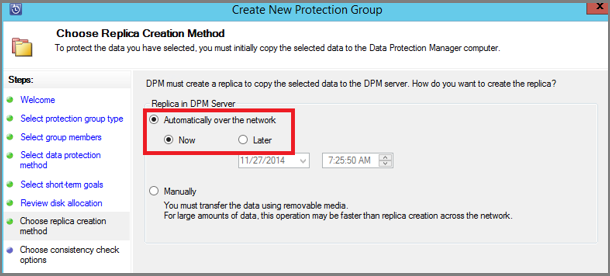
Voor de eerste back-upkopie moet de volledige gegevensbron (SQL Server-database) van de productieserver (SQL Server-computer) worden overgebracht naar Azure Backup Server. Deze gegevens kunnen groot zijn en het overdragen van de gegevens via het netwerk kan de bandbreedte overschrijden. Daarom kunt u ervoor kiezen om de eerste back-up over te dragen: handmatig (met verwisselbare media) om bandbreedtecongestie te voorkomen of automatisch via het netwerk (op een opgegeven moment).
Zodra de eerste back-up is voltooid, zijn de rest van de back-ups incrementele back-ups op de eerste back-upkopie. Incrementele back-ups zijn meestal klein en worden eenvoudig overgedragen via het netwerk.
Kies wanneer u de consistentiecontrole wilt uitvoeren en selecteer Volgende.
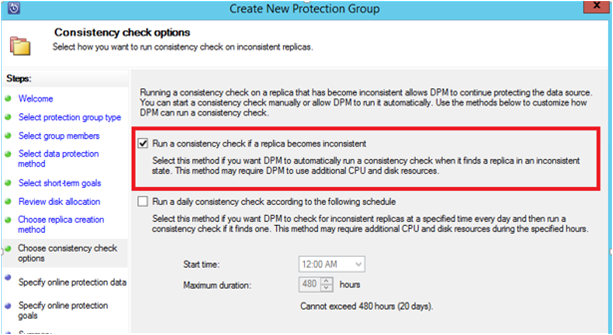
Azure Backup Server voert een consistentiecontrole uit op de integriteit van het back-uppunt. Azure Backup Server berekent de controlesom van het back-upbestand op de productieserver (SQL Server-computer in dit scenario) en de back-upgegevens voor dat bestand. Als er een conflict is, wordt ervan uitgegaan dat het back-upbestand op Azure Backup Server beschadigd is. Azure Backup Server corrigeert de back-upgegevens door de blokken te verzenden die overeenkomen met een controlesommismatch. Omdat consistentiecontroles prestatie-intensief zijn, kunt u de consistentiecontrole plannen of automatisch uitvoeren.
Als u onlinebeveiliging van de gegevensbronnen wilt opgeven, selecteert u de databases die moeten worden beveiligd met Azure en selecteert u Volgende.
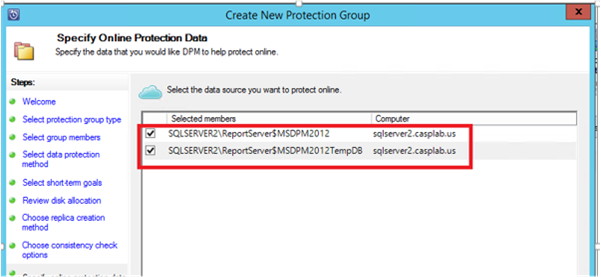
Kies back-upschema's en bewaarbeleidsregels die aansluiten bij het organisatiebeleid.
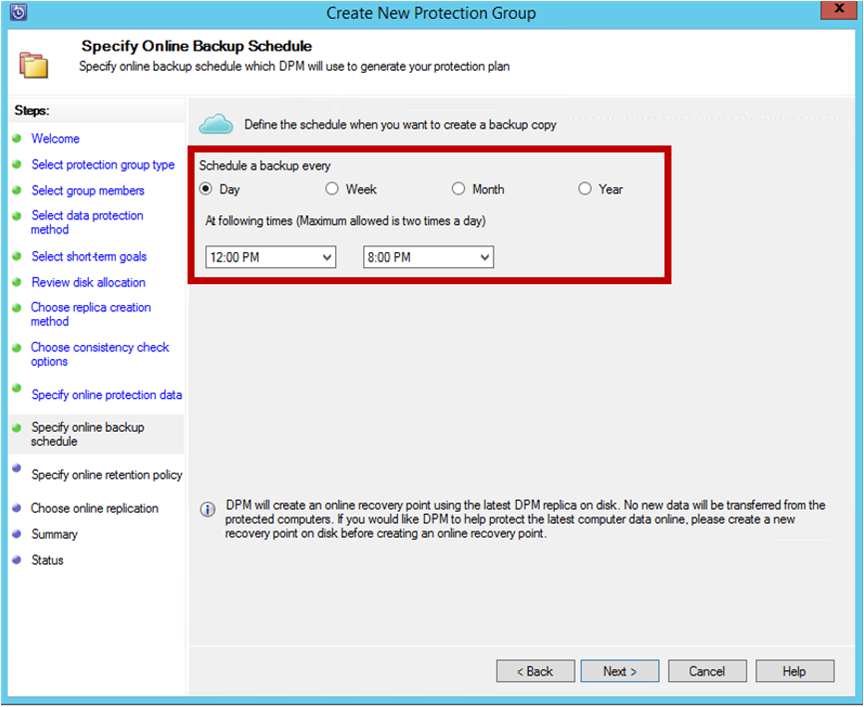
In dit voorbeeld worden back-ups eenmaal per dag om 12:00 en 18:00 uur gemaakt.
Opmerking
Het is een goede gewoonte om een paar kortetermijnherstelpunten op schijf te hebben voor snel herstel. Deze herstelpunten worden gebruikt voor operationeel herstel. Azure fungeert als een goede offsitelocatie met hogere SLA's en gegarandeerde beschikbaarheid.
Best Practice: Als u back-ups naar Azure plant om te beginnen nadat de back-ups van de lokale schijf zijn voltooid, worden de meest recente schijfback-ups altijd gekopieerd naar Azure.
Kies het bewaarbeleidsschema. De details over hoe het bewaarbeleid werkt, vindt u in Azure Backup gebruiken om uw tapeinfrastructuurartikel te vervangen.
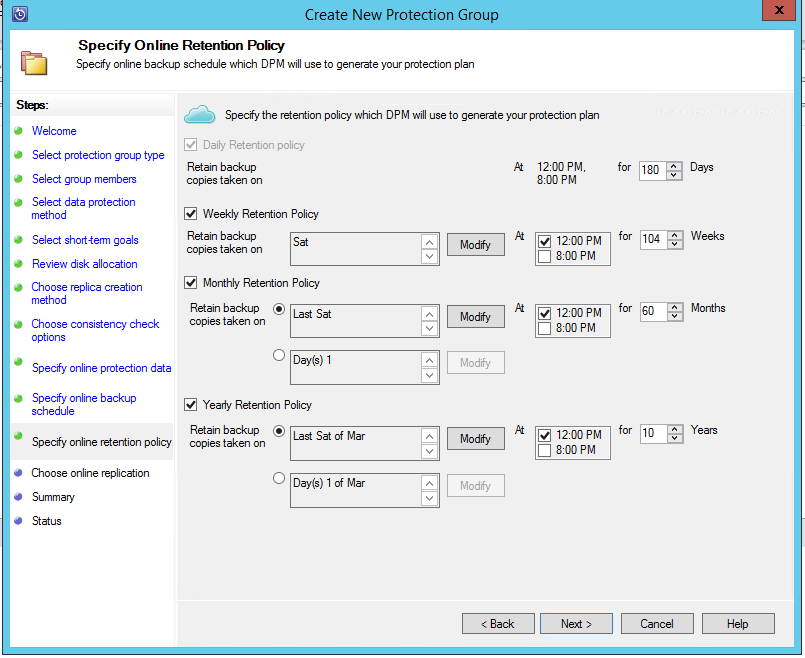
In dit voorbeeld:
- Back-ups worden eenmaal per dag om 12:00 en 18:00 uur gemaakt en worden gedurende 180 dagen bewaard.
- De back-up op zaterdag om 12:00 uur wordt 104 weken bewaard
- De back-up op afgelopen zaterdag om 12:00 uur wordt gedurende 60 maanden bewaard
- De back-up op laatste zaterdag van maart om 12:00 uur wordt 10 jaar bewaard
Selecteer Volgende en selecteer de juiste optie voor het overdragen van de eerste back-upkopie naar Azure. U kunt automatisch via het netwerk kiezen
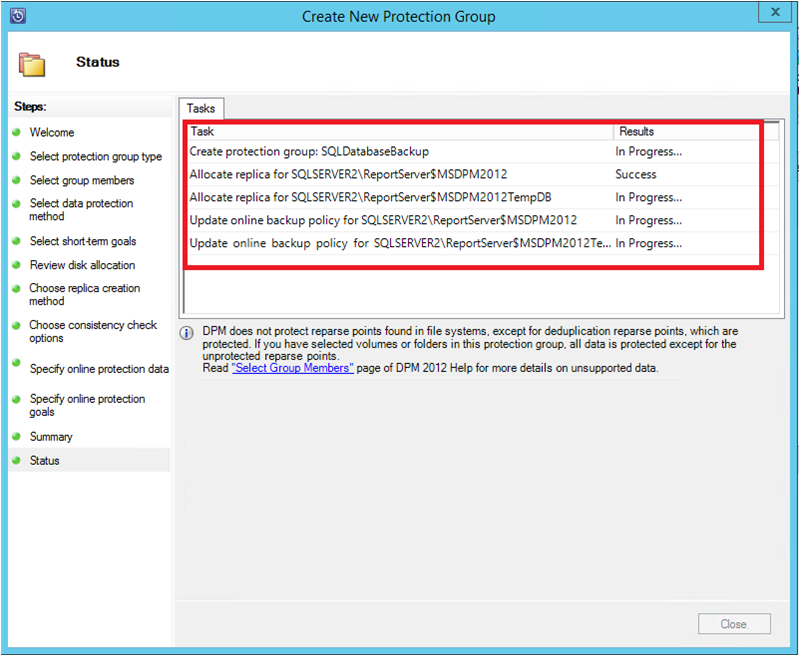
Nadat u de beleidsdetails op de blade Samenvatting hebt bekeken, selecteert u Groep maken om de werkstroom te voltooien. U kunt Sluiten selecteren en de voortgang van de taak bewaken in de werkruimte Monitoring.
Een back-up op aanvraag uitvoeren voor SQL Server-databases in Azure Stack
Er wordt alleen een herstelpunt gemaakt wanneer de eerste back-up plaatsvindt. Nadat u een back-upbeleid hebt gemaakt, kunt u het maken van een herstelpunt handmatig activeren in plaats van te wachten totdat de planner de back-up heeft gemaakt.
Voer de volgende stappen uit om een back-up op aanvraag van een SQL Server-database uit te voeren:
Wacht totdat de status van de beveiligingsgroep OK voor de database weergeeft voordat u het herstelpunt maakt.
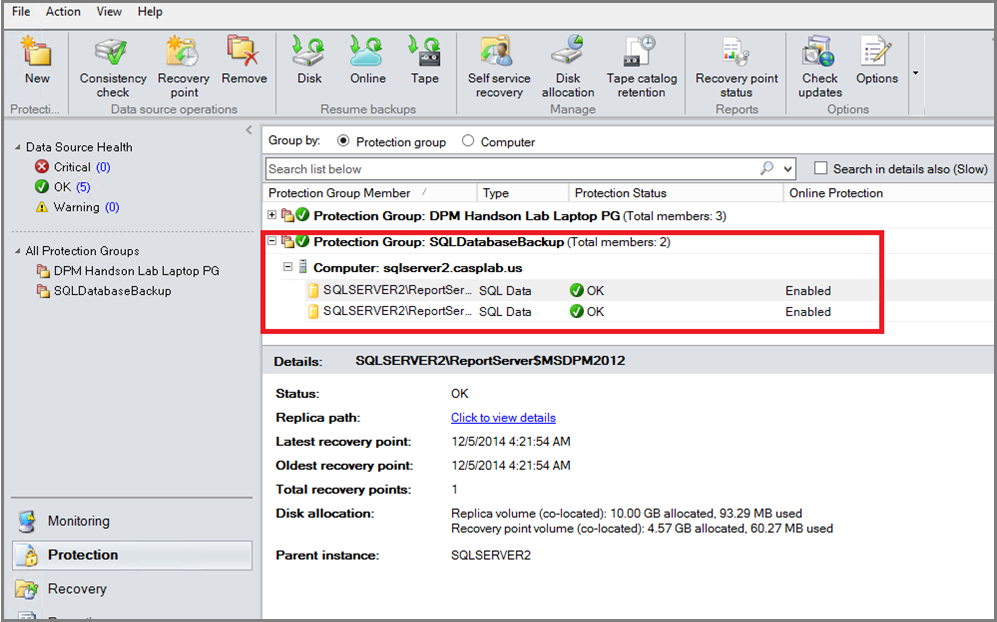
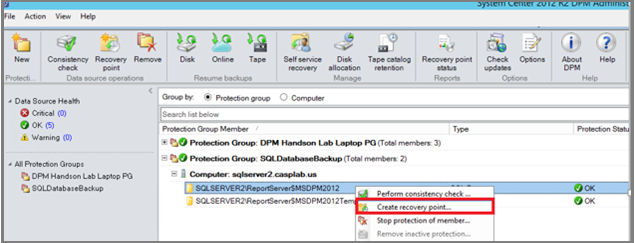
Klik met de rechtermuisknop op de database en selecteer Herstelpunt maken.
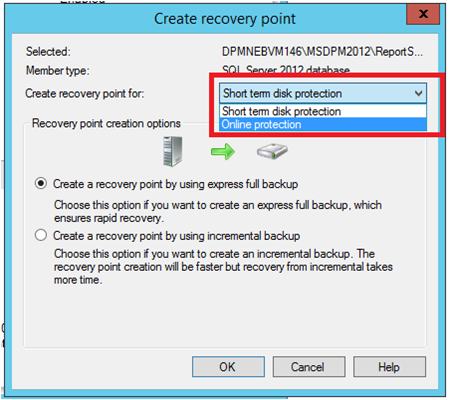
Kies OnlineBeveiliging in de vervolgkeuzelijst en selecteer OK om te beginnen met het maken van een herstelpunt in Azure.
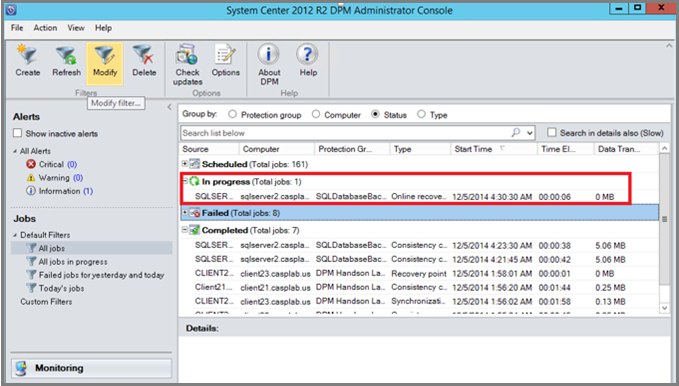
Bekijk de voortgang van de taak in de werkruimte Bewaking .
De SQL Server-database in Azure Stack herstellen vanuit Azure
Voer de volgende stappen uit om een beveiligde entiteit (SQL Server-database) te herstellen vanuit Azure:
Open de Azure Backup Server-beheerconsole. Navigeer naar de herstelwerkruimte waar u de beveiligde servers kunt zien. Blader door de vereiste database (in dit geval ReportServer$MSDPM2012). Selecteer een hersteltijdstip dat is opgegeven als een online moment.
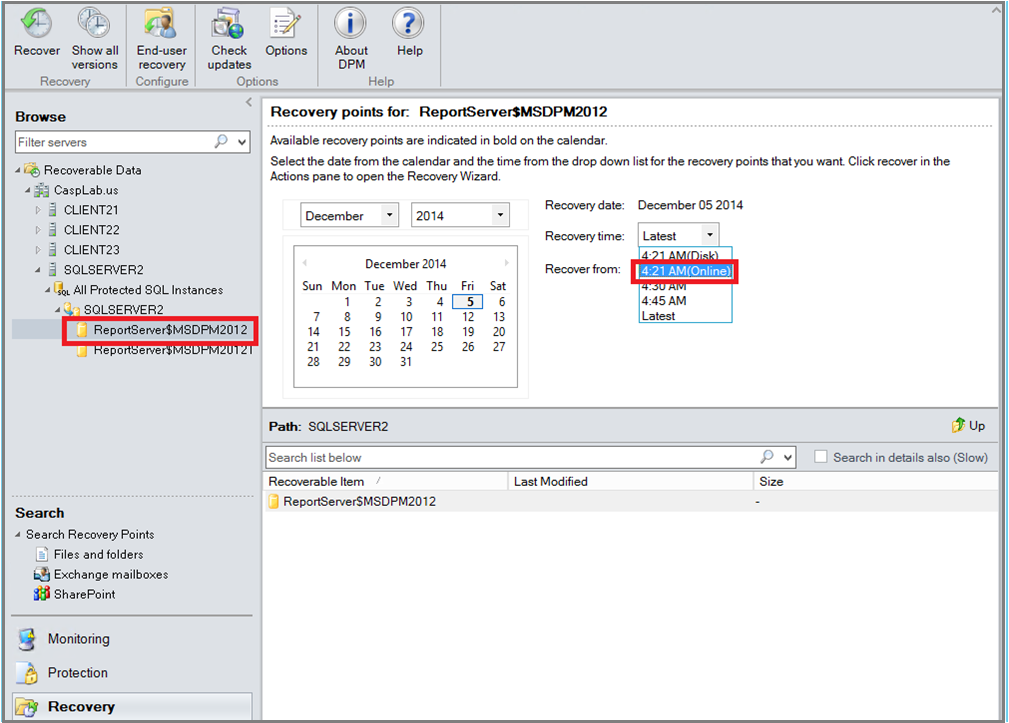
Klik met de rechtermuisknop op de databasenaam en selecteer Herstellen.
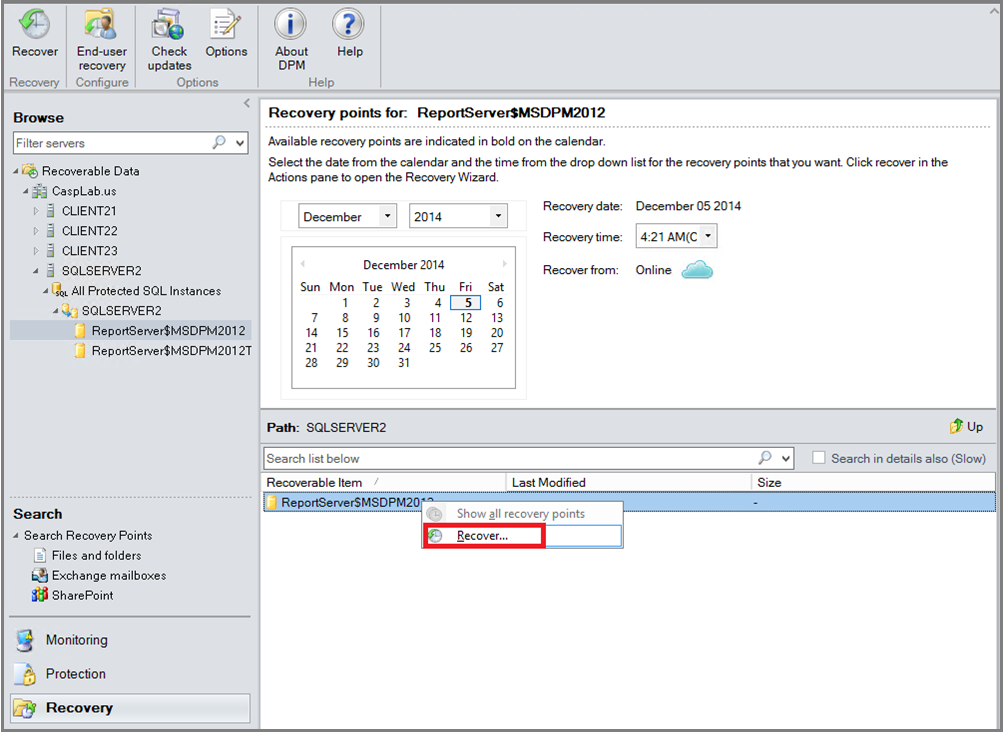
MABS toont de details van het herstelpunt. Kies Volgende. Als u de database wilt overschrijven, selecteert u het hersteltype Herstellen naar het oorspronkelijke exemplaar van SQL Server. Kies Volgende.
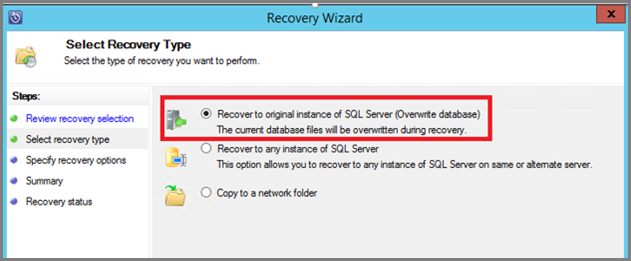
In dit voorbeeld herstelt MABS de database naar een ander SQL Server-exemplaar of naar een zelfstandige netwerkmap.
Op de blade Herstelopties opgeven kunt u de herstelopties selecteren, zoals beperking van netwerkbandbreedtegebruik om de bandbreedte te beperken die wordt gebruikt door herstel. Kies Volgende.
Op het Summary blade ziet u alle opgegeven herstelconfiguraties tot nu toe. Selecteer Herstellen.
De herstelstatus geeft aan dat de database wordt hersteld. U kunt Sluiten selecteren om de wizard te sluiten en de voortgang in de bewakingswerkruimte weer te geven.
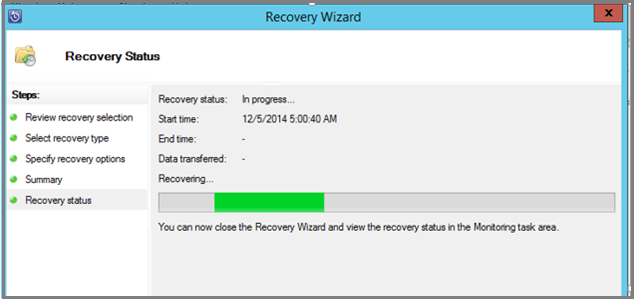
Zodra het herstel is voltooid, is de herstelde database toepassingsconsistent.