Notitie
Voor toegang tot deze pagina is autorisatie vereist. U kunt proberen u aan te melden of de directory te wijzigen.
Voor toegang tot deze pagina is autorisatie vereist. U kunt proberen de mappen te wijzigen.
Van toepassing op: ✔️ Flexibele schaalsets voor Windows-VM's ✔️
Azure Disk Encryption gebruikt Azure Key Vault om sleutels en geheimen voor schijfversleuteling te beheren. Zie Aan de slag met Azure Key Vault en Uw sleutelkluis beveiligen voor meer informatie over sleutelkluizen.
Waarschuwing
- Als u eerder Azure Disk Encryption met Microsoft Entra ID hebt gebruikt voor het versleutelen van een VM, moet u deze optie blijven gebruiken om uw VM te versleutelen. Zie Een sleutelkluis voor Azure Disk Encryption maken en configureren met Microsoft Entra-id (vorige release) voor meer informatie.
Een sleutelkluis maken en configureren voor gebruik met Azure Disk Encryption bestaat uit drie stappen:
Notitie
U moet de optie in de azure Key Vault-toegangsbeleidsinstellingen selecteren om toegang tot Azure Disk Encryption in te schakelen voor volumeversleuteling. Als u de firewall in de sleutelkluis hebt ingeschakeld, moet u naar het tabblad Netwerken in de sleutelkluis gaan en toegang tot vertrouwde Microsoft-services inschakelen.
- Een resourcegroep maken, indien nodig.
- Een sleutelkluis maken.
- Geavanceerd toegangsbeleid voor sleutelkluis instellen.
Deze stappen worden geïllustreerd in de volgende quickstarts:
- Een virtuele Windows-machine maken en versleutelen met behulp van Azure CLI
- Een virtuele Windows-machine maken en versleutelen met behulp van Azure PowerShell
U kunt eventueel ook een sleutelversleutelingssleutel genereren of importeren (KEK).
Notitie
De stappen in dit artikel zijn geautomatiseerd in het CLI-script met vereisten voor Azure Disk Encryption en het PowerShell-script voor Azure Disk Encryption.
Vereisten
Geen
Hulpprogramma's installeren en verbinding maken met Azure
U kunt de stappen in dit artikel voltooien met de Azure CLI, de Azure PowerShell AZ-module of de Azure-portal.
Hoewel de portal toegankelijk is via uw browser, moeten Azure CLI en Azure PowerShell lokaal worden geïnstalleerd; zie Azure Disk Encryption voor Windows: Hulpprogramma's installeren voor meer informatie.
Verbinding maken met uw Azure-account
Voordat u de Azure CLI of Azure PowerShell gebruikt, moet u eerst verbinding maken met uw Azure-abonnement. U doet dit door u aan te melden met Azure CLI, u aan te melden met Azure PowerShellof uw referenties aan de Azure-portal op te geven wanneer u hierom wordt gevraagd.
az login
Connect-AzAccount
Create a resource group
If you already have a resource group, you can skip to Create a key vault.
A resource group is a logical container into which Azure resources are deployed and managed.
Create a resource group using the az group create Azure CLI command, the New-AzResourceGroup Azure PowerShell command, or from the Azure portal.
Azure CLI
az group create --name "myResourceGroup" --location eastus
Azure PowerShell
New-AzResourceGroup -Name "myResourceGroup" -Location "EastUS"
Create a key vault
If you already have a key vault, you can skip to Set key vault advanced access policies.
Create a key vault using the az keyvault create Azure CLI command, the New-AzKeyvault Azure PowerShell command, the Azure portal, or a Resource Manager template.
Warning
To ensure that encryption secrets don't cross regional boundaries, you must create and use a key vault that's in the same region and tenant as the VMs to be encrypted.
Each Key Vault must have a unique name. Replace <your-unique-keyvault-name> with the name of your key vault in the following examples.
Azure CLI
When creating a key vault by using the Azure CLI, add the "--enabled-for-disk-encryption" flag.
az keyvault create --name "<your-unique-keyvault-name>" --resource-group "myResourceGroup" --location "eastus" --enabled-for-disk-encryption
Azure PowerShell
When creating a key vault using Azure PowerShell, add the "-EnabledForDiskEncryption" flag.
New-AzKeyvault -name "<your-unique-keyvault-name>" -ResourceGroupName "myResourceGroup" -Location "eastus" -EnabledForDiskEncryption
Resource Manager template
You can also create a key vault by using the Resource Manager template.
- On the Azure Quickstart Template, click Deploy to Azure.
- Select the subscription, resource group, resource group location, Key Vault name, Object ID, legal terms, and agreement, and then click Purchase.
Set key vault advanced access policies
Important
Newly-created key vaults have soft-delete on by default. If you are using a pre-existing key vault, you must enable soft-delete. See Azure Key Vault soft-delete overview.
The Azure platform needs access to the encryption keys or secrets in your key vault to make them available to the VM for booting and decrypting the volumes.
If you didn't enable your key vault for disk encryption, deployment, or template deployment at the time of creation (as demonstrated in the previous step), you must update its advanced access policies.
Azure CLI
Use az keyvault update to enable disk encryption for the key vault.
Enable Key Vault for disk encryption: Enabled-for-disk-encryption is required.
az keyvault update --name "<your-unique-keyvault-name>" --resource-group "MyResourceGroup" --enabled-for-disk-encryption "true"Enable Key Vault for deployment, if needed: Enables the Microsoft.Compute resource provider to retrieve secrets from this key vault when this key vault is referenced in resource creation, for example when creating a virtual machine.
az keyvault update --name "<your-unique-keyvault-name>" --resource-group "MyResourceGroup" --enabled-for-deployment "true"Enable Key Vault for template deployment, if needed: Allow Resource Manager to retrieve secrets from the vault.
az keyvault update --name "<your-unique-keyvault-name>" --resource-group "MyResourceGroup" --enabled-for-template-deployment "true"
Azure PowerShell
Use the key vault PowerShell cmdlet Set-AzKeyVaultAccessPolicy to enable disk encryption for the key vault.
Enable Key Vault for disk encryption: EnabledForDiskEncryption is required for Azure Disk encryption.
Set-AzKeyVaultAccessPolicy -VaultName "<your-unique-keyvault-name>" -ResourceGroupName "MyResourceGroup" -EnabledForDiskEncryptionEnable Key Vault for deployment, if needed: Enables the Microsoft.Compute resource provider to retrieve secrets from this key vault when this key vault is referenced in resource creation, for example when creating a virtual machine.
Set-AzKeyVaultAccessPolicy -VaultName "<your-unique-keyvault-name>" -ResourceGroupName "MyResourceGroup" -EnabledForDeploymentEnable Key Vault for template deployment, if needed: Enables Azure Resource Manager to get secrets from this key vault when this key vault is referenced in a template deployment.
Set-AzKeyVaultAccessPolicy -VaultName "<your-unique-keyvault-name>" -ResourceGroupName "MyResourceGroup" -EnabledForTemplateDeployment
Azure portal
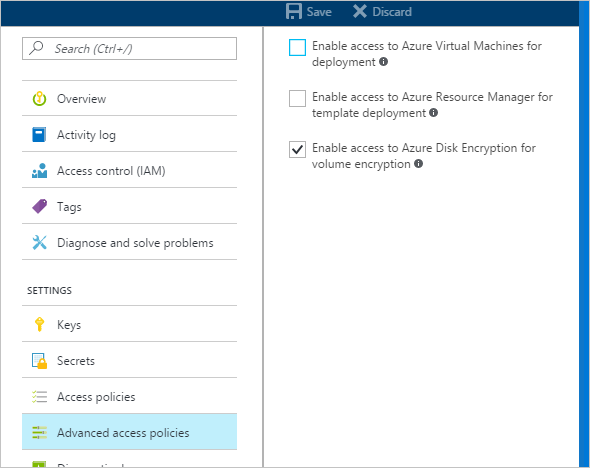
Select your key vault and go to Access Policies.
Under "Enable Access to", select the box labeled Azure Disk Encryption for volume encryption.
Select Azure Virtual Machines for deployment and/or Azure Resource Manager for template deployment, if needed.
Click Save.
Azure Disk Encryption and auto-rotation
Although Azure Key Vault now has key auto-rotation, it isn't currently compatible with Azure Disk Encryption. Specifically, Azure Disk Encryption will continue to use the original encryption key, even after it has been auto-rotated.
Rotating an encryption key won't break Azure Disk Encryption, but disabling the "old" encryption key (in other words, the key Azure Disk Encryption is still using) will.
Set up a key encryption key (KEK)
Important
The account running to enable disk encryption over the key vault must have "reader" permissions.
If you want to use a key encryption key (KEK) for an additional layer of security for encryption keys, add a KEK to your key vault. When a key encryption key is specified, Azure Disk Encryption uses that key to wrap the encryption secrets before writing to Key Vault.
You can generate a new KEK by using the Azure CLI az keyvault key create command, the Azure PowerShell Add-AzKeyVaultKey cmdlet, or the Azure portal. You must generate an RSA key type; Azure Disk Encryption doesn't currently support using Elliptic Curve keys.
You can instead import a KEK from your on-premises key management HSM. For more information, see Key Vault Documentation.
Your key vault KEK URLs must be versioned. Azure enforces this restriction of versioning. For valid secret and KEK URLs, see the following examples:
- Example of a valid secret URL:
https://contosovault.vault.azure.net/secrets/EncryptionSecretWithKek/xxxxxxxxxxxxxxxxxxxxxxxxxxxxxxxx - Example of a valid KEK URL:
https://contosovault.vault.azure.net/keys/diskencryptionkek/xxxxxxxxxxxxxxxxxxxxxxxxxxxxxxxx
Azure CLI
Use the Azure CLI az keyvault key create command to generate a new KEK and store it in your key vault.
az keyvault key create --name "myKEK" --vault-name "<your-unique-keyvault-name>" --kty RSA --size 4096
You may instead import a private key by using the Azure CLI az keyvault key import command:
In either case, you supply the name of your KEK to the Azure CLI az vm encryption enable --key-encryption-key parameter.
az vm encryption enable -g "MyResourceGroup" --name "myVM" --disk-encryption-keyvault "<your-unique-keyvault-name>" --key-encryption-key "myKEK"
Azure PowerShell
Use the Azure PowerShell Add-AzKeyVaultKey cmdlet to generate a new KEK and store it in your key vault.
Add-AzKeyVaultKey -Name "myKEK" -VaultName "<your-unique-keyvault-name>" -Destination "HSM" -Size 4096
You may instead import a private key using the Azure PowerShell az keyvault key import command.
In either case, you will supply the ID of your KEK key Vault and the URL of your KEK to the Azure PowerShell Set-AzVMDiskEncryptionExtension -KeyEncryptionKeyVaultId and -KeyEncryptionKeyUrl parameters. This example assumes that you are using the same key vault for both the disk encryption key and the KEK.
$KeyVault = Get-AzKeyVault -VaultName "<your-unique-keyvault-name>" -ResourceGroupName "myResourceGroup"
$KEK = Get-AzKeyVaultKey -VaultName "<your-unique-keyvault-name>" -Name "myKEK"

Set-AzVMDiskEncryptionExtension -ResourceGroupName MyResourceGroup -VMName "MyVM" -DiskEncryptionKeyVaultUrl $KeyVault.VaultUri -DiskEncryptionKeyVaultId $KeyVault.ResourceId -KeyEncryptionKeyVaultId $KeyVault.ResourceId -KeyEncryptionKeyUrl $KEK.Id -SkipVmBackup -VolumeType All