Azure DevOps Services | Azure DevOps Server | Azure DevOps Server 2022 | Azure DevOps Server 2020
A stage is a logical boundary in an Azure DevOps pipeline. Stages group actions in your software development process, like building the app, running tests, and deploying to preproduction. Each stage contains one or more jobs.
When you define multiple stages in a pipeline, by default, they run one after the other. Stages can also depend on each other. You can use the dependsOn keyword to define dependencies. Stages also can run based on the result of a previous stage with conditions.
To learn how stages work with parallel jobs and licensing, see Configure and pay for parallel jobs.
To find out how stages relate to other parts of a pipeline such as jobs, see Key pipelines concepts.
You can also learn more about how stages relate to parts of a pipeline in the YAML schema stages article.
Organize the deployment jobs in your release pipeline into stages.
Stages are the major divisions in your release pipeline. Examples include running functional tests, deploying to preproduction, and deploying to production.
A stage in a release pipeline consists of jobs and tasks.
Approvals and gates, deployment conditions and triggers,
and queuing policies control when a release gets deployed to a stage.

Specify stages
To add a stage to your release pipeline, select the release pipeline on the Releases page, select Edit, and then select the Pipeline tab.
While the most important part of defining a stage is the
automation tasks, you can also configure several properties and options
for a stage in a release pipeline. You can:
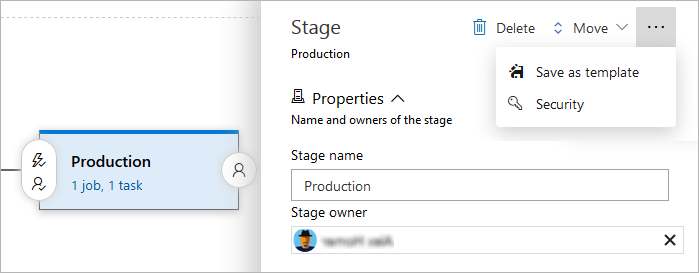
- Edit the name of the stage here if necessary.
- Designate one user or a
group to be the stage owner. Stage owners get
notified whenever a deployment to that
stage fails. Stage ownership doesn't automatically include permissions.
- Delete the stage from the pipeline.
- Change the order of stages.
- Save a copy of the stage as a stage template.
- Manage the security settings for the stage.
Specify dependencies
Control dependencies by setting triggers on each stage of the release pipeline:
- Stages run with a trigger or are manually started.
- With an After release trigger, a stage starts as soon as the release begins, running in parallel with other stages that have the same trigger.
- With an After stage trigger, a stage starts after all dependent stages complete. Using this, you can model fan-out and fan-in behavior for stages.
Define conditions
You can specify the conditions under which each stage runs with expressions. By default, a stage runs if it doesn't depend on any other stage, or if all of the stages that it depends on have completed and succeeded. You can customize this behavior by forcing a stage to run even if a previous stage fails or by specifying a custom condition.
If you customize the default condition of the preceding steps for a stage, you remove the conditions for completion and success. So, if you use a custom condition, it's common to use and(succeeded(),custom_condition) to check whether the preceding stage ran successfully. Otherwise, the stage runs regardless of the outcome of the preceding stage.
Note
Conditions for failed ('JOBNAME/STAGENAME') and succeeded ('JOBNAME/STAGENAME') as shown in the following example work only for YAML pipelines.
When you specify After release or After stage triggers, you can also specify the branch filters for the artifacts consumed in the release. Releases will only deploy to a stage when the branch filters are satisfied.
Specify queuing policies
In some cases, you might be able to generate builds faster than
they can be deployed. Alternatively, you might configure multiple
agents and, for example, be creating releases from the same release pipeline
for deployment of different artifacts. In such cases, it's useful to
be able to control how multiple releases are queued into a
stage. Queuing policies give you that control.
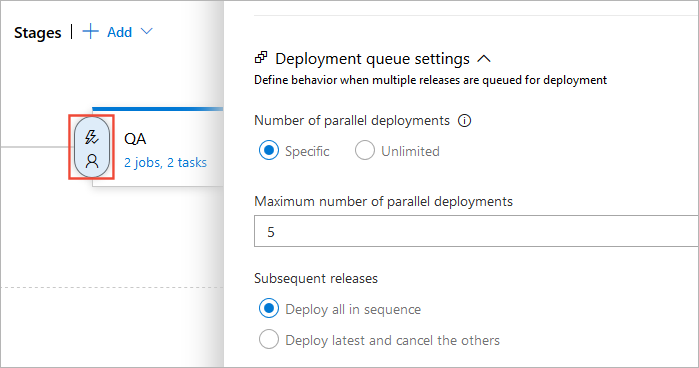
The options you can choose for a queuing policy are:
Number of parallel deployments:
Use this option if you dynamically provision new resources in your stage and it's physically capable of handling the deployment of multiple releases in parallel, but you want to limit the number of parallel deployments.
If you specify a maximum number of deployments, two more options appear:
Deploy all in sequence:
Use this option if you want to deploy all the releases sequentially into the same shared physical resources.
By deploying the builds in turn, one after the other, you ensure that two deployment jobs don't target the same physical resources concurrently, even if there are multiple build and release agents available. You also ensure that predeployment approval requests for the stage are sent out in sequence.
Deploy latest and cancel the others:
Use this option if you're producing builds faster than releases, and you only want to deploy the latest build.
To understand how these options work, consider a scenario
where releases R1, R2, ..., R5 of a
single release pipeline get created in quick succession.
Assume that
the first stage in this pipeline is named QA
and has both predeployment and post-deployment approvers
defined.
If you don't specify a limit for the number of parallel deployments,
all five approval requests are sent out as soon as
the releases are created. If the approvers approve all of the
releases, they'll all be deployed to the QA stage in parallel.
(if the QA stage didn't have any predeployment
approvers defined, all the five releases will automatically
be deployed in parallel to this stage).
If you specify a limit and Deploy all in sequence,
and the limit has already been reached, the predeployment approval for
release R1 will be sent out first. After this
approval is completed, the deployment of release R1 to the
QA stage begins. Next, a request for
post-deployment approval is sent out for release R1. It's
only after this post-deployment approval is completed that
execution of release R2 begins and its predeployment
approval is sent out. The process continues like this for
all of the releases in turn.
If you specify a limit and Deploy latest and cancel the others,
and the limit has already been reached, releases R2, R3, and R4 will be
skipped, and the predeployment approval for R5 in
the QA stage will be sent out immediately
after the post-deployment approval for release R1 is completed.
Specify approvals