Notitie
Voor toegang tot deze pagina is autorisatie vereist. U kunt proberen u aan te melden of de directory te wijzigen.
Voor toegang tot deze pagina is autorisatie vereist. U kunt proberen de mappen te wijzigen.
Before you begin your workflow migration, configure the required endpoints.
Configure endpoints
Workflow migration requires the following endpoints:
| Endpoint | Environment |
|---|---|
| https://api.bap.microsoft.com | Standard commercial |
| https://gov.api.bap.microsoft.us | GCC |
| https://high.api.bap.microsoft.us | GCC High |
| https://api.bap.appsplatform.us | DoD |
Configure Power Automate
If you haven't used Power Automate with this tenant before, you must configure it before you begin migration. We recommend using Microsoft Edge.
Sign in to https://admin.powerplatform.microsoft.com/ using an admin account.
Select Manage from the navigation.
Select your default environment.
Select Add Dataverse.
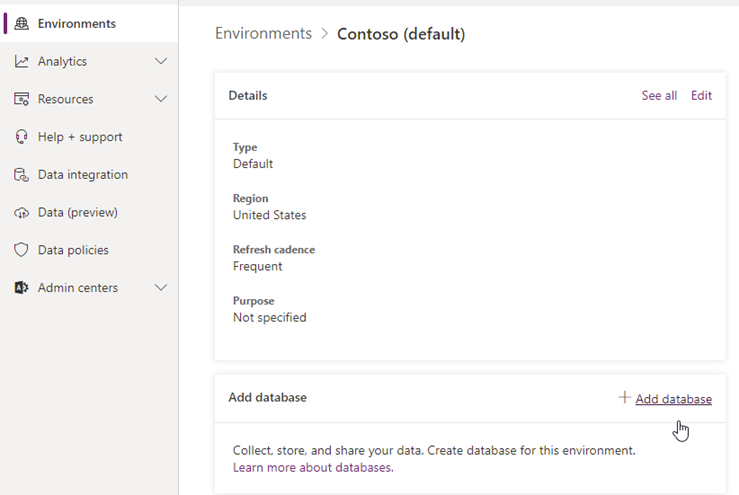
In the Add Dataverse task pane, select Add.
Wait for "State" status to change to Ready.
To sync a Microsoft Entra user to Microsoft Dataverse, sign in to the Microsoft Power Automate | Microsoft Power Platform with the account you'd like to set as the default flow owner.
Important
The user account you use to migrate must be a SharePoint Administrator or SharePoint site admin on the Microsoft 365 tenant, and be a Power Platform Administrator who can manage the solution.
As this user account will be used to create solutions and users in the Power Platform environment, it must also be assigned with the security roles of System Administrator, Environment Maker and Basic User. Learn more about Power Platform data security.
Sign in to Power Automate using this account, navigate to Solutions, and verify you can create a new solution.