Create incident types
Incident types ensure that all field technicians perform the same actions to resolve work orders. Furthermore, if better procedures are discovered, the incident type will be updated and implemented across the entire organization.
You can create a new incident, or you can create an incident from an existing work order.
Create an incident type
Organizations can define the necessary incident types in the Field Service app. To define incident types, go to Settings > Work Orders > Incident Types.
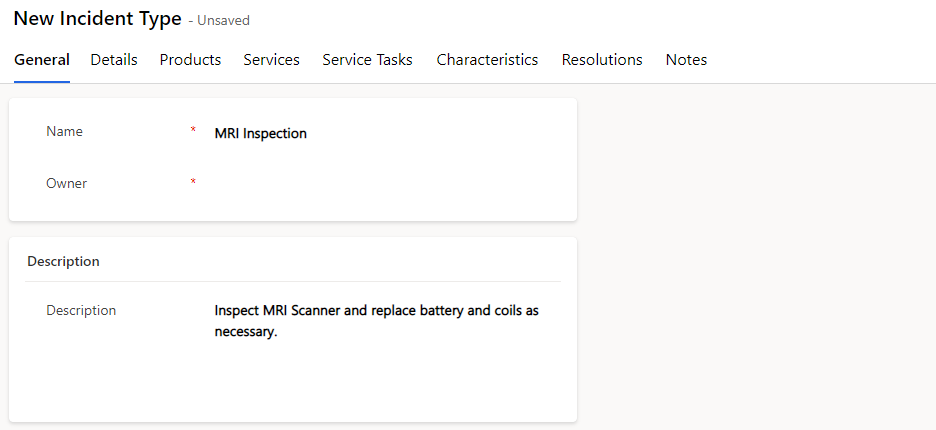
After an incident type has been created, it will include the following information on the General tab:
Name - Specifies the name of the incident type.
Description - Provides extra details about the incident type.
The Details tab contains the following information:
Default Work Order Type - The work order type that you select in this field will populate the Work Order Type field on the work order when this incident type is selected as the primary incident type. It will overwrite previously entered work order types.
Estimated Duration - Defines the estimated amount of time that the incident type typically takes. You can enter this information manually or it will be calculated from the service type tasks that are added to the incident type. Copy Incident Items to Agreement – If the incident type is added to an agreement, then incident items will be copied to the agreement.
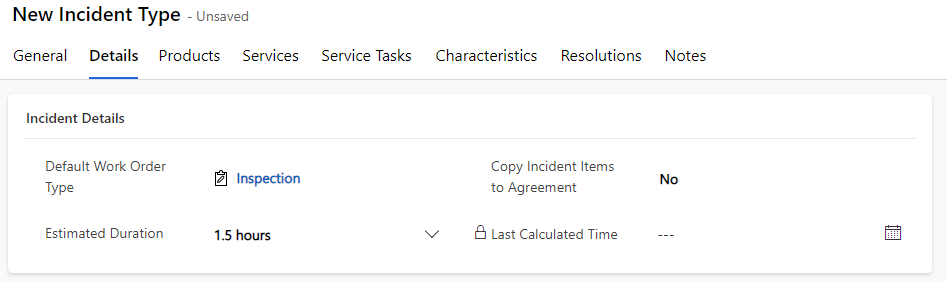
The estimated duration will populate the duration of the work order if the incident type is selected as the primary incident type for the work order.
Incident type products
You can add products to the incident type by creating an incident type product record. To add an incident type product, select the Product tab and then select + New Incident Type Product.
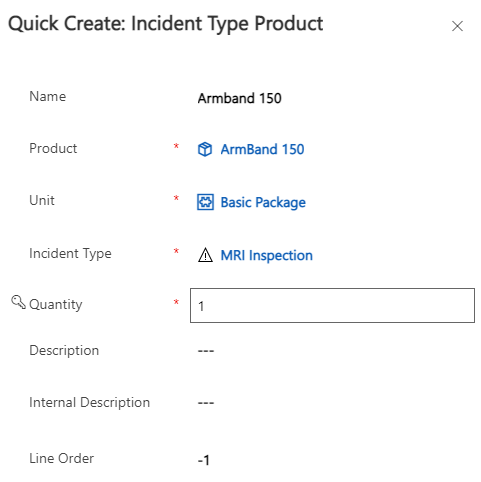
Select options in the Product, Unit, and Quantity fields and then select Save and Close.
Note
Only products with a Field Service type of Inventory or Non-Inventory can be added as products.
The quantity can be manually overridden in the work order creator.

Incident type services
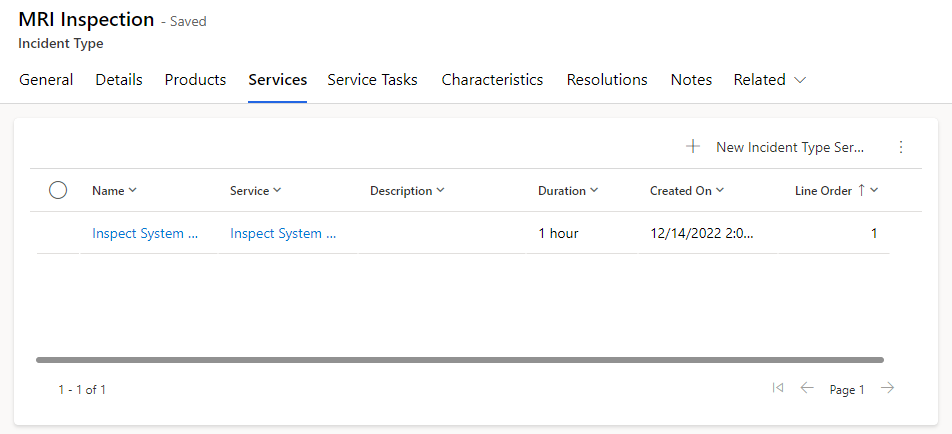
You can add services to the incident type by creating an incident type service record. To add an incident type service, select the Services tab and then select + New Incident Type Service.
The only difference between incident type products and services is that instead of a Quantity field, it contains a Duration field to represent the service time because a service represents labor and not a physical item.
Note
Only items with a Field Service type of Service can be added as services.
Incident type service tasks
You can add service tasks to the incident type by creating an incident type service task record. To add an incident type service task, select the Service Tasks tab and then select + New Incident Type Service Task.
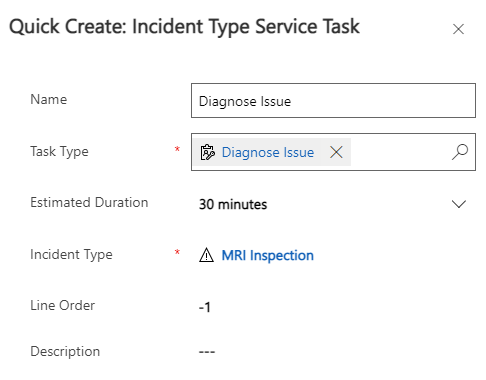
Select a Service Task Type. If the task type that you select has a duration, it will populate in the Estimated Duration field. You can adjust the duration for this specific incident type if needed.
After you have completed your task, information from the Description field will be copied to the incident type service task. Select Save and Close.
You can use the Line Order field to sort the service tasks on the incident type and any work order that the incident type is added to. The Line Order field will default to -1 and will be set automatically when you save to the next sequential number. You can manually set the line order.
After saving, you can edit the Line Order field as needed to change the order of service tasks, where 1 is the service task that will appear first.
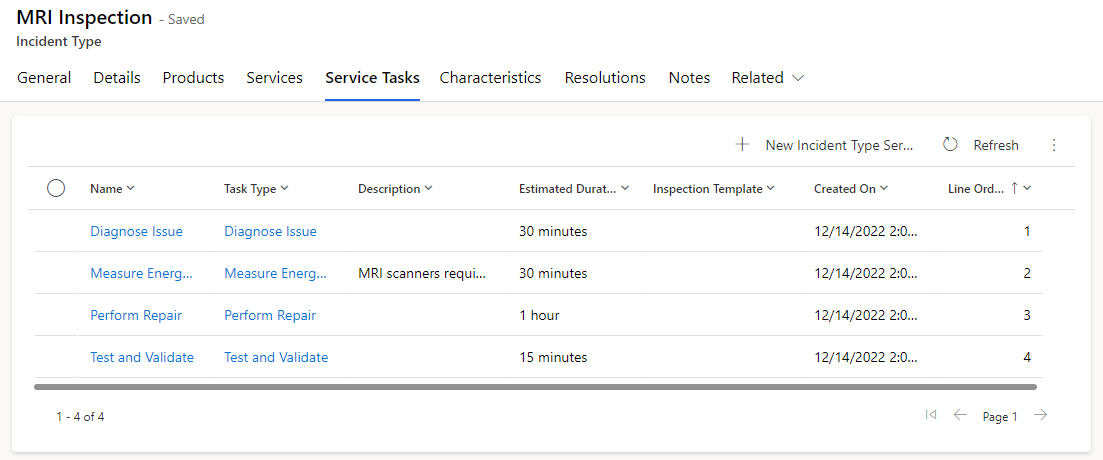
Duration
The total time for all service tasks is rolled up to the incident type and will populate the Estimated Duration field on the work order.
Important
Incident types are the only out-of-the-box way to apply a duration to the work order.
Incident type characteristics
You can add characteristics to the incident type by creating an incident type characteristic record. To add an incident type characteristic, select the Characteristics tab and then select + New Incident Type Characteristic.
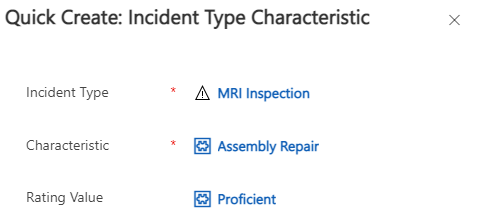
Select a characteristic and, optionally, a rating. Select Save and Close.
Associate resolutions with incident types
You can associate resolutions with an incident type by creating an incident type resolution record. To add an incident type resolution, select the Resolutions tab and then select + New Incident Type Resolution.
Select a resolution and then select Save and Close.
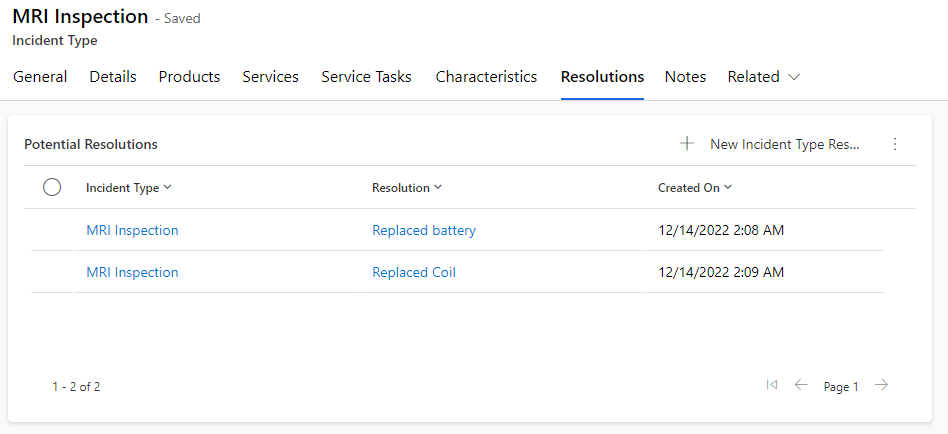
After you have populated all items on the incident type, you can begin using the incident type on work orders.
Create incident types from a work order
A quick way to create an incident type is to create the incident type from an existing populated work order.
Select the Create Incident Type button on the command bar on a work order to open the Create Incident Type from Work Order dialog, as shown in the following screenshot.
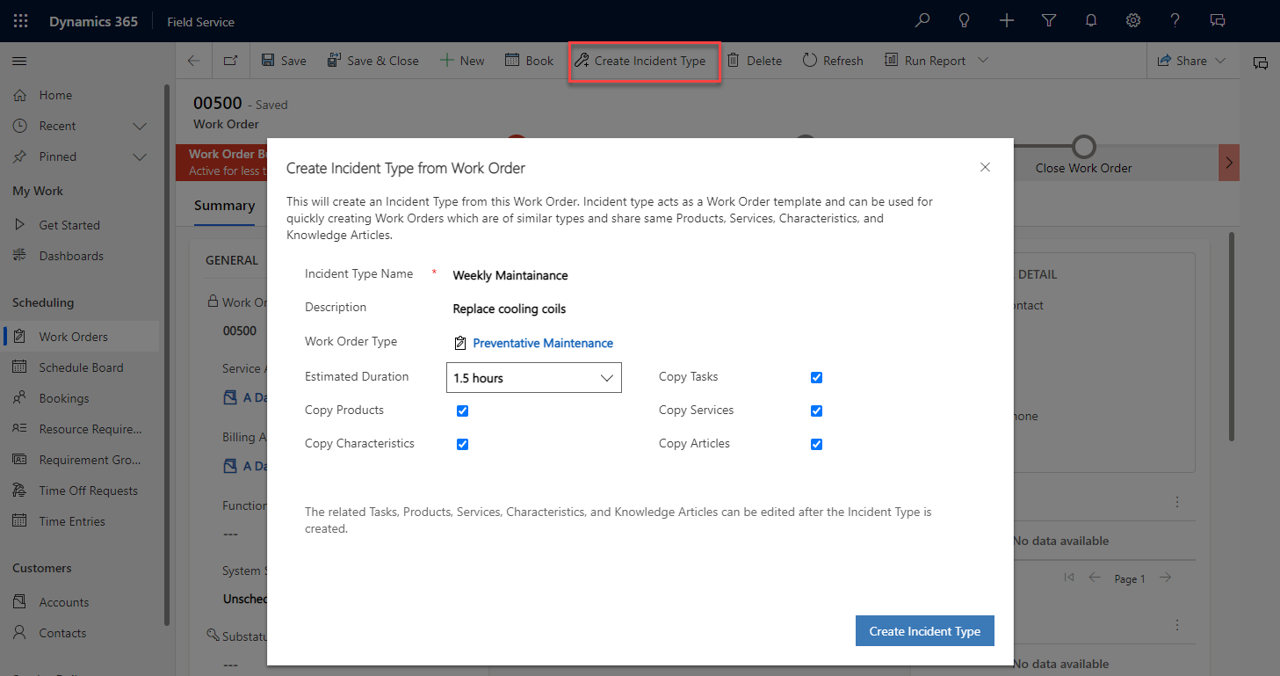
The following information will be populated:
Description - Copied from the Work Order Summary field.
Work Order Type - Copied from the work order type.
Estimated Duration - Copied from the duration of completed service tasks.
Copy Tasks, Copy Products, Copy Services, Copy Characteristics, and Copy Articles toggle fields are automatically enabled. If records show that you don't want to be copied from the work order, turn off the toggle.
Make sure that you enter a name for the incident type. Selecting Create Incident Type will create the incident type with all selected information populated.