Configure advanced features
Based on the specific needs of your organization you might encounter instances where you need to tailor your forecast a bit more. For example, you might need your forecast to support multi-currency. When configuring a forecast, you can use the Advanced step of the forecast configuration to customize the forecast. Additionally, you also override column headers and customize the underlying records grid by using JavaScript.
Automatically hide parent row
In a forecast, each parent row in the hierarchy entity has its own contributor row. This row shows the parent's individual simple columns, such as quota and revenue contribution. These dedicated contributor rows show whether they contain any values to contribute.
You might not want to see duplicate zero-value parent rows. To hide them, turn on Auto-hide parent row.
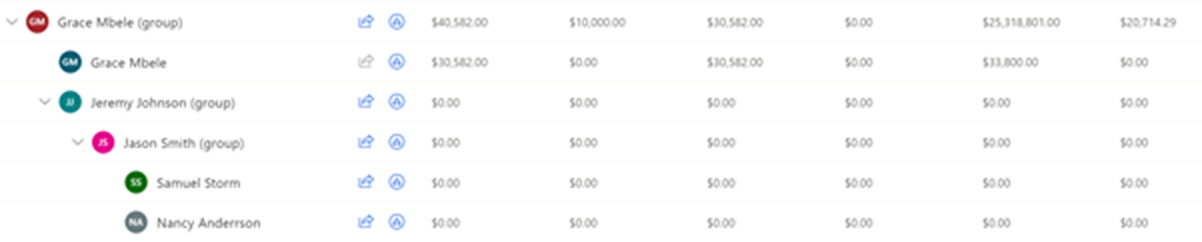
For example, Grace Mbele, a sales manager, creates a forecast based on the User hierarchy. On opening the forecast, Grace sees two rows each for the sales leads, Jeremy Johnson, and Jason Smith. The first row is the parent. The second is the contributor row.
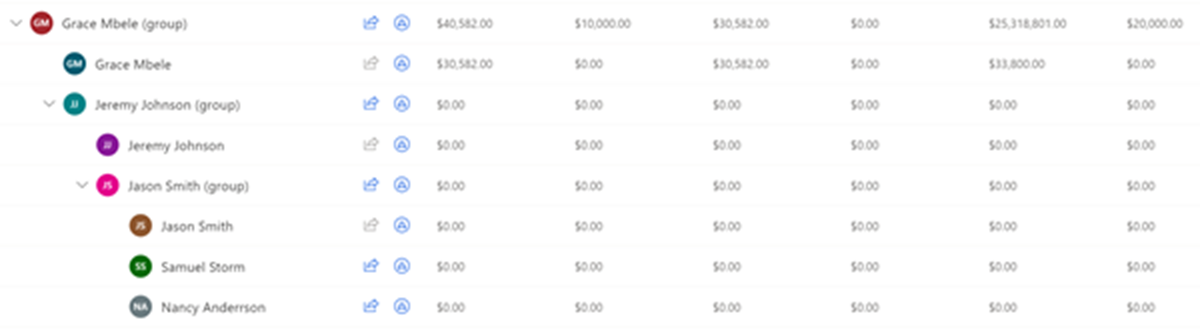
After turning on Auto-hide parent row, Grace still sees the rolled-up parent rows for Jeremy and Jason, but not the duplicate zero-value rows.
Turn on multi-currency selection
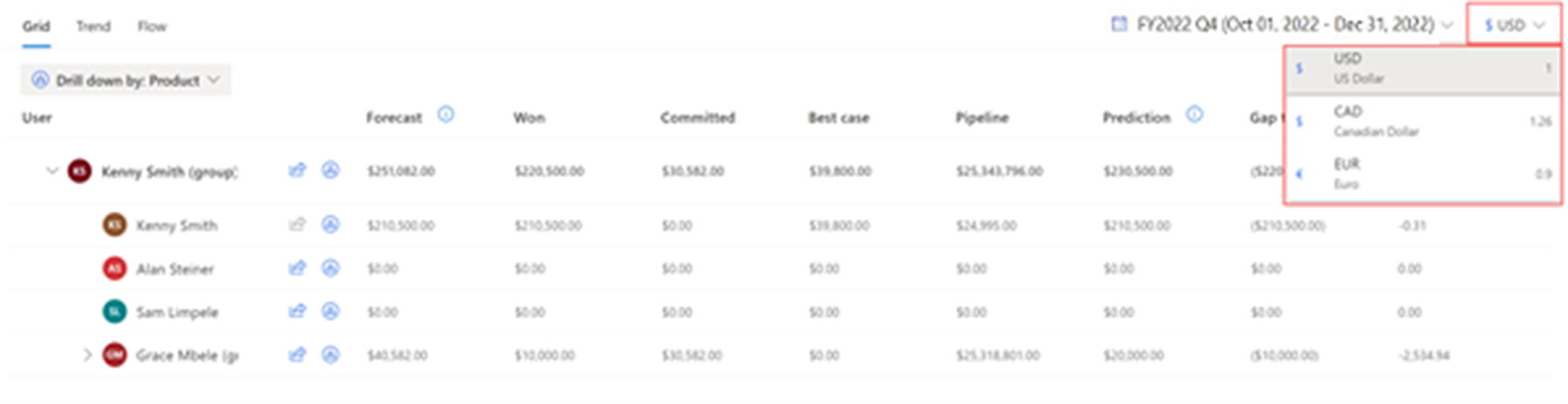
For global sales teams, viewing forecast revenue values in the organization's base currency might be confusing for users who are accustomed to working in their local currency. Turn on Multi-currency selection to convert forecast revenue data to any currency that's available in the system. The conversion happens in real time, based on the latest exchange rate defined by your organization.
For example, your organization has sales teams in the United States, Canada, and Europe. The US dollar is set as the base currency for your organization. The Canadian dollar and euro are also available in the system. You create a forecast with multiple-currency selection turned on. All three sales teams initially see the forecast revenue values displayed in US dollars. The sales teams in Canada and Europe can display revenue in their local currency. Any manual adjustments made to the forecast grid use the selected currency.
Set Kanban as the default view for underlying records
The underlying records of a forecast can be displayed in a table view or a Kanban (swimlane) view. Table view is the default. To change it, turn on Set kanban as default.
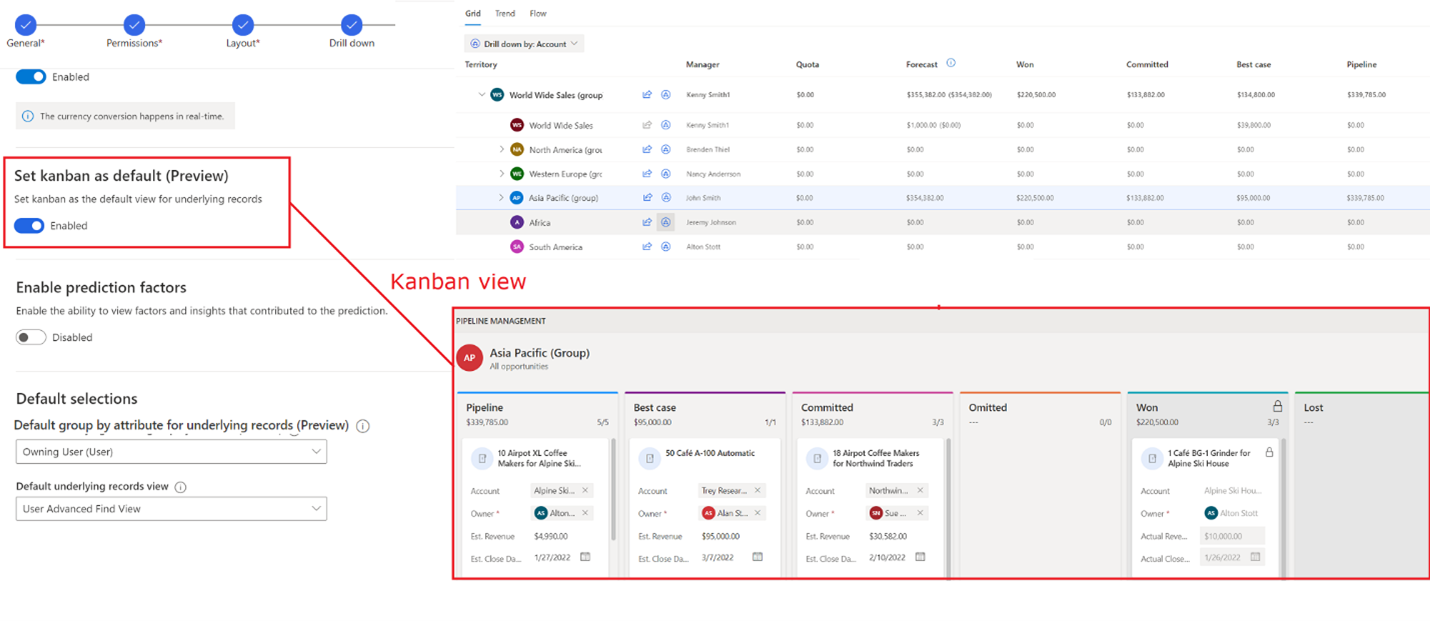
A user's most recent selection overrides the default for that user. For example, the default view for the underlying records of a forecast is Kanban and a user switches to the table view. The underlying records open in the table view the next time the user views the forecast.
View prediction factors
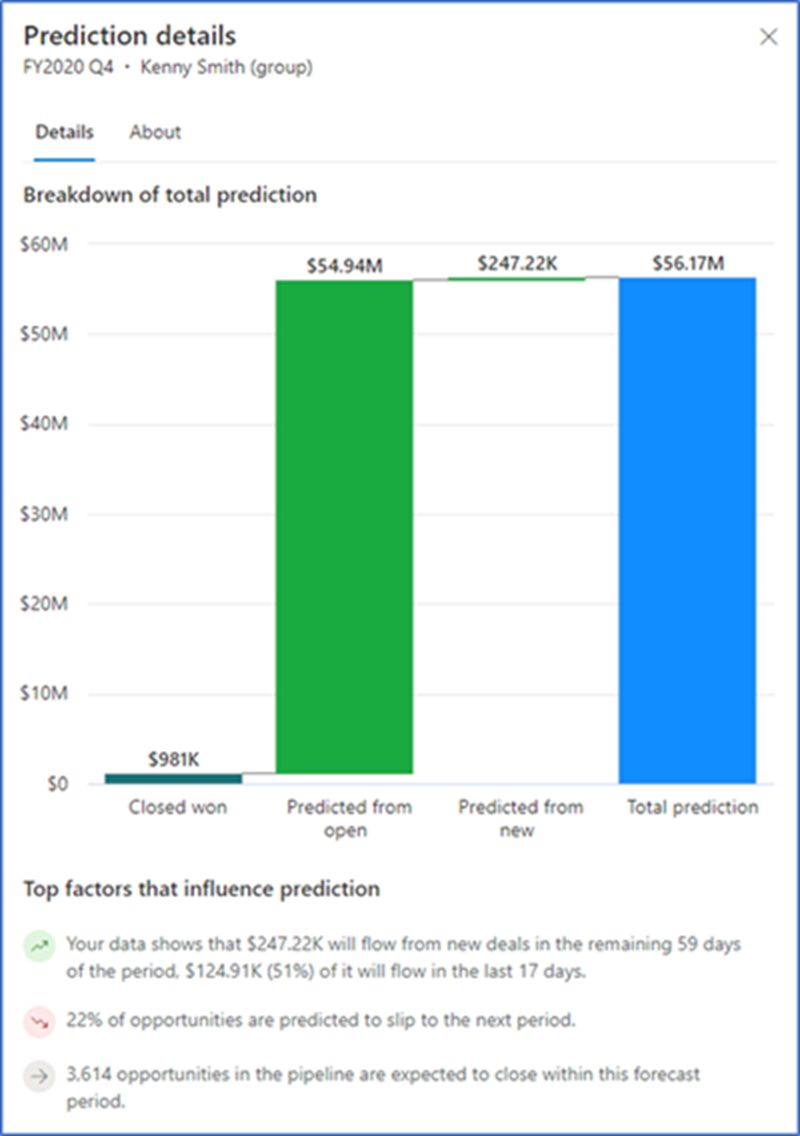
Predictive forecasting draws on many factors to create a prediction. You can analyze these factors to discover new insights about your data and understand how it's influencing the prediction.
You need to turn on Enable prediction factors in your forecast's advanced settings first. To see the details of a prediction, including the top factors that influenced it, select a value in the Prediction column of the forecast.
Customize underlying records grid
JavaScript libraries can be used to customize the underlying records grid in a forecast. Before you upload the JavaScript library, it must be created according to the schemas defined in Events and context object.
For more specific details on how to customize the underlying records grid using JavaScript, See the following links: