Build forecasts
Out of the box, there's a default current month forecast. This default forecast is there to help your sales team get started with forecasting. This forecast is available as is, and can't be configured, deleted, or deactivated. However, organizations can build their own forecasts based on their specific needs.
When creating forecasts, they can be based on either revenue or quantity. Additionally, when configuring a forecast, you can specify specific items such as the type of forecast, its hierarchy, access permissions, and specific details you want displayed in the forecast grid. After they're created and activated, your sales team can view important information such as revenue, or quantity, and pipeline projections. Forecasting is configured in the Sales Hub app by going to App settings and selecting Forecasting configuration under the Performance management group.
If you're looking to get started quickly, you can use the sample forecast configuration. Otherwise, if you want to build a forecast from the ground up, you should use the following steps.
Use the sample forecast configuration
As mentioned previously, there's a ready-to-publish sample forecast configuration available to you. This can be used to help your organization experiment and discover how forecasting works. From here, you can start to learn how you want to tweak the parameters and filters to suit your organization's needs.
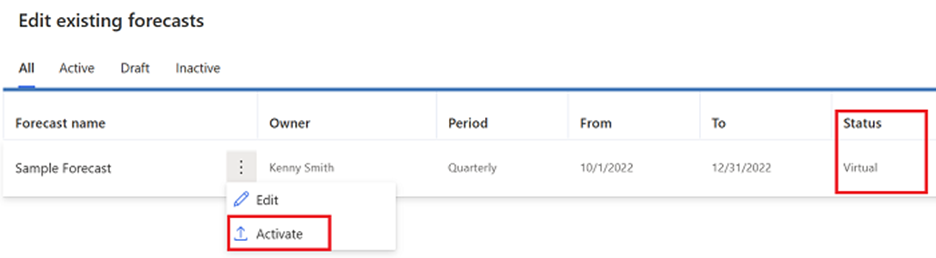
You can access the sample forecast configuration by navigating to App Settings > Performance management > Forecast configuration. To get started with the default settings, you can activate the sample forecast configuration. Once active, your sales team has access to it.
Control who has access to a forecast
Not all users need to have access to every forecast. You can control access to each forecast. Select the forecast that you want to control access to and use the Preview Section. By default, the displayed users have access to view the forecast after you activate it. You can limit access to a forecast by going to Permissions and assigning the appropriate security roles that you want to have access to it.
Find your forecasts
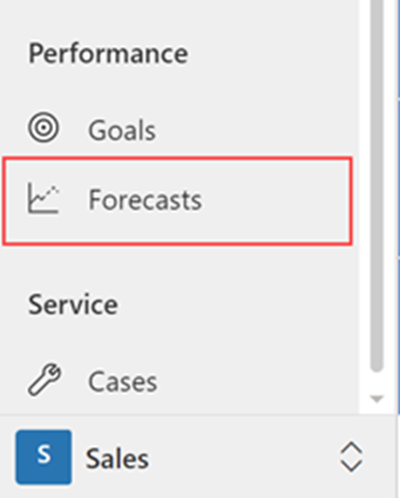
Once a forecast is activated, sales users can access any forecast that they have access to in the Sales Hub app by going to Forecasts under the Performance group.
Each opportunity can have a category assigned to it. Categories define the confidence level of closing the opportunity. There are default categories defined by default; however, you can add custom values based on your organizational needs. Users can define the category using the Forecast Category on the Opportunity form.
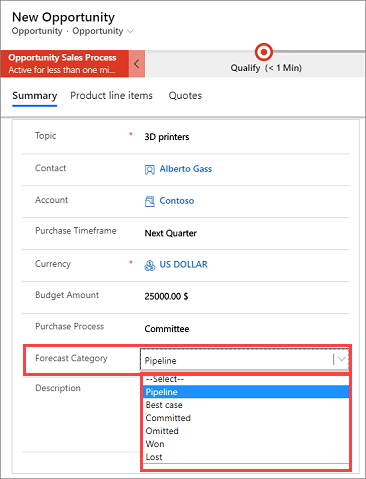
If you don't want to see the forecast category in the opportunity form, you need to customize the form. You can't use the Visible by default option to hide it. To learn more, see Unable to hide forecast category field in opportunity forms.
Creating forecasts
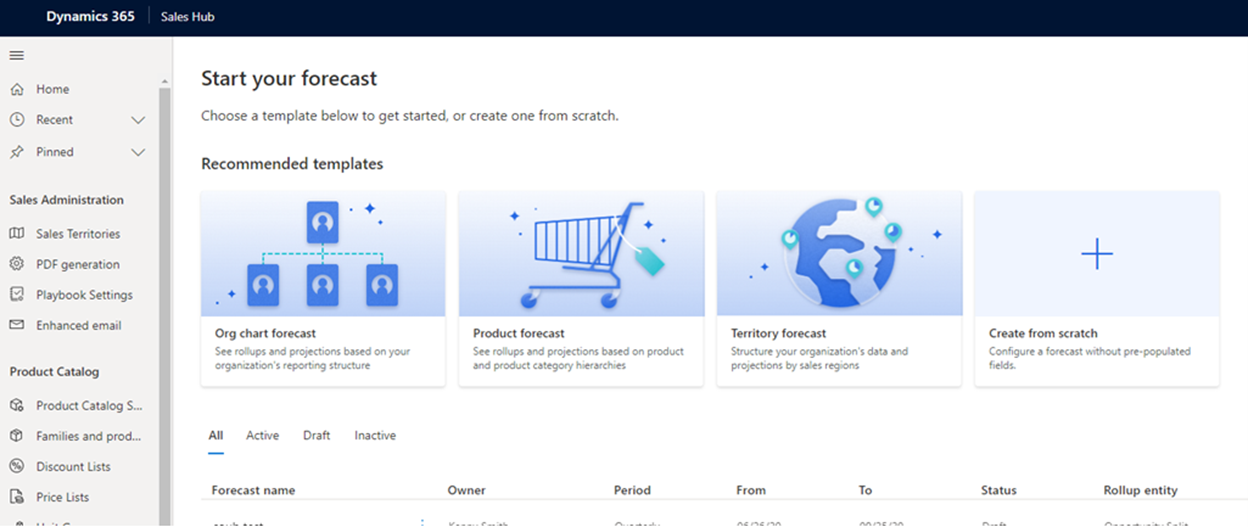
The easiest way to create a forecast is by using a forecast template. Templates define how the forecast groups the data. When you are on the Forecast configurations page, you can select one of the following templates:
Org chart forecast: Rollup columns and projections are based on your organization's reporting structure. This template uses the Manager field of the User entity for the hierarchy.
Product forecast: Rollup columns and projections are based on the product hierarchy.
Territory forecast: Rollup columns and projections are based on the sales territory hierarchy.
Define a forecast model
Forecasts are based on tables in your environment. When configuring a forecast, you can define the tables to use to generate the forecast. In the General step of the Forecast configuration page, define the fields that should be used for the forecast. The following screenshot is an example of the General step for an org chart forecast.
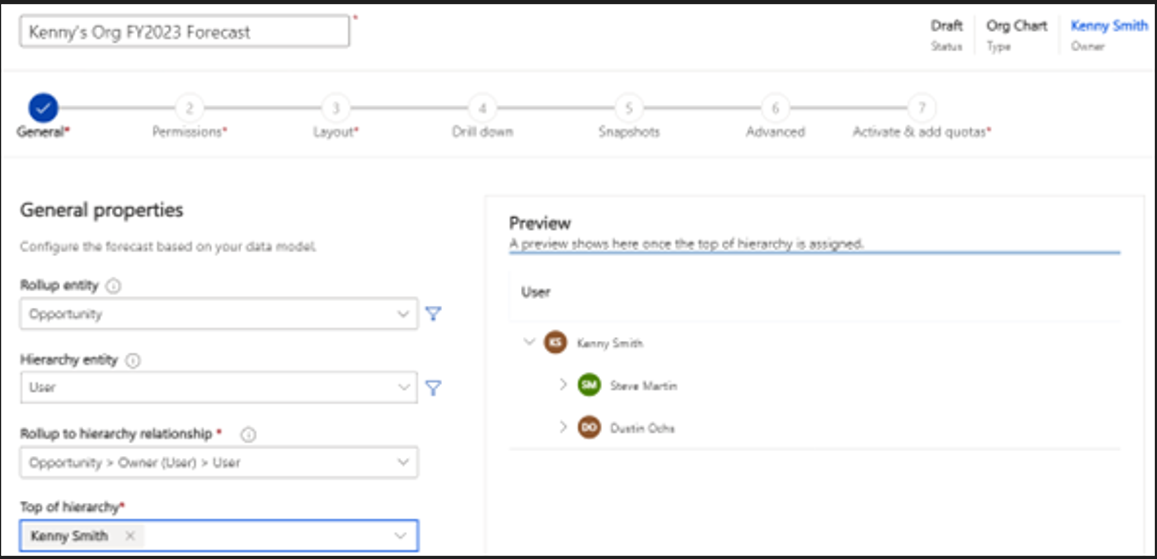
Forecasts are based on rollup entity you select. Each forecast template starts with a default rollup entity:
Org chart forecast: Opportunity
Product forecast: Opportunity Product
Territory forecast: Opportunity
You can choose a custom or out-of-the-box entity to support your organization's specific requirements if needed. It's important to note that only entities that have Change Tracking turned on are listed. To learn more about change tracking, see Enable change tracking to control data synchronization.
The forecast uses this entity to group your organization's data. Only entities that have a hierarchy are shown in the list.
Each forecast template starts with a default hierarchy entity. The default hierarchy per template is as follows:
Org chart forecast: User
Product forecast: Product
Territory forecast: Territory
You can use the Funnel icon next to Hierarchy entity to filter your forecast to include only those hierarchies that meet the specified conditions. You should then select a Rollup to hierarchy relationship. This establishes a relationship between the rollup and hierarchy entities. Out-of-box, each forecast template starts with a default rollup to hierarchy relationship the table below defines the default relationships:
| Template | Roll up to hierarchy relationship | Description |
|---|---|---|
| Org chart forecast | Opportunity > Owner (User) > User | The forecast hierarchy is defined based on the organizational hierarchy. |
| Product forecast | Opportunity Product > Existing Product (Product) > Product | The forecast hierarchy is defined based on the product hierarchy. |
| Territory forecast | Opportunity > Account (Account) > Territory (Territory) > Territory | The forecast hierarchy is defined based on the territory hierarchy. |
Choose different values to support your organization's specific requirements if needed.
Let's examine an example. If you use the User table as the hierarchy entity. We can choose from fields in the Opportunity entity that are related to the User entity. To build out a forecast that is based on sellers who own opportunities, we selected Owner as the relationship. This specifies that the forecast values are based on the Owner field in the Opportunity entity.
Sometimes, there might not be a direct relationship between the rollup entity and the hierarchy entity. In those instances, you can choose a field from a related entity to define an indirect relationship. Using the Related tab, you can choose a field from the list. Only fields in hierarchical entities are shown in the Related list.
In the following screenshot, we selected Opportunity as the rollup entity and Territory as the hierarchy entity. Because there's no direct relationship between them, we needed to select the Related tab. The Territory field in the Related list is indirectly related to Opportunity through the Account entity. In other words, Account is an intermediate entity for establishing a relationship between Opportunity and Territory.

The mapping specifies that there's a field Account in the Opportunity entity that's related to the Account entity. The Account entity in turn has a Territory field that's related to the Territory entity. The rollup values in the forecast are based on the relationship defined through the Territory field.
The list of values depends on the hierarchy entity you selected. For example, if you select User as the hierarchy entity, the list displays active users in your organization.
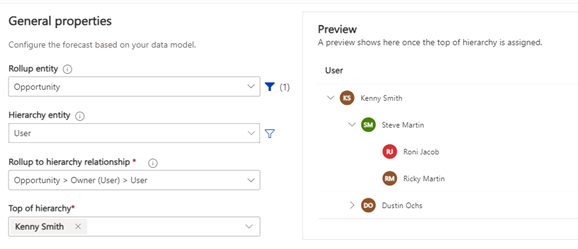
For example, Kenny Smith, a sales director, wants to see the forecast for their team. Kenny builds a forecast based on the Org chart template and selects their own name as the top of the hierarchy. The team's hierarchy is previewed to the right of the forecast options.
Schedule the forecast
Once you configure a forecast, you need to schedule it. This is done in the Scheduling section. You can add forecast periods to match your organization's forecast periods and how often you want to generate the forecast. Each forecast configuration can have multiple forecast periods with different period types.
For example, Let's say your organization's fiscal year runs from January 1 to December 31. To schedule a monthly forecast for the fiscal year 2023, select the values as follows:
Scheduling format: Gregorian
Period start date: Jan 1, 2023
Forecast period: Monthly
Fiscal year: FY2023
Start this forecast: January
Number of periods: 12
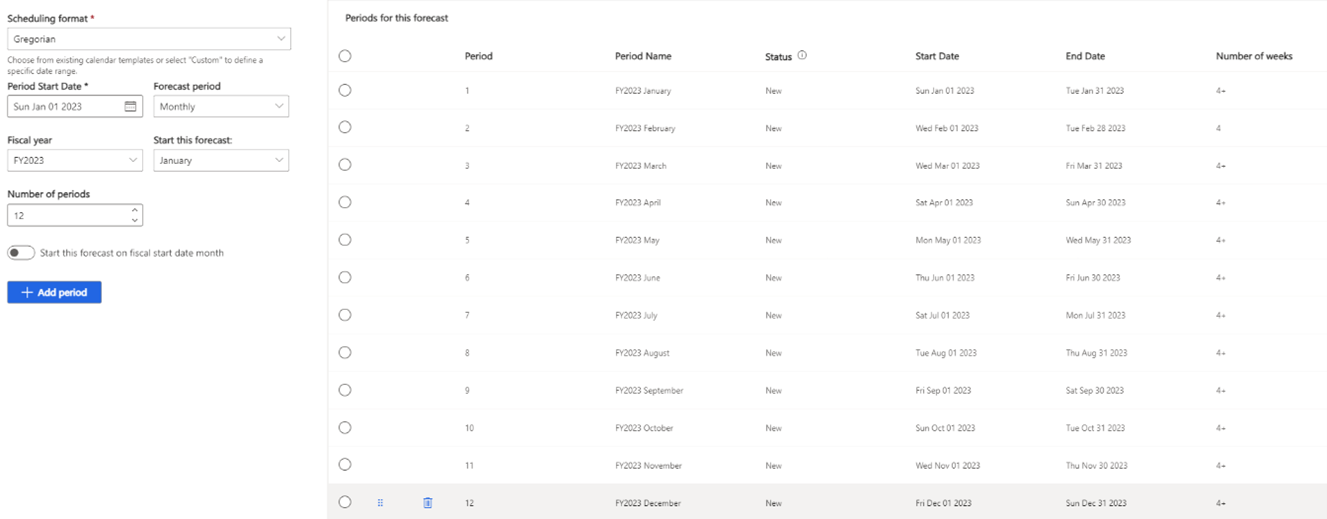
Based on the schedule defined in the previous example, 12 forecast periods are added to the Periods for this forecast table on the right side.
Provide permissions to access and share a forecast
Once you create and schedule your forecast, you can specify who can view, access, and share it.
You can:
Define the owner of the forecast
Provide access to users who have specific security roles to view the forecast
Allow users to share their forecast records with other users
Define the forecast owner
A forecast owner can view, share, and adjust the forecast. You can assign a user or a business unit (BU) as the owner.
In the Permissions step of the forecast configuration, use the Owner lookup field to select who owns the forecast:
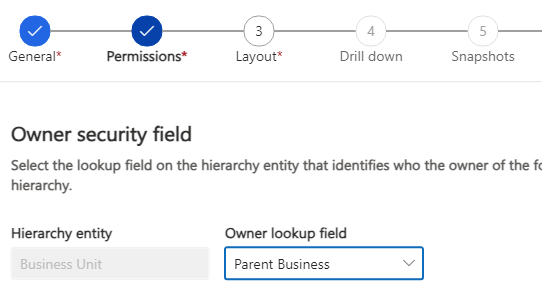
For specific details about defining ownership, see Define the forecast owner.
Provide access to other roles
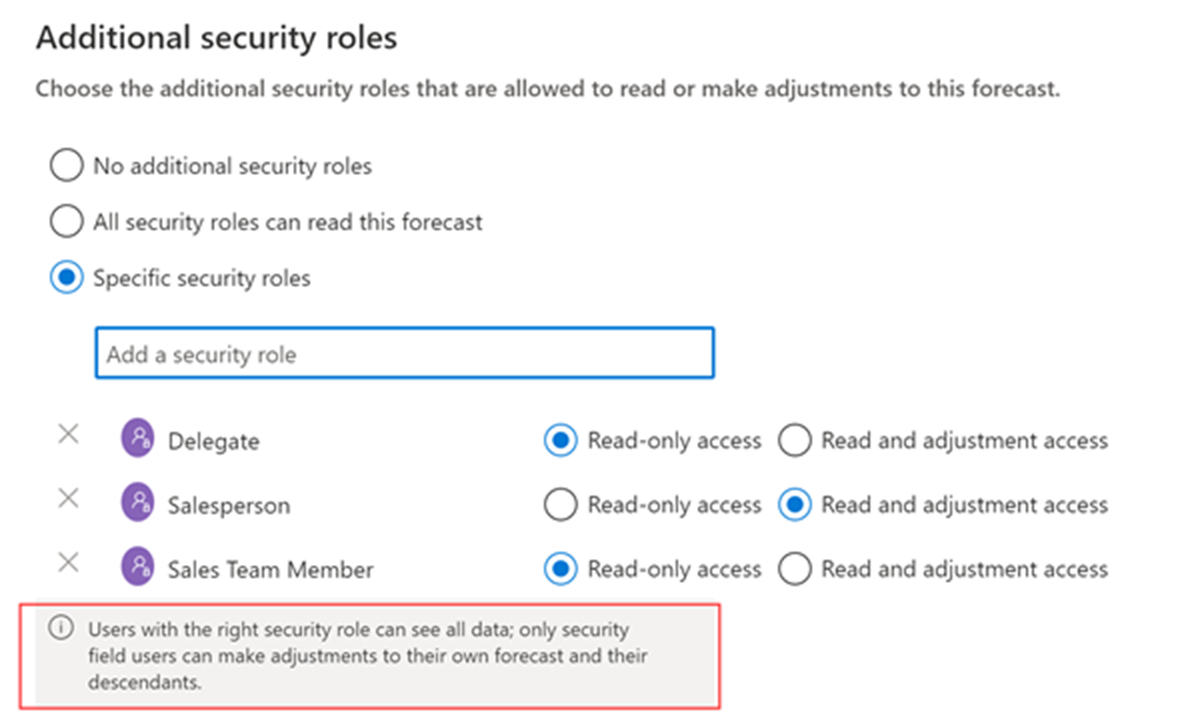
By default, only users in the selected hierarchy have access to the forecast. If needed, you can provide access to other users using the Additional security roles section.
There are three options that you can choose from:
No additional security roles: Gives access only to the selected hierarchy users. Users who have other security roles in the organization can't view the forecast. This option is selected by default.
All security roles can read this forecast: Gives read-only access to all the security roles in your organization.
Specific security roles: Allows you to specify the security roles to receive either read-only access, or read-only and adjustment access.
Enable or disable forecast sharing
By default, forecasts can't be shared. However, you can turn on forecast sharing. When forecast sharing is enabled, users can share forecasts that they own.
In the Share forecast section, select one of the following options:
None: The forecast can't be shared with anyone. If it's already shared, users it was shared with can no longer access it.
Read-only: The forecast can be shared to view, but not to edit.
Read and adjust: The forecast can be shared either to view, or to view and edit. Select this option to share the forecast to users with different levels of access.
Add and configure columns
You can control the columns and layouts you want sellers to see in the forecast grid. Add from option set, change column type, show columns in chart, and more. Using the Layout step of the forecast configuration, you can configure columns to define the forecast grid that appears for users. You can configure rollup columns from option sets that are defined for opportunities in your organization.
Add columns from an option set
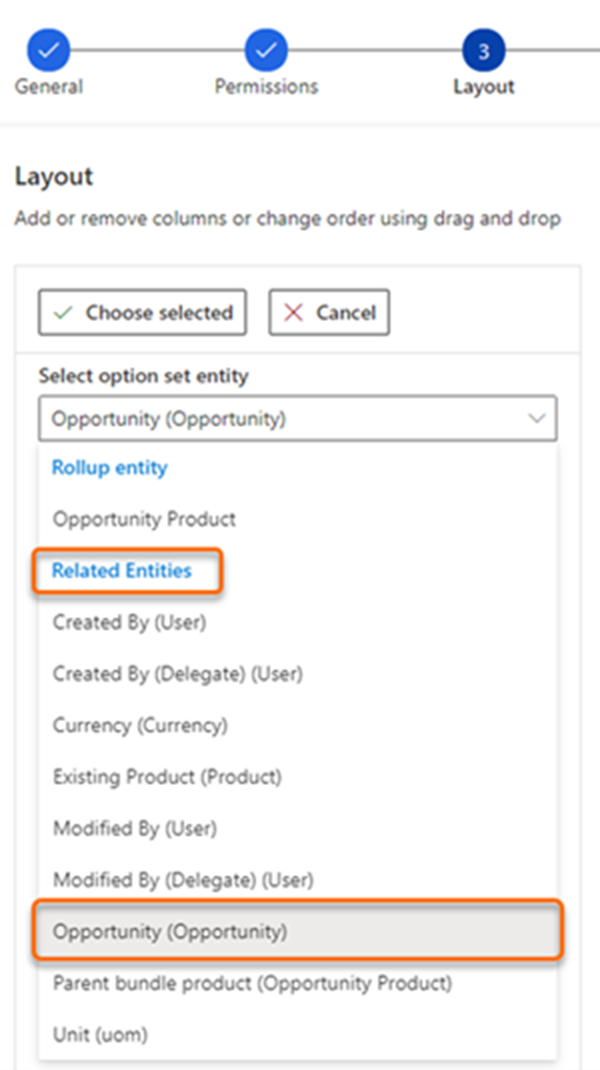
Every forecast needs an option set to define rollup columns. You can select an option set entity from the rollup entity or from its related entities. The selected entity consists of option sets that are necessary to add columns to the forecast. In the following example, the Opportunity (Opportunity) option set entity is selected from Related Entities. The list shows only the option sets defined on the opportunity entity.
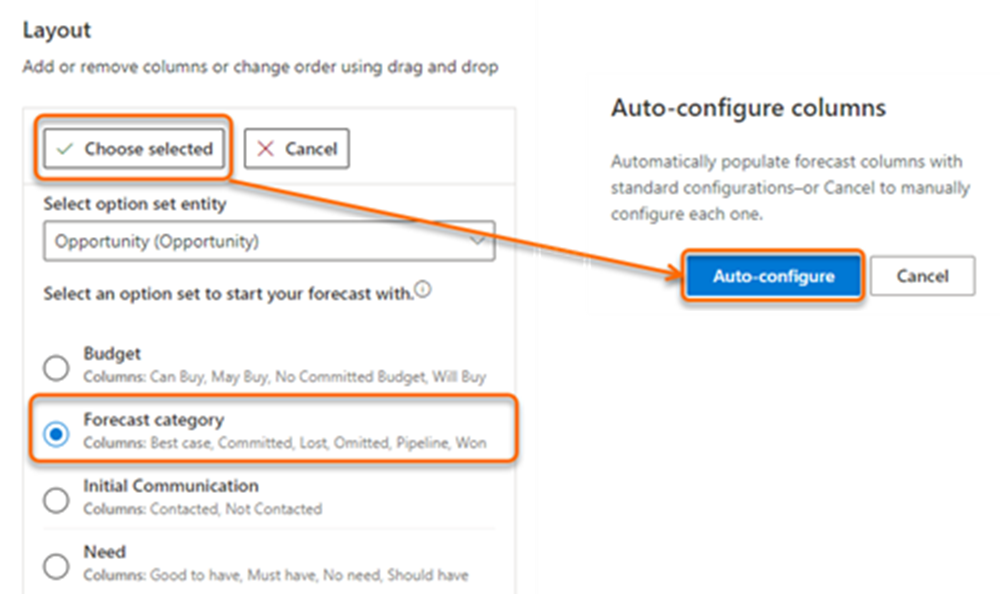
Next you need to choose an option set and then select Choose selected. In the following example, Forecast category option set is selected. The option set values are added as columns for you to configure.
By default, a Quota column of type Simple is added to the forecast. To begin tracking against targets, you must manually upload an Excel workbook that contains quota values to the forecast. After the rollup columns are added to the forecast, you can use More options to rearrange or remove the columns that you don't need.
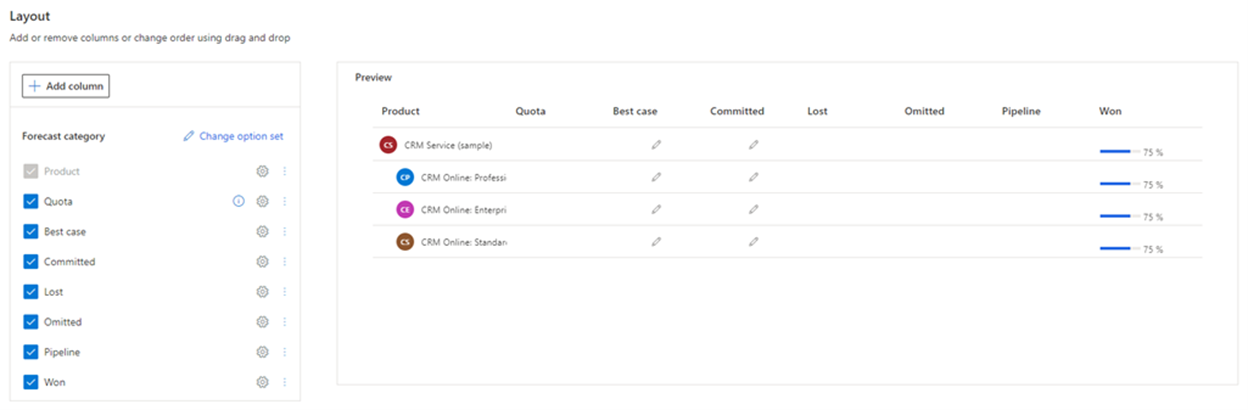
Configure columns
During the forecast configuration, in the Layout step, you can configure each column individually, such as changing the column type, allowing adjustments, and showing a column in the trend chart according to your organizational requirements.
To configure each column, select the gear icon and the column configuration section opens. In this example, the Pipeline column is selected.
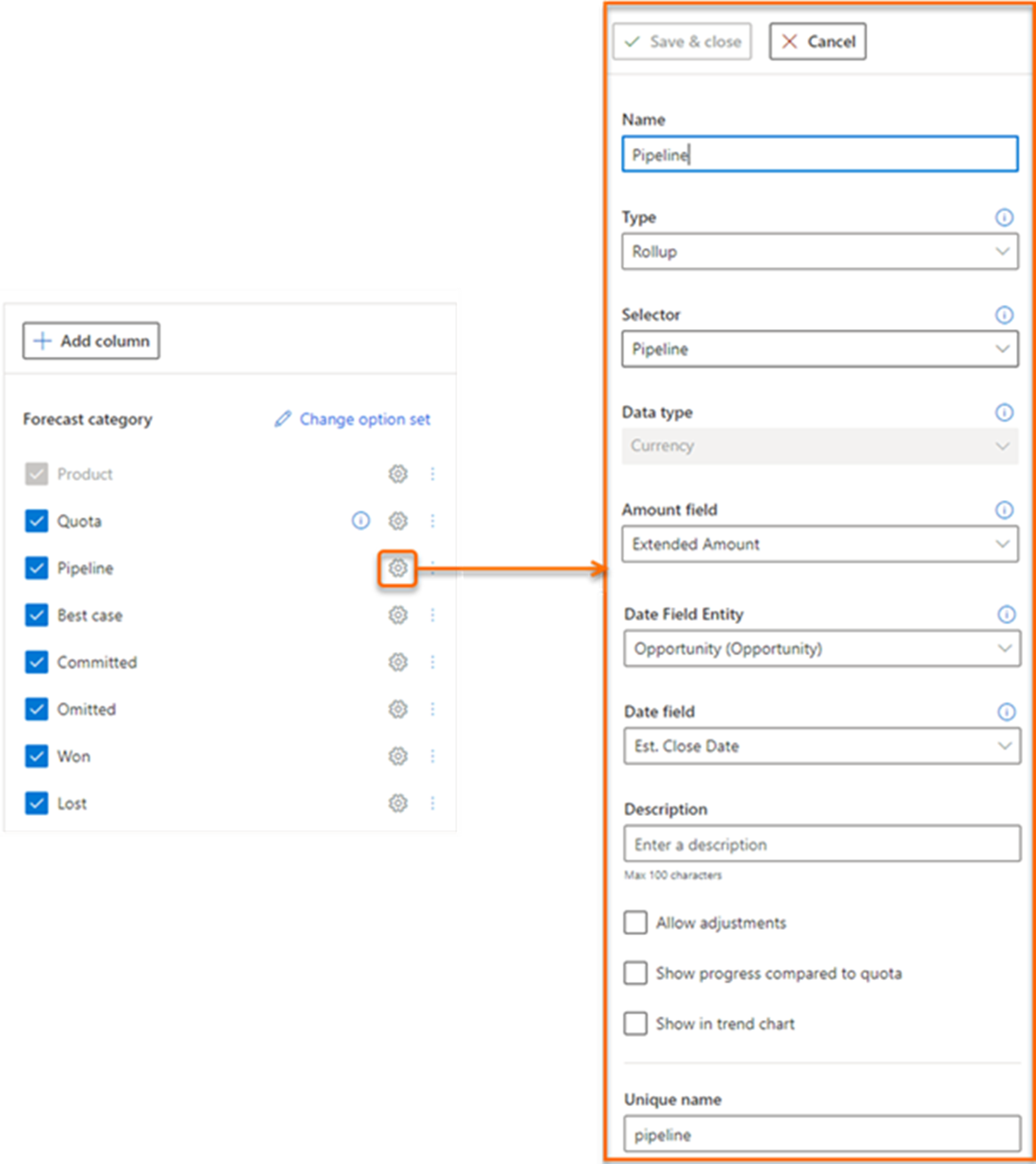
On the column configuration page, the Name field specifies the display name of the column. The Unique name field is auto-populated based on the display name you specified and supports only English characters. If you use non-English characters in the Name field, the Unique name field isn't auto-populated. You must manually enter a unique name in English for such columns.
Select the Type of column. The options that appear depend on the type of column you select. For example, when you select a column of type Calculated, a text box appears for you to enter a formula to use for calculating the value of the column.
The following column types are supported:
Rollup type: The Rollup column type aggregates the values of all fields based on the selected Selector and Amount field values, by using the Date field value as the filter criteria. For more information about rollup types, see: Rollup Type.
Calculated type: The values for the column are calculated and displayed based on a formula that you define. For more information about calculated types, see Calculated type.
Simple type: Allows you to manually upload external data to a forecast using an Excel file. For more information about simple types, see: Simple types.
Hierarchy related type: The column helps you pull more attributes from the hierarchy entity. For more information about the hierarchy related type, see: Hierarchy related type.
What are drill-down entities
Once you configure the forecast page, you have a view into the pipeline amounts that your sellers are projecting for the period. Now you might want to know which accounts contribute to a specific seller's Committed value or maybe you want to know which products are contributing to a different seller's Won value. The drill-down feature allows you to break down your seller's forecast projections as a function of the contributing factors that you care about such as Account and Product. The drill-down feature looks at the underlying records that are contributing to the value of the rollup column and groups them according to the drill-down selection.
In the following example, Amber Rodriguez is a seller who's associated with four accounts. Amber's projected revenue for the current period is $400,000. Kevin Smith, Amber's sales manager, wants to understand how the revenue of $400,000 is broken down by each account. On the forecast page, Kevin chooses to drill down into Account from the drop-down menu. Kevin then selects the drill-down icon beside Amber's record to view a list of accounts that make each of Amber's forecast pipeline values.
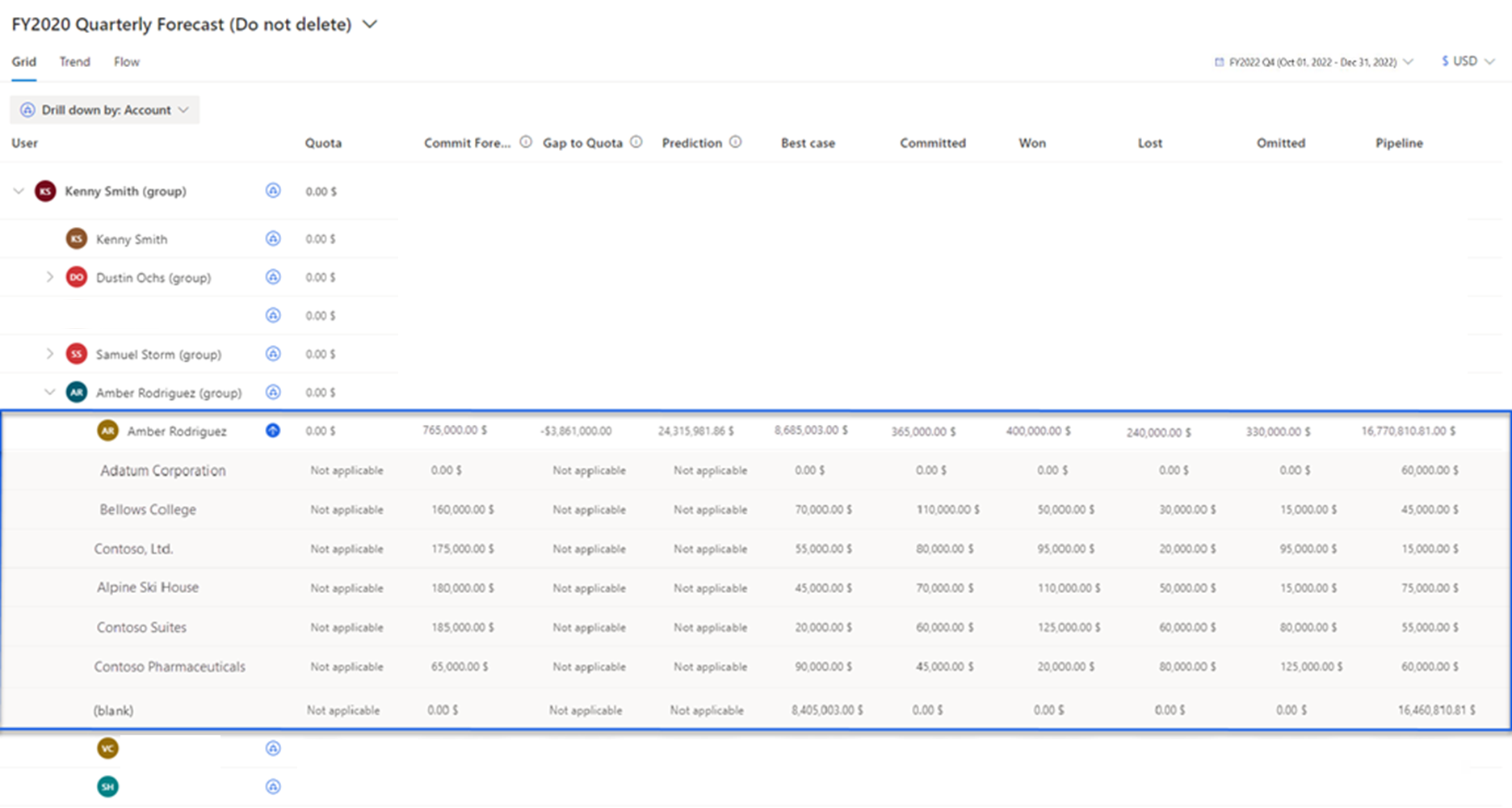
Administrators and forecast managers can enable and configure the drill-down option using the Drill down step in the forecast configuration. By configuring the drill-down choices that match your organizational requirements, you can break down your forecast values into any of the configured drill-down options. This allows users to understand what values are constituting their forecast projections.
Before you configure a drill-down choice, there are three concepts that you should familiarize you with.
Drill-down type: A drill-down type specifies the data type that is used to break down the forecast values into its contributing parts. When Configuring you can choose from one of two different types:
Drill down by entity: By choosing drill-down type by entity, you can select an entity that has a direct or indirect relationship with the rollup entity. See: Drill down by entity.
Drill down by option set: By choosing the drill-down type by option set, you can select an option set from the list. These option sets are from the rollup entity. See Drill down by option set.
Amount entity: The amount entity contains the fields of type amount or currency. For each defined forecast column, you must select an amount field that corresponds to the aggregate value. See Amount entity.
Entity relationship: The entity relationship is established to connect drill-down and rollup entities through the amount field in the amount entity. This relationship guides the forecast to break down the amount data by drill-down values. See Entity relationship. See Entity relationship.
To assist you in configuring drill-down views, there are multiple templates available. You can add these templates according to the rollup and hierarchy entities that you used to configure the forecast.
This table shows the different drill-down templates available per rollup entity:
| Rollup entity | Hierarchy entity | Drill-down templates |
|---|---|---|
| Opportunity | User | Account, Product, and Parent Product |
| Opportunity | Territory | User, Account, Product, and Parent Product |
| Opportunity | Account | User, Product, and Parent Product |
| Opportunity Product | Product | Account and User |
Using these templates, you can break down your forecast values by accounts, products, parent products, users, owners, and territory.
For detailed step-by-step instructions on adding drill-down entities, see: Add a drill-down entity