Manage forecasts
Deactivate a forecast
If a forecast is no longer needed, you can deactivate it. It's important to note that you should only deactivate a forecast when you don't use it anymore as once you deactivate a forecast, you can't activate it again.
Forecasts can be deactivated on the Forecast configuration page. Select the More options icon that corresponds with the forecast you want to deactivate and choose Deactivate.

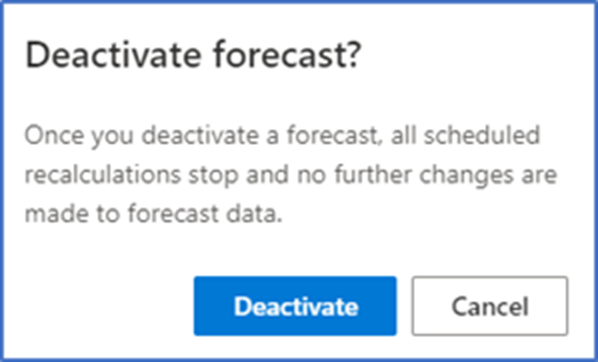
Once a forecast is deactivated, it's listed under the Inactive tab.

Important
While it is possible, you should not deactivate a forecast through any other options such as Advanced find. You should only forecast configuration page to deactivate forecasts.
Delete a forecast
If you no longer want a forecast in your environment, you can permanently delete it. You can delete a forecast that is in the active, inactive, or draft state. Deleting a forecast is done from the Forecast configuration page.
Like you did to deactivate a forecast, select the More options icon that corresponds with the forecast you want to delete, and then select Delete.

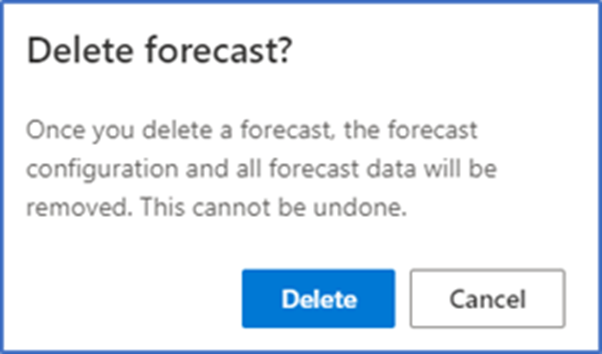
The forecast is deleted permanently from your organization.
Clone a forecast
Many times, you might find that it's easier to use an existing forecast as the basis of another forecast. In these instances, you can clone a forecast. When you clone a forecast, you duplicate any configurations you made previously. You can work on this cloned forecast as a draft for a new forecast that better meets your needs. You retain the configurations you want, make edits to others, and create a new forecast that matches your requirements. After you make the changes, you can save and activate the cloned forecast.
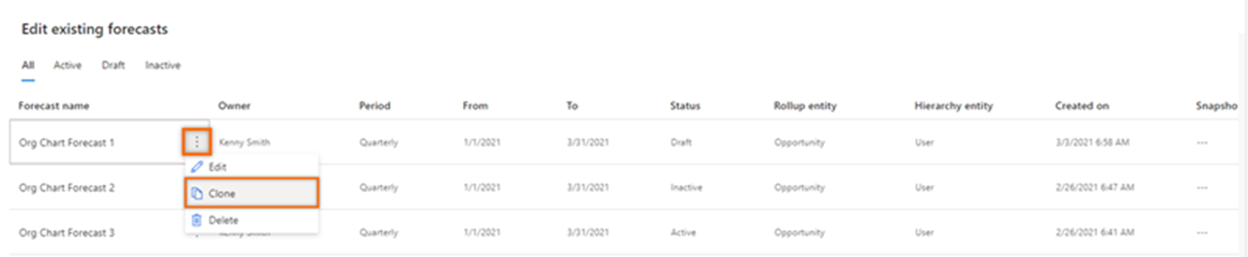
To clone a forecast, select Forecast configuration. On the forecast that you want to clone, select More options, and then select Clone.
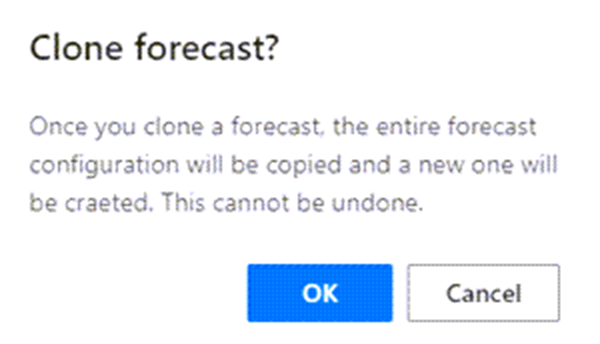
The clone of the selected forecast is opened in edit mode. You can then edit it to meet your needs, and then activate it.