Taal
Notitie
Voor toegang tot deze pagina is autorisatie vereist. U kunt proberen u aan te melden of de directory te wijzigen.
Voor toegang tot deze pagina is autorisatie vereist. U kunt proberen de mappen te wijzigen.
Gebruik Windows App SDK bestands- en mapkiezers om gebruikers te laten bladeren door bestanden of mappen in uw WinUI-app en deze te selecteren. De kiezer-API's bieden een vertrouwde Windows ervaring waarmee gebruikers door hun apparaat en cloudopslaglocaties kunnen navigeren. In dit artikel leest u hoe u open bestanden en mapkiezers implementeert, het gedrag ervan aanpast en de geselecteerde resultaten in uw app verwerkt.
De Windows App SDK FileOpenPicker en FileSavePicker klassen maken een kiezerdialoogvenster waarmee gebruikers de naam en locatie van een bestand kunnen opgeven dat moet worden geopend of opgeslagen. Met de klasse FolderPicker kunt u een map selecteren.
Zie Een bestand opslaan met een Windows App SDK-kiezer voor meer informatie over het gebruik van een kiezer om bestanden op te slaan.
Prerequisites
- Windows App SDK 1,8 of hoger. De
Microsoft.Windows.Storage.PickersAPI's die in dit artikel worden gebruikt, zijn geïntroduceerd in Windows App SDK 1.8. Als uw project bedoeld is voor een eerdere versie, zie WinRT-kiezers gebruiken via HWND-interop voor de oude aanpak.
Belangrijke API's
In dit artikel worden de volgende API's gebruikt:

De WinUI 3 Gallery-app bevat interactieve voorbeelden van WinUI-besturingselementen en -functies. Haal de app op uit de Microsoft Store of blader door de broncode op GitHub.
Gebruikersinterface voor bestandskiezer
Een bestandskiezer geeft informatie weer om gebruikers te richten en een consistente ervaring te bieden bij het openen of opslaan van bestanden.
Deze informatie omvat:
- De huidige locatie
- Het item of de items dat de gebruiker kiest
- Een boomstructuur met locaties waarnaar de gebruiker kan bladeren. Deze locaties omvatten bestandssysteemlocaties, zoals de map Muziek of Downloads, evenals apps die het contract voor bestandskiezer implementeren (zoals Camera, Foto's en Microsoft OneDrive).
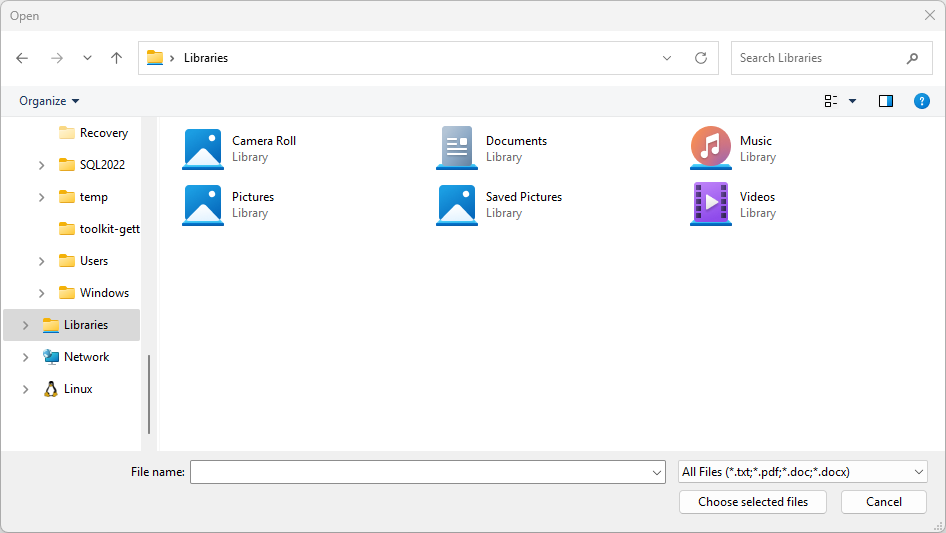
Mogelijk hebt u een app waarmee gebruikers bestanden kunnen openen of opslaan. Wanneer de gebruiker die actie start, roept uw app de bestandskiezer aan, waarin de gebruikersinterface voor bestandskiezer wordt weergegeven:
Hoe kiezers met uw app werken
Met een kiezer kan uw app bestanden en mappen openen, bladeren en opslaan op het systeem van de gebruiker. Uw app ontvangt deze picks als lichtgewicht PickFileResult - en PickFolderResult-objecten , die het pad naar het geselecteerde bestand of de geselecteerde map bieden.
De kiezer maakt gebruik van één geïntegreerde interface waarmee de gebruiker bestanden en mappen uit het bestandssysteem of vanuit andere apps kan kiezen. Bestanden die zijn gekozen uit andere apps zijn net als bestanden uit het bestandssysteem. In het algemeen kan uw app hierop op dezelfde manier werken als andere objecten. Andere apps maken bestanden beschikbaar door deel te nemen aan bestandskiezercontracten.
U kunt bijvoorbeeld de bestandskiezer in uw app aanroepen, zodat uw gebruiker een bestand kan openen. Met deze actie wordt uw app de aanroepende app. De bestandskiezer communiceert met het systeem en andere apps om de gebruiker te laten navigeren en het bestand te kiezen. Wanneer uw gebruiker een bestand kiest, retourneert de bestandskiezer het pad naar uw app.
Kies een bestand om een voorbeeld te openen
De volgende code laat zien hoe u de klasse FileOpenPicker gebruikt om de gebruiker één bestand te laten kiezen, zoals een foto. De code stelt eigenschappen in de kiezer in om het uiterlijk en gedrag ervan aan te passen en toont vervolgens de kiezer aan de gebruiker met behulp van de methode PickSingleFileAsync . Als de gebruiker een bestand kiest, leest de app de inhoud van het bestand en slaat het op in een variabele.
using Microsoft.Windows.Storage.Pickers;

var openPicker = new FileOpenPicker(this.AppWindow.Id)
{
    // (Optional) Specify the initial location for the picker.
    //     If the specified location doesn't exist on the user's machine, it falls back to the DocumentsLibrary.
    //     If not set, it defaults to PickerLocationId.Unspecified, and the system will use its default location.
    SuggestedStartLocation = PickerLocationId.DocumentsLibrary,

    // (Optional) specify the text displayed on the commit button.
    //     If not specified, the system uses a default label of "Open" (suitably translated).
    CommitButtonText = "Choose selected files",

    // (Optional) specify file extension filters. If not specified, defaults to all files (*.*).
    FileTypeFilter = { ".txt", ".pdf", ".doc", ".docx" },

    // (Optional) specify the view mode of the picker dialog. If not specified, defaults to List.
    ViewMode = PickerViewMode.List,
};

var result = await openPicker.PickSingleFileAsync();
if (result is not null)
{
    var content = System.IO.File.ReadAllText(result.Path);
}
else
{
    // Add your error handling here.
}
#include <winrt/Microsoft.Windows.Storage.Pickers.h>
#include <fstream>
#include <string>

using namespace winrt::Microsoft::Windows::Storage::Pickers;

FileOpenPicker openPicker(this->AppWindow().Id());

// (Optional) Specify the initial location for the picker.
//     If the specified location doesn't exist on the user's machine, it falls back to the DocumentsLibrary.
//     If not set, it defaults to PickerLocationId.Unspecified, and the system will use its default location.
openPicker.SuggestedStartLocation(PickerLocationId::DocumentsLibrary);

// (Optional) specify the text displayed on the commit button.
//     If not specified, the system uses a default label of "Open" (suitably translated).
openPicker.CommitButtonText(L"Choose selected files");

// (Optional) specify file extension filters. If not specified, defaults to all files (*.*).
openPicker.FileTypeFilter().ReplaceAll({ L".txt", L".pdf", L".doc", L".docx" });

// (Optional) specify the view mode of the picker dialog. If not specified, defaults to List.
openPicker.ViewMode(PickerViewMode::List);

auto result{ co_await openPicker.PickSingleFileAsync() };
if (result)
{
    std::ifstream fileReader(result.Path().c_str());
    std::string text((std::istreambuf_iterator<char>(fileReader)), std::istreambuf_iterator<char>());
    winrt::hstring hText = winrt::to_hstring(text);
}
else
{
    // Add your error handling here.
}
Kies meerdere bestanden om een voorbeeld te openen
U kunt de gebruiker ook meerdere bestanden laten kiezen. De volgende code laat zien hoe u de klasse FileOpenPicker gebruikt om de gebruiker meerdere bestanden te laten kiezen, zoals foto's. Het proces is hetzelfde, maar de methode PickMultipleFilesAsync retourneert een verzameling PickFileResult-objecten . Elk resultaat toont een Path eigenschap wanneer u het onbewerkte bestandspad nodig hebt.
using Microsoft.Windows.Storage.Pickers;

var openPicker = new FileOpenPicker(this.AppWindow.Id);

var results = await openPicker.PickMultipleFilesAsync();
if (results.Count > 0)
{
    var pickedFilePaths = results.Select(f => f.Path);
    foreach (var path in pickedFilePaths)
    {
        var content = System.IO.File.ReadAllText(path);
    }
}
else
{
    // Add your error handling here.
}
#include <winrt/Microsoft.Windows.Storage.Pickers.h>
#include <fstream>
#include <string>

using namespace winrt::Microsoft::Windows::Storage::Pickers;

FileOpenPicker openPicker(this->AppWindow().Id());
auto results{ co_await openPicker.PickMultipleFilesAsync() };
if (results.Size() > 0)
{
    for (auto const& result : results)
    {
        std::ifstream fileReader(result.Path().c_str());
        std::string text((std::istreambuf_iterator<char>(fileReader)), std::istreambuf_iterator<char>());
        winrt::hstring hText = winrt::to_hstring(text);
    }
}
else
{
    // Add your error handling here.
}
Een voorbeeld van een map kiezen
Als u een map wilt kiezen met behulp van de klasse FolderPicker , gebruikt u de volgende code. Met deze code wordt een mapkiezer gemaakt, wordt deze aan de gebruiker weergegeven met behulp van de methode PickSingleFolderAsync en wordt het pad van de geselecteerde map opgehaald in een PickFolderResult-object . Als de gebruiker een map kiest, haalt de app het pad van de map op en slaat deze op in een variabele voor later gebruik.
using Microsoft.Windows.Storage.Pickers;

var folderPicker = new FolderPicker(this.AppWindow.Id)
{
    // (Optional) Specify the initial location for the picker.
    //     If the specified location doesn't exist on the user's machine, it falls back to the DocumentsLibrary.
    //     If not set, it defaults to PickerLocationId.Unspecified, and the system will use its default location.
    SuggestedStartLocation = PickerLocationId.DocumentsLibrary,

    // (Optional) specify the text displayed on the commit button.
    //     If not specified, the system uses a default label of "Open" (suitably translated).
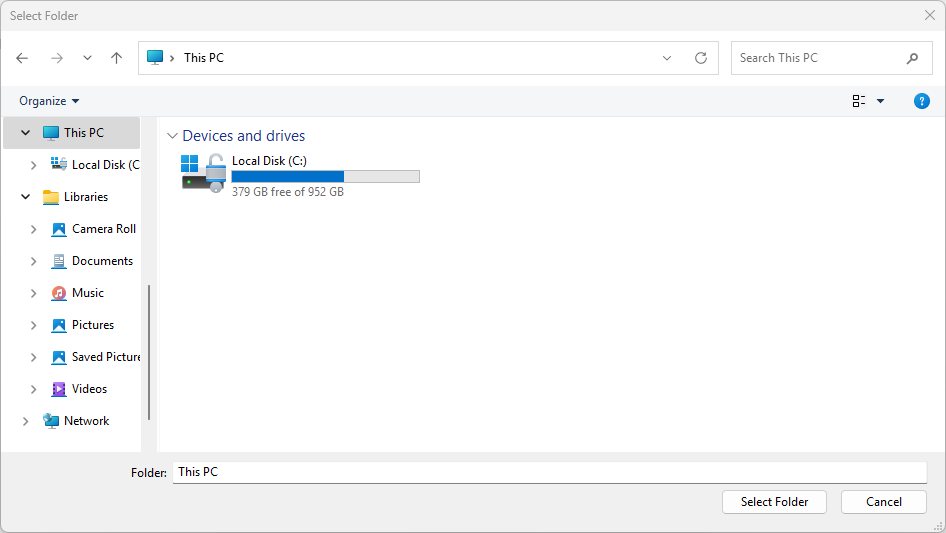
    CommitButtonText = "Select Folder",

    // (Optional) specify the view mode of the picker dialog. If not specified, default to List.
    ViewMode = PickerViewMode.List,
};

var result = await folderPicker.PickSingleFolderAsync();

if (result is not null)
{
    var path = result.Path;
}
else
{
    // Add your error handling here.
}
#include <winrt/Microsoft.Windows.Storage.Pickers.h>

using namespace winrt::Microsoft::Windows::Storage::Pickers;

FolderPicker folderPicker(this->AppWindow().Id());

// (Optional) Specify the initial location for the picker.
//     If the specified location doesn't exist on the user's machine, it falls back to the DocumentsLibrary.
//     If not set, it defaults to PickerLocationId.Unspecified, and the system will use its default location.
folderPicker.SuggestedStartLocation(PickerLocationId::DocumentsLibrary);

// (Optional) specify the text displayed on the commit button.
//     If not specified, the system uses a default label of "Open" (suitably translated).
folderPicker.CommitButtonText(L"Select Folder");

// (Optional) specify the view mode of the picker dialog. If not specified, default to List.
folderPicker.ViewMode(PickerViewMode::List);

auto result{ co_await folderPicker.PickSingleFolderAsync() };
if (result)
{
    auto path{ result.Path() };
}
else
{
    // Add your error handling here.
}
Aanbeveling
Wanneer uw app toegang heeft tot een bestand of map via een kiezer, voegt u deze toe aan de FutureAccessList of MostRecentlyUsedList om het bij te houden met behulp van de Windows Runtime (WinRT)-API's. Zie Onlangs gebruikte bestanden en mappen bijhouden voor meer informatie.
De gebruikersinterface van de mapkiezer ziet er als volgt uit:
WinRT-kiezers gebruiken met HWND-interop
Als uw project gericht is op Windows App SDK 1.7 of eerder, of als u de verouderde Windows.Storage.Pickers-API's gebruikt (bijvoorbeeld wanneer u vanuit UWP migreert), moet u het kiezervenster initialiseren met een vensteringang (HWND) voordat u het weergeeft. Zonder deze stap veroorzaakt de selector een uitzondering of mislukt deze zonder foutmelding in desktop-apps (WinUI 3).
Important
WinUI 3-bureaublad-apps hebben geen CoreWindow. U moet de kiezer aan uw appvenster koppelen door WinRT.Interop.InitializeWithWindow.Initialize (C#) of IInitializeWithWindow::Initialize (C++/WinRT) aan te roepen vóór elke Pick*Async-aanroep.
C#-voorbeeld (verouderde WinRT-kiezers)
// This example assumes you have a reference to your app's main window.
// In a Window class, use 'this'. In a Page, use a stored reference like App.MainWindow.

var picker = new Windows.Storage.Pickers.FileOpenPicker();
picker.FileTypeFilter.Add(".png");
picker.FileTypeFilter.Add(".jpg");

// Get the window handle (HWND) for the current WinUI 3 window.
var hwnd = WinRT.Interop.WindowNative.GetWindowHandle(App.MainWindow);

// Associate the picker with the window.
WinRT.Interop.InitializeWithWindow.Initialize(picker, hwnd);

var file = await picker.PickSingleFileAsync();
if (file is null)
{
    // The user cancelled the picker.
}
C++/WinRT-voorbeeld (verouderde WinRT-kiezers)
// pch.h
#include <winrt/Windows.Storage.Pickers.h>
#include <microsoft.ui.xaml.window.h>
#include <shobjidl_core.h>

// MainWindow.xaml.cpp — inside a MainWindow member function
Windows::Storage::Pickers::FileOpenPicker picker;
picker.FileTypeFilter().Append(L".png");
picker.FileTypeFilter().Append(L".jpg");

// Get the window handle (HWND) of the current WinUI 3 window.
auto windowNative{ this->m_inner.as<::IWindowNative>() };
HWND hwnd{ 0 };
windowNative->get_WindowHandle(&hwnd);

// Associate the picker with the window.
auto initializeWithWindow{ picker.as<::IInitializeWithWindow>() };
initializeWithWindow->Initialize(hwnd);

auto file{ co_await picker.PickSingleFileAsync() };
if (!file)
{
    // The user cancelled the picker.
}
Aanbeveling
De aanbevolen methode voor nieuwe apps is het gebruik van de Windows App SDK pickers (Microsoft.Windows.Storage.Pickers), die een WindowId in de constructor accepteren en het InitializeWithWindow patroon niet vereisen. Zie de voorbeelden eerder in dit artikel.
Zie Een venstergreep ophalen (HWND) voor meer informatie over het ophalen van een venstergreep.
Verwante inhoud
- Microsoft. Windows. Storage.Pickers-naamruimte
- Een bestand opslaan met een Windows App SDK-kiezer
- Bestanden, mappen en bibliotheken met Windows App SDK
- Een window handle (HWND) ophalen
- Interop-API's aanroepen vanuit een .NET-app
- WinRT UI-objecten weergeven die afhankelijk zijn van CoreWindow
- Voorbeeld van winUI Gallery-bestandskiezer
Met ons samenwerken op GitHub
De bron voor deze inhoud vindt u op GitHub, waar u ook problemen en pull-aanvragen kunt maken en controleren. Bekijk onze gids voor inzenders voor meer informatie.

Windows developer