Notitie
Voor toegang tot deze pagina is autorisatie vereist. U kunt proberen u aan te melden of de directory te wijzigen.
Voor toegang tot deze pagina is autorisatie vereist. U kunt proberen de mappen te wijzigen.
Gebruikersinvoer simuleren en automatiseren vanaf apparaten zoals toetsenbord, muis, touch, pen en gamepad in uw Windows-toepassingen.
Belangrijke API's: Windows.UI.Input.Preview.Injection
Overzicht
Met invoerinjectie kan uw Windows-toepassing invoer simuleren vanaf verschillende invoerapparaten en die invoer overal doorsturen, ook buiten het clientgebied van uw app (zelfs naar apps die worden uitgevoerd met beheerdersbevoegdheden, zoals de Register-editor).
Invoerinjectie is handig voor Windows-apps en -hulpprogramma's die functionaliteit moeten bieden die toegankelijkheid, testen (ad-hoc, geautomatiseerd) en functies voor externe toegang en ondersteuning omvat.
Configuratie
Als u de API's voor invoerinjectie in uw Windows-app wilt gebruiken, moet u het volgende toevoegen aan het app-manifest:
- Klik met de rechtermuisknop op het bestand Package.appxmanifest en selecteer Code weergeven.
- Voeg het volgende in het
Packageknooppunt in:xmlns:rescap="http://schemas.microsoft.com/appx/manifest/foundation/windows10/restrictedcapabilities"IgnorableNamespaces="rescap"
- Voeg het volgende in het
Capabilitiesknooppunt in:<rescap:Capability Name="inputInjectionBrokered" />
Dubbele gebruikersinvoer
|
|---|
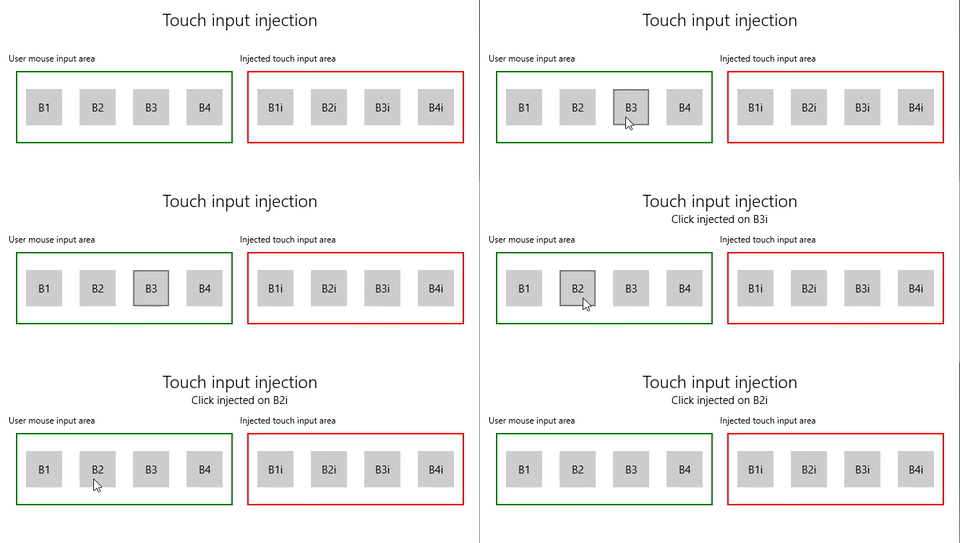
| Voorbeeld van aanraakinvoerinjectie |
In dit voorbeeld laten we zien hoe u de API's voor invoerinjectie (Windows.UI.Input.Preview.Injection) kunt gebruiken om te luisteren naar muisinvoergebeurtenissen in één regio van een app en overeenkomende aanraakinvoergebeurtenissen in een andere regio te simuleren.
Download dit voorbeeld uit het voorbeeld van invoerinjectie (muis om aan te raken)
Eerst hebben we de gebruikersinterface (MainPage.xaml) ingesteld.
We hebben twee rastergebieden (één voor muisinvoer en één voor geïnjecteerde aanraakinvoer), elk met vier knoppen.
Opmerking
Aan de Grid-achtergrond moet een waarde worden toegewezen (
Transparentin dit geval), anders worden er geen aanwijzergebeurtenissen gedetecteerd.Wanneer er muisklikken worden gedetecteerd in het invoergebied, wordt een bijbehorende aanraakgebeurtenis geïnjecteerd in het invoerinjectiegebied. Knopklikken van injectie-invoer worden gerapporteerd in de titelbalk.
<Grid Background="{ThemeResource ApplicationPageBackgroundThemeBrush}">
    <Grid.RowDefinitions>
        <RowDefinition Height="Auto"/>
        <RowDefinition Height="Auto"/>
        <RowDefinition Height="*"/>
    </Grid.RowDefinitions>
    <StackPanel Grid.Row="0"
                Margin="10">
        <TextBlock Style="{ThemeResource TitleTextBlockStyle}"
                   Name="titleText"
                   Text="Touch input injection"
                   HorizontalTextAlignment="Center" />
        <TextBlock Style="{ThemeResource BodyTextBlockStyle}"
                   Name="statusText"
                   HorizontalTextAlignment="Center" />
    </StackPanel>
    <Grid HorizontalAlignment="Center"
                    Grid.Row="1">
        <Grid.RowDefinitions>
            <RowDefinition Height="Auto"/>
            <RowDefinition Height="*"/>
        </Grid.RowDefinitions>
        <Grid.ColumnDefinitions>
            <ColumnDefinition/>
            <ColumnDefinition/>
        </Grid.ColumnDefinitions>
        <TextBlock Grid.Column="0"
                   Grid.Row="0"
                   Style="{ThemeResource CaptionTextBlockStyle}"
                   Text="User mouse input area"/>
        <!-- Background must be set to something, otherwise pointer events are not detected. -->
        <Grid Name="ContainerInput"
              Grid.Column="0"
              Grid.Row="1"
              HorizontalAlignment="Stretch"
              Background="Transparent"
              BorderBrush="Green"
              BorderThickness="2"
              MinHeight="100" MinWidth="300"
              Margin="10">
            <Grid.ColumnDefinitions>
                <ColumnDefinition/>
                <ColumnDefinition/>
                <ColumnDefinition/>
                <ColumnDefinition/>
            </Grid.ColumnDefinitions>
            <Button Name="B1"
                    Grid.Column="0"
                    HorizontalAlignment="Center"
                    Width="50" Height="50"
                    Content="B1" />
            <Button Name="B2"
                    Grid.Column="1"
                    HorizontalAlignment="Center"
                    Width="50" Height="50"
                    Content="B2" />
            <Button Name="B3"
                    Grid.Column="2"
                    HorizontalAlignment="Center"
                    Width="50" Height="50"
                    Content="B3" />
            <Button Name="B4"
                    Grid.Column="3"
                    HorizontalAlignment="Center"
                    Width="50" Height="50"
                    Content="B4" />
        </Grid>
        <TextBlock Grid.Column="1"
                   Grid.Row="0"
                   Style="{ThemeResource CaptionTextBlockStyle}"
                   Text="Injected touch input area"/>
        <Grid Name="ContainerInject"
              Grid.Column="1"
              Grid.Row="1"
              HorizontalAlignment="Stretch"
              BorderBrush="Red"
              BorderThickness="2"
              MinHeight="100" MinWidth="300"
              Margin="10">
            <Grid.ColumnDefinitions>
                <ColumnDefinition/>
                <ColumnDefinition/>
                <ColumnDefinition/>
                <ColumnDefinition/>
            </Grid.ColumnDefinitions>
            <Button Name="B1i" Click="Button_Click_Injected"
                    Content="B1i"
                    Grid.Column="0"
                    HorizontalAlignment="Center"
                    Width="50" Height="50" />
            <Button Name="B2i" Click="Button_Click_Injected"
                    Content="B2i"
                    Grid.Column="1"
                    HorizontalAlignment="Center"
                    Width="50" Height="50" />
            <Button Name="B3i" Click="Button_Click_Injected"
                    Content="B3i"
                    Grid.Column="2"
                    HorizontalAlignment="Center"
                    Width="50" Height="50" />
            <Button Name="B4i" Click="Button_Click_Injected"
                    Content="B4i"
                    Grid.Column="3"
                    HorizontalAlignment="Center"
                    Width="50" Height="50" />
        </Grid>
    </Grid>
</Grid>
Vervolgens initialiseren we onze app.
In dit fragment declareren we onze globale objecten en declareren we listeners voor aanwijzergebeurtenissen (AddHandler) in het invoergebied van de muis die kunnen worden gemarkeerd als verwerkt in de knopklikgebeurtenissen.
Het InputInjector-object vertegenwoordigt het virtuele invoerapparaat voor het verzenden van de invoergegevens.
In de
ContainerInput_PointerPressedhandler roepen we de aanraak-injectiefunctie aan.In de
ContainerInput_PointerReleasedhandler roepen we UninitializeTouchInjection aan om het InputInjector-object af te sluiten.public sealed partial class MainPage : Page { /// <summary> /// The virtual input device. /// </summary> InputInjector _inputInjector; /// <summary> /// Initialize the app, set the window size, /// and add pointer input handlers for the container. /// </summary> public MainPage() { this.InitializeComponent(); ApplicationView.PreferredLaunchViewSize = new Size(600, 200); ApplicationView.PreferredLaunchWindowingMode = ApplicationViewWindowingMode.PreferredLaunchViewSize; // Button handles PointerPressed/PointerReleased in // the Tapped routed event, but we need the container Grid // to handle them also. Add a handler for both // PointerPressedEvent and PointerReleasedEvent on the input Grid // and set handledEventsToo to true. ContainerInput.AddHandler(PointerPressedEvent, new PointerEventHandler(ContainerInput_PointerPressed), true); ContainerInput.AddHandler(PointerReleasedEvent, new PointerEventHandler(ContainerInput_PointerReleased), true); } /// <summary> /// PointerReleased handler for all pointer conclusion events. /// PointerPressed and PointerReleased events do not always occur /// in pairs, so your app should listen for and handle any event that /// might conclude a pointer down (such as PointerExited, PointerCanceled, /// and PointerCaptureLost). /// </summary> /// <param name="sender">Source of the click event</param> /// <param name="e">Event args for the button click routed event</param> private void ContainerInput_PointerReleased( object sender, PointerRoutedEventArgs e) { // Prevent most handlers along the event route from handling event again. e.Handled = true; // Shut down the virtual input device. _inputInjector.UninitializeTouchInjection(); } /// <summary> /// PointerPressed handler. /// PointerPressed and PointerReleased events do not always occur /// in pairs. Your app should listen for and handle any event that /// might conclude a pointer down (such as PointerExited, /// PointerCanceled, and PointerCaptureLost). /// </summary> /// <param name="sender">Source of the click event</param> /// <param name="e">Event args for the button click routed event</param> private void ContainerInput_PointerPressed( object sender, PointerRoutedEventArgs e) { // Prevent most handlers along the event route from // handling the same event again. e.Handled = true; InjectTouchForMouse(e.GetCurrentPoint(ContainerInput)); } ... }Hier is de functie voor aanraakinvoerinjectie.
Eerst roepen we TryCreate aan om het InputInjector-object te instantiëren.
Vervolgens roepen we InitializeTouchInjection aan met een InjectedInputVisualizationMode van
Default.Na het berekenen van het injectiepunt roepen we InjectedInputTouchInfo aan om de lijst met aanraakpunten te initialiseren die moeten worden ingevoerd (in dit voorbeeld maken we één aanraakpunt dat overeenkomt met de muisinvoeraanwijzer).
Ten slotte noemen we InjectTouchInput twee keer, de eerste voor een aanwijzer omlaag en de tweede voor een aanwijzer omhoog.
/// <summary>
/// Inject touch input on injection target corresponding
/// to mouse click on input target.
/// </summary>
/// <param name="pointerPoint">The mouse click pointer.</param>
private void InjectTouchForMouse(PointerPoint pointerPoint)
{
    // Create the touch injection object.
    _inputInjector = InputInjector.TryCreate();

    if (_inputInjector != null)
    {
        _inputInjector.InitializeTouchInjection(
            InjectedInputVisualizationMode.Default);

        // Create a unique pointer ID for the injected touch pointer.
        // Multiple input pointers would require more robust handling.
        uint pointerId = pointerPoint.PointerId + 1;

        // Get the bounding rectangle of the app window.
        Rect appBounds =
            Windows.UI.ViewManagement.ApplicationView.GetForCurrentView().VisibleBounds;

        // Get the top left screen coordinates of the app window rect.
        Point appBoundsTopLeft = new Point(appBounds.Left, appBounds.Top);

        // Get a reference to the input injection area.
        GeneralTransform injectArea =
            ContainerInject.TransformToVisual(Window.Current.Content);

        // Get the top left screen coordinates of the input injection area.
        Point injectAreaTopLeft = injectArea.TransformPoint(new Point(0, 0));

        // Get the screen coordinates (relative to the input area)
        // of the input pointer.
        int pointerPointX = (int)pointerPoint.Position.X;
        int pointerPointY = (int)pointerPoint.Position.Y;

        // Create the point for input injection and calculate its screen location.
        Point injectionPoint =
            new Point(
                appBoundsTopLeft.X + injectAreaTopLeft.X + pointerPointX,
                appBoundsTopLeft.Y + injectAreaTopLeft.Y + pointerPointY);

        // Create a touch data point for pointer down.
        // Each element in the touch data list represents a single touch contact.
        // For this example, we're mirroring a single mouse pointer.
        List<InjectedInputTouchInfo> touchData =
            new List<InjectedInputTouchInfo>
            {
                new InjectedInputTouchInfo
                {
                    Contact = new InjectedInputRectangle
                    {
                        Left = 30, Top = 30, Bottom = 30, Right = 30
                    },
                    PointerInfo = new InjectedInputPointerInfo
                    {
                        PointerId = pointerId,
                        PointerOptions =
                        InjectedInputPointerOptions.PointerDown |
                        InjectedInputPointerOptions.InContact |
                        InjectedInputPointerOptions.New,
                        TimeOffsetInMilliseconds = 0,
                        PixelLocation = new InjectedInputPoint
                        {
                            PositionX = (int)injectionPoint.X ,
                            PositionY = (int)injectionPoint.Y
                        }
                },
                Pressure = 1.0,
                TouchParameters =
                    InjectedInputTouchParameters.Pressure |
                    InjectedInputTouchParameters.Contact
            }
        };

        // Inject the touch input.
        _inputInjector.InjectTouchInput(touchData);

        // Create a touch data point for pointer up.
        touchData = new List<InjectedInputTouchInfo>
        {
            new InjectedInputTouchInfo
            {
                PointerInfo = new InjectedInputPointerInfo
                {
                    PointerId = pointerId,
                    PointerOptions = InjectedInputPointerOptions.PointerUp
                }
            }
        };

        // Inject the touch input.
        _inputInjector.InjectTouchInput(touchData);
    }
}
Ten slotte verwerken we alle knopklikgebeurtenissen in het invoerinjectiegebied en werken we de gebruikersinterface bij met de naam van de knop waarop is geklikt.
Zie ook
Onderwerpvoorbeelden
Met ons samenwerken op GitHub
De bron voor deze inhoud vindt u op GitHub, waar u ook problemen en pull-aanvragen kunt maken en controleren. Bekijk onze gids voor inzenders voor meer informatie.

Windows developer