Nuta
Dostęp do tej strony wymaga autoryzacji. Możesz spróbować się zalogować lub zmienić katalog.
Dostęp do tej strony wymaga autoryzacji. Możesz spróbować zmienić katalogi.
The GitHub Cloud Pull Requests Microsoft 365 Copilot connector enables your organization to index pull requests stored in GitHub repositories into Microsoft 365 Copilot and Microsoft Search experiences.
This article provides information about the configuration steps that GitHub admins need to complete in order for your organization to deploy the GitHub Cloud Pull Requests connector.
For information about how to deploy the connector, see GitHub Cloud Pull Requests deployment.
Setup checklist
The following checklist lists the steps involved in configuring the environment and setting up the connector prerequisites.
| Task | Role |
|---|---|
| Identify the GitHub organization name | GitHub admin |
| Ensure API access to the target GitHub instance | GitHub admin |
| Identify Microsoft Entra ID mapping rules | GitHub admin |
| Sign in to the GitHub account | GitHub admin |
| Use a custom GitHub app for authentication (optional) | GitHub admin |
| Configure firewall settings | Network admin |
Identify the GitHub organization name
Determine which GitHub organization you want to index when you set up the connector.
Ensure API access to the target GitHub instance
Confirm that your GitHub instance is accessible via API.
Identify Entra ID mapping rules
Define the Entra ID mapping rules. Make sure that users who access indexed GitHub data have corresponding Entra ID identities to enable accurate permission mapping.
Sign in to the GitHub account
For enterprise-managed users who authenticate through single sign-on (SSO), make sure the account is signed in before you set up the connector. The GitHub authentication flow doesn't support SSO-based sign-in during configuration.
Use a custom GitHub app for authentication (optional)
For the most streamlined setup experience, use the GitHub app managed by Microsoft.
You can also choose to use your own GitHub app for authentication. If you choose this option, follow the steps in the following checklist to complete the setup.
| Task | Role |
|---|---|
| Create and configure the GitHub app | GitHub admin |
| Create credentials for the GitHub app | GitHub admin |
| Install the GitHub app | GitHub admin |
Create and configure the GitHub App
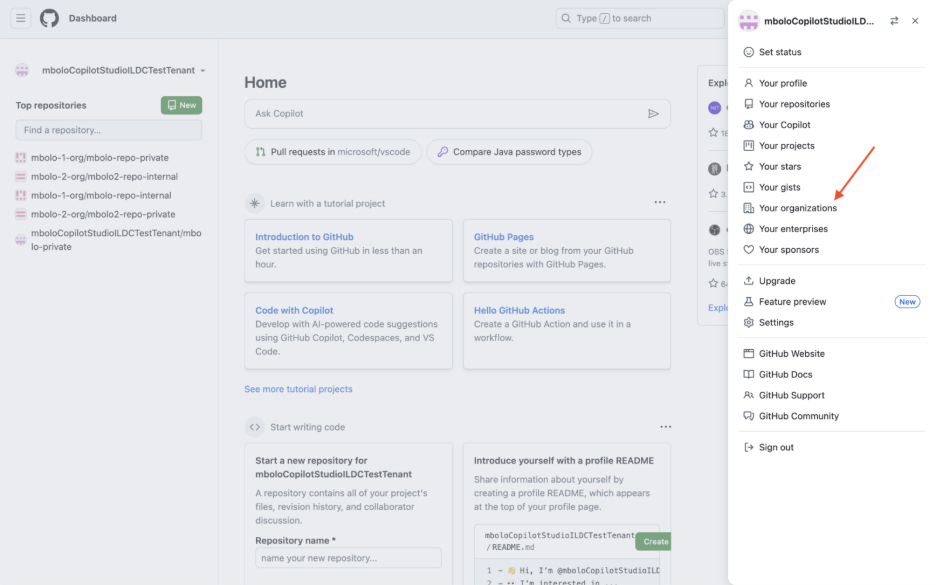
In GitHub, select your profile photo, choose Your organizations, and choose the organization the connector should pull data from.
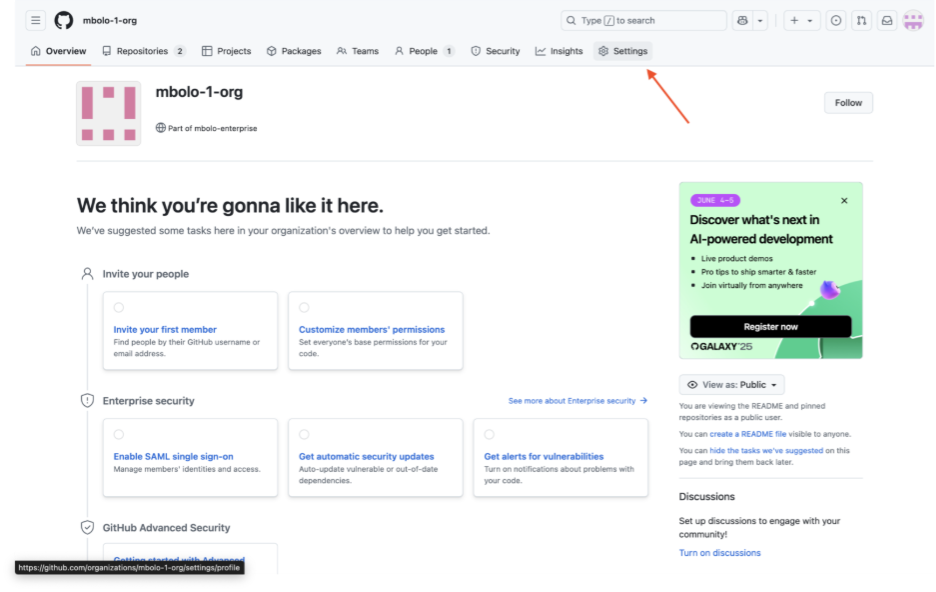
On the organization overview page, select Settings.
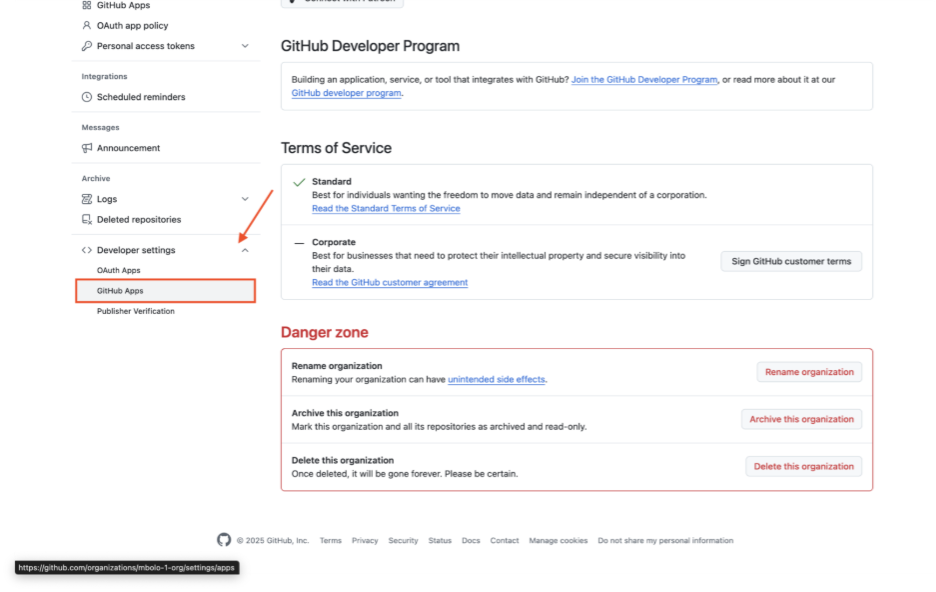
In the left sidebar, select Developer settings, then GitHub Apps.
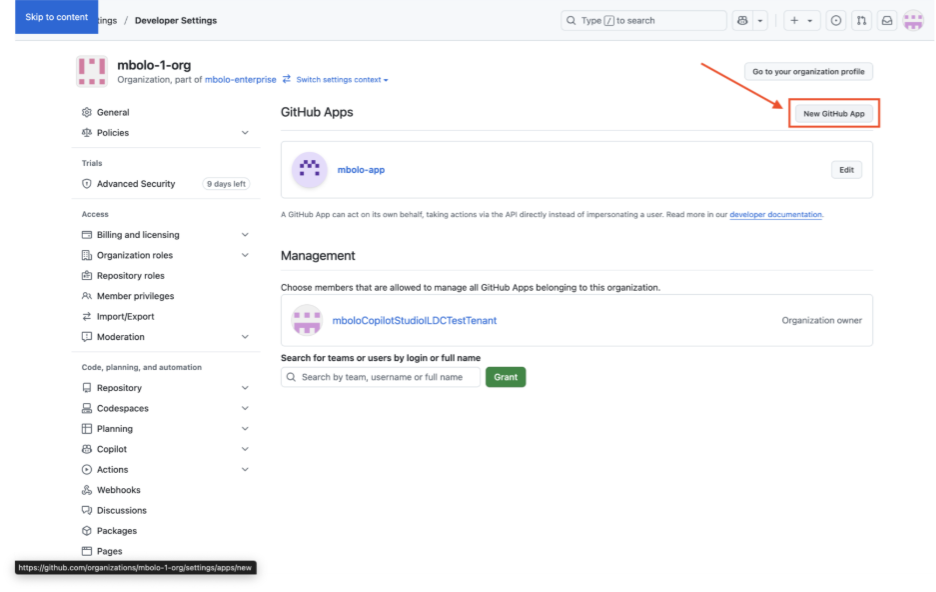
Select New GitHub App.
Configure the app:
- GitHub App name: Enter a name of your choice.
- Homepage URL: Use your organization's URL.
- Callback URL:
- Microsoft 365 for enterprise:
https://gcs.office.com/v1.0/admin/oauth/callback - Microsoft 365 Government:
https://gcsgcc.office.com/v1.0/admin/oauth/callback
- Microsoft 365 for enterprise:
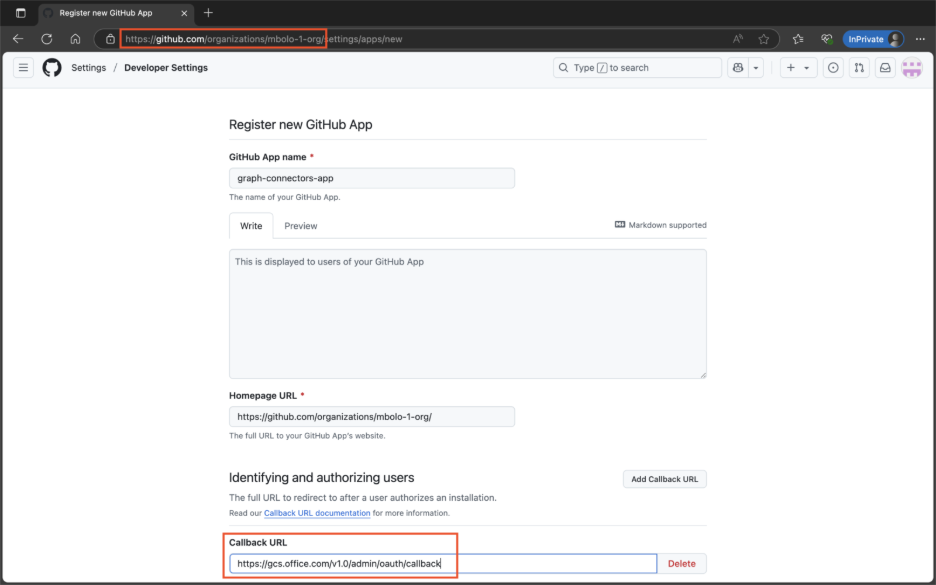
Uncheck the Webhook option.
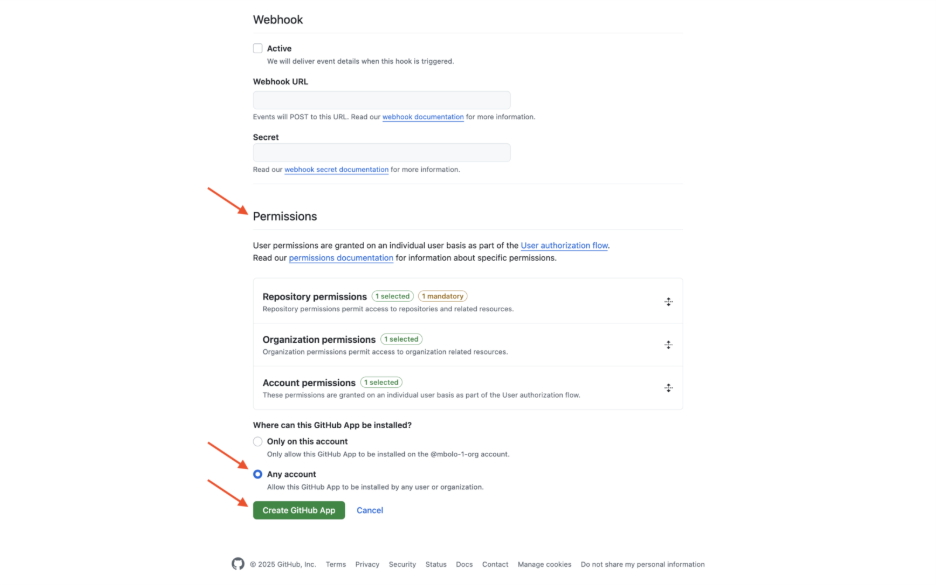
Set the following permissions:
Repository permissions
- Administration - Read-only
- Content - Read-only
- Metadata - Read-only
- Pull requests - Read-only
- Webhooks - Read and Write
Organization permissions
- Administration - Read-only
- Members - Read-only
- Webhooks - Read and Write
Account permissions
- Email addresses - Read-only
Under Where can this GitHub App be installed, select Any account, and then select Create GitHub App.
Create credentials for the GitHub app
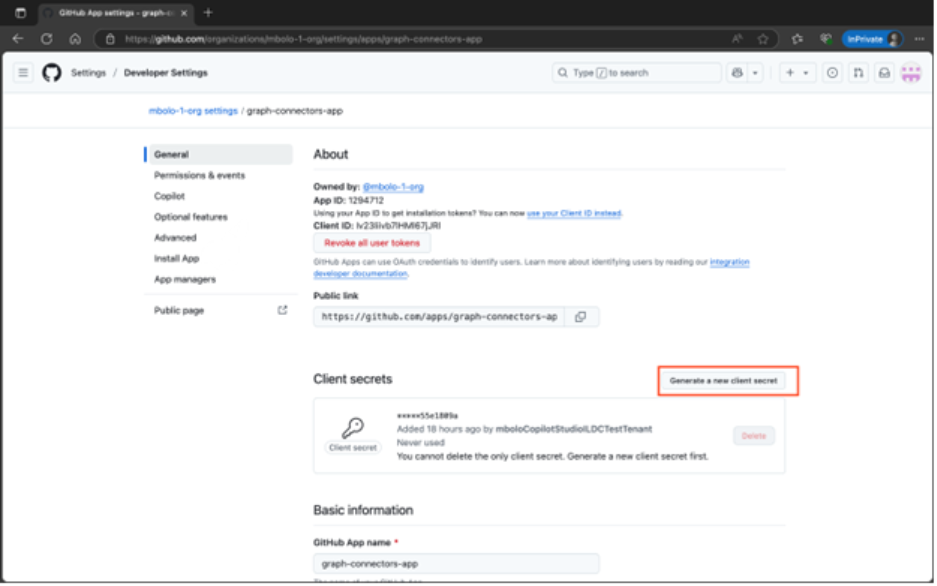
On the GitHub App's General page, select Generate a new client secret to generate and copy the client secret.
Install the GitHub app
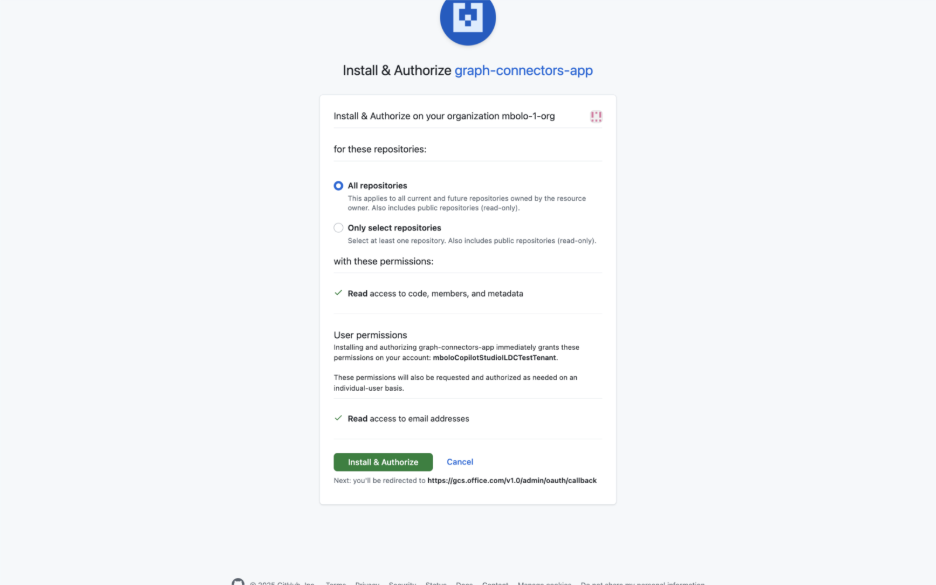
On the General page of the GitHub app, select Install App.
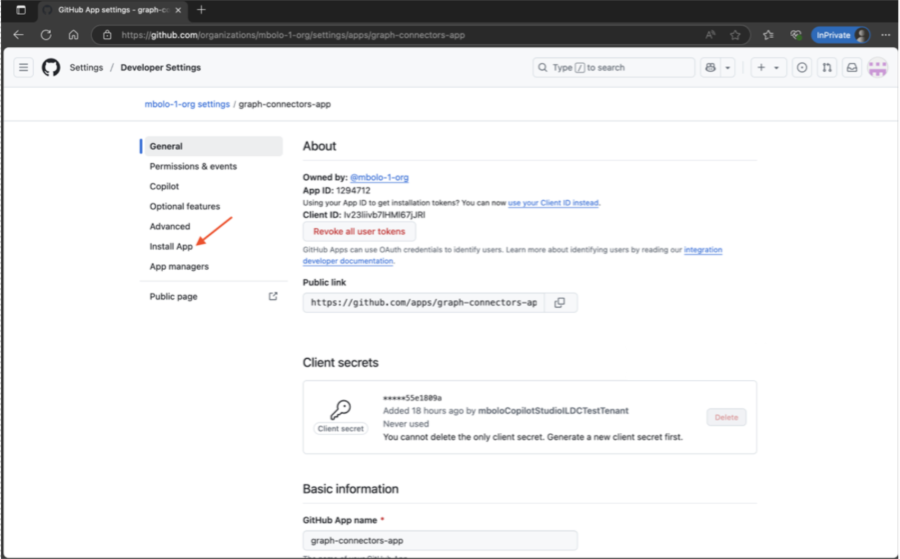
Select the organization where you want to install the app.
Configure firewall settings
For added security, you can configure IP firewall rules for your Azure SQL Server or database. For more information, see IP firewall rules.
Add the following client IP ranges in the firewall settings.
| Region | Microsoft 365 Enterprise | Microsoft 365 Government |
|---|---|---|
| NAM | 52.250.92.252/30, 52.224.250.216/30 | 52.245.230.216/30, 20.141.117.64/30 |
| EUR | 20.54.41.208/30, 51.105.159.88/30 | NA |
| APC | 52.139.188.212/30, 20.43.146.44/30 | NA |
IP restrictions can cause the connector to stop working and lead to crawl failures. To resolve this issue, add the connector's IP address to the allowlist.