Notatka
Dostęp do tej strony wymaga autoryzacji. Może spróbować zalogować się lub zmienić katalogi.
Dostęp do tej strony wymaga autoryzacji. Możesz spróbować zmienić katalogi.
In this article, we inform you of the tools available to protect video content stored in Microsoft 365. More specifically, we walk through how video works hand in hand with Microsoft Purview, so that admins can organize, manage and protect video files in their company.
Microsoft Purview is a suite of solutions that allows organizations to discover, govern, and protect their data stored on SharePoint.
Purview helps your organization to:
- Gain visibility into data assets across your organization
- Enable access to your data, security, and risk solutions
- Safeguard and manage sensitive data across clouds, apps, and endpoints
- Manage end-to-end data risks and regulatory compliance
- Empower your organization to govern, protect, and manage data in new, comprehensive ways
Audit logs
Microsoft Purview auditing solutions provide integrated solutions to help organizations effectively respond to security events, forensic investigations, internal investigations, and compliance obligations. Thousands of user and admin operations performed in dozens of Microsoft 365 services and solutions are captured, recorded, and retained in your organization's unified audit log. Audit records for these events are searchable by security ops, IT admins, insider risk teams, and compliance and legal investigators in your organization. This capability provides visibility into the activities performed across your Microsoft 365 organization.
For more information about auditing solutions, see Audit (Premium) and Audit (Standard).
How it works with video
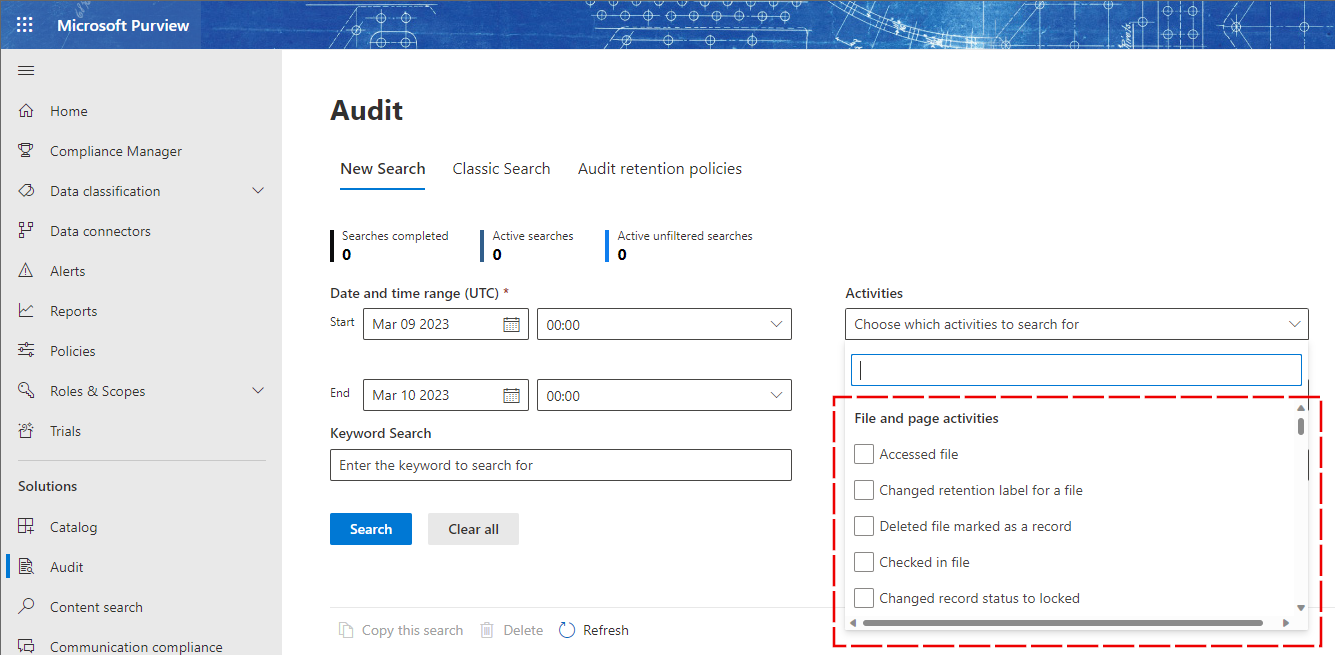
Video logs fall under the File and Page activities category.
Tip
If you're looking for all activities related to a file type, add an asterisk before the file name to return all entries for that file. For example, for .mp4 files: *.mp4
Here are some of the key actions that are logged against video files in Microsoft 365. This isn't a complete list, there are many other events that are logged against video files:
| User Action | Audit log operation |
|---|---|
| Created or uploaded video | FileUploaded |
| File and metadata changes to video | FileModified |
| Deleted video | FileDeleted |
| Downloaded video | FileDownloaded |
| Viewed video | FileAccessed |
| Shared video | SharingSet |
| Commented on video | CommentCreated |
| Deleted video comment | CommentDeleted |
| Uploaded captions / transcripts | FileTranscriptCreated |
| Downloaded transcript | FileTranscriptContentAccessed |
| Uploaded thumbnail | CustomThumbnailUploaded |
You can see an extensive list of SharePoint audit log events in Purview's help documentation.
The sections relevant to video are:
Communications Compliance
Protecting sensitive information and detecting and acting on workplace harassment incidents is an important part of compliance with internal policies and standards. Microsoft Purview Communication Compliance helps minimize these risks by helping you quickly detect, capture, and take remediation actions for email and Microsoft Teams communications. These include inappropriate communications containing profanity, threats, and harassment and communications that share sensitive information inside and outside of your organization.
How it works with video
Communications compliance doesn't capture general video files in Microsoft 365. However, transcripts saved as part of Teams meeting recordings are captured and reviewed.
Data Lifecycle Management (Retention labels)
Microsoft Purview Data Lifecycle Management (formerly Microsoft Information Governance) provides you with tools and capabilities to retain and delete content across Exchange, SharePoint, OneDrive, Microsoft 365 Groups, Teams, and Viva Engage.
Retaining and deleting emails, documents, and messages are often needed for compliance and regulatory requirements. However, deleting content that no longer has business value also reduces your attack surface.
How it works with video
Retention policies and Retention Labels are currently supported for video files, as with any other file stored in SharePoint.
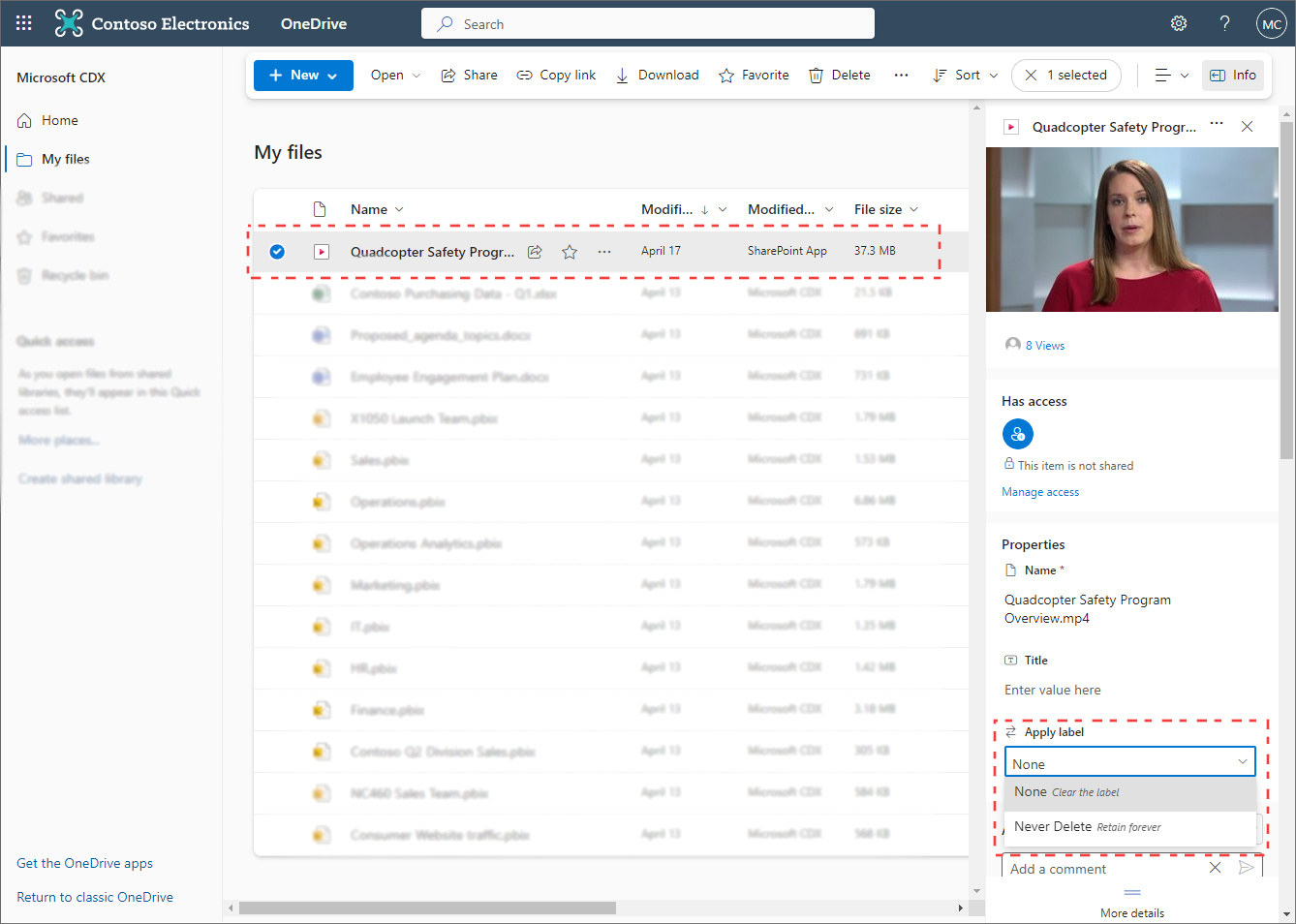 See this help article for more information on how to apply retention labels to files in OneDrive and SharePoint.
Retention labels on Teams meeting recordings
You can also automatically apply retention labels to meeting recordings.
Data Loss Prevention
Unintentional sharing of sensitive items can cause financial harm to your organization and may result in a violation of laws and regulations. Microsoft Purview Data Loss Prevention can help protect your organization against unintentional or accidental sharing of sensitive information both inside and outside of your organization. In a data loss prevention policy, you:
- Define the sensitive information you want to monitor for, like financial, health, medical, and privacy data.
- Where to monitor, like Microsoft 365 services or Windows and macOS devices.
- The conditions that must be matched for a policy to be applied to an item, like items containing credit card, driver's license, or social security numbers.
- The actions to take when a match is found, like audit, block the activity, and block the activity with override.
How it works with video
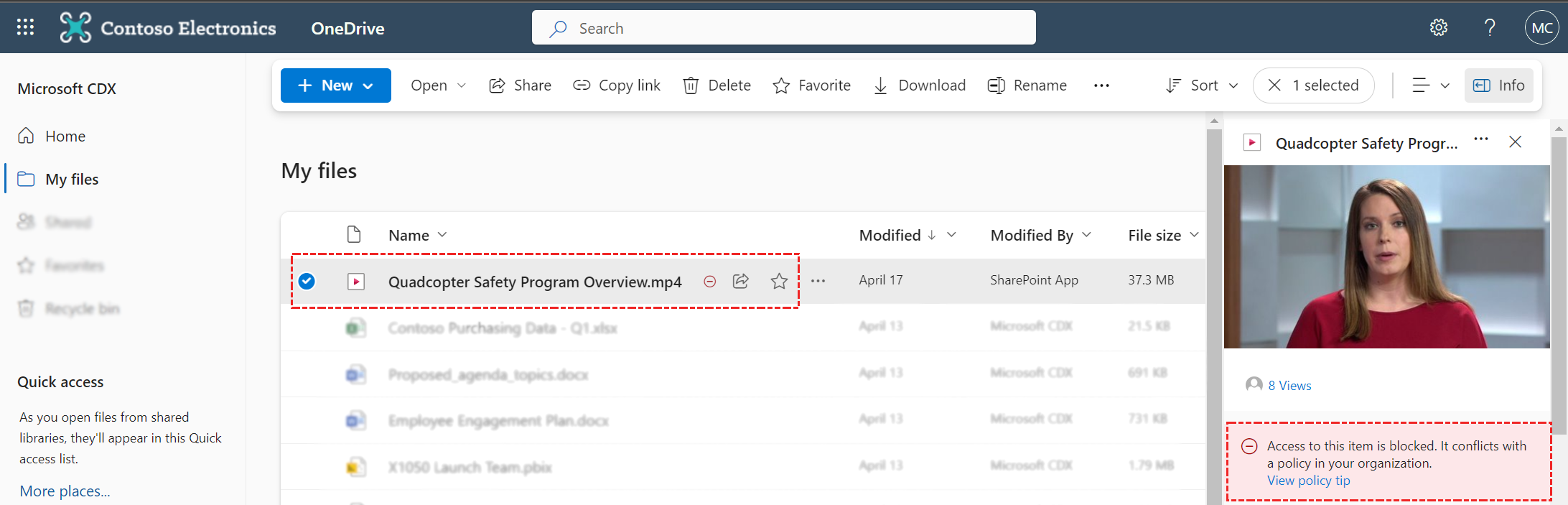 The DLP alerts are triggered when checking for the keywords in the title, transcript, or other information in the video metadata. If there's a match, a tool tip displays in OneDrive or in the SharePoint page in which the file is stored.
Note
DLP tool tips only show in OneDrive and SharePoint libraries, they do not show directly on the video's player page.
eDiscovery
eDiscovery is the process of identifying, collecting, and auditing electronic information for legal, regulatory, or business reasons. You can use Microsoft Purview eDiscovery solutions to search for data and content in Exchange Online, OneDrive for Business, SharePoint Online, Microsoft Teams, Microsoft 365 Groups, and Viva Engage communities. You can search mailboxes and sites within an eDiscovery search, and then export the search results for analysis and review.
To learn more about eDiscovery solutions, check out the help documentation.
How it works with video
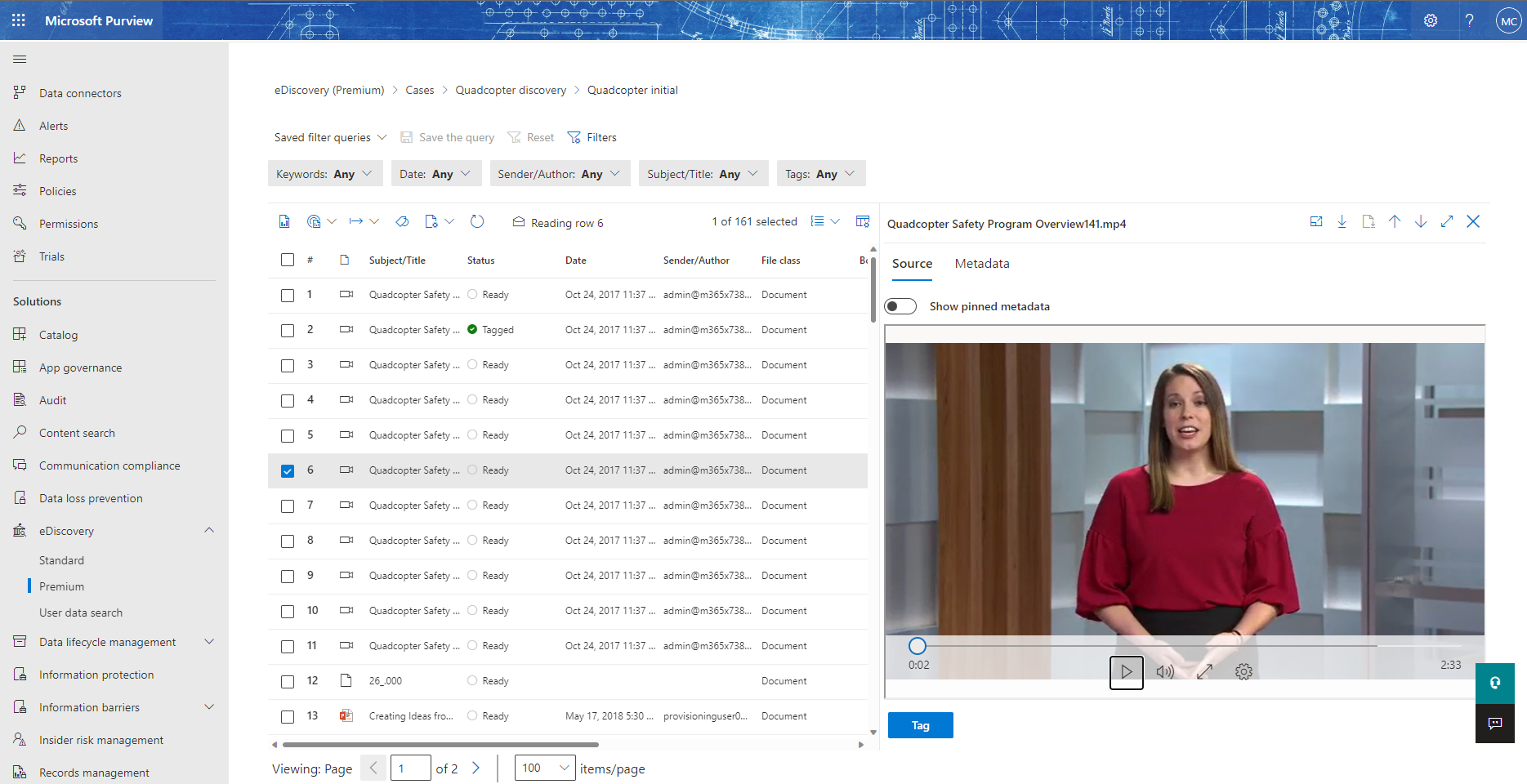
eDiscovery currently supports video search, playback, and export. The file can be identified and collected by searching specific SharePoint or OneDrive locations, or alternately, searching for the video title or words in the transcript.
Video metadata such as transcripts, chapters, or custom thumbnails are supported in eDiscovery for review and export. See the blog post Inspect transcripts for Microsoft Teams meeting recordings and (the following help article)[/purview/edisc-search-teams] for more information.
Information Protection (sensitivity labels)
Use capabilities from the Microsoft Purview Information Protection solution to help protect your data, wherever it's stored and however it's accessed.
Sensitivity labels provide protection actions and interact with other Purview solutions and capabilities. For more information, see Learn about sensitivity labels.
How it works with video
Sensitivity labels are supported for MP4 videos stored in SharePoint and OneDrive. Administrators enable this support through the SharePoint Online PowerShell setting EnableSensitivityLabelForVideoFiles. For setup instructions and requirements, see Video support for MP4 files and Clipchamp projects.
Users can manually apply sensitivity labels to MP4 files. MP4 files can also inherit a label from a Teams meeting. SharePoint and OneDrive prevent downloads of MP4 files whose labels apply encryption.
For Clipchamp for work or school accounts, project labels and exported video labels have different effects. A project label can restrict actions in the editor. An update extends EnableSensitivityLabelForVideoFiles to project labeling and label inheritance on MP4 exports.
Note
The change announced in Message Center post MC1454399 is rolling out worldwide beginning in mid-September 2026, with completion expected in mid-October 2026. Until it reaches your tenant, the earlier behavior still applies. The rollout schedule doesn't guarantee when the change reaches a specific tenant.
Before the change reaches your tenant, EnableSensitivityLabelForVideoFiles controls MP4 labeling support in SharePoint and OneDrive, but not project labeling in Clipchamp. Even when the setting is $false, Clipchamp can apply your organization's default sensitivity label to a project, and MP4 exports can inherit the project's label.
After the change reaches your tenant, EnableSensitivityLabelForVideoFiles also controls label behavior for .clipchamp projects:
| Setting and project state after rollout | Project behavior | New MP4 exports |
|---|---|---|
$true |
Your organization's default sensitivity label policy applies. Users can assign or update supported labels, subject to permissions and existing policies. | Inherit the project's label, if one is applied. |
$false, unlabeled project |
No default label is applied. Users can't assign or update a label, and the label picker isn't displayed. | Don't inherit a label from the project. |
$false, already labeled project |
The existing valid label and its restrictions remain, but users can't update the label. | Don't inherit the project's label. Clipchamp warns users before exporting without it. |
Users still need permission to export a labeled project. After the change reaches your tenant, when the setting is $false, users can share or download new, unlabeled MP4 exports from Clipchamp, subject to other permissions and policies. This doesn't change the source project's restrictions or previously exported videos.
Review EnableSensitivityLabelForVideoFiles and applicable policies before rollout completes. The setting doesn't add support for removing or downgrading project labels, manually selecting protected labels, or using user-defined permissions in Clipchamp. For supported actions and user guidance, see How sensitivity labels work in Clipchamp.