Notatka
Dostęp do tej strony wymaga autoryzacji. Może spróbować zalogować się lub zmienić katalogi.
Dostęp do tej strony wymaga autoryzacji. Możesz spróbować zmienić katalogi.
Promptbooks in Microsoft Security Copilot contain one or more prompts that work together to accomplish specific security-related tasks. The prompts run one after another, building on previous responses.
In newer onboarding experiences, you typically begin working in Security Copilot with agents or from a chat session. Promptbooks extend the Security Copilot workflow experiences by allowing you to reuse a sequence of prompts.
You can create your own promptbook with the promptbook builder to automate investigation flows and optimize repetitive steps in Copilot that are customized to your needs and requirements. Check if you have appropriate access and permissions to create promptbooks.
You can also share the promptbooks you’ve created with other users so they can reuse and benefit from your workflows.
Start from a session with relevant prompts
To build a promptbook, you first need an active or previous session that contains prompts you want to reuse.
You can start a new session with relevant prompts as follows:
- Select History.
- Select New session.
- Run one or more prompts that you want to include in your promptbook.
Once you have a session with relevant prompts, you can convert it into a promptbook.
Watch the following video to learn more about building your own promptbooks:
When to use promptbooks
Promptbooks are useful when you:
- Run the same sequence of prompts repeatedly
- Need a structured investigation flow
- Want to standardize workflows across your team
Use promptbooks together with:
- Agents for automated or repeatable workflows
- Prompts for ad-hoc investigation and exploration
Create a promptbook from an existing session
In the course of interacting with Security Copilot, you might realize that you regularly run the same set of prompts for different entities. This is a good opportunity to build a promptbook.
Create your promptbook
You can create your promptbook as follows:
Start with an existing session that contains the prompts you want to include.
Select the checkboxes beside the prompts or select the top box to include all prompts in the session.
Selecting prompts enables the Create promptbook button.
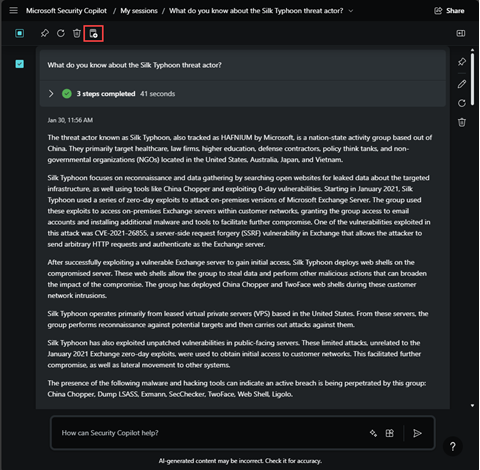
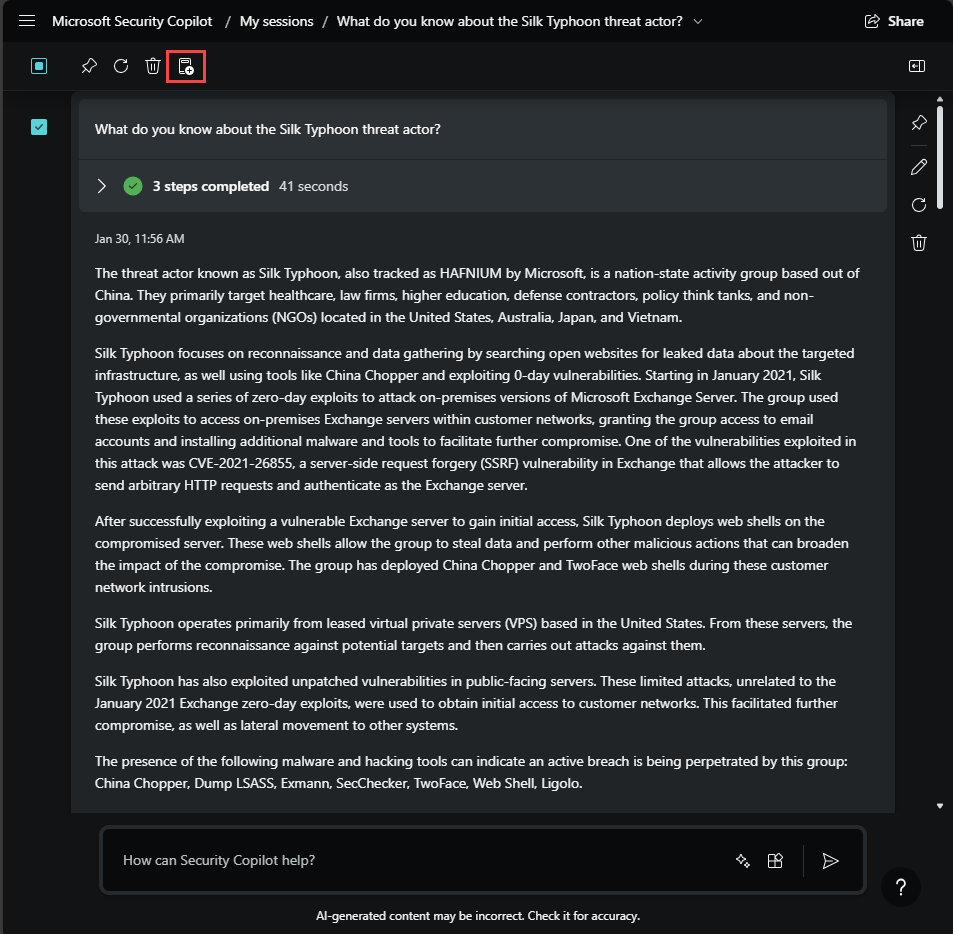
Select Create promptbook to begin building the promptbook. Provide:
A Name
Tags (press Enter to separate keywords)
A Description
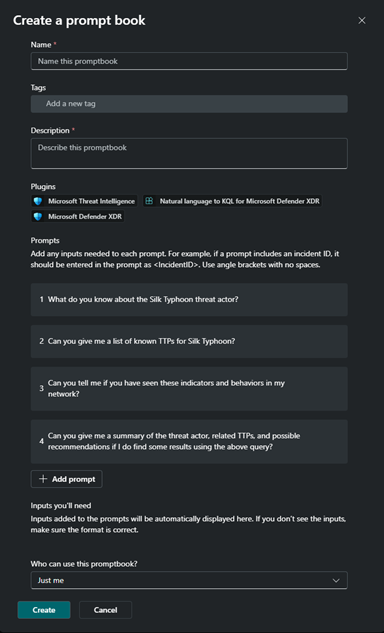
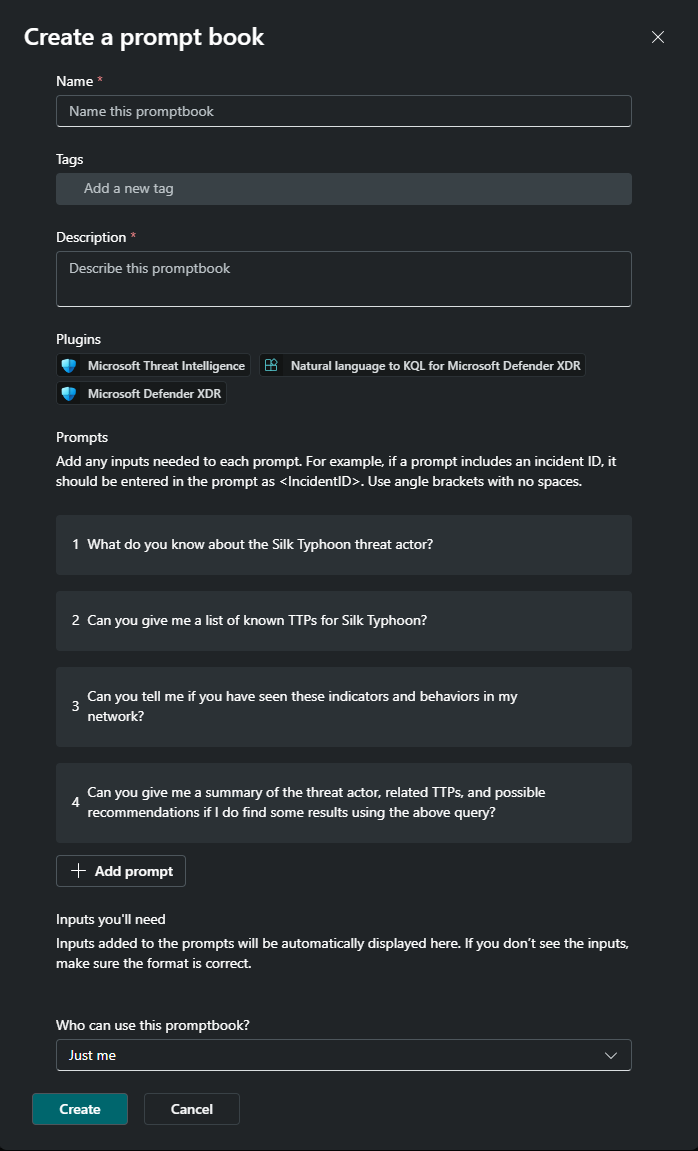
Create or edit your prompts
You can modify prompt text and reorder prompts, but be aware that changes can affect results.
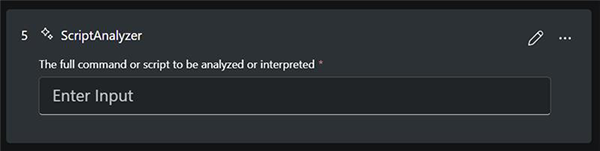
Specify any required input
Review your prompts and determine which elements should be reusable inputs.
For example, replace a threat actor name with:
ThreatActor
Use angle brackets and no spaces. You can define multiple parameters.
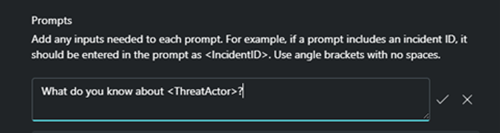
Verify inputs under Inputs you’ll need.
Set prompts to continue on failure
You can configure prompts to continue execution if a step fails.
Select the pencil icon, enable Continue on failure, and save.
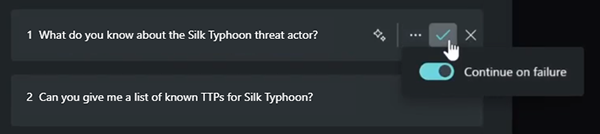
You can only set a prompt to continue on failure in promptbooks that you can edit.
Call system capabilities in the prompt (preview)
You can call a system capability directly from a prompt:
Select the prompts icon to view available capabilities.
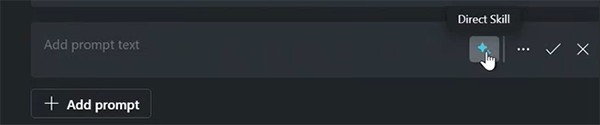
Choose a capability, optionally add text, and save.
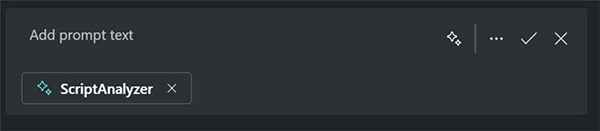
Saved prompts display required and optional inputs:
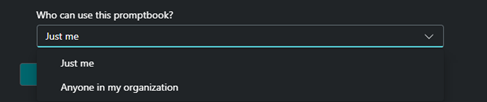
Set who can use your promptbook
Choose who can use the promptbook:
- Just me
- Anyone in my organization
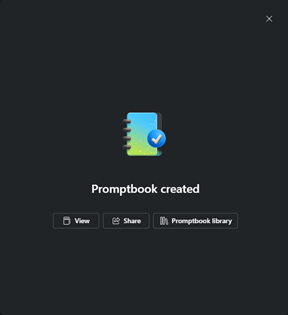
Select Create and wait for the confirmation message.
Test the promptbook
You can test the promptbook as follows:
Select View after creation.
You can also:
Start or open a session.
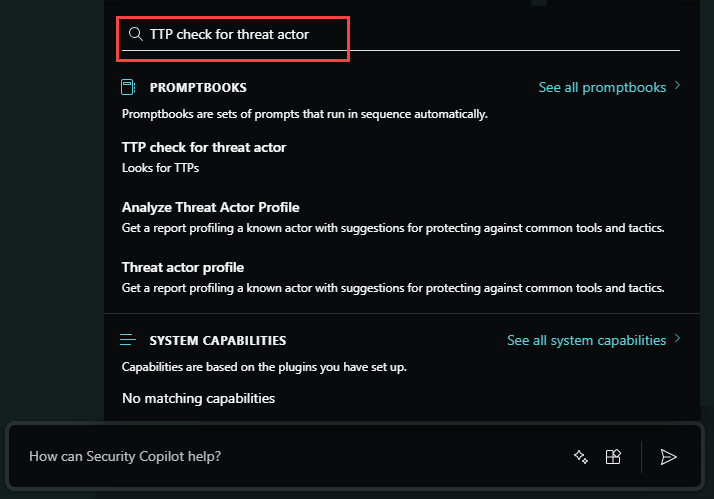
Select the prompts icon
 in the prompt bar.
Search for your promptbook.
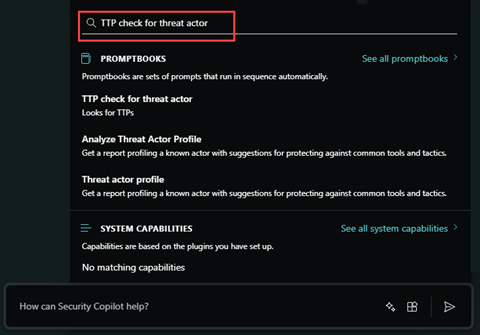
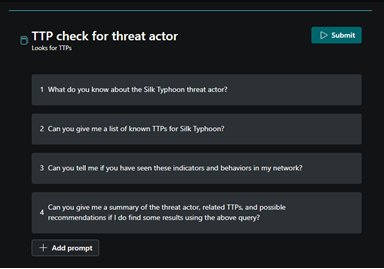
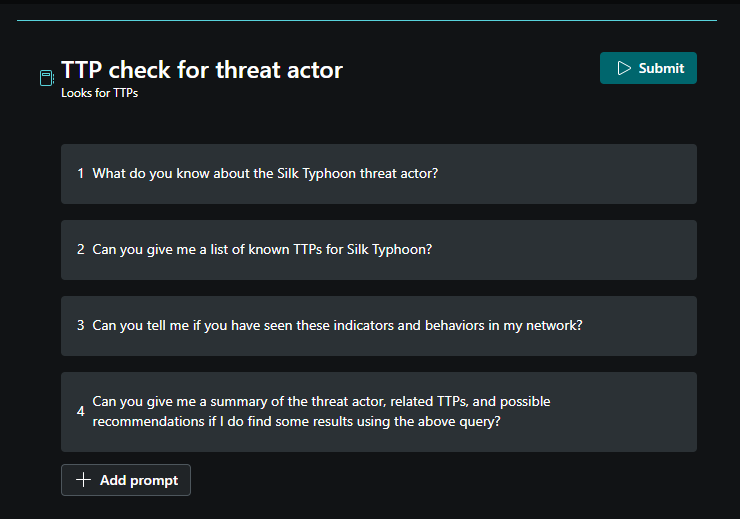
Provide required inputs and select Submit.
Edit the promptbook
Important
Changing prompt order or content might affect results, since promptbooks run sequentially.
You can edit the promptbook as follows:
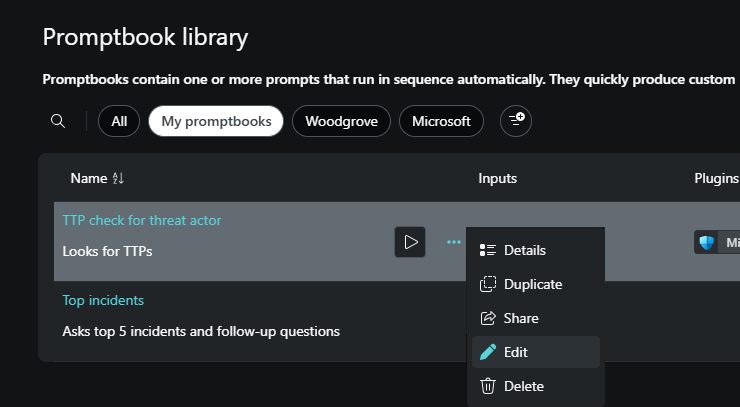
Go to the Promptbook library.
Select the ellipses (
 ).
).Select Edit.
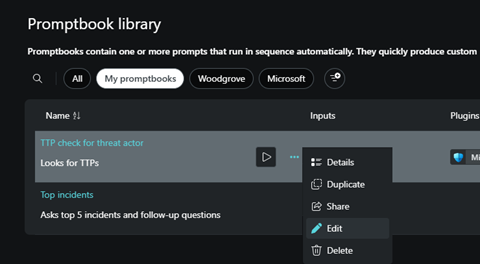
You can update name, tags, description, prompts, and parameters.
Select Save when finished.
Duplicate the promptbook
You can duplicate the promptbook as follows:
Open the Promptbook library.
Select the ellipses
.Choose Duplicate.
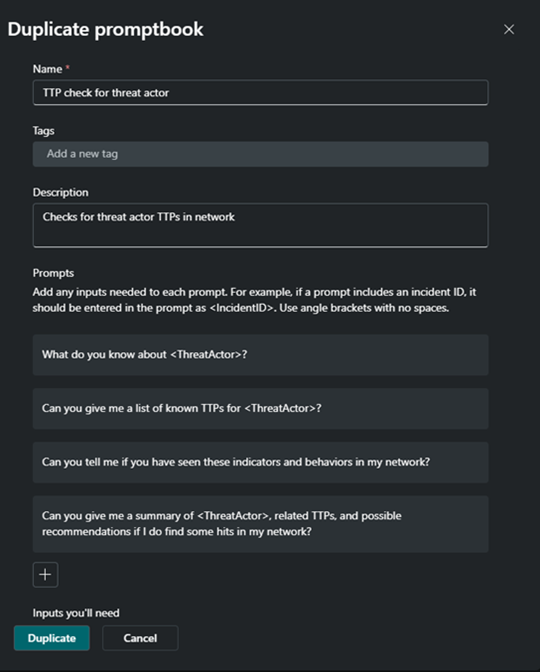
Edit the details as needed, then select Duplicate.
Share an existing promptbook
Important
Results may vary depending on the permissions and data available to the user running the promptbook.
You can share an existing promptbook as follows:
- Go to the promptbook.
- Select Details.
- Select Share.
Run the promptbook
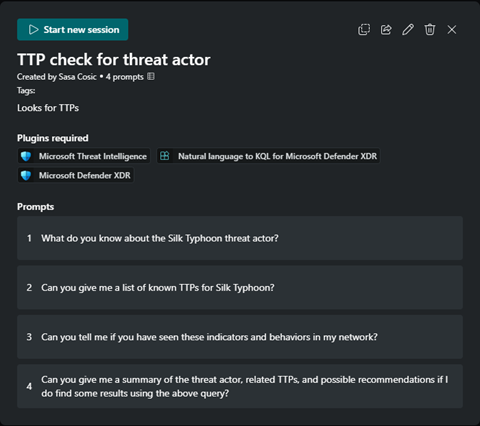
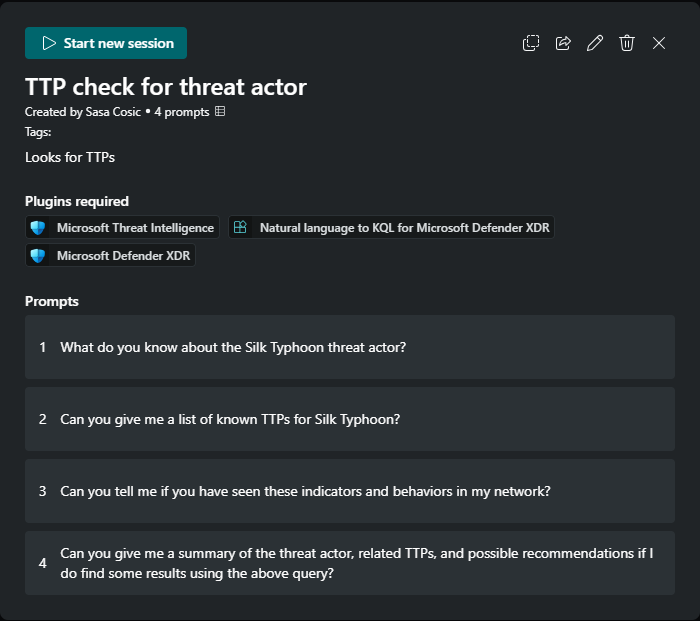
You can run the promptbook as follows:
From the promptbook list, hover and select the run icon.
Or open details and select Start new session.
Fill in the required inputs, then select Run.
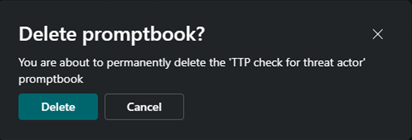
Delete the promptbook
You can delete the promptbook as follows:
Select the ellipses
.Select Delete.
Best practices and concepts to consider
Promptbooks help automate investigation workflows. Consider:
- Use effective prompts
- Balance number and complexity of prompts
- Reordering prompts can affect output and SCU usage
- You can cancel long-running promptbooks
- Session edits don’t affect the original promptbook unless saved
- Output can vary due to AI response variability
Related content
Use the following Security Copilot articles for guidance: