Notatka
Dostęp do tej strony wymaga autoryzacji. Może spróbować zalogować się lub zmienić katalogi.
Dostęp do tej strony wymaga autoryzacji. Możesz spróbować zmienić katalogi.
"Everyone except external users" (EEEU) is a built-in SharePoint group that automatically includes all internal users but excludes any external users (guests). The EEEU report is one of the two types of data access governance activity reports that are available with SharePoint Advanced Management.
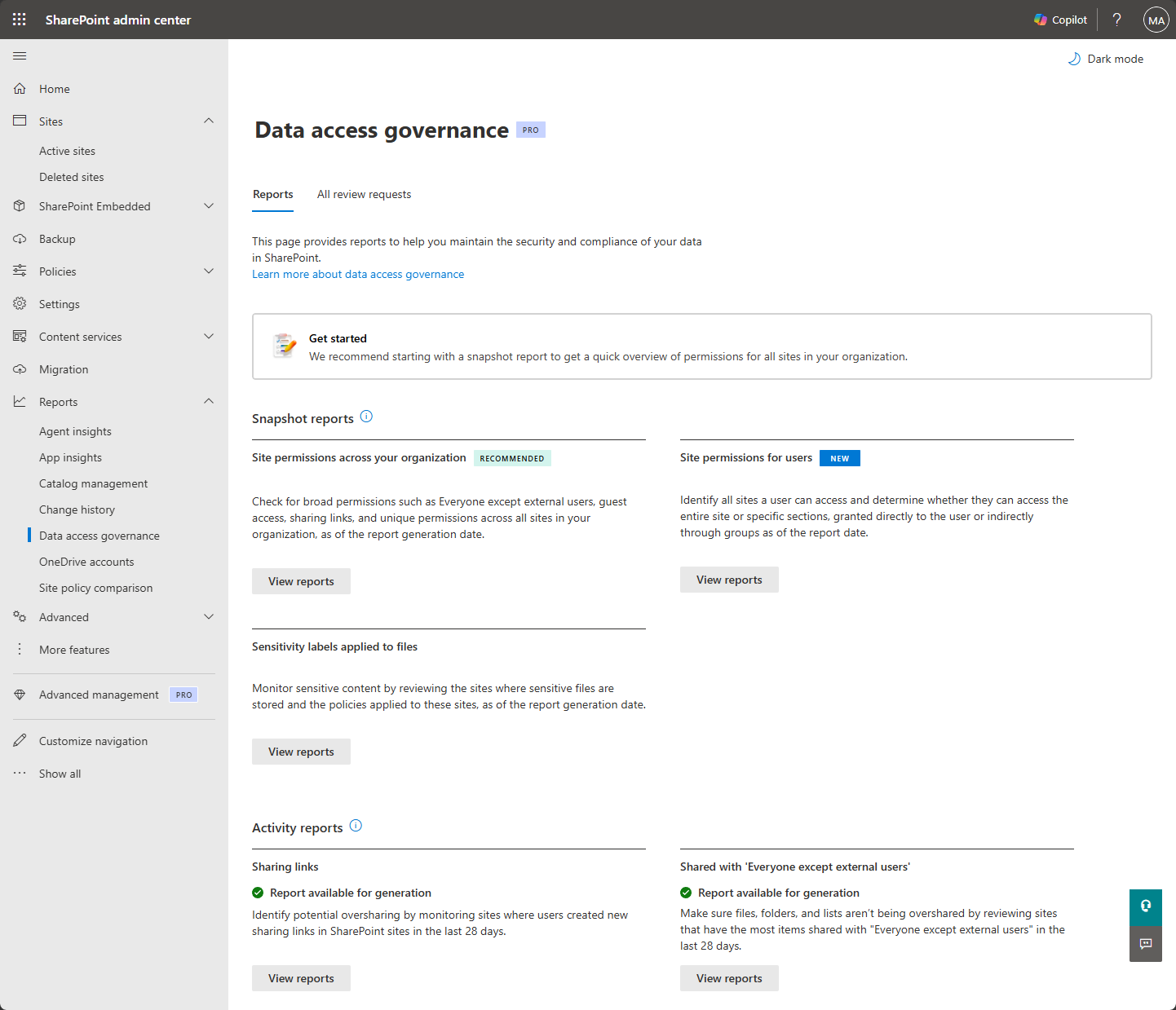
EEEU activity reports help you identify sites where content is shared with your entire organization in the past 28 days. You can run the site permissions report first to understand your organization's current EEEU sharing baseline, and then use the EEEU activity report to monitor ongoing EEEU sharing activities.
Understand EEEU sharing through public sites and files
Content can be shared with EEEU in two ways:
- Public sites: When a site is configured as public, the EEEU group becomes part of the site's membership (owners, members, or visitors). Setting a site as public makes all site content visible to everyone in your organization.
- Public items: Individual files or folders can be shared directly with EEEU using the people picker. Setting a file or folder as public makes it accessible to your entire organization, while keeping the rest of the site private.
Monitor EEEU sharing to identify potential risks
Sharing with EEEU can lead to unintended data exposure because it grants access to all current and future employees. You can use EEEU activity reports together with the site permissions report to help you:
- Discover sites with the most EEEU sharing activity in the last 28 days
- Identify potential oversharing risks before they impact your organization
- Take appropriate actions to limit access when necessary
Information shown in EEEU activity reports
Each EEEU activity report shows:
- Top 100 sites: Sites with the highest number of items or groups shared with EEEU in the last 28 days
- Security policies: Current policies applied to each site:
- Site sensitivity labels
- Site privacy settings
- Site external sharing settings
- Primary administrator: The designated admin responsible for each site
Snapshot and activity reports
Use EEEU reports together with other data access governance reports, such as the site permissions report, to get a complete and ongoing picture of your organization's data access landscape.
Start with snapshot reports: Run site permissions reports first to understand your baseline permission structure. Specifically, get the current state of EEEU sharing.
Follow up with activity reports: Run the EEEU activity reports to monitor recent EEEU sharing activities and catch emerging risks. Run these reports monthly to stay on top of ongoing sharing activities.
Before you begin
Review Prerequisites for SharePoint Advanced Management.
Keep these important points in mind:
- The EEEU report in the SharePoint admin center covers SharePoint sites only. To get an EEEU report for items in OneDrive, use Identify content shared with "Everyone except external users" in last 28 days.
- You can have up to 10 reports.
- Reports might take up to 24 hours to complete.
- Reports capture data from up to 24 hours before report generation.
- You can run reports again every 24 hours.
Create an EEEU report
In the SharePoint admin center, in the navigation pane, expand Reports, and then select Data access governance.
In the Activity reports section, under Shared with 'Everyone except external users', select View reports.
Select Create report. The Create a report panel opens.
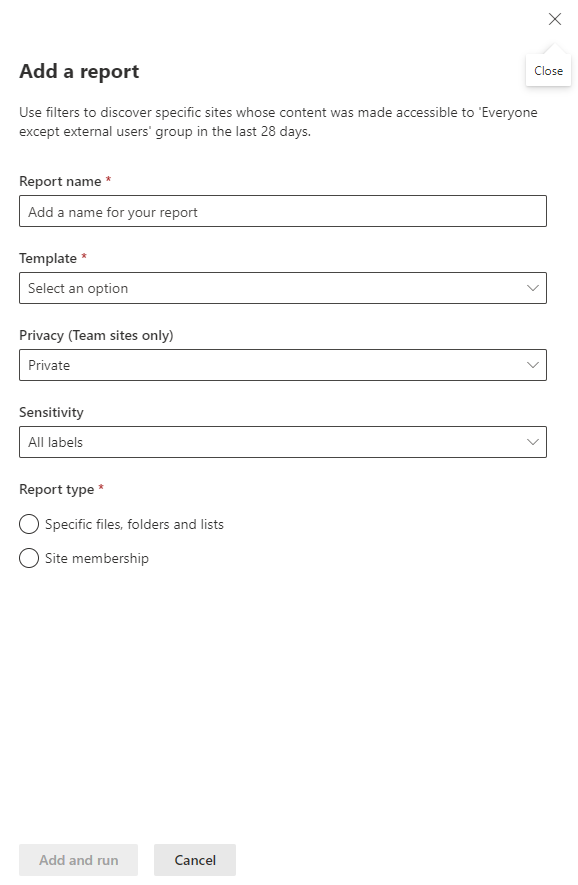
Configure your report as follows:
- Report name: Enter a unique name to identify this report.
- Template: Select which SharePoint site templates to include. You can select multiple template types or choose All sites:
- Classic sites
- Communication sites
- Team sites
- Others
- Privacy: For Team sites, filter by privacy setting:
- Private
- Public
- All (both private and public)
- Site sensitivity: Choose specific sensitivity labels to focus on sites with particular security classifications. For example, you can identify files shared with EEEU within sites labeled as "Confidential" in the last 28 days.
- Report type: Select which EEEU scenario to analyze:
- Specific files, folders and lists: Individual files or folders shared with EEEU.
- Site membership: Sites where EEEU is part of the site membership.
Select Create and run. It might take a few hours for the report to run.
Use the Shared with 'Everyone except external users' report
To view the latest data, run each report manually. The Status column indicates whether the report is running or ready to view.
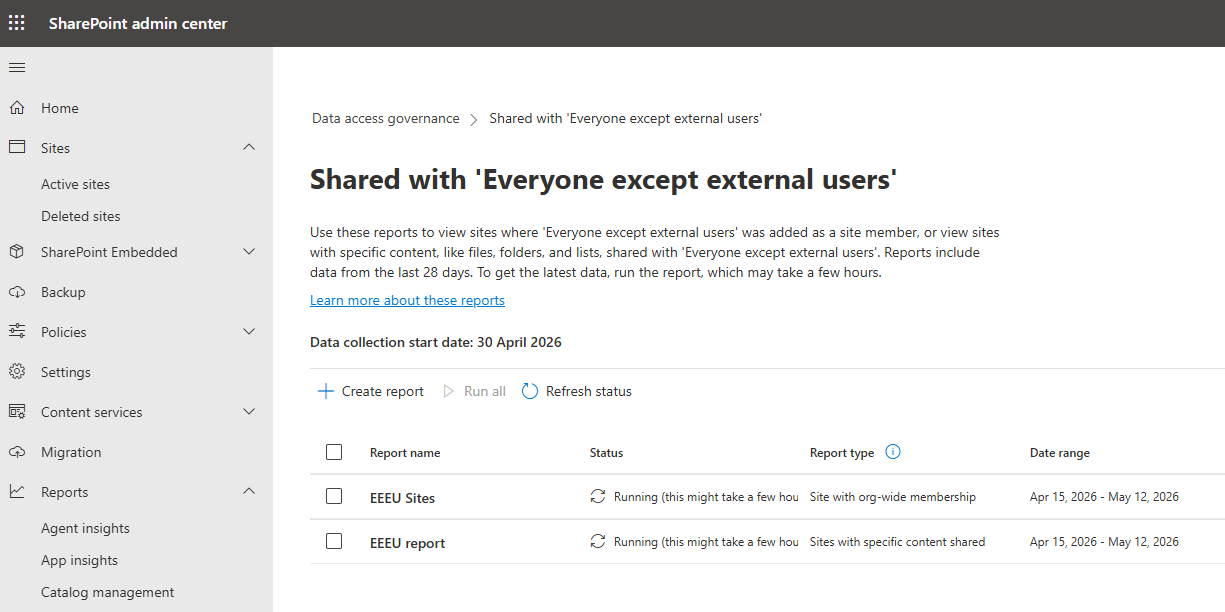
In the SharePoint admin center, in the navigation pane, expand Reports, and then select Data access governance reports.
In the Activity reports section, under Shared with 'Everyone except external users', select View reports.
Select one or more reports, and then select Run.
After your report completes, the Status column updates.
Select a report to view insights about EEEU sharing activity:
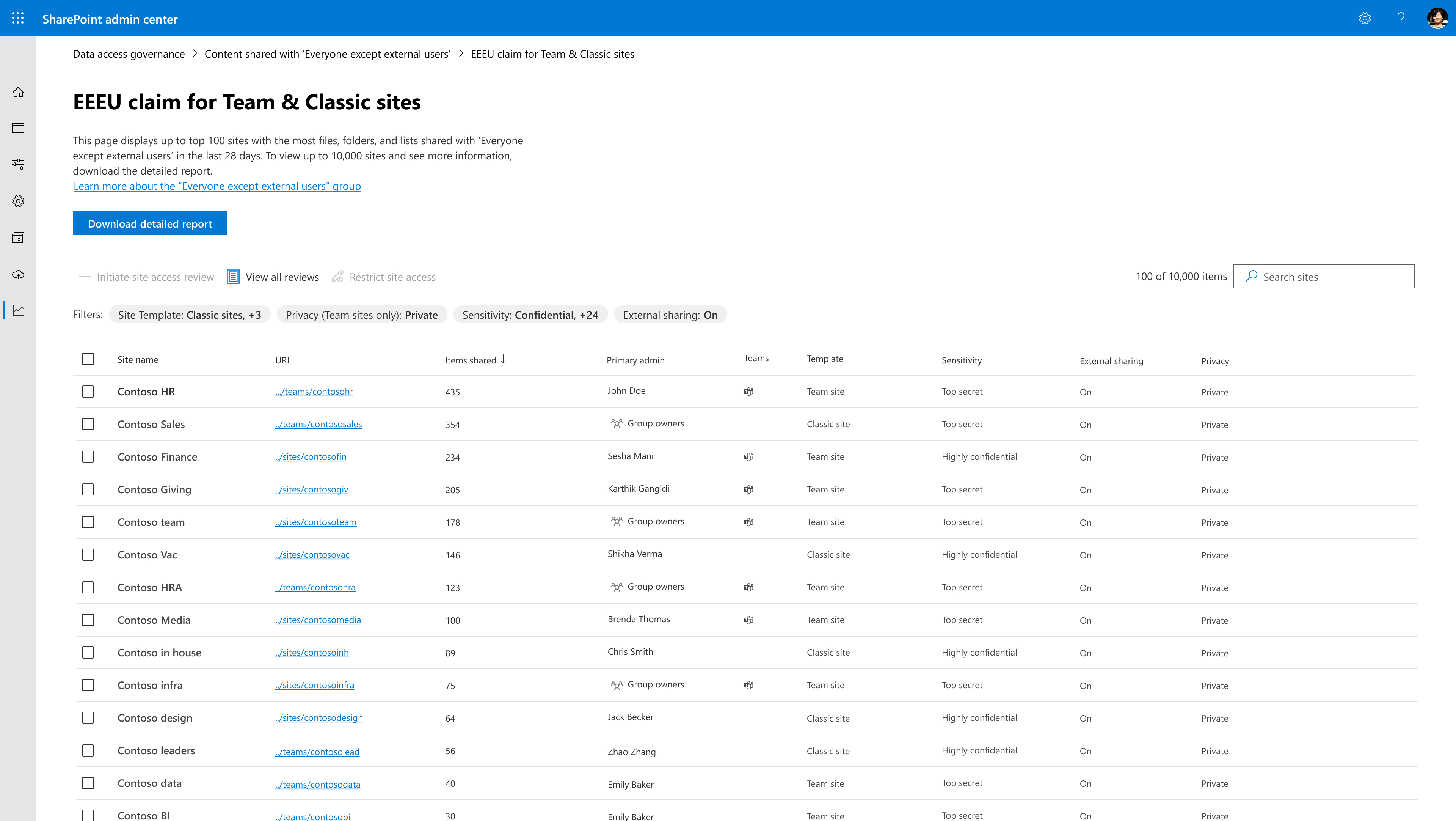
To download a report, select Download detailed report. You get a CSV file that you can use for detailed analysis.
The downloaded report contains the following information:
- Up to 1 million sites sorted by EEEU sharing activity (highest first)
- Complete site information including:
- Primary administrator name and email
- Site template type
- Privacy settings
- Sensitivity labels
- Additional site metadata
Take action based on EEEU report findings
After discovering potential oversharing through EEEU reports, take action to remediate risks and improve your organization's data access governance. For more information, see Data access governance reports for SharePoint and OneDrive sites.