Create, edit, and use variables
Power Automate desktop app automatically creates all the necessary variables that actions need, but you can also create variables manually.
In this unit, you learn how to create variables and use them as input parameters in deployed actions.
Creating and using variables
To prevent unnecessary variables, Power Automate desktop app automatically creates variables for deployed actions.
Every time you add a new action in the workspace, the platform automatically creates some variables that hold the results. If you want to change the default name of an automatically created variable, select it and enter the new name.
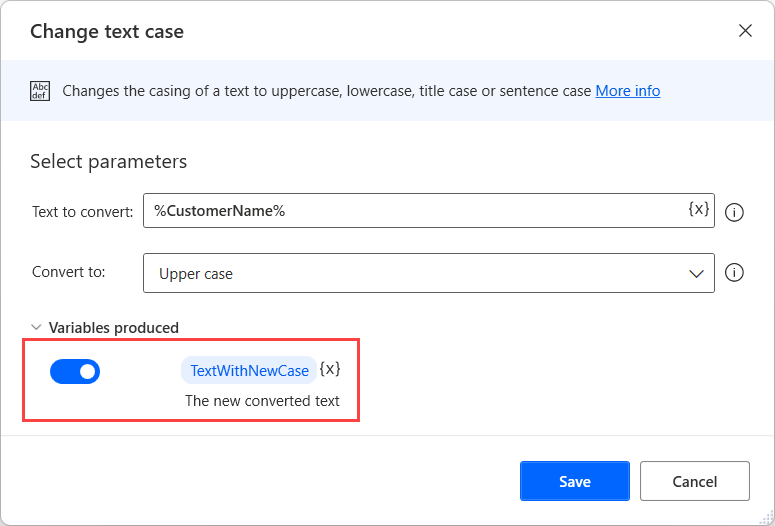
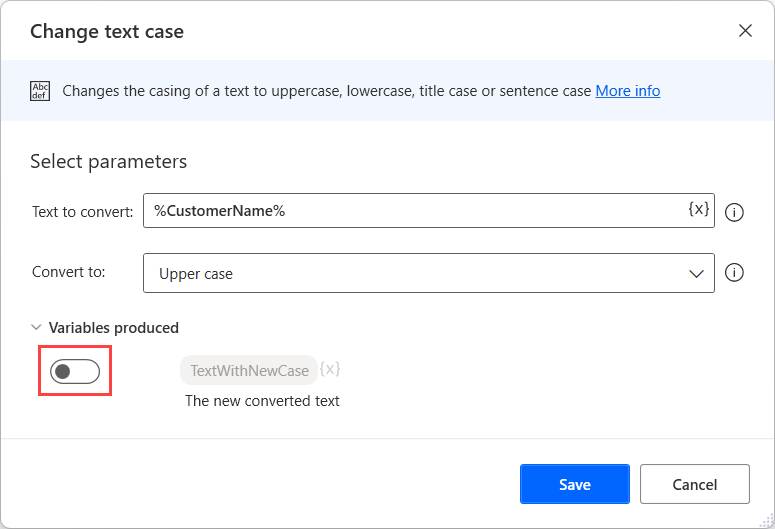
If you don't need an automatically created variable in your flow, select the toggle button on the left side of it to disable it. Disabling unused variables reduces the number of variables in the variables pane and makes management more efficient.
After creating a variable, you might need to use its content as input in other actions. Once you create a variable, insert it into an appropriate field in another action by selecting the {x} (variable) icon next to the desired input field and pick the variable or a specific property of it.
You can also use existing variables as outputs in actions, but updating any variable overwrites previous content from earlier actions.
Note
Storing new data in an existing variable overwrites its contents, and it might change its data type. Use new variables for different results to keep your flows clear and robust.
Variables pane
Power Automate desktop app displays all the necessary information about the created variables in the variables pane.
The variables pane is located next to the workspace and enables you to review and manage variables. Through the variables pane, you can create and handle two different kinds of variables: input/output variables and flow variables.
As you can assume by their name, input/output variables enable you to pass data to and from the Power Automate platform. This feature creates unlimited automation potentialities allowing you to make the most out of the platform.
Note
If you're interested in passing data to and from the Power Automate platform, check the respective course.
All the variables you use locally in your flows are called flow variables, and you can access them only through this particular flow.
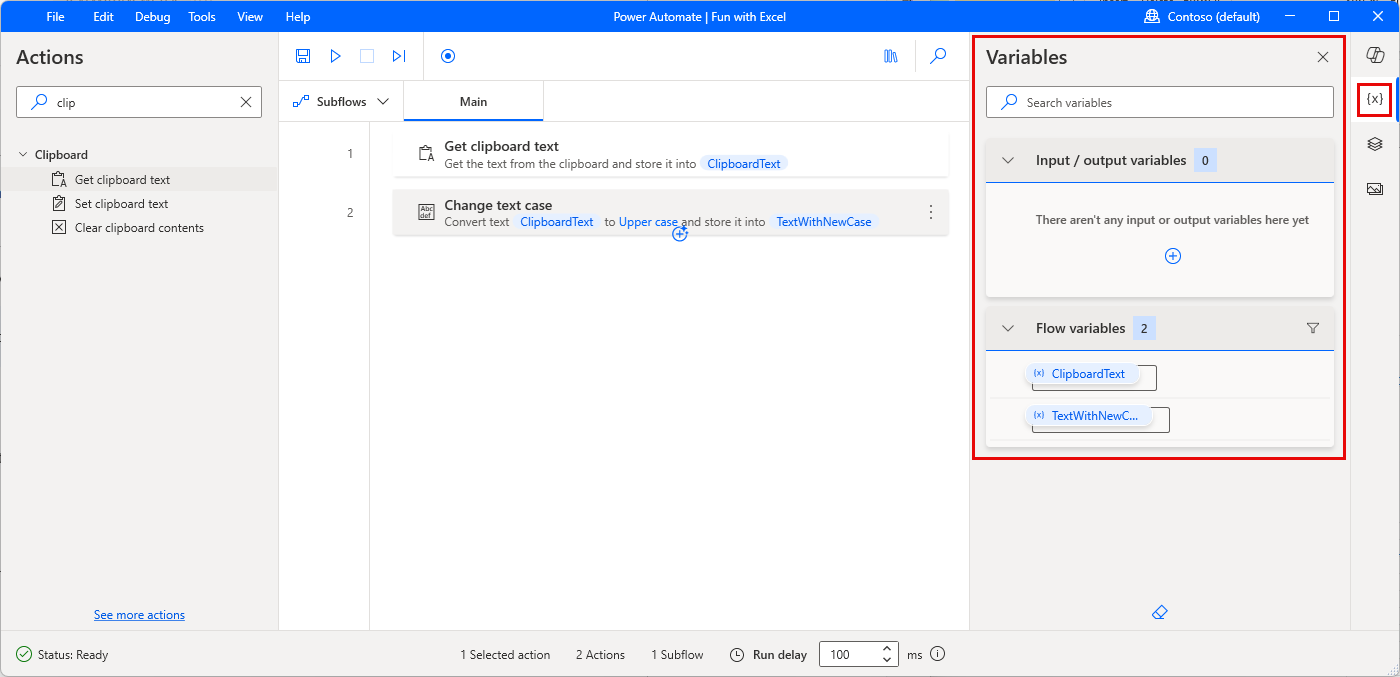
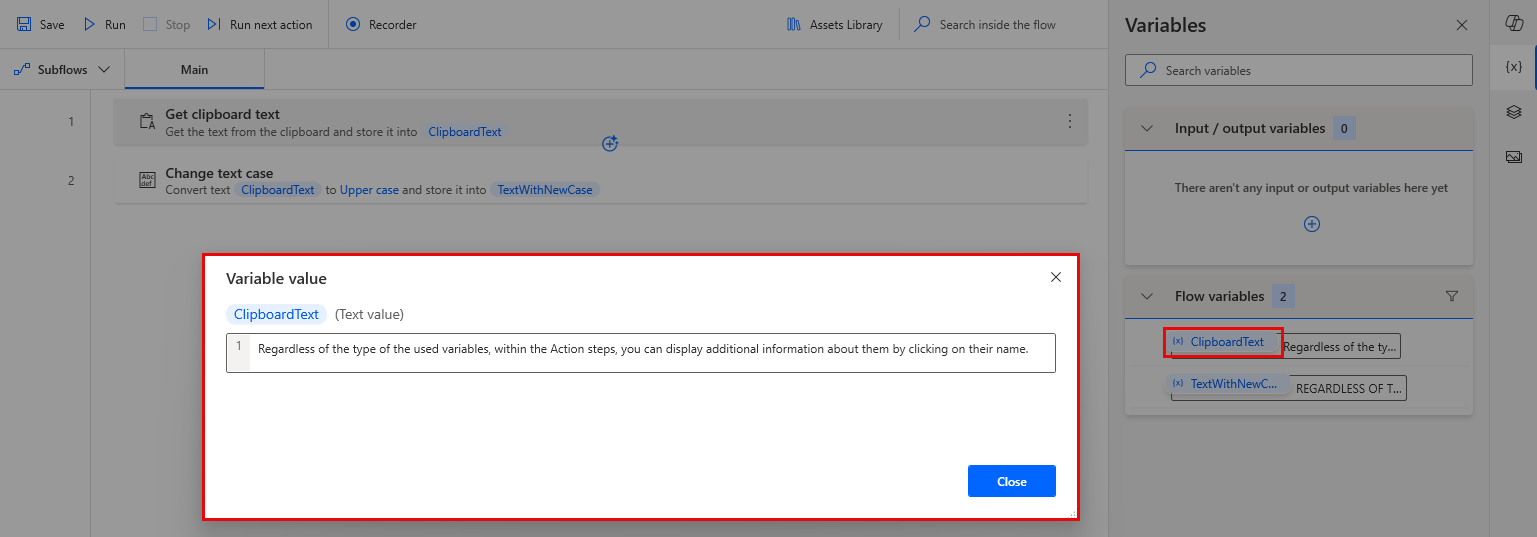
Regardless of the type of the used variables, you can display additional information about them by clicking on their name in the Variables panel. This information is useful when debugging your flow.
Except for the type and the contents of the variables, you can use the variable pane to see all their available properties. Properties contain parts of the information stored in the variable or an extra attribute describing the variables.
While you're debugging your flows by using the Run next action button, you can check each variable's current value through the variables pane. Seeing how the flow changes the variables' contents in real time allows you to locate the source of unwanted functionality.
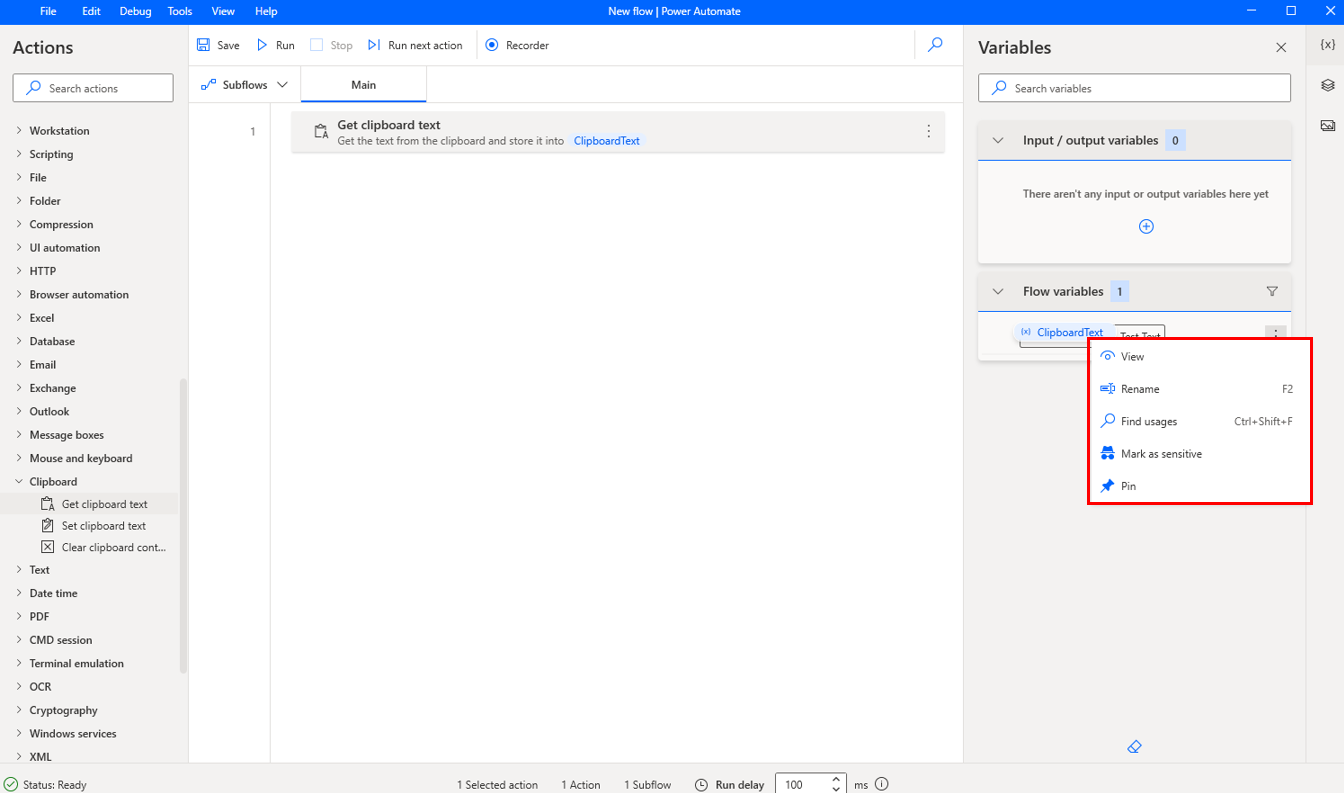
Besides providing information about the variables, the pane also allows you to perform more complicated tasks, such as renaming and finding where each variable is used.
If you want to rename a variable, right-click on it and select Rename. To locate where a variable is used in your flow, select Find usages in the same menu.
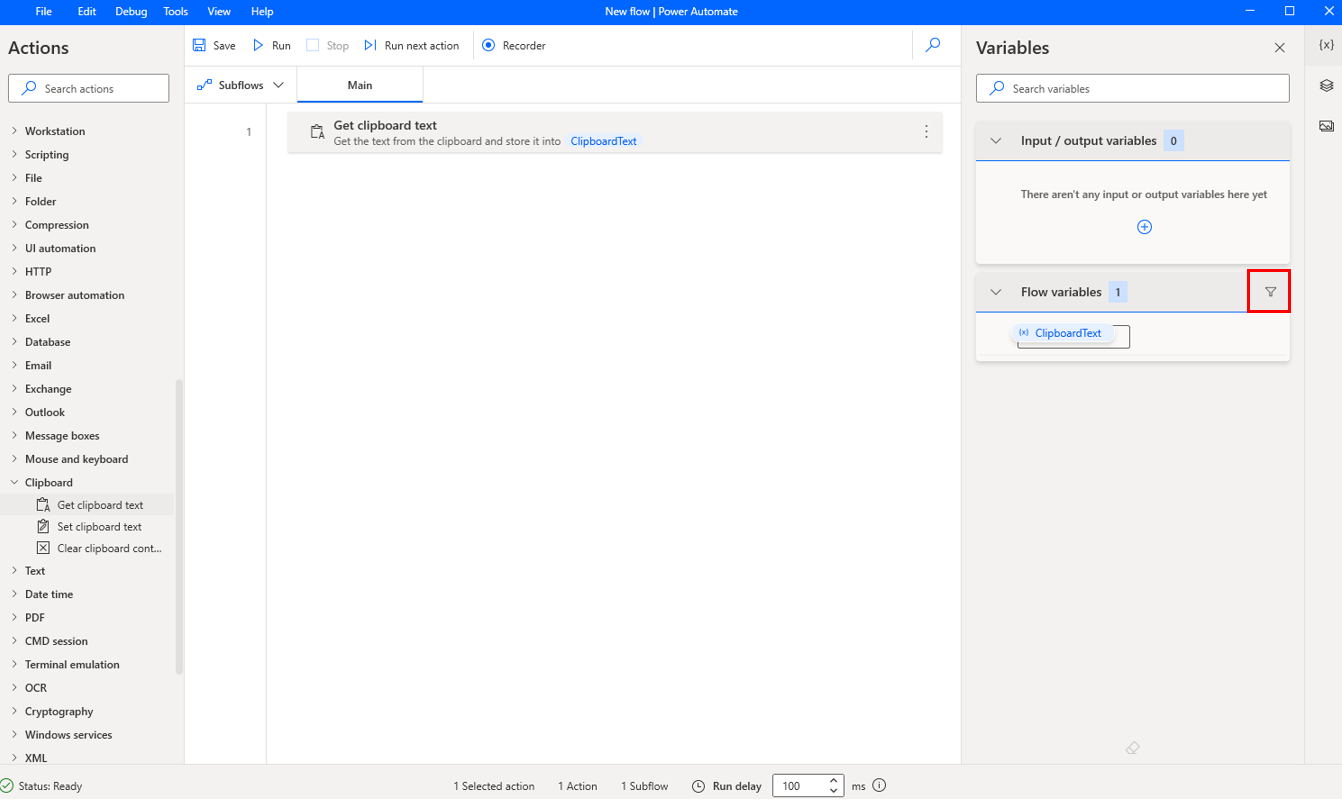
If you develop complicated flows with numerous variables, use the filter button to filter the displayed variables. Displaying variables of specific data types makes searching quicker and more efficient.