Work with environments
Use a Copilot Studio trial to complete training and evaluate the product. If you already have access to Copilot Studio, go to the Copilot Studio Home page section.
Start a Copilot Studio trial
Important
Copilot Studio requires a work or school account. Personal Microsoft accounts aren't supported. A trial license lets you create and test agents, but you can't publish them.
Go to the Copilot Studio trial sign-up page.
Enter your work or school email address, and then select Next.
Follow the onscreen instructions to complete the sign-up process.
After sign-up completes, go to Copilot Studio.
Note
If your email address is rejected, confirm that you're using a work or school account. If sign-up can't be completed, your administrator might have disabled self-service trials. Contact your administrator for access.
Copilot Studio Home page
Go to Copilot Studio, and sign in with your work or school account if prompted.
View the Copilot Studio home page.
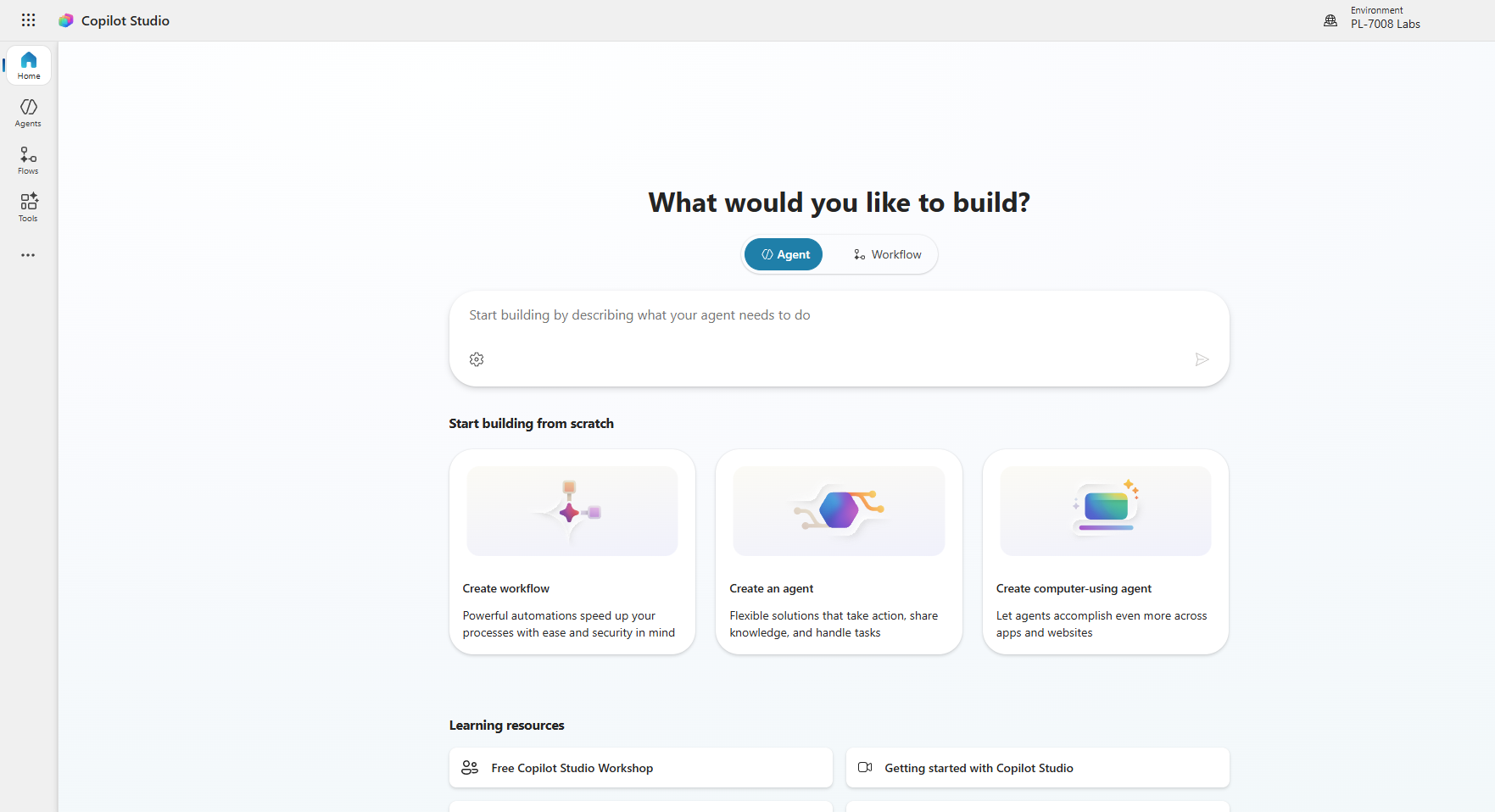
Select an environment
In the upper-right corner, locate the Environment selector box. Your organization uses an environment to store, manage, and share agents, business data, apps, and Microsoft Power Automate flows. Select the Environment selector to display the agents in another environment.
If you're working with an instructor, confirm now with your instructor the environment to use, if you didn't already do so. If you aren't working with an instructor, and you're using your own environment, for the purposes of this course, you can use the default environment. Alternatively, if your tenant allows, you can create your own environment to use in the Power Platform Admin Center.
Tip
If you do not have a license for the Power Platform or have access to a Power Platform environment, you can sign up for a Power Apps Developer plan.
Define how to work with environments
Today, many organizations have a global presence and provide services to customers in multiple regions, countries, or continents. This aspect can result in needing different types of interactions based on factors such as different data being available and resolutions that are based on departments or locations. Your organization might need to deploy similar agents in different regions that interact with systems and data for those areas. Microsoft Copilot Studio accommodates this occurrence by letting you create agents in different environments and switch between them.
Environments represent space to store, manage, and share your organization's business data. Each agent that you create is stored in an environment. Items like model-driven and canvas applications and Power Automate flows are also stored in environments. Each environment might have different roles, security requirements, and target audiences. Individual environments aren't created in Microsoft Copilot Studio; they're created in a separate location. After you create an individual environment, Microsoft Copilot Studio agents can be created in that environment.
Depending on business needs, organizations can use environments in many ways, including:
Departmental - By creating an environment that corresponds with specific organizational teams or departments, created agents contain relevant information for that audience.
Locational - Because the displayed data might be different based on geographic regions, you might define separate environments for different global branches of your company.
Organizations can also separate development, test, and production workloads into different environments. Other reasons for using multiple environments include security boundaries, business-unit ownership, application lifecycle management, capacity, and regional data residency requirements.
Note
For more information, see Power Platform environments overview.
Create environments
The first time that you sign in to Microsoft Copilot Studio and create a new agent, a default environment is created. Unless specified otherwise, any other agents are created in the default environment. If more environments are needed, such as for different regions, organizational needs, or other circumstances, they can be added through the Microsoft Power Platform admin center.
For more information, see Create a new environment for your agents.