Create bins
You can use three levels to configure the warehouse layout in Business Central:
Location
Zone
Bin
You can use zones to group bins. Each zone can consist of one or more bins. Most properties assigned to a zone are assigned by default to bins that are created for the zone.
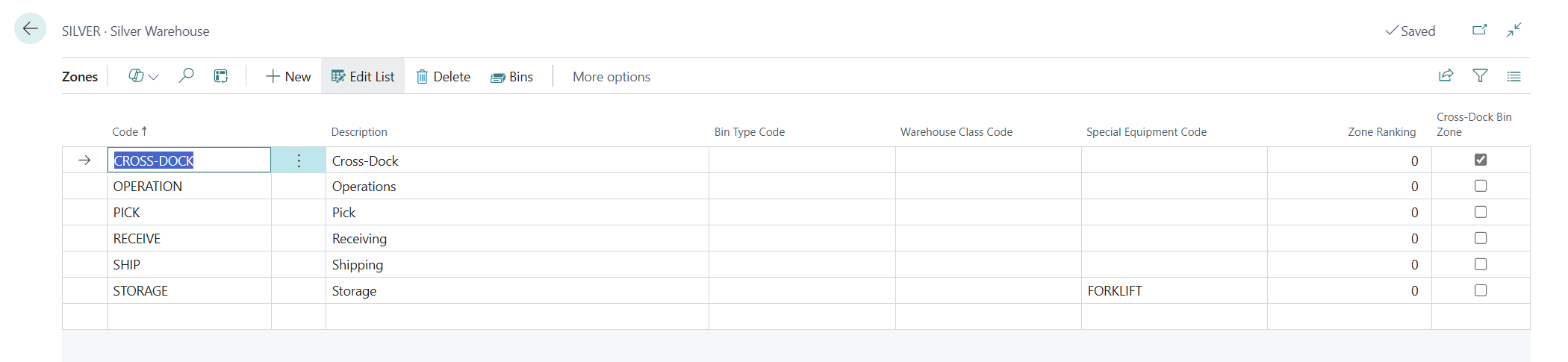
Using zones isn't mandatory in basic warehousing configurations with bin mandatory enabled.
A bin is the most basic storage unit in the warehouse. When companies require workers to enter bin codes for each inventory transaction and movement, they must consider several bin setup options.
For locations that use bins, Business Central uses a system of default bins to facilitate the warehouse handling tasks. A default bin can be assigned to every item that is stored in a warehouse, and each item can have only one default bin for each location. The default bin is then suggested whenever a transaction is performed with the item. For instance, when you create a purchase order and enter the item number and location code, the program automatically fills in the bin code with the item's default bin.
The first step is to create the bins in the program. Bins must be identified by codes that reflect the actual bin numbering in the warehouse.
You can set up bins in two ways:
Manually
Automatically, by using the bin creation worksheet
With the bin creation worksheet, you can create multiple bins at once. The first step is creating a bin template with the settings that you want to assign to the new bins. Next, you can use the bin template in the bin creation worksheet to create new bins.
Bin template
To set up a bin template, follow these steps:
Select the Search for Page icon in the upper-right corner of the page, enter Bin Templates, and then select the related link.
Before you create a new template, use the Personalize function to add fields that you want to use for the new bins, such as the Zone Code, Warehouse Class Code, Bin Ranking, Maximum Cubage, and Maximum Weight fields.
Select New and enter a code and description. An example could be: "NSB – New Storage Bins."
In the Location Code field, select the location for which you want to create new bins.
In the Zone Code field, select the zone for which you want to create new bins.
Enter the other fields, such as Bin Ranking, based on the requirements for the new bins.
Close the Bin Templates page.
Bin creation worksheet
To create new bins using the bin creation worksheet, follow these steps:
Select the Search for Page icon in the upper-right corner of the page, enter Bin Creation Worksheet, and then select the related link.
Make sure that the Location Code field shows the location for which you want to create new bins. The location is automatically selected based on the default location that is assigned to your warehouse employee account.
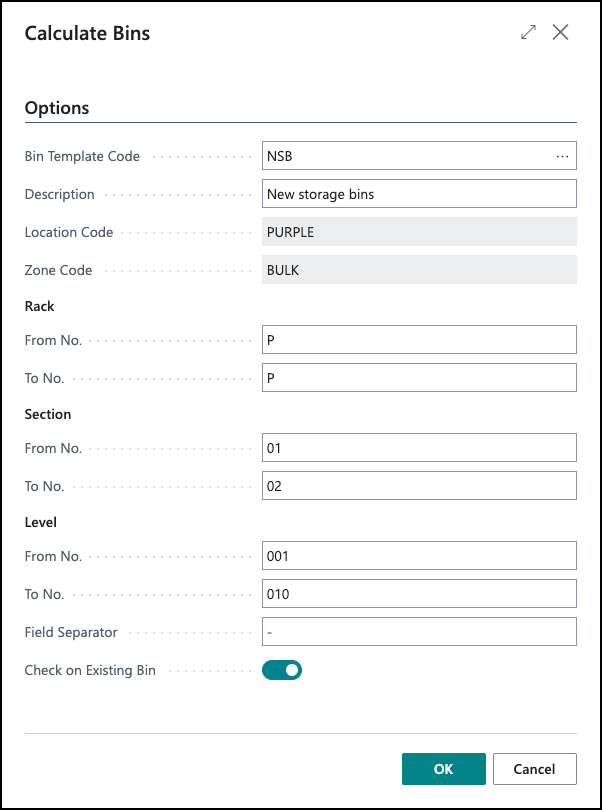
Select Calculate Bins.
In the Bin Template Code field, enter the template with the settings that you want to use for the new bins.
In the Rack, Section, and Level fields, enter the values in the From No. and To No. fields that you want to use for the new bins.
If necessary, enter a field separator.
If you want to check on existing bins, select the Check on Existing Bin field.
Choose OK.
Select Create Bins and then Yes.
Create zones
Watch the following video to learn how to create zones in Business Central.
Create bins
Watch the following video to learn how to create bins in Business Central.