Set up bin content
If items have a fixed place in the warehouse, you can set up bin content. On the Bin Content page, you can specify which item is stored in the bin.
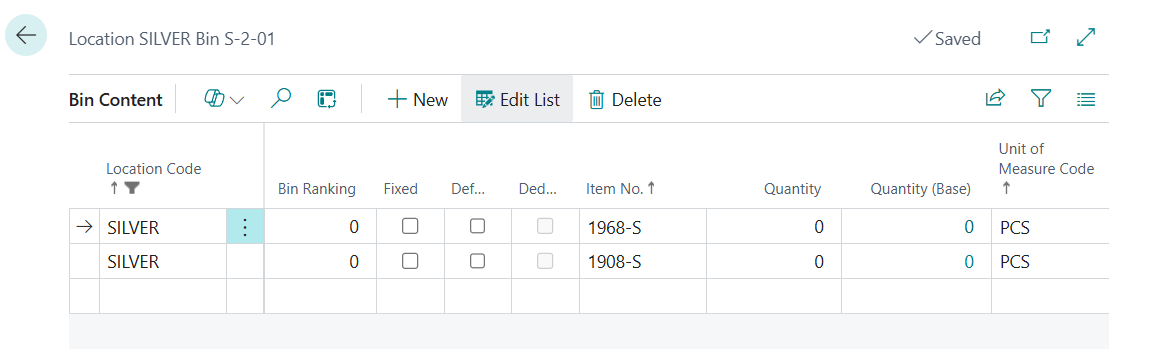
To access the Bin Content page, follow these steps:
Select the Search for Page icon in the upper-right corner of the page, enter locations, and then select the related link.
Select the location for which you want to set up bin content.
Select Process > Bins.
Select the bin to which you want to assign one or multiple items.
Select Navigate > Contents.
If the Fixed option is selected, then the item (bin content) is associated with this bin, and the bin normally contains the item. If the item quantity goes to zero, the program does not delete the bin content line.
If the Default option is selected, then this bin must be the first bin that the program suggests when the user enters details of a transaction that involve this item on the order document or journal line. For items with no default bin that is specified in advance, the program will set the bin in which the item is put away for the first time as the default bin.
The Quantity field is for information only and can't be edited. This field shows how many units of the item are currently in the bin.
If necessary, you can set up the same bin to contain more than one item and, similarly, store the same item in several bins. However, an item has only one default bin for each location.
To complete the set up of bin usage rules for the location, you must specify how Business Central will handle default bins after they have been set up. You can make this specification by selecting one of the following options in the Default Bin Selection field on the Warehouse FastTab of the location card:
Fixed Bin - If this option is selected, the program always suggests the same bin for picking and putting away the item. You can also always change the default bin assignment.
Last-Used Bin - If this option is selected, the program changes the default bin assignment to the last bin in which the item is put away.