Notatka
Dostęp do tej strony wymaga autoryzacji. Może spróbować zalogować się lub zmienić katalogi.
Dostęp do tej strony wymaga autoryzacji. Możesz spróbować zmienić katalogi.
Important
This feature is for Workforce Insights public preview customers only. Features in preview might not be complete and could undergo changes before becoming available in the broader release.
When you import organizational data into Microsoft 365, you can review the access policies for the attributes shared with downstream apps. This gives you greater control in managing how your imported data is used across Microsoft 365 and Viva apps and services.
Workforce Insights is the only application that uses access policies in Organizational Data in Microsoft 365. As a result, the access policies you set only impact the experience in Workforce Insights.
What are access policies in Organizational Data in Microsoft 365?
Access policies define who can access which organizational data attributes, for whom, and at what level of detail. These policies are created and managed centrally in Organizational Data in Microsoft 365 by a Microsoft 365 Global Administrator or the Organizational Data Source Administrator. Access policies ensure that, where appropriate, a consistent set of usage rules can be shared alongside the organizational data to the apps that are using that data.
Impact on downstream apps
| App | Impact |
|---|---|
| Workforce Insights | Access policies for public and confidential attributes are pre-set. Access policies for custom attributes can be configured. |
| Microsoft 365 Profile | Only public attributes are sent; no configuration. |
| People Skills | Only people skills attributes are sent; no configuration. |
| Viva Insights and Viva Glint | Sensitive data use cases; access is configured in app by the app admin. |
Access policies reference list
| Access policy type | Access policy name | Description | Audience | Access scope | Population group |
|---|---|---|---|---|---|
| Public (internal) | Public (internal) | Data is visible to all users in the tenant. | All employees | Row level | All employees |
| Limited access | Selected internal | Data is visible to all users in the tenant, or limited access to selected users. | Default: All employees | Row level | Default: All employees |
| Limited access | Manager level | Data is visible to the user, their manager chain, and delegates. | Default: Managers and delegates | Row level | Default: All employees |
Reserved attributes access policies
| Reserved attribute | Access policy |
|---|---|
| Microsoft_PersonEmail | Public (internal) |
| Microsoft_ManagerID | Public (internal) |
| Microsoft_EmploymentType | Public (internal) |
| Microsoft_JobTitle | Public (internal) |
| Microsoft_Layer | Public (internal) |
| Microsoft_CompanyOfficeCity | Public (internal) |
| Microsoft_CompanyOfficeState | Public (internal) |
| Microsoft_CompanyOfficeCountryOrRegion | Public (internal) |
| Microsoft_LevelDesignation | Public (internal) |
| Microsoft_HireDate | Manager level |
| Microsoft_HourlyRate | Manager level |
| Microsoft_SupervisorIndicator | Internal |
| Microsoft_WeeklyBadgeOnsiteDays | Manager level |
| Microsoft_CurrentEmploymentStatus | Manager level |
Manage access policies in Organizational Data in Microsoft 365
First, import organizational data for Workforce Insights using these steps.
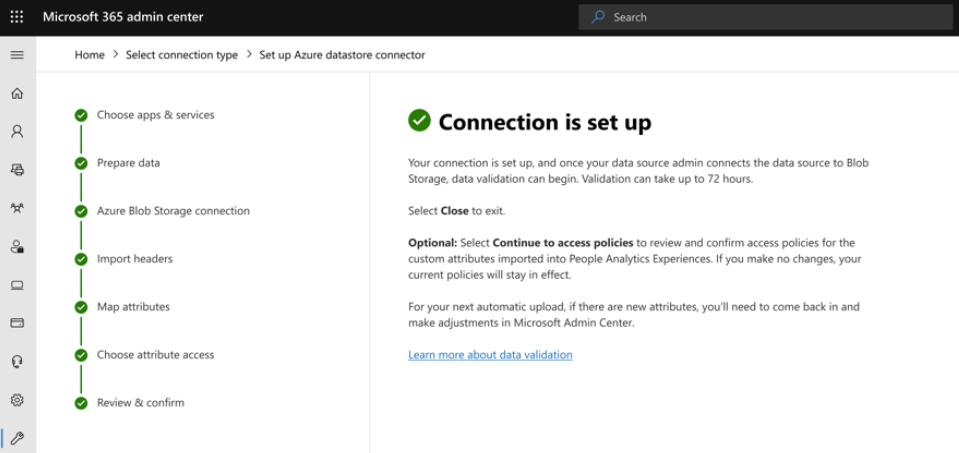
Then, once your data has been ingested and you select the option to Continue to access policies, you can configure the access policy using the steps below.
1. Configure new access policies
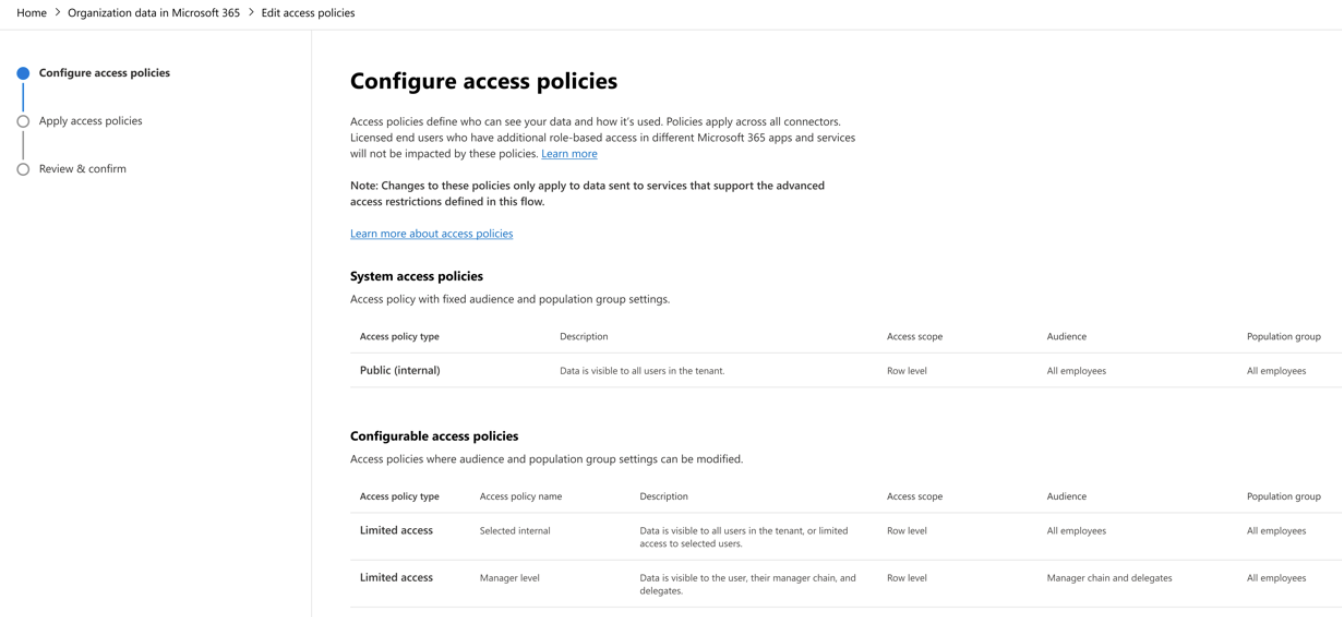
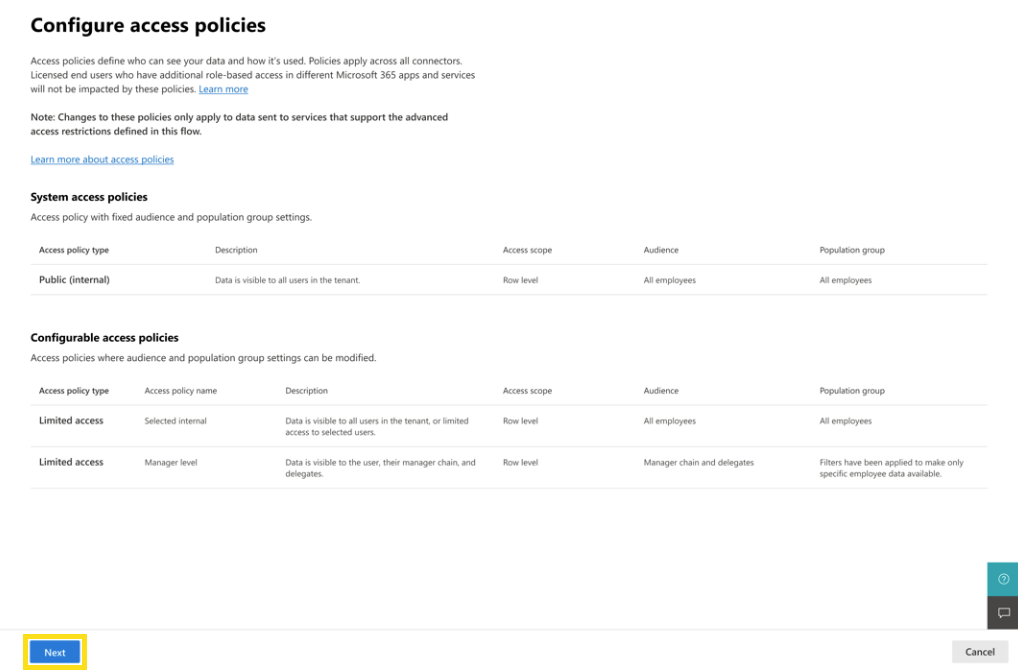
Your first step is to configure your access policies. There are two types of policies: system policies and configurable policies.
System access policies
This is an access policy with defined settings that can't be changed. The only system policy available is Public (internal).
Configurable access policies
These are access policies that have settings that have been pre-defined but can be edited. For example, the audience (who can access the data) and the population group (whose data is available) can be modified. There are only two configurable access policies available: Selected internal and Manager level.
Note
Any changes to the configurable access policies only apply to data sent to Workforce Insights. Not every app or service can support those additional restrictions.
Important
Any licensed end users who have additional role-based access in different Microsoft 365 apps and services aren't impacted by these access policies.
Edit an existing access policy
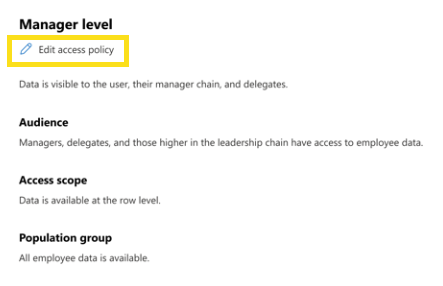
To edit one of the configurable access policies, select the access policy from the list, then select Edit access policy.
Manage audience
Selected Internal: The only available option is "Everyone."
Manager level: The only available option is "Managers and delegates."
For both, you can filter the audience by Teams and Microsoft 365 groups or Security groups to define the users that can access the data within your tenant.
To apply a security group to the audience, turn on Limit this data to selected security groups.
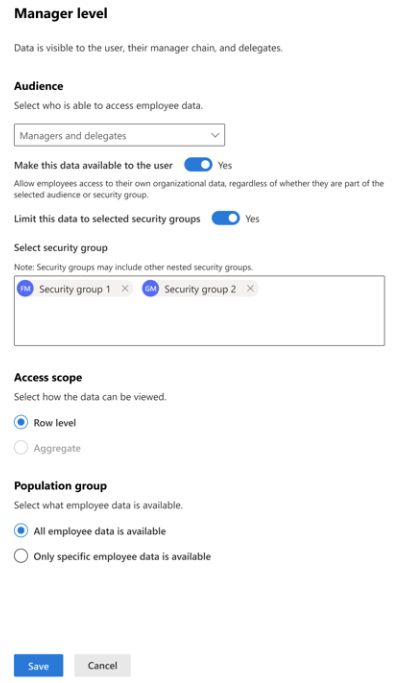
To make data available to the employee, turn on Make this data available to the user.
Manage access scope
When editing, you can modify the audience and population group. The access scope is Row level access and can't be changed.
Manage population group
The default setting for population group is "All employee data is available." To make modifications, select Only specific employee data is available.
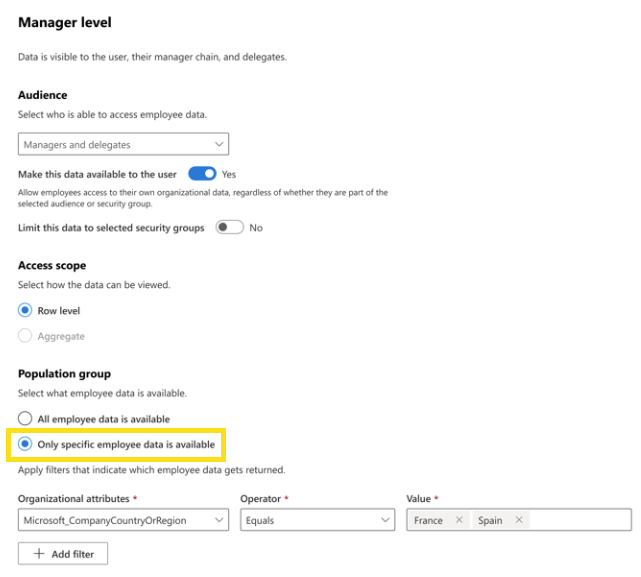
You can apply the filters for the employee data you would like to have returned. Organizational attributes allows you to select from attributes you've imported.
Once you're satisfied with your changes, select Save.
Any modifications you make to the access policies are reflected in the table on the Configure access policies page. To continue, select Next.
2. Apply access policies
Once you've configured your access policies, you can apply the policies to your attributes.
Access policies for reserved attributes
Reserved attribute access policies are preset and aren't editable. But you can review the policies that have been applied. See the list of assigned policies.
Note
There are no changes to the existing policies for Microsoft 365 Profile, Viva Insights, and Viva Glint.
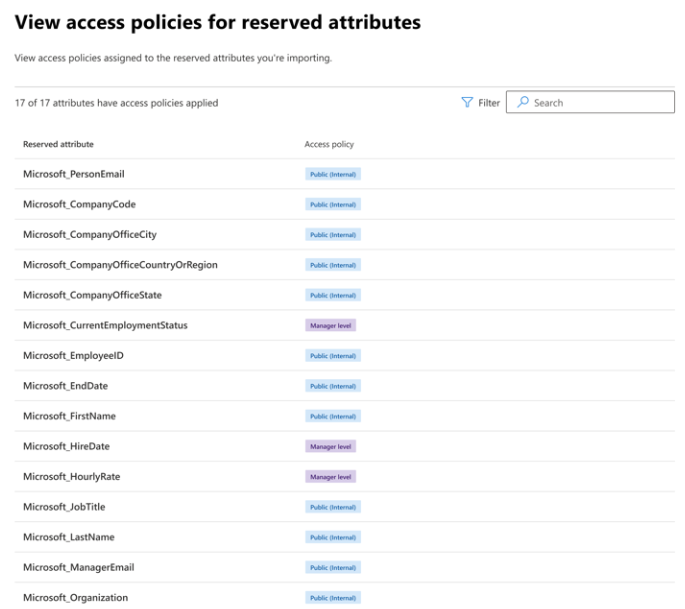
To set access policies for custom attributes, select Next.
Access policies for custom attributes
Access policies for custom attributes apply only to custom attributes that are shared with Workforce Insights. The list populated here reflects the attributes that have been configured to be shared with Workforce Insights.
The default access policy for all custom attributes is Manager level.
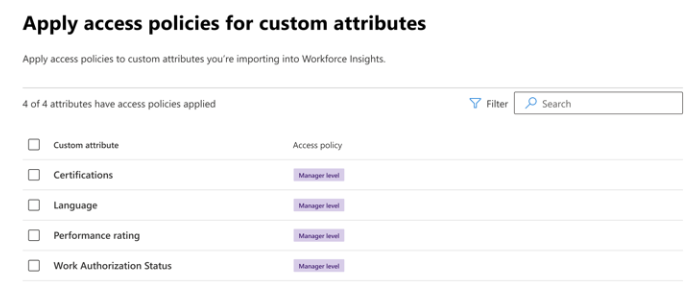
To update attributes, select them from the list, choose Select access policy, and pick the policy you want to apply.
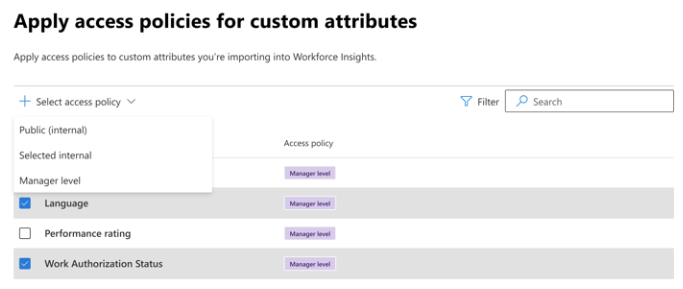
Once complete, select Next.
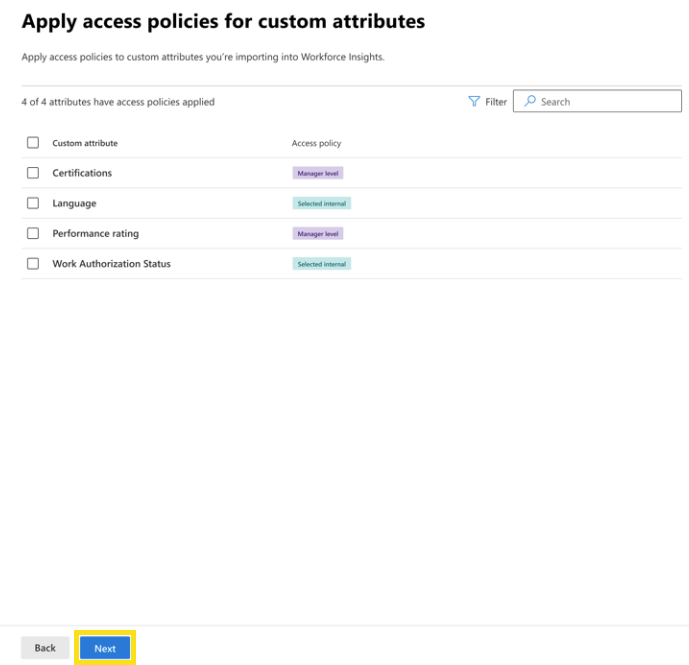
3. Review and confirm
Finally, review the access policy configurations and the reserved and custom attributes with access policies applied. If everything looks correct, select Save.
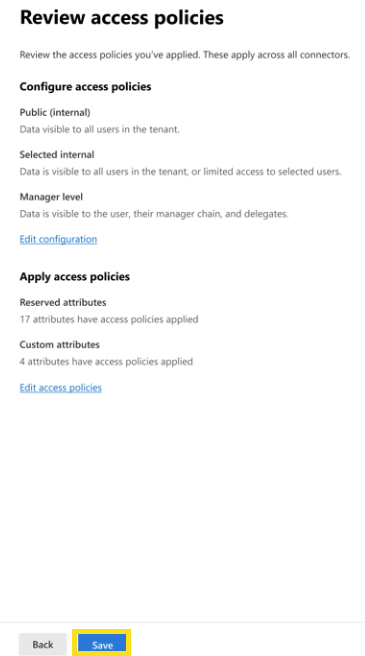
Once saving is complete and access policies have been successfully applied, there's another optional step. Before any custom attributes can go into effect in Workforce Insights, a description must be added for all custom attributes. Select Learn more about attribute descriptions to learn more about what's required for attribute descriptions and access to Workforce Insights.
Select Ok to go back to Organizational Data Ingestion in Microsoft 365.
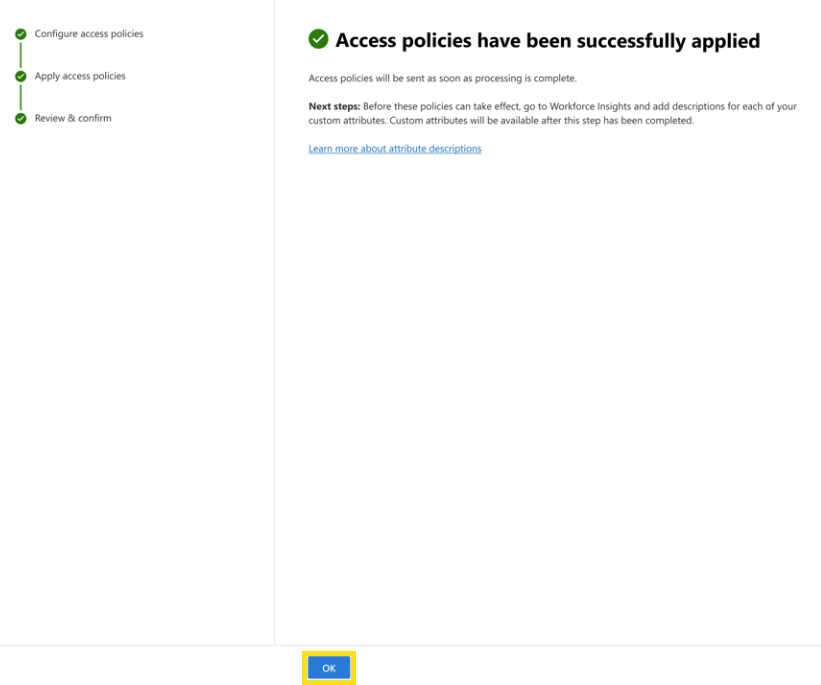
Edit access policies
You can make changes to your access policies at any time in Settings. Any changes you make to access policies apply across all connectors.
To change your access policies:
In the Microsoft 365 admin center, under Settings on the left, select Setup.
Under Setup, select Migration and Imports.
Under the tools to migrate or import data table, select Organizational Data in Microsoft 365.
On the Organizational Data in Microsoft 365 page, select Settings.
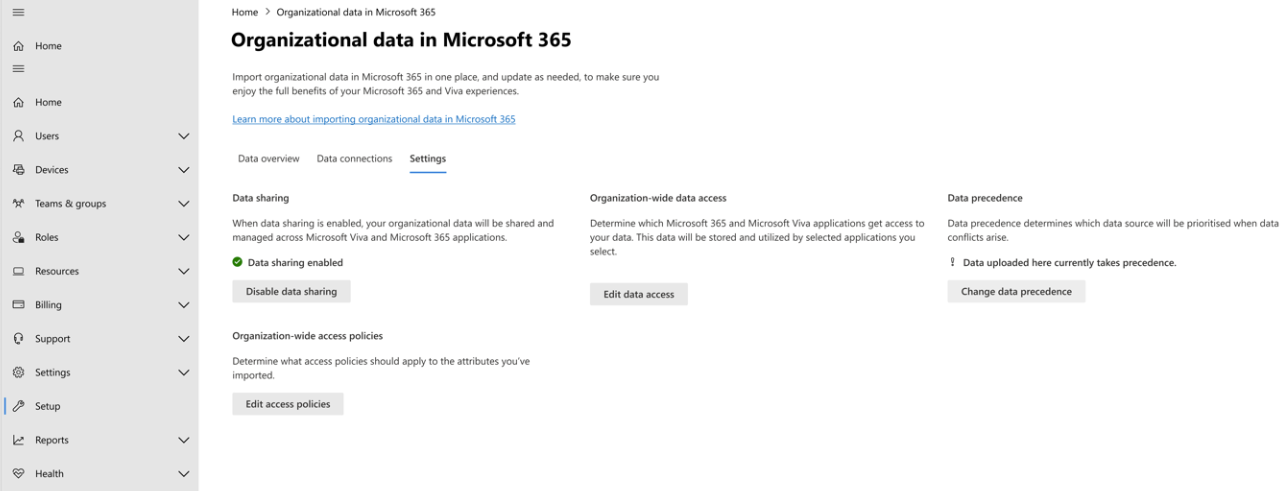
Under the Organization-wide access policy section, select Edit access policies.
Make any adjustments to the access policy configurations. Select Next.
Review the access policies on reserved attributes. Select Next.
Make any adjustments to access policies on custom attributes. Select Next.
Review your changes and select Save.
Once complete, these settings are applied to all ingested attributes.
