Note
Access to this page requires authorization. You can try signing in or changing directories.
Access to this page requires authorization. You can try changing directories.
You can connect to an Oracle database to access and analyze data in Power BI Desktop and the Power BI service. This article explains the connection options and setup requirements.
Power BI supports the following methods for connecting to Oracle databases:
- Bundled Oracle provider (Preview) — Power BI Desktop includes a built-in Oracle Managed ODP.NET provider. Enable it with preview feature switches to connect without installing separate Oracle client software.
- Oracle Client for Microsoft Tools (OCMT) — A graphical installer from Oracle that configures Oracle Data Provider for .NET (ODP.NET). Use OCMT if you prefer the unmanaged provider or haven't enabled the preview switches.
- Direct cloud connections (Preview) — Connect from the Power BI service directly to Oracle cloud databases, such as Oracle Autonomous Database, without requiring a data gateway.
- On-premises data gateway — Connect to on-premises Oracle databases through the enterprise on-premises data gateway.
Note
Personal data gateways don't support updated Oracle connections. Semantic models with existing Oracle connections continue to work. However, new semantic models with updated Oracle connections must use an enterprise on-premises data gateway for on-premises Oracle databases, or direct cloud connections for Oracle cloud databases.
Supported Oracle database versions
- Oracle Database 12c (12.1.0.2) and later
- Oracle Autonomous Database - all versions
Determine which version of Power BI Desktop is installed
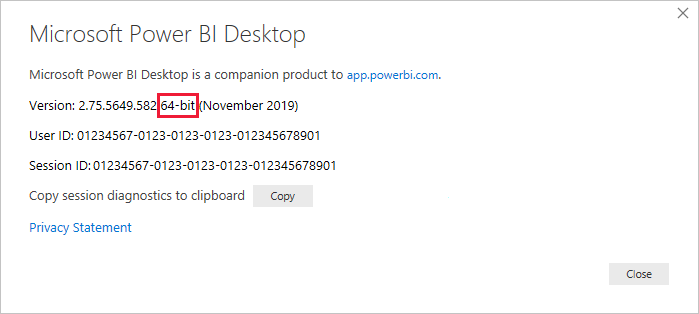
To determine which version of Power BI Desktop is installed, on the Help ribbon, select About, then check the Version line. In the following image, a 64-bit version of Power BI Desktop is installed:
Connect with the bundled Oracle provider (Preview)
Power BI Desktop includes a bundled Oracle Managed ODP.NET provider, so you can connect to Oracle databases without installing separate Oracle client software. To use the bundled provider, enable the following preview feature switches in Power BI Desktop under File > Options and settings > Options > Preview features:
- Enable Oracle Bundled Provider for Import Mode
- Enable Oracle Bundled Provider for DirectQuery Mode
After you enable the switches, restart Power BI Desktop. You can then connect to Oracle databases through Import or DirectQuery mode using the built-in provider.
Note
The bundled provider is currently in preview. Oracle Client for Microsoft Tools (OCMT) is still available as an alternative for customers who prefer the unmanaged provider or haven't enabled the preview switches.
Install the Oracle Client for Microsoft Tools
OCMT is a graphical installer from Oracle that configures Oracle Data Provider for .NET (ODP.NET) for Power BI Desktop and on-premises data gateway scenarios. Use OCMT if you aren't using the bundled Oracle provider preview.
OCMT supports 32-bit and 64-bit connections to Oracle on-premises and cloud databases, including Oracle Autonomous Database. It also supports Excel, SQL Server Analysis Services, SQL Server Data Tools, SQL Server Integration Services, SQL Server Reporting Services, and BizTalk Server.
OCMT is free software. Download it from the Oracle Client for Microsoft Tools page. Choose the version that matches your Power BI Desktop installation (32-bit or 64-bit).
For step-by-step instructions, go to Set up Oracle database connectivity in Power BI Desktop.
Connect to an Oracle database
How you connect to an Oracle database depends on whether the database is in the cloud or on-premises, and whether you're using Power BI Desktop or the Power BI service.
Direct cloud connections from the Power BI service (Preview)
The Power BI service supports direct cloud connections to Oracle cloud endpoints, such as Oracle Autonomous Database, without requiring a data gateway. This option simplifies configuration for cloud-hosted Oracle databases.
Direct cloud connections support both Import and DirectQuery modes.
To create a direct cloud connection to an Oracle database:
- In the Power BI service, select Settings > Manage connections and gateways.
- Select New connection and choose Cloud.
- For Connection type, select Oracle.
- Enter the Oracle cloud server name. For Oracle Autonomous Database, use the endpoint URL that ends with
.oraclecloud.com. - Provide the database name and authentication credentials.
- Select Create to save the connection.
After you create the connection, you can use it in semantic models that connect to Oracle cloud databases through Import or DirectQuery.
On-premises data gateway
To connect to an on-premises Oracle database from the Power BI service, use the on-premises data gateway. Install 64-bit OCMT on the computer running the gateway since the gateway is a 64-bit app. For more information, go to Manage your data source - Oracle. If you encounter DirectQuery or refresh failures through the gateway against an Oracle source, see Oracle provider configuration for the gateway.
Note
If you're connecting to an on-premises Oracle database, ensure your machine has network access to the database server. This might require a VPN connection or firewall configuration. Contact your IT administrator for assistance.
Upgrade personal Oracle connections
If your semantic model uses a personal data gateway, you can upgrade to an enterprise on-premises data gateway or a direct cloud connection. In the semantic model settings, expand the Gateway and Connections section, and then create a connection on an enterprise on-premises data gateway for on-premises Oracle databases, or use a direct cloud connection for Oracle cloud databases.
This upgrade is irreversible. After you upgrade, you can't switch the semantic model back to a personal data gateway.
Power Query connector reference
For detailed information about connecting to an Oracle database or an Oracle Autonomous Database from either Power BI Desktop or the Power BI service, go to the Power Query article on Oracle databases.
Use Microsoft Entra ID with Oracle
Power BI supports Microsoft Entra ID authentication for Oracle databases. You authenticate with Entra ID tokens instead of Oracle usernames and passwords, which improves security and simplifies access management.
Requirements are as follows:
- Oracle Database 19c Release 20 or later
- Oracle 23ai
- Oracle Autonomous Database
- Power BI Desktop (June 2024 or later)
- Microsoft Entra ID configured for your Oracle environment
- On-premises data gateway (for scheduled refresh or shared datasets)
Note
Entra ID SSO for Oracle is currently supported only for DirectQuery and Import modes through an on-premises data gateway. Ensure your Oracle environment is configured to accept Entra ID tokens. Direct cloud connections don't support SSO.
Related content
- DirectQuery in Power BI
- What is Power BI?
- Data sources for the Power BI service
- Oracle Client for Microsoft Tools
More questions? Ask the Power BI Community