Note
Access to this page requires authorization. You can try signing in or changing directories.
Access to this page requires authorization. You can try changing directories.
Here are some frequently asked questions about Power Automate standalone licenses.
How do Power Automate license plans work for flow runs?
If you assign a Process license to a cloud flow, the flow can access premium connectors and has a dedicated 250,000-action daily entitlement per Process license. The flow always uses the Process license limits, regardless of who runs the flow.
If a flow runs under a user license, the action limit depends on the license context. Automated and scheduled flows use the flow owner's license context. Instant flows (button, Power Apps) use the invoking user's license context. Action limits are applied per context—if a user has multiple licenses, each flow gets the limit for the context it runs in, not a combined total. Learn more in What happens to my action limits if I have multiple plans?
The user license plan for Power Automate is the Power Automate Premium plan, but users have a range of other license plan options. Users with the free plan or one of the Microsoft 365 license plans can only access standard connectors, but most of the other license plans and trials provide access to premium connectors.
Learn more about license plans that include Power Automate capabilities in Types of Power Automate licenses and the Power Platform Licensing Guide. Learn more about the limits and performance profile of license plans in Limits of automated, scheduled, and instant flows.
Which Power Automate licenses do I need?
Microsoft recommends that most organizations buy the Power Automate Premium license for every user in their organization. Purchase the Power Automate Process license for every business process or machines that run unattended automation. The Power Automate Hosted Process is a superset of the Power Automate Process license, providing the same functionality but with the addition of a Microsoft hosted machine capacity that can be used for hosted machine or hosted machine group, enabling RPA with zero infrastructure.
The Premium user plan is intended for a human user to support the broad adoption of an automation culture in an organization. It's required for RPA developers to build and manage desktop flows on the Power Automate portal.
The Process license is intended for core enterprise process automations that are typically automated back-end activities (not run manually by a person). For example, every organization needs processes for invoice processing or HR onboarding that are mandatory to the normal operation of the business. These processes can vary in size and complexity, ranging from small-scale initiatives to large-scale endeavors spanning multiple flows interconnected by shared data sources. For example, an invoice processing process has multiple flows handling an invoice from creation through approvals to payment. All the flows are part of one business process as they're all handling an invoice through multiple steps to closure.
You can assign a Process license directly to one solution-aware cloud flow or to a flow group. A flow group lets up to 25 solution-aware cloud flows share one Process license. You must explicitly add every parent and child flow that should use the group's capacity.
You need a Process license if your flow meets one of the following criteria:
- Your flows use unattended RPA (robotic process automation) to run desktop flows on machines without user interaction.
- Your flows are running under Application user (flow owner is a Service Principal). Organizations with multiple environments (Dev/Test/Prod) use DevOps pipelines to export and deploy flows into other environments for healthy ALM (application lifecycle management). They run their flows using service principal to avoid giving access to users in production environments. Alternatively, you can designate a licensed user on a service principal owned flow so it runs under that user's entitlement instead of requiring a Process license.
- Your flows process large data or need to run frequently, thereby needing a high volume of actions.
- Your premium flow is invoked by multiple users. In this case, either everyone needs a Premium license, or the flow needs a Process license. If a flow has a Process license, it doesn't require any user to have a license. It provides an organization with the flexibility to pay for licenses based on the number of flows. Larger organizations or solutions that affect many people can benefit from the fixed monthly cost.
- Your flow uses premium connectors, and your organization has many guest users using the flow, but you don't know if the guest users' home tenant provides them with Premium licenses.
Note
The Power Automate Process and Hosted Process licenses only license the flows and machines and not the user. The Premium user plan is required for RPA developers to build and manage desktop flows on the Power Automate portal. Learn more about the Premium RPA features that come with the Premium user plan in Premium RPA features.
How many Power Automate Process licenses do I need?
Your process has unattended RPA (robotic process automation): how many machine sessions do you need?
Purchase one Process license for each machine. Add more Process licenses if you need concurrent execution on the machine. A Process license covers all desktop flows (RPA) running on the machine and cloud flows (DPA) that are part of the business process.
Your process only needs DPA (digital process automation): how many core business processes do you want to automate?
Purchase one Process license for every core business process. Some examples of core business processes are invoice processing or human resources (HR) onboarding. To share the license across related cloud flows, add up to 25 solution-aware flows to a flow group. Flows aren't automatically covered just because they're part of the same business process.
Your flow exceeds 250,000 actions per day: how many Process licenses does it need?
Stack additional Process licenses on the same flow. Estimate your daily usage—(actions per run) × (runs per day)—and divide by 250,000 to determine how many licenses to stack.
How many Process licenses do I need if I have multiple cloud flows, each of them invoking its own RPA flows in unattended mode on a machine?
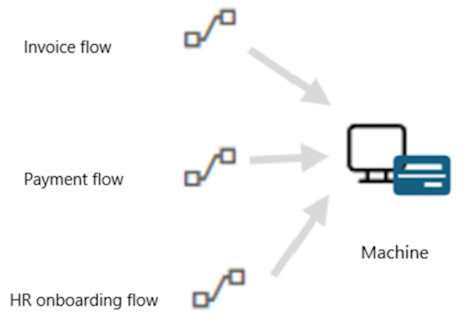
With one Process license, you can run multiple cloud flows by queueing them. For example, if you have four independent cloud flows, and each one of them invokes its own desktop flow running on the same machine, you can run the first one at 09:00 AM, the second one at 11:00 AM, and so on, in the same virtual machine.
In the following screenshot, one Process license covers all cloud flows, as they have a desktop flow running on the same machine.
My DPA process has multiple cloud flows. Do I need multiple Process licenses?
Core business processes can vary in size and complexity, ranging from small-scale initiatives to large-scale endeavors spanning multiple flows interconnected by shared data sources. For example, the invoice processing process has multiple flows handling an invoice from creation through approvals to payment. All the flows are part of one business process as they're all handling an invoice through multiple steps to closure. One Process license can cover a core business process when its flows fit within one eligible flow group and its shared 250,000-action daily entitlement.
You can assign one Process license to a flow group and share its 250,000 actions per day across up to 25 solution-aware cloud flows. Add every flow that should use the shared capacity to the group. Parent and child flows are separate group members, and adding a parent flow doesn't automatically add or license its child flows.
If one flow needs more than 250,000 actions per day, assign Process licenses directly to that flow instead. You can stack up to 10 Process licenses on an individual flow, but you can't stack licenses on a flow group.
My solution has multiple processes. Do I need multiple Process licenses?
Yes. A solution can have multiple processes with a Process license assigned to each of them.
Who needs to purchase a Premium license?
Users who need to create general-purpose automations (with the premium connectors entitlement), to have full flexibility (with the custom connectors entitlement), or to interact with applications simulating a human behavior such as keyboard or mouse keys and movement (with the Robotic Process Automation attended entitlement) should consider a Power Automate Premium license.
More precisely:
- You need a Premium license for each RPA developer who builds and manages desktop flows on the Power Automate portal. Learn more in Premium RPA features.
- The Process license has the highest priority among all licenses. This priority means if a Process license is assigned to a flow, the flow always uses the Process license limits and doesn't need an owner or running user to have a Premium license.
- Automated and scheduled flows always run in the context of the flow owner regardless of who starts the flow or what accounts are used for connections inside of the flow. Instant flows (button, hybrid triggers) run in the context of the user who invokes them, regardless of the connections used in the flow. If an automated or scheduled flow uses a premium connector, only the owner needs to have a Premium license.
- If an instant flow has premium connectors, every user who runs the flow needs a Power Automate Premium license. In such cases, instead of licensing every user, you can license the flow with a Process license.
- If the flow doesn't use a premium connector, you don't need a Premium license. You can use a Microsoft 365 license.
To find out what type (automated/manual/scheduled) of flow you have, select a flow to see its 'type' in the details.
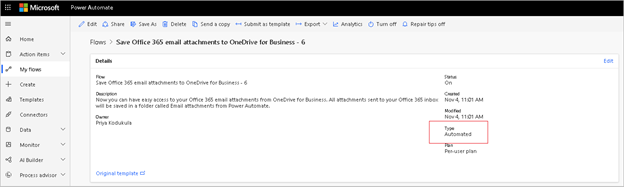
- If the flow is in context of Power Apps or Dynamics 365 apps, and is an automated flow, the flow must be associated to the app created using Power Apps or a Dynamics 365 app and the owner needs Power Apps Premium license, or a Dynamics 365 license.
- If the flow is in context of a Power Apps or Dynamics 365 app, and is an instant flow, every user running the flow needs a Power Apps Premium license, or a Dynamics 365 license.
- If a parent flow and child flow use a user license context, the child flow leverages the context from the parent flow. For example, if the following criteria are met, it uses the parent flow owner's license:
- If the parent flow is an automated flow, and
- The child flow uses premium connectors, and
- The child flow doesn't have a Process license. If the child flow has a Process license, it uses the Process license and not the parent flow's license.
These user license context rules don't cause a child flow to inherit Process capacity from its parent. To use Process capacity, directly assign a Process license to the child flow or explicitly add it to the same flow group as the parent.
Do we need licenses for every environment?
It depends on the license type:
- Process licenses are environment-specific. Each flow exists in a specific environment, and importing a flow into another environment creates a separate flow. Flow groups and Process capacity assignments are environment-specific too. In every target environment, create or verify the flow group, explicitly add each parent and child flow that should share capacity, and assign a Process license to the group.
- User licenses aren't. Power Automate Premium, Microsoft 365, and Dynamics 365 are user licenses assigned at the tenant level. A licensed user can run flows in all environments without buying a separate license.
Can a Power Automate Hosted Process license be used as a Power Automate Process license?
Yes, you can use the Power Automate Hosted Process capacity in two ways:
- Hosted machines and hosted machine groups.
- As a Process license that can be used for unattended robotic process automation (unattended RPA) on your on-premises machine, or flows that are part of a business process.
Can Microsoft 365 customers create solution-aware flows and child flows?
Yes. Microsoft 365 customers can create solution-aware flows if the environment in which they create the solution-aware flow has a Dataverse database attached to it. The default environment gets a Dataverse database by default. The admin must attach a Dataverse instance to non-default environments. Admins need at least a 1 GB tenant level Dataverse database capacity available to create a new environment.
The first subscription of Power Apps, Power Automate, Microsoft Copilot Studio, Dynamics 365 Sales, Customer Service, and Field Service adds a one-time default capacity limit of 10 GB for the tenant. When you add subscriptions to the tenant, additional Dataverse capacity might accrue to the tenant. For example, if a new customer purchases a Power Automate Premium plan, the tenant receives 10 GB of default Dataverse database capacity. And if the tenant buys 10 Power Automate Premium licenses, the tenant gets 10.5 GB (10 GB plus 10 times 50 MB).
I use multiple user connections in my premium flow. Which user needs a Premium license to run the flow?
Connections are independent from license checks. You can have multiple user connections in a flow, but the flow always runs in the context of primary owner/run-only user/Process license.
The owner of a flow left the organization. How can we ensure it works without interruptions?
If the flow is a solution-aware flow, you can change the owner in Power Automate, or use Power Automate Web API to ensure the flow works without interruptions. If the flow is a non-solution-aware flow, any co-owners can add it to a solution and then change the owner. If not, assign a Power Automate Process license to the flow to ensure it continues to run. Alternatively, any co-owners of the flow can export and import the flow. When imported, the flow is a new flow, and the co-owner now becomes the owner of the flow. The flow uses the license of the new owner.
The flow is downgraded to lower performance and all flow owners are notified and the flow is turned off in 14 days if no action is taken.
The owner of the flow no longer has a Premium license, but the flow is a premium flow. What happens?
The flow is downgraded to lower performance. The system notifies all flow owners, and the flow is turned off in 14 days if no action is taken.
Do guest users (not from your tenant) need a license to use Power Automate?
Yes. The guest user must have a Power Automate license assigned through one of the following tenants:
The tenant that hosts the flow. You can assign them admin trials for temporary access or standalone licenses.
The home tenant of the guest user.
For example, if a guest user has a Power Automate Premium license assigned in the home tenant, they can use premium features in the guest tenant that hosts the flow.
Power Automate—included with Office, Power Automate Premium, Power Apps Premium, and Dynamics 365 user plans—has the following characteristics:
In the Azure public cloud, these plans are recognized across tenants in guest scenarios because they're not bound to a specific environment.
In Azure national or sovereign clouds, these plans are recognized across tenants in guest scenarios. More information: National clouds, Azure geographies
Licenses aren't recognized across tenants in different Azure clouds.
What Power Automate capabilities are included in Windows licenses?
Windows 11 users can try desktop flows in attended RPA for personal productivity in the default environment. They can't share the desktop flows or create desktop flows in a different environment other than the default environment. Windows users don't have access to cloud flows. To get full cloud flows and RPA features, purchase the Power Automate Premium plan.
Windows 11 users can search for "Power Automate" in the Windows search bar. The Power Automate app for the desktop downloads automatically and then launches the first time you select its icon.
For a comparison with other seeded licenses, see the capability comparison table.
Can Windows 10 and Windows Server 2016 users use Power Automate for desktop?
Yes, they can use Power Automate for desktop and have usage rights for it, but they need to download it from the download center.
Legacy license questions
The Power Automate per-flow plan and the Power Automate unattended RPA add-on were removed from the price list on February 1, 2024. Existing per-flow licenses continue to work, but you can't buy more, stack them on a single flow, or share them across a flow group. The Process license replaces both: it covers unattended robotic process automation (unattended RPA) and cloud flows, can be accessed by unlimited users, can be stacked, and can be assigned to a flow group.
How is a Process license different from a per-flow license?
For unattended RPA, previously customers needed to buy a per flow license for the cloud flow and an unattended RPA add-on. Now they can purchase a Process license for every RPA session on a machine. All the cloud flows invoking desktop flows on the machine are included as part of the Process license.
For cloud flows, neither a legacy per-flow license nor a Process license assigned directly to a flow automatically covers its child flows. This allocation model is different from assigning Process capacity to a machine, where eligible cloud flows can inherit a Process plan from the machine. To share one Process license across cloud flows, add up to 25 solution-aware parent and child flows to a flow group.
How is Power Automate Premium license different from Power Automate per user with attended RPA license?
Power Automate Premium offer includes all the benefits of Power Automate per user with attended RPA offered at $40 per user/month, plus the process Mining visualize and analyze processes capabilities and is offered at $15 per user/month.
Action limits and capacity questions
Here are some frequently asked questions about action limits and their answers. Within Power Automate, every trigger and action execution counts as one action (shown as Power Platform Requests in admin center reports). Actions inside loops run once per iteration, so loops multiply your action count.
What counts as an action?
Based on license, there are limits to the number of actions a cloud flow can run in a day. These limits are different from connector throttling limits. You can see the number of actions your flow runs by selecting Analytics from the cloud flow details page and looking at the Actions tab.
Even when your flow uses few actions per run, you can still reach your limits if the flow runs more frequently than you expect. For example, you might create a cloud flow that sends you a push notification whenever your manager sends you an email. That flow must run every time you get an email (from anyone) because the flow must check whether the email came from your manager. The limit applies to all runs across all your flows in a 24 hour period. Here are some insights to estimate action usage:
- A simple flow with one trigger and one action results in two actions each time the flow runs.
- Every trigger and action in the flow counts. All kinds of actions—connector actions, HTTP actions, built-in actions (from initializing variables, creating scopes to a simple compose action)—count toward your daily action limit. For example, a flow that connects to SharePoint, Exchange, Twitter, or Dataverse: all those actions are counted.
- Both succeeded and failed actions count towards these limits. Skipped actions aren't counted.
- Each action counts as one, including the loop action itself. Actions inside a loop (Apply to Each, Do Until) run once per iteration—a loop with 2 actions and 10 iterations uses 21 actions (1 loop + 2 × 10).
- An action can have multiple expressions but it's counted as one action.
- Retries and extra requests from pagination count as action executions as well.
Consider the following cloud flow where every email attachment is saved into OneDrive. The trigger counts as 1 action. The Apply to Each loop itself counts as 1 action. The 2 actions inside the loop each run once per attachment—with 4 attachments, that's 4 × 2 = 8 actions. Total: 1 + 1 + 8 = 10 actions.
Whose action limits does the cloud flow use?
If a cloud flow has a Process or Per-flow license, the flow uses the Process or Per-flow license limit instead of the creator, owner, or invoking user's limit.
Automated and scheduled cloud flows always use the flow creator or owner's action limits, regardless of who invoked the flow or what accounts are used for connections inside the flow. For a solution flow, you can change the owner of the flow by using Web API. After you change the owner, the new owner's action limits are used. For a non-solution flow, the flow always uses the original creator's limits, which can't be changed. If the original creator leaves the company, any co-owners of the flow can export and import the flow as a different owner. After you import the flow, it becomes a new flow and starts using the new owner's limits. Alternatively, you can assign a Process or Per-flow license to the flow.
Instant cloud flows (button, Power Apps, hybrid triggers) use the invoking user's limit.
If the flow owner is a service principal, the flow uses the non-licensed user limit, unless the flow has a Process or Per-flow license, belongs to a flow group with a Process license assigned, or has a designated licensed user.
If you share an automated or scheduled flow with another user and then that user triggers the same flow, it uses the limit of the original owner and not the new user's limit. But if the user then leverages the flow to make their own new flow, that new user becomes the owner of the new flow and that flow uses the new user's limit.
If a parent flow and child flow use a user license context, the child flow uses the parent flow's limit. For example, if the parent flow is an automated flow, the child flow uses the parent flow creator or owner's limit.
If the parent flow is a manual flow, the child flow uses the limit of the parent flow's invoking user.
If the child flow has a Process or Per-flow license, it uses the Process or Per-flow limit and not the parent flow's limit.
A child flow doesn't inherit Process capacity from its parent. To use Process capacity, directly assign a Process license to the child flow or explicitly add it to the same flow group as the parent. Each parent and child flow counts separately toward the 25-flow group limit.
As a maker, what tools do I have to analyze my usage?
If you experience delays or slowdowns when your flow runs, you likely exceeded your daily action limits. For flows that are consistently delayed due to overages, users also receive a notification that informs them about these overages, along with tips and tricks on how to prevent delayed runs of their flows.
Here's an example of an email that was sent for a flow that was consistently exceeding action limits:
As an admin, what tools do I have to analyze my environment's usage?
The Power Platform admin center contains reports on action usage. These reports help you quickly view adoption and user metrics for your organization. They're currently in public preview. The following reports are available:
- User report – Shows action usage (labeled Power Platform Requests) for every user in the environment, compared to their assigned limit.
- Per flow licensed flows report – Shows action usage for every flow in the environment that has a Per-flow or Process license.
- Nonlicensed user report – Shows action usage for nonlicensed users and the total entitlement for nonlicensed users for that tenant.
Enforcement of the official limits won't start until at least six months after Power Automate usage reporting is generally available, giving users time to react and purchase higher action limit licenses.
What happens when my flow runs too many actions?
When you have a cloud flow that runs too many actions, it impacts the performance of your flow. You see a banner on the flow if your flow is being throttled.
In the most common case, exceeding limits results in delayed runs of subsequent actions, and this delay slows down the overall run time of your flow. These delays are proportional to the degree of overages caused by a flow.
Occasional overages are okay. For instance, if you exceed your daily limits by 500 actions, it doesn't affect the performance of your flow. However, exceeding your limit by 50,000 actions has a significant performance impact on your flow potentially for multiple days.
What can I do if my flow is above limits?
Users aren't blocked from using an app or flow for occasional and reasonable overages.
Here are some things you can do if you exceeded the limits of your license:
- Revisit your design and check for places that can help reduce the number of actions being called. Learn more in Redesign your flow to use fewer actions and less data. Add trigger conditions so the flow runs only when it needs to, filter at the data source instead of inside an Apply to each loop, and remove actions that run on every iteration without changing the outcome.
- If the flow is already optimized, but it uses many actions because of the nature of the business, consider a Process license. The Process license provides the highest action entitlement available (250,000 actions per day). It's allocated to the flow rather than to a user, so the entitlement doesn't depend on who owns or runs the flow. The flow must be in a solution.
- If the flow already has a Process license and still exceeds 250,000 actions, you can stack additional Process licenses on the same flow—each adds 250,000 actions per day, up to 10 licenses.
- To cover several related flows with one license instead, assign it to a flow group and share 250,000 actions per day across up to 25 solution-aware cloud flows. Add every parent and child flow explicitly. You can't stack licenses on a flow group.
- Use Power Platform request reports in the admin center to identify high-usage flows that need additional capacity.
Note
The Power Automate Per-flow plan is a legacy license that the Process license replaced. A flow that already has a Per-flow license keeps its 250,000 actions per day, but you can allocate only one Per-flow license to a flow, its limits can't be stacked, and it can't be assigned to a flow group. Use Process licenses for new capacity, and replace Per-flow licenses rather than renewing them.
If you're throttled and can't purchase a Process license immediately, a global admin can start a free 30-day trial to get capacity right away. In the Microsoft 365 admin center, go to Billing > Purchase services, search for Power Automate, select the Process license, and then select Start free trial. Trial Process licenses carry the same entitlements as paid licenses, so you can assign one to a throttled flow or stack one on a flow that already has a Process license. A trial runs for 30 days and can be extended once. Learn more in Admin-managed trial licenses.
If a flow stays above the transition period limits for 14 consecutive days, Power Automate suspends it and notifies the owner. Assign a Process license to raise the flow's limits, then turn the flow back on at any time.
What are connector limits and are they different from action limits?
The connectors have separate limits as a service protection mechanism. For example, the SharePoint connector limits the number of actions at 600 per minute. A single SharePoint connection that's used across multiple flows can still only execute 600 operations per minute. Most connector pages have a throttling section that documents these limits. This limit is different from the daily action limit. For example, an Office user can run 6,000 actions per day across all their flows but can still get throttled by the connector if they used more than 600 SharePoint actions in a minute despite not reaching the 6,000 actions limit.
When a flow was throttled because it exceeded the connector limits, you might see an HTTP 429 (too many requests) error in your flow with error text like "Rate limit is exceeded. Try again in 27 seconds."
I'm using CoE Starter Kit. Will the usage count towards my action limits?
Yes. Cloud flows included in the CoE Starter Kit use the flow owner's action limits. If CoE flows are throttled, assign a Process license to the high-usage flows, or add them to a flow group that has a Process license assigned.
Can I use service principal in flows, and does it count against my action limits?
Yes, flows whose owner is a service principal consume a separate quota called non-licensed user limits. These limits apply only when the service principal is the flow owner, and not when a service principal is used in a connection inside the flow. Manual flows (button, Power Apps) use the invoking user's action limits even when the owner is a service principal. The invoking user must have a Power Automate Premium license if the flow uses premium connectors.
Limits for automated or scheduled service principal flows:
Dynamics 365 app context: 500,000 base + 5,000 per D365 user license, up to 10,000,000 max, pooled at the tenant level. For example, a tenant with 1,000 Dynamics 365 licenses has a pool of 5,500,000 actions per day for all Power Platform resources (service principal flows, Dataverse requests). Learn more in the nonlicensed user request limits table.
Premium, outside Dynamics 365 context: Each flow needs a Process or Per-flow license (250,000 actions per flow per day), membership in a flow group that has a Process license assigned, or a designated licensed user. When you designate a licensed user, the flow runs under that user's entitlement and that user's action limits apply.
Standard connectors only: 25,000 actions per day at the tenant level, no per-license accrual.
If you need more capacity, assign more Process licenses to the flows that need them, or share one license across up to 25 flows with a flow group.
Learn more in Associate flows to apps.
Do desktop flow actions count against my action limits?
Only the desktop flow actions that you invoke from cloud flows count against the limit. Actions inside the desktop flow itself don't count.
What happens to my action limits if I have multiple plans?
Action limits apply per context and don't combine across licenses. Each flow runs under the license context that applies to it, and gets that context's limit independently:
- A flow with a Process license always uses the Process license limit (250,000 actions/day), regardless of the user's license.
- An automated or scheduled flow uses the flow owner's license context. If the owner has both a Dynamics 365 license and a Power Automate Premium license, flows running in Dynamics 365 app context use the Dynamics 365 limit (40,000 actions/day) and standalone flows use the Premium limit (40,000 actions/day). These limits don't add up to 80,000.
- An instant flow (button, Power Apps) uses the invoking user's license context.
If a user has multiple licenses within the same product line (for example, Dynamics 365 Customer Service Enterprise and Dynamics 365 Sales Enterprise), the flow uses the limit from whichever license applies to its context—the limits don't stack.
Only Process licenses can be stacked, and only on individual cloud flows (up to 10 per flow).
How do I know the action limit for my cloud flow?
The action limit for a cloud flow depends on the license context it runs under. Each flow gets the limit for its context, and limits from different licenses don't add up across contexts.
| License context | Daily action limit |
|---|---|
| Power Automate Free, Microsoft 365, Power Apps Plan 1 (legacy), Power Apps Per App, Power Automate Plan 1 (legacy), all trials, Dynamics 365 Team Member | 6,000 |
| Power Apps triggered flows, Power Apps Premium, Power Automate Premium, Dynamics 365 Enterprise/Professional | 40,000 |
| Power Automate Process, Hosted Process, per-flow plan (legacy) | 250,000 |
| Pay-as-you-go | 15,000,000 |
For flows with a Process license, you can stack multiple Process licenses to increase the limit beyond 250,000 actions per day.
Can I assign multiple Process licenses to a single cloud flow?
Yes. You can stack up to 10 Process licenses on a single cloud flow to increase its daily action entitlement. Each Process license adds 250,000 actions per day. For example, assigning 3 Process licenses to one cloud flow provides 750,000 actions per day.
Alternatively, assign one Process license to a flow group to share 250,000 actions per day across up to 25 solution-aware cloud flows. You must explicitly add every parent and child flow that should use the shared capacity. Child flows don't inherit Process capacity from their parent. Stacking isn't available for flow groups.
To stack licenses on a flow:
- An environment admin allocates the Process licenses to the environment.
- The flow owner or an admin opens the flow's Details page.
- In the Process license settings, select how many licenses to assign to the flow.
Learn more in Allocate Process capacity to a cloud flow.
Note
- The flow must be in a solution before a Process license can be assigned. To add an existing flow to a solution, go to Solutions > select a solution > Add existing > Automation > Cloud flow. Learn more in Add an existing cloud flow to a solution.
- Use Power Platform request reports in the admin center to see each flow's actual daily action count and identify flows that need additional Process licenses.
- Trial Process licenses carry the same entitlements as paid licenses and can be stacked. Learn more in Admin-managed trial licenses.
Are action limits pooled across users in my organization?
No. Action limits apply per context—each user and each licensed flow gets its own daily limit independently. Limits don't pool or combine at the environment or tenant level. For example, if eight users have Office 365 licenses (6,000 actions/day each), they each get 6,000—the limits don't combine into 48,000 for the tenant. Similarly, a user's limits from different licenses (such as Premium and Dynamics 365) apply separately to the flows running in each context, not as a combined total.
Best practices for reducing action usage
Use the following best practices to help with designing and scaling your flows.
Best practices for design
Use the fewest number of actions possible to achieve your automation.
- If you have 'Do until' or 'Apply to each' loops in your flow, see if you can reduce the number of loop iterations, possibly by retrieving fewer items to iterate through.
- Many connectors have 'Filter query' and 'Top count' parameters that you can use to reduce the number of items and the amount of data retrieved by using OData.
- If you have a scheduled flow that runs frequently, consider reducing the frequency. Many flows that run once per minute or once per hour could be revised to occur less often. Use trigger conditions to minimize the run frequency.
- If your flow is interacting with files, be conscious of the file size and try to reduce it if possible.
- If you need to reuse a single property returned by an action with large output size multiple times, consider using Initialize Variable to store that property, and use the variable in later actions. Even if you use only one property from an output of an earlier action, all outputs of that action are passed into the later action as inputs.
Best practices to scale your flow
If your flow runs thousands of actions daily, consider a Process license—the highest action entitlement available (250,000 actions per day, stackable). Contact your tenant administrator to purchase the license and assign it to the flow. After you purchase and assign the license, the author of the flow should save it again. Alternatively, cloud flows are updated in the background once per week to reflect current plans.
If a single flow exceeds 250,000 actions per day, stack additional Process licenses rather than splitting the workload. For truly high-scale scenarios, consider splitting across multiple flows.
Pay-as-you-go for action overages
The current action limits are designed to be sufficient for most customer scenarios. Learn more in Action limits and allocations.
The Power Platform requests meter isn't available yet, so pay-as-you-go isn't currently a way to run a flow above its daily action limits. Usage above the limits is reported but isn't charged, and linking an environment to an Azure subscription doesn't give the flows in it a higher action entitlement. Multiple meters are turned on when you enable pay-as-you-go on the environment. Learn more in How to set up Pay-as-you-go.
To give a flow a higher entitlement, assign a Process license to it, which entitles the flow to 250,000 actions per day independent of the licenses held by the people who use it. Process licenses are stackable, and a flow group shares one Process entitlement across up to 25 solution-aware cloud flows.
Other limits are separate from the daily action limits, and no amount of action capacity removes them:
- Connector limits still apply. For example, the SharePoint connector limit of 600 actions per minute is unchanged in a pay-as-you-go environment.
- Dataverse service protection limits still apply, and are separate from Power Automate action limits.
- Concurrency and throughput limits still apply.
If a flow is throttled, confirm which limit it exceeded before changing how the environment is billed. Only the daily action limit responds to pay-as-you-go.
Important
You can't currently use Process licenses in a pay-as-you-go environment. If a flow needs a dedicated daily entitlement of 250,000 actions, keep it in an environment that isn't linked to an Azure subscription and assign a Process license to the flow or to a flow group that contains it.
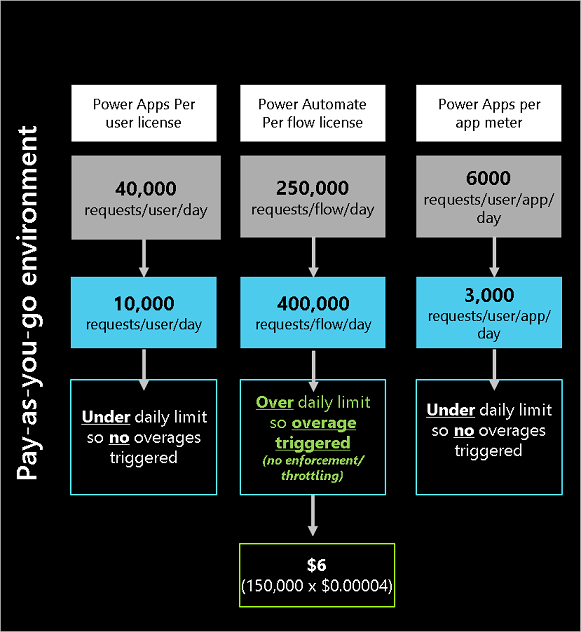
The following screenshot shows how overage actions are billed in a pay-as-you-go environment.
FAQs about action limits
Learn more about action limits and allocations in Action limits frequently asked questions.
Office 365 license questions
Here are some frequently asked questions about using Power Automate with an Office 365 license.
What Power Automate capabilities are included in Office 365 licenses?
Select Office 365 licenses include limited Power Automate use rights, so you can customize and extend Office 365 for personal productivity scenarios. For enterprise scenarios, Office recommends the Premium license.
The following Office 365 licenses include Power Automate capabilities:
- Office 365 E1
- Office 365 E3
- Office 365 E5
- Office 365 F1
- Office 365 F3
- Office 365 Business Basic
- Office 365 Business Standard
- Office 365 Business Premium
- Office 365 A1 for Faculty
- Office 365 A1 for Students
- Office 365 A1 Plus for Faculty
- Office 365 A1 Plus for Students
- Office 365 A3 for Faculty
- Office 365 A3 for Students
- Office 365 A3 for Student Use Benefit
- Office 365 A5 for Faculty
- Office 365 A5 for Students
- Office 365 A5 for Student Use Benefit
Which capabilities are included with seeded licenses?
The following table compares the Power Automate capabilities included with Office 365, Dynamics 365, Power Apps, and Windows licenses. In app context means the capability is included only when the flow uses the same data sources as the licensed application.
| Capability | Office 365 | Dynamics 365 | Power Apps | Windows |
|---|---|---|---|---|
| Automated, scheduled, and button cloud flows | Yes | Yes | Yes | No |
| Standard connectors | Yes | Yes | Yes | No |
| Premium connectors | Only in Dataverse for Teams environments | In app context | In app context | No |
| Business process flows | No | In app context | In app context | No |
| Custom connectors | No | In app context | In app context | No |
| On-premises data gateway | No | In app context | In app context | No |
| Attended RPA (desktop flows) | No | No | No | Default environment only |
| Unattended RPA | No | No | No | No |
| AI Builder capacity | No | No | No | No |
| Actions per day | 6,000 | 6,000 Team Member 40,000 Professional and Enterprise |
40,000 Premium 6,000 Per App |
Not applicable |
During the transition period, per-user entitlements still exist, but aren't the ones being applied yet. Instead, each cloud flow gets a single limit that everyone who runs it shares, not a limit created by combining individual users' entitlements. Learn more in Action limits and capacity questions.
Dynamics 365 license questions
The following questions are related to Dynamics 365 licensing and Power Automate use rights.
What Power Automate capabilities are included in Dynamics 365 licenses?
Dynamics 365 licenses include a limited set of Power Automate capabilities. See the capability comparison table.
When you use a Dynamics 365 license with Power Automate, your flows must run within the context of the Dynamics 365 application. This requirement means using the same data sources for triggers or actions as the Dynamics 365 application. If your flow uses standalone Power Automate actions that aren't related to the Dynamics 365 applications, you need to purchase standalone Power Automate licenses.
Example of Dynamics 365 license using Power Automate within a Dynamics 365 application context
Your organization connected Azure DevOps with Dynamics 365 CRM to escalate support cases and create work items to resolve problems faster. As part of the Dynamics 365 license, Power Automate rights are included for flows in the following scenarios:
- Read from or write to Azure DevOps.
- Use a built-in Dataverse trigger or action.
Example of Dynamics 365 license using Power Automate outside a Dynamics 365 application context
The same user (in the previous Dynamics 365 example) now also wants to use a flow that updates an Oracle database. This flow has the following properties:
- It's unrelated to the Dynamics 365 app.
- It doesn't interact in any way with the Dynamics 365 app or its data sources.
In this scenario, the user requires a standalone Power Automate license.
The following Dynamics 365 licenses include Power Automate capabilities:
- Dynamics 365 Sales Enterprise
- Dynamics 365 Sales Professional
- Dynamics 365 Customer Service Enterprise
- Dynamics 365 Customer Service Professional
- Dynamics 365 Field Service
- Dynamics 365 Project Operations
- Dynamics 365 Team Members
- Dynamics 365 Finance
- Dynamics 365 Supply Chain Management
- Dynamics 365 Commerce
- Dynamics 365 Human Resources
- Dynamics 365 Operations – Activity
- Dynamics 365 Business Central
- Dynamics 365 Business Central Team Members
Power Apps license questions
The following questions are related to Power Apps licensing and Power Automate use rights.
What Power Automate capabilities are included in Power Apps licenses?
A limited set of Power Automate capabilities are included as part of a Power Apps license. See the capability comparison table.
Power Apps licenses also add Dataverse database and file capacity to your tenant's overall capacity pool. Power Apps Premium adds 250 MB of Dataverse database capacity and 2 GB of Dataverse file capacity per license. Power Apps Per App adds 50 MB of Dataverse database capacity and 400 MB of Dataverse file capacity per license. This capacity isn't reserved for the app that earned it—any Dataverse consumption in the tenant draws from the same pool, including flows invoked by the app that handle complex objects. For example, if a flow parses a 100-page document and updates it, retaining the document in run history for troubleshooting consumes some of that tenant capacity.
Example of Power Automate use within an app created using Power Apps context
A user with a standalone Power Apps license runs an app that uses a SQL database as the data source. The app created using Power Apps also includes flows that do the following:
- Read from or write to a SQL database.
- Use a built-in Power Apps trigger or action—for example, to send a push notification to the app created using Power Apps.
Example of Power Automate use outside of an app created using Power Apps context
The same user (in the example above) now also wants to use a flow that updates an Oracle database and also has the following properties:
It's unrelated to the app created using Power Apps.
It doesn't interact in any way with the app created using Power Apps (or its data sources).
In this example, the flow created using Power Automate is being used outside the context of Power Apps so the user needs a standalone Power Automate license.
Second example of Power Automate use outside of an app created using Power Apps context
An environment has multiple apps. There are flows for data management that don't directly support the app but ensure the data quality. The user needs a standalone Power Automate license.
AI Builder license questions
Find global AI Builder licensing information in the following articles:
How do I license AI Builder actions within a Power Automate flow?
To add and run AI Builder actions within a flow, you need specific AI Builder licensing. AI Builder actions consume AI Builder credits, which you can get through Power Automate Premium licenses, other Power Platform Premium licenses, or primarily through the AI Builder capacity add-on.
You must have credits available in the flow's environment.
You can also use AI Builder trial.
How many credits are included in Power Automate Premium licenses?
Learn more about seeded credits in Get entitlement to AI Builder credits.
Enforcement
Why is my flow turned off?
Learn more in When premium flows are turned off due to license issues.
This article also provides information about the types of enforcement, and how to identify flows that need Premium licenses to avoid interruptions due to enforcement.
I have many environments. How can I get the flows that need my attention across tenant?
If your tenant has fewer than 500 environments, use the following script to get all the flows that need licenses across the tenant:
$environments = Get-AdminPowerAppEnvironment

$allFlows = @()
foreach ($env in $environments) {
    Write-Host "Getting flows at risk of suspension for environment $($env.DisplayName)..."
    $flows = Get-AdminFlowAtRiskOfSuspension -EnvironmentName $env.EnvironmentName
    Write-Host "Found $($flows.Count) flows at risk of suspension."
    $allFlows += $flows
}
Write all flows to a CSV file
$allFlows | Export-Csv -Path "flows.csv" -NoTypeInformation
Write-Host "All flows at risk of suspension written to flows.csv"
If your tenant has more than 500 environments, raise a support ticket so the support team can run the report for you.
I assigned a license but I still see the flow in flows that need my attention in PowerShell. Why?
After you assign a license or associate a flow to an app, edit and save the flow. It can take up to 24 hours for PowerShell to refresh and remove the flow from the PowerShell response.
I assigned a license but I still see the banners that my flows need attention in Power Automate portal. Why?
After you assign a license or associate a flow to an app, it might take up to seven days for the premium license to appear in the Power Automate portal. To refresh the latest license status, edit and save a flow.
How can I easily determine if my flow is in context of a Power Apps/Dynamics 365 app?
Is the flow created to support the Power Apps/Dynamics 365 app? Can you delete the flow if you delete the corresponding apps? Is the flow talking to the same data sources as the app? If so, the flow is in context.
How can I associate in-context flows to Power Apps and Dynamics 365 apps?
Flows that you create to support apps built with Power Apps and Dynamics 365 run within the context of the app. The flow uses the same data sources for triggers or actions as the app. If you create automated or scheduled cloud flows to support the app and they're in the context of the app, link the flow to the apps by using a PowerShell script. When you link the flow, you establish a dependency between the app and the flow so you can manage them together. If you delete or stop using the linked app, the flow turns off.
Makers can also associate their flows to apps from the Power Automate portal. Learn more in Associate flows to apps.
Power Automate capabilities included with per app plans
A Power Apps per app plan gives users the ability to run Power Automate flows that use premium features. The flows need to be triggered by Power Apps or associated to an app through PowerShell or the Power Automate portal.
Learn more in Associate in context flows to an app.
Multiplexing
Multiplexing refers to the use of hardware or software that a customer uses to pool connections, reroute information, or reduce the number of users that directly access or use Power Apps, Power Automate, and Microsoft Copilot Studio.
Is it recommended to use multiplexing to reduce the number of licenses?
Using multiplexing as a mechanism to reduce the number of licenses to purchase is a license violation. Learn more in the multiplexing guidance in Client Access License (CAL) Requirements.
Here are a few examples of what multiplexing is or isn't:
If the premium flow only moves data from Dataverse into a shared location or sends an email to colleagues, it doesn't fall under multiplexing because the users consume the data, rather than trigger the flow.
If a premium flow triggers when a new item is added to a SharePoint list, saves the details in Dataverse, and then sends an email to the owner of the flow, multiple people can upload items into the list but the email is only sent to the owner. In this case, only the owner needs a license because they're the only person who gets value from the flow.
If the flow mentioned in the previous bullet sends an email to the user who uploads the item, both the owner and the user need a Premium license. In this case, the user indirectly triggers the flow (by uploading an item into SharePoint) and gets value from the flow in the form of an email. Failure to license all the users falls under multiplexing.
I have multiple flows running under a shared service account. What licenses do I need?
This guidance applies to flows that run under a service account as the flow owner or run-only user. Flows that use a service account only as a connection or co-owner aren't affected.
To avoid multiplexing:
- Standard connectors only. You don't need to purchase or assign a license. Power Automate Free automatically covers cloud flow creation and use for every work or school account in the tenant.
- Premium features (premium connectors, robotic process automation, custom connectors, on-premises gateway, business process flows). If a small, fixed set of users share the account, license those users and the service account. If many users share the account, assign a Process license to the flow instead, so users added later are automatically compliant.
- Manually triggered, app-triggered, or Dataverse "Run as user" flows. Every user who runs the flow needs a Premium license, or the flow needs a Process license. Learn more in Who needs to purchase a Premium license?.
- Premium flow in the context of a Power Apps or Dynamics 365 app, where the flow shares the app's data sources. Every user who runs the flow, including through the service account, needs a Power Apps or Dynamics 365 license to use the app. If they don't have one, they need Power Automate user licenses instead. Assigning a Process license to the flow removes the need for a separate Power Automate user license, but doesn't replace the Power Apps or Dynamics 365 app license.
Assigning a single Power Automate Premium license to a service account that many users share is multiplexing, and the flow isn't compliant.
Note
Microsoft recommends using a Microsoft Entra service principal as the flow owner rather than a shared service account. Shared credentials are a security risk and make it difficult to track who changed a flow. If you do use a service account, grant it only the permissions the task requires and limit who has access to it.
This guidance isn't hard enforcement. Admins are responsible for licensing flows correctly to stay compliant.
There's a premium flow that sends approval requests to a set of users and then waits for the users to approve or reject the request before it continues running. Do the approvers need a Premium license?
Users who respond to approval requests don't need a Premium license.
Automated flow: User builds a flow that triggers when an item is added to a list created using Microsoft Lists and updates a SQL database (Premium). Multiple people can add items to the list created using Microsoft Lists. Do users need a Premium license?
The flow runs in the context of the owner's license for automated or scheduled flows and the invoking user's license for instant, Power Apps, or Dataverse-triggered flows. So, the person who added the item to the list created using Microsoft Lists doesn't need a Premium license.
We have an instant flow with run-only users and it uses premium connectors. The maker shares that flow with their team and allows them to run that flow. Does everyone need a Premium license?
Everyone who invokes the flow needs a Premium license because it's an instant flow.
I have a child flow that has premium connectors and it's invoked by multiple parent flows that don't have premium connectors. Do all parent flows need to be licensed, or is licensing the child flow enough?
You can assign a Process license directly to the child flow. The parent flows don't need Process licenses only because they call the licensed child flow. However, if a parent flow also uses a premium connector, its owner must have a Premium license or you must assign Process capacity to that parent flow.
A Process license assigned to a parent flow doesn't automatically cover its child flows. To share Process capacity instead of licensing each flow directly, explicitly add the parent and child flows to the same flow group.
My flow uses connections from multiple users. Do I need to license all of them? Who needs a license is independent from whose connections are used in the flow. Automated or scheduled flows always run under the owner's license and manual flows or apps always run under the user who triggers the flow.