Observação
O acesso a essa página exige autorização. Você pode tentar entrar ou alterar diretórios.
O acesso a essa página exige autorização. Você pode tentar alterar os diretórios.
Este exemplo mostra como criar uma forma usando a PathGeometry classe. PathGeometry os objetos são compostos por um ou mais PathFigure objetos; cada PathFigure um representa uma "figura" ou forma diferente. Cada PathFigure é composto por um ou mais PathSegment objetos, cada um representando uma parte conectada da forma ou figura. Os tipos de segmento incluem LineSegment, ArcSegmente BezierSegment.
Exemplo
O exemplo a seguir usa um PathGeometry para criar um triângulo. O PathGeometry elemento é exibido usando um Path elemento.
<Path Stroke="Black" StrokeThickness="1">
  <Path.Data>
    <PathGeometry>
      <PathGeometry.Figures>
        <PathFigureCollection>
          <PathFigure IsClosed="True" StartPoint="10,100">
            <PathFigure.Segments>
              <PathSegmentCollection>
                <LineSegment Point="100,100" />
                <LineSegment Point="100,50" />
              </PathSegmentCollection>
            </PathFigure.Segments>
          </PathFigure>
        </PathFigureCollection>
      </PathGeometry.Figures>
    </PathGeometry>
  </Path.Data>
</Path>
A ilustração a seguir mostra a forma criada no exemplo anterior.
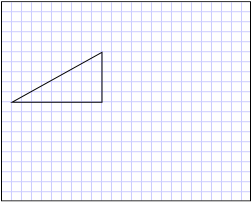
Um triângulo criado com um PathGeometry
O exemplo anterior mostrou como criar uma forma relativamente simples, um triângulo. Um PathGeometry também pode ser usado para criar formas mais complexas, incluindo arcos e curvas. Para obter exemplos, consulte Criar um arco elíptico, criar uma curva de bézier cúbica e criar uma curva de bézier quadrático.
Este exemplo faz parte de uma amostra maior; para obter o exemplo completo, consulte o exemplo de geometrias .
Consulte também
- Path
- GeometryDrawing
- Visão geral da geometria
- Exemplo de geometrias
Colaborar conosco no GitHub
A fonte deste conteúdo pode ser encontrada no GitHub, onde você também pode criar e revisar problemas e solicitações de pull. Para obter mais informações, confira o nosso guia para colaboradores.

.NET Desktop feedback