Idioma
Observação
O acesso a essa página exige autorização. Você pode tentar entrar ou alterar diretórios.
O acesso a essa página exige autorização. Você pode tentar alterar os diretórios.
APIs importantes: classe Windows.UI.Xaml.Controls.Frame , classe Windows.UI.Xaml.Controls.Page , namespace Windows.UI.Xaml.Navigation , OnNavigatedTo
Para implementar a navegação para trás em seu aplicativo, coloque um botão voltar no canto superior esquerdo da interface do aplicativo. O usuário espera que o botão Voltar navegue até o local anterior no histórico de navegação do aplicativo. Por padrão, o controle Frame registra ações de navegação em backStack e ForwardStack. No entanto, você pode modificar quais ações de navegação são adicionadas ao histórico de navegação.
Para a maioria dos aplicativos que têm várias páginas, recomendamos que você use o controle NavigationView para fornecer a estrutura de navegação para seu aplicativo. Ele se adapta a uma variedade de tamanhos de tela e dá suporte aos estilos de navegação superior e à esquerda . Se o aplicativo usar o controle NavigationView, você poderá usar o interno botão voltar do NavigationView.
Observação
As diretrizes e exemplos neste artigo devem ser usados quando você implementa a navegação sem usar o NavigationView controle. Se você usar NavigationView, essas informações fornecerão conhecimento básico, mas você deve usar as diretrizes e exemplos específicos no artigo NavigationView .
Botão Voltar
Para criar um botão de voltar, use o controle de botão com o estilo NavigationBackButtonNormalStyle, e coloque o botão no canto superior esquerdo da interface do usuário do seu aplicativo (para mais detalhes, consulte os exemplos de código XAML abaixo).
botão Voltar 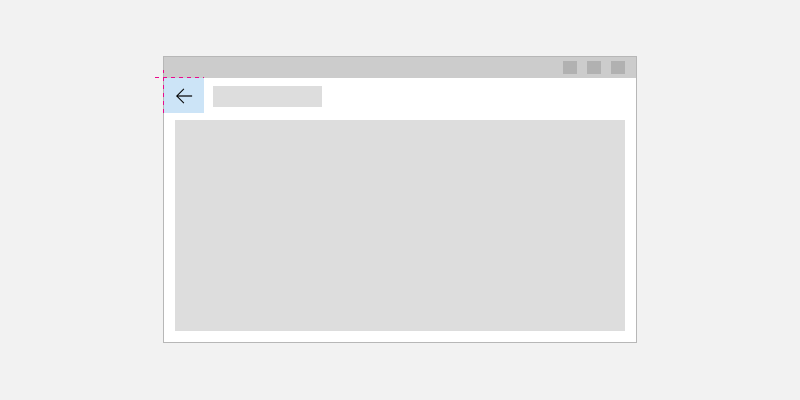
<Page>
    <Grid>
        <Grid.RowDefinitions>
            <RowDefinition Height="Auto"/>
            <RowDefinition Height="*"/>
        </Grid.RowDefinitions>

        <Button x:Name="BackButton"
                Style="{StaticResource NavigationBackButtonNormalStyle}"
                IsEnabled="{x:Bind Frame.CanGoBack, Mode=OneWay}"
                ToolTipService.ToolTip="Back"/>

    </Grid>
</Page>
Se o aplicativo tiver um CommandBar superior, coloque o Button controle na CommandBar.Content área.
<Page>
    <Grid>
        <Grid.RowDefinitions>
            <RowDefinition Height="Auto"/>
            <RowDefinition Height="*"/>
        </Grid.RowDefinitions>

        <CommandBar>
            <CommandBar.Content>
                <Button x:Name="BackButton"
                        Style="{StaticResource NavigationBackButtonNormalStyle}"
                        IsEnabled="{x:Bind Frame.CanGoBack, Mode=OneWay}"
                        ToolTipService.ToolTip="Back"
                        VerticalAlignment="Top"/>
            </CommandBar.Content>

            <AppBarButton Icon="Delete" Label="Delete"/>
            <AppBarButton Icon="Save" Label="Save"/>
        </CommandBar>
    </Grid>
</Page>
Para minimizar os elementos da interface do usuário que se movem em seu aplicativo, mostre um botão voltar desabilitado quando não houver nada no backstack (IsEnabled="{x:Bind Frame.CanGoBack, Mode=OneWay}"). No entanto, se você espera que seu aplicativo nunca tenha um backstack, não será necessário exibir o botão Voltar.
estados do botão Voltar 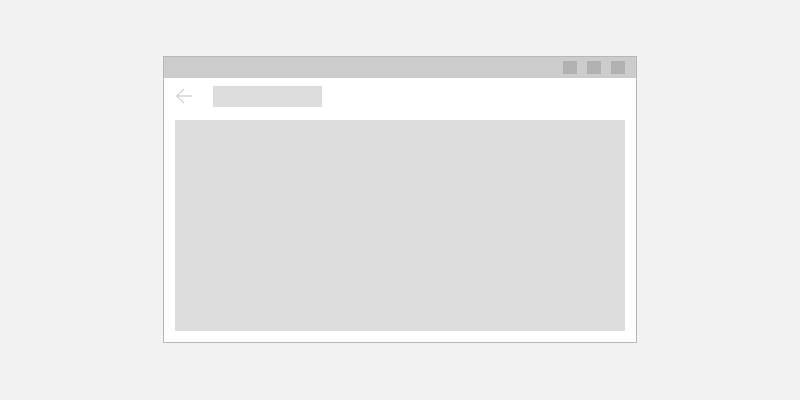
Otimizar para diferentes dispositivos e entradas
Essas diretrizes de design de navegação de retrocesso são aplicáveis a todos os dispositivos, mas seus usuários se beneficiarão se você otimizar para diferentes formatos e métodos de entrada. Recomendamos tratar os seguintes eventos (além do clique no botão Voltar) para dar suporte às entradas mais comuns para navegação de volta.
| Acontecimento | Entrada |
|---|---|
| CoreDispatcher.AcceleratorKeyActivated | Alt+Seta para a esquerda, VirtualKey.GoBack |
| SystemNavigationManager.BackRequested | Windows + Backspace, Botão B do controle Botão voltar do Modo Tablet, Botão voltar do hardware |
| CoreWindow.PointerPressed |
VirtualKey.XButton1 (Como o botão voltar encontrado em alguns camundongos.) |
Exemplos de código
Esta seção demonstra como lidar com a navegação de volta usando uma variedade de entradas.
Botão Voltar e navegação para trás
No mínimo, você precisa lidar com o evento do botão voltar Click e fornecer o código para executar a navegação para trás. Você também deve desabilitar o botão voltar quando o backstack estiver vazio.
Este código de exemplo demonstra como implementar o comportamento de navegação para trás com um botão de voltar. O código responde ao evento Button Click para navegação. O botão Voltar está habilitado ou desabilitado no método OnNavigatedTo , que é chamado ao navegar para uma nova página.
O código é mostrado para MainPage, mas você adiciona esse código a cada página que dá suporte à navegação de volta. Para evitar a duplicação, você pode colocar o código relacionado à navegação na classe App na página App.xaml.* code-behind.
<!-- MainPage.xaml -->
<Page x:Class="AppName.MainPage">
...
        <Button x:Name="BackButton" Click="BackButton_Click"
                Style="{StaticResource NavigationBackButtonNormalStyle}"
                IsEnabled="{x:Bind Frame.CanGoBack, Mode=OneWay}"
                ToolTipService.ToolTip="Back"/>
...
<Page/>
Código de fundo
// MainPage.xaml.cs
private void BackButton_Click(object sender, RoutedEventArgs e)
{
    App.TryGoBack();
}

// App.xaml.cs
//
// Add this method to the App class.
public static bool TryGoBack()
{
    Frame rootFrame = Window.Current.Content as Frame;
    if (rootFrame.CanGoBack)
    {
        rootFrame.GoBack();
        return true;
    }
    return false;
}
// MainPage.h
#include "App.h"

namespace winrt::AppName::implementation
{
    struct MainPage : MainPageT<MainPage>
    {
        MainPage();

        void MainPage::BackButton_Click(IInspectable const&, RoutedEventArgs const&)
        {
            App::TryGoBack();
        }
    };
}

// App.h
#include "winrt/Windows.UI.Core.h"
#include "winrt/Windows.System.h"
#include "winrt/Windows.UI.Input.h"
#include "winrt/Windows.UI.Xaml.Input.h"

using namespace winrt;
using namespace Windows::Foundation;
using namespace Windows::UI::Core;
using namespace Windows::UI::Input;
using namespace Windows::UI::Xaml;
using namespace Windows::UI::Xaml::Controls;

struct App : AppT<App>
{
    App();

    // ...

    // Perform back navigation if possible.
    static bool TryGoBack()
    {
        Frame rootFrame{ nullptr };
        auto content = Window::Current().Content();
        if (content)
        {
            rootFrame = content.try_as<Frame>();
            if (rootFrame.CanGoBack())
            {
                rootFrame.GoBack();
                return true;
            }
        }
        return false;
    }
};
Chaves de acesso de suporte
O suporte ao teclado é essencial para garantir que seus aplicativos funcionem muito bem para usuários com diferentes habilidades, habilidades e expectativas. Recomendamos que você dê suporte a teclas de acelerador para navegação para frente e para trás, pois os usuários que dependem delas esperarão ambas. Para obter mais informações, consulte interações de teclado e aceleradores de teclado.
As teclas de acelerador comuns para navegação para frente e para trás são Alt+Seta para a direita (para frente) e Alt+Seta para a esquerda (para trás). Para dar suporte a essas chaves para navegação, manipule o evento CoreDispatcher.AcceleratorKeyActivated . Você manipula um evento que está diretamente na janela (em vez de um elemento na página) para que o aplicativo responda às teclas de acelerador, independentemente de qual elemento tenha foco.
Adicione o código à classe App para dar suporte a teclas de atalho e navegação para frente, conforme mostrado aqui. (Isso pressupõe que o código anterior para suportar o botão voltar já foi adicionado.) Você pode ver o código App ao final da seção de exemplos de código.
// App.xaml.cs
// Add event handler in OnLaunched.
protected override void OnLaunched(LaunchActivatedEventArgs e)
{
    // ...
    // Do not repeat app initialization when the Window already has content,
    // just ensure that the window is active
    if (rootFrame == null)
    {
        // ...
        // rootFrame.NavigationFailed += OnNavigationFailed;

        // Add support for accelerator keys.
        // Listen to the window directly so the app responds
        // to accelerator keys regardless of which element has focus.
        Window.Current.CoreWindow.Dispatcher.AcceleratorKeyActivated +=
            CoreDispatcher_AcceleratorKeyActivated;

        // ...

    }
}

// ...

// Add this code after the TryGoBack method added previously.
// Perform forward navigation if possible.
private bool TryGoForward()
{
    Frame rootFrame = Window.Current.Content as Frame;
    if (rootFrame.CanGoForward)
    {
        rootFrame.GoForward();
        return true;
    }
    return false;
}

// Invoked on every keystroke, including system keys such as Alt key combinations.
// Used to detect keyboard navigation between pages even when the page itself
// doesn't have focus.
private void CoreDispatcher_AcceleratorKeyActivated(CoreDispatcher sender, AcceleratorKeyEventArgs e)
{
    // When Alt+Left are pressed navigate back.
    // When Alt+Right are pressed navigate forward.
    if (e.EventType == CoreAcceleratorKeyEventType.SystemKeyDown
        && (e.VirtualKey == VirtualKey.Left || e.VirtualKey == VirtualKey.Right)
        && e.KeyStatus.IsMenuKeyDown == true
        && !e.Handled)
    {
        if (e.VirtualKey == VirtualKey.Left)
        {
            e.Handled = TryGoBack();
        }
        else if (e.VirtualKey == VirtualKey.Right)
        {
            e.Handled = TryGoForward();
        }
    }
}
// App.cpp
void App::OnLaunched(LaunchActivatedEventArgs const& e)
{
    // ...
    // Do not repeat app initialization when the Window already has content,
    // just ensure that the window is active
    if (rootFrame == nullptr)
    {
        // ...
        // rootFrame.NavigationFailed({ this, &App::OnNavigationFailed });

        // Add support for accelerator keys.
        // Listen to the window directly so the app responds
        // to accelerator keys regardless of which element has focus.
        Window::Current().CoreWindow().Dispatcher().
            AcceleratorKeyActivated({ this, &App::CoreDispatcher_AcceleratorKeyActivated });

        // ...
    }
}

// App.h
struct App : AppT<App>
{
    App();

    // ...
    // Add this code after the TryGoBack method added previously.

private:
    // Perform forward navigation if possible.
    bool TryGoForward()
    {
        Frame rootFrame{ nullptr };
        auto content = Window::Current().Content();
        if (content)
        {
            rootFrame = content.try_as<Frame>();
            if (rootFrame.CanGoForward())
            {
                rootFrame.GoForward();
                return true;
            }
        }
        return false;
    }


    // Invoked on every keystroke, including system keys such as Alt key combinations.
    // Used to detect keyboard navigation between pages even when the page itself
    // doesn't have focus.
    void CoreDispatcher_AcceleratorKeyActivated(CoreDispatcher const& /* sender */, AcceleratorKeyEventArgs const& e)
    {
        // When Alt+Left are pressed navigate back.
        // When Alt+Right are pressed navigate forward.
        if (e.EventType() == CoreAcceleratorKeyEventType::SystemKeyDown
            && (e.VirtualKey() == Windows::System::VirtualKey::Left || e.VirtualKey() == Windows::System::VirtualKey::Right)
            && e.KeyStatus().IsMenuKeyDown
            && !e.Handled())
        {
            if (e.VirtualKey() == Windows::System::VirtualKey::Left)
            {
                e.Handled(TryGoBack());
            }
            else if (e.VirtualKey() == Windows::System::VirtualKey::Right)
            {
                e.Handled(TryGoForward());
            }
        }
    }
};
Manipular solicitações de retorno do sistema
Os dispositivos Windows fornecem várias maneiras pelas quais o sistema pode passar uma solicitação de navegação de volta para seu aplicativo. Algumas maneiras comuns são o botão B em um gamepad, a tecla Windows + atalho de tecla backspace ou o botão voltar do sistema no Modo Tablet; as opções exatas disponíveis dependem do dispositivo.
Você pode dar suporte a solicitações de retorno fornecidas por teclas de retorno de hardware e software do sistema ao registrar um ouvinte para o evento SystemNavigationManager.BackRequested.
Este é o código adicionado à classe App para suportar solicitações de retorno do sistema. (Isso pressupõe que o código anterior para suportar o botão voltar já foi adicionado.) Você pode ver o código App ao final da seção de exemplos de código.
// App.xaml.cs
// Add event handler in OnLaunced.
protected override void OnLaunched(LaunchActivatedEventArgs e)
{
    // ...
    // Do not repeat app initialization when the Window already has content,
    // just ensure that the window is active
    if (rootFrame == null)
    {
        // ...
        // Add support for accelerator keys.
        // ... (Previously added code.)

        // Add support for system back requests.
        SystemNavigationManager.GetForCurrentView().BackRequested
            += System_BackRequested;

        // ...

    }
}

// ...
// Handle system back requests.
private void System_BackRequested(object sender, BackRequestedEventArgs e)
{
    if (!e.Handled)
    {
        e.Handled = TryGoBack();
    }
}
// App.cpp
void App::OnLaunched(LaunchActivatedEventArgs const& e)
{
    // ...
    // Do not repeat app initialization when the Window already has content,
    // just ensure that the window is active
    if (rootFrame == nullptr)
    {
        // ...
        // Add support for accelerator keys.
        // ... (Previously added code.)

        // Add support for system back requests.
        SystemNavigationManager::GetForCurrentView().
            BackRequested({ this, &App::System_BackRequested });

        // ...
    }
}

// App.h
struct App : AppT<App>
{
    App();

    // ...

private:
    // ...

    // Handle system back requests.
    void System_BackRequested(IInspectable const& /* sender */, BackRequestedEventArgs const& e)
    {
        if (!e.Handled())
        {
            e.Handled(TryGoBack());
        }
    }
};
Comportamento de retorno do sistema para compatibilidade com versões anteriores
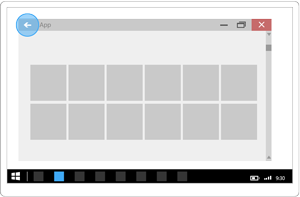
Anteriormente, os aplicativos UWP usavam SystemNavigationManager.AppViewBackButtonVisibility para mostrar ou ocultar um botão voltar do sistema para navegação para trás. (Este botão dispara um evento SystemNavigationManager.BackRequested.) Essa API continuará com suporte para garantir a compatibilidade retroativa, mas não recomendamos mais usar o botão voltar proporcionado por AppViewBackButtonVisibility. Em vez disso, você deve fornecer seu próprio botão voltar no aplicativo, conforme descrito neste artigo.
Se você continuar a usar AppViewBackButtonVisibility, a interface do usuário do sistema irá renderizar o botão voltar do sistema dentro da barra de título. (A aparência e as interações do usuário para o botão voltar não são alteradas em relação aos builds anteriores.)
Manipular botões de navegação do mouse
Alguns mouses fornecem botões de navegação de hardware para navegação para frente e para trás. Você pode suportar esses botões de mouse lidando com o evento CoreWindow.PointerPressed e fazendo a verificação de IsXButton1Pressed (back) ou IsXButton2Pressed (forward).
Aqui está o código adicionado à classe App para dar suporte à navegação por botões do mouse. (Isso pressupõe que o código anterior para suportar o botão voltar já foi adicionado.) Você pode ver o código App ao final da seção de exemplos de código.
// App.xaml.cs
// Add event handler in OnLaunced.
protected override void OnLaunched(LaunchActivatedEventArgs e)
{
    // ...
    // Do not repeat app initialization when the Window already has content,
    // just ensure that the window is active
    if (rootFrame == null)
    {
        // ...
        // Add support for system back requests.
        // ... (Previously added code.)

        // Add support for mouse navigation buttons.
        Window.Current.CoreWindow.PointerPressed += CoreWindow_PointerPressed;

        // ...

    }
}

// ...

// Handle mouse back button.
private void CoreWindow_PointerPressed(CoreWindow sender, PointerEventArgs e)
{
    // For this event, e.Handled arrives as 'true'.
    if (e.CurrentPoint.Properties.IsXButton1Pressed)
    {
        e.Handled = !TryGoBack();
    }
    else if (e.CurrentPoint.Properties.IsXButton2Pressed)
    {
        e.Handled = !TryGoForward();
    }
}
// App.cpp
void App::OnLaunched(LaunchActivatedEventArgs const& e)
{
    // ...
    // Do not repeat app initialization when the Window already has content,
    // just ensure that the window is active
    if (rootFrame == nullptr)
    {
        // ...
        // Add support for system back requests.
        // ... (Previously added code.)

        // Add support for mouse navigation buttons.
        Window::Current().CoreWindow().
            PointerPressed({ this, &App::CoreWindow_PointerPressed });

        // ...
    }
}

// App.h
struct App : AppT<App>
{
    App();

    // ...

private:
    // ...

    // Handle mouse forward and back buttons.
    void CoreWindow_PointerPressed(CoreWindow const& /* sender */, PointerEventArgs const& e)
    {
        // For this event, e.Handled arrives as 'true'.
        if (e.CurrentPoint().Properties().IsXButton1Pressed())
        {
            e.Handled(!TryGoBack());
        }
        else if (e.CurrentPoint().Properties().IsXButton2Pressed())
        {
            e.Handled(!TryGoForward());
        }
    }
};
Todo o código adicionado à classe App
// App.xaml.cs
//
// (Add event handlers in OnLaunched override.)
protected override void OnLaunched(LaunchActivatedEventArgs e)
{
    // ...
    // Do not repeat app initialization when the Window already has content,
    // just ensure that the window is active
    if (rootFrame == null)
    {
        // ...
        // rootFrame.NavigationFailed += OnNavigationFailed;

        // Add support for accelerator keys.
        // Listen to the window directly so the app responds
        // to accelerator keys regardless of which element has focus.
        Window.Current.CoreWindow.Dispatcher.AcceleratorKeyActivated +=
            CoreDispatcher_AcceleratorKeyActivated;

        // Add support for system back requests.
        SystemNavigationManager.GetForCurrentView().BackRequested
            += System_BackRequested;

        // Add support for mouse navigation buttons.
        Window.Current.CoreWindow.PointerPressed += CoreWindow_PointerPressed;

        // ...

    }
}

// ...

// (Add these methods to the App class.)
public static bool TryGoBack()
{
    Frame rootFrame = Window.Current.Content as Frame;
    if (rootFrame.CanGoBack)
    {
        rootFrame.GoBack();
        return true;
    }
    return false;
}

// Perform forward navigation if possible.
private bool TryGoForward()
{
    Frame rootFrame = Window.Current.Content as Frame;
    if (rootFrame.CanGoForward)
    {
        rootFrame.GoForward();
        return true;
    }
    return false;
}

// Invoked on every keystroke, including system keys such as Alt key combinations.
// Used to detect keyboard navigation between pages even when the page itself
// doesn't have focus.
private void CoreDispatcher_AcceleratorKeyActivated(CoreDispatcher sender, AcceleratorKeyEventArgs e)
{
    // When Alt+Left are pressed navigate back.
    // When Alt+Right are pressed navigate forward.
    if (e.EventType == CoreAcceleratorKeyEventType.SystemKeyDown
        && (e.VirtualKey == VirtualKey.Left || e.VirtualKey == VirtualKey.Right)
        && e.KeyStatus.IsMenuKeyDown == true
        && !e.Handled)
    {
        if (e.VirtualKey == VirtualKey.Left)
        {
            e.Handled = TryGoBack();
        }
        else if (e.VirtualKey == VirtualKey.Right)
        {
            e.Handled = TryGoForward();
        }
    }
}

// Handle system back requests.
private void System_BackRequested(object sender, BackRequestedEventArgs e)
{
    if (!e.Handled)
    {
        e.Handled = TryGoBack();
    }
}

// Handle mouse back button.
private void CoreWindow_PointerPressed(CoreWindow sender, PointerEventArgs e)
{
    // For this event, e.Handled arrives as 'true'.
    if (e.CurrentPoint.Properties.IsXButton1Pressed)
    {
        e.Handled = !TryGoBack();
    }
    else if (e.CurrentPoint.Properties.IsXButton2Pressed)
    {
        e.Handled = !TryGoForward();
    }
}
// App.cpp
void App::OnLaunched(LaunchActivatedEventArgs const& e)
{
    // ...
    // Do not repeat app initialization when the Window already has content,
    // just ensure that the window is active
    if (rootFrame == nullptr)
    {
        // ...
        // rootFrame.NavigationFailed({ this, &App::OnNavigationFailed });

        // Add support for accelerator keys.
        // Listen to the window directly so the app responds
        // to accelerator keys regardless of which element has focus.
        Window::Current().CoreWindow().Dispatcher().
            AcceleratorKeyActivated({ this, &App::CoreDispatcher_AcceleratorKeyActivated });

        // Add support for system back requests.
        SystemNavigationManager::GetForCurrentView().
            BackRequested({ this, &App::System_BackRequested });

        // Add support for mouse navigation buttons.
        Window::Current().CoreWindow().
            PointerPressed({ this, &App::CoreWindow_PointerPressed });

        // ...
    }
}

// App.h
#include "winrt/Windows.UI.Core.h"
#include "winrt/Windows.System.h"
#include "winrt/Windows.UI.Input.h"
#include "winrt/Windows.UI.Xaml.Input.h"

using namespace winrt;
using namespace Windows::Foundation;
using namespace Windows::UI::Core;
using namespace Windows::UI::Input;
using namespace Windows::UI::Xaml;
using namespace Windows::UI::Xaml::Controls;

struct App : AppT<App>
{
    App();

    // ...

    // Perform back navigation if possible.
    static bool TryGoBack()
    {
        Frame rootFrame{ nullptr };
        auto content = Window::Current().Content();
        if (content)
        {
            rootFrame = content.try_as<Frame>();
            if (rootFrame.CanGoBack())
            {
                rootFrame.GoBack();
                return true;
            }
        }
        return false;
    }
private:
    // Perform forward navigation if possible.
    bool TryGoForward()
    {
        Frame rootFrame{ nullptr };
        auto content = Window::Current().Content();
        if (content)
        {
            rootFrame = content.try_as<Frame>();
            if (rootFrame.CanGoForward())
            {
                rootFrame.GoForward();
                return true;
            }
        }
        return false;
    }

    // Invoked on every keystroke, including system keys such as Alt key combinations.
    // Used to detect keyboard navigation between pages even when the page itself
    // doesn't have focus.
    void CoreDispatcher_AcceleratorKeyActivated(CoreDispatcher const& /* sender */, AcceleratorKeyEventArgs const& e)
    {
        // When Alt+Left are pressed navigate back.
        // When Alt+Right are pressed navigate forward.
        if (e.EventType() == CoreAcceleratorKeyEventType::SystemKeyDown
            && (e.VirtualKey() == Windows::System::VirtualKey::Left || e.VirtualKey() == Windows::System::VirtualKey::Right)
            && e.KeyStatus().IsMenuKeyDown
            && !e.Handled())
        {
            if (e.VirtualKey() == Windows::System::VirtualKey::Left)
            {
                e.Handled(TryGoBack());
            }
            else if (e.VirtualKey() == Windows::System::VirtualKey::Right)
            {
                e.Handled(TryGoForward());
            }
        }
    }

    // Handle system back requests.
    void System_BackRequested(IInspectable const& /* sender */, BackRequestedEventArgs const& e)
    {
        if (!e.Handled())
        {
            e.Handled(TryGoBack());
        }
    }

    // Handle mouse forward and back buttons.
    void CoreWindow_PointerPressed(CoreWindow const& /* sender */, PointerEventArgs const& e)
    {
        // For this event, e.Handled arrives as 'true'.
        if (e.CurrentPoint().Properties().IsXButton1Pressed())
        {
            e.Handled(!TryGoBack());
        }
        else if (e.CurrentPoint().Properties().IsXButton2Pressed())
        {
            e.Handled(!TryGoForward());
        }
    }
};
Retomando
Quando o usuário alterna para outro aplicativo e retorna para seu aplicativo, recomendamos retornar à última página no histórico de navegação.