Notă
Accesul la această pagină necesită autorizare. Puteți încerca să vă conectați sau să modificați directoarele.
Accesul la această pagină necesită autorizare. Puteți încerca să modificați directoarele.
In this article, you learn how to integrate Trakopolis with Microsoft Entra ID. Integrating Trakopolis with Microsoft Entra ID provides you with the following benefits:
- You can control in Microsoft Entra ID who has access to Trakopolis.
- You can enable your users to be automatically signed-in to Trakopolis (Single Sign-On) with their Microsoft Entra accounts.
- You can manage your accounts in one central location.
If you want to know more details about SaaS app integration with Microsoft Entra ID, see What is application access and single sign-on with Microsoft Entra ID. If you don't have an Azure subscription, create a free account before you begin.
Prerequisites
The scenario outlined in this article assumes that you already have the following prerequisites:
- A Microsoft Entra user account with an active subscription. If you don't already have one, you can Create an account for free.
- One of the following roles:
- Trakopolis single sign-on enabled subscription
Scenario description
In this article, you configure and test Microsoft Entra single sign-on in a test environment.
- Trakopolis supports SP initiated SSO
Adding Trakopolis from the gallery
To configure the integration of Trakopolis into Microsoft Entra ID, you need to add Trakopolis from the gallery to your list of managed SaaS apps.
To add Trakopolis from the gallery, perform the following steps:
Sign in to the Microsoft Entra admin center as at least a Cloud Application Administrator.
Browse to Entra ID > Enterprise apps > New application.
In the search box, type Trakopolis, select Trakopolis from result panel then select Add button to add the application.
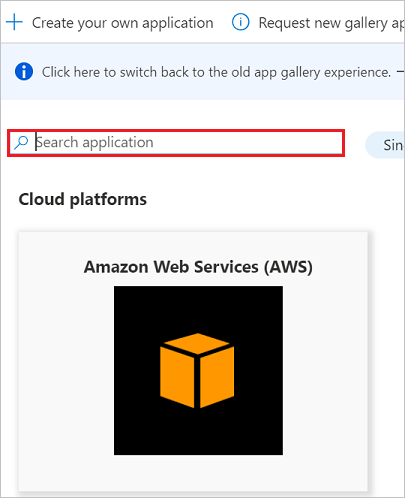
Configure and test Microsoft Entra single sign-on
In this section, you configure and test Microsoft Entra single sign-on with Trakopolis based on a test user called Britta Simon. For single sign-on to work, a link relationship between a Microsoft Entra user and the related user in Trakopolis needs to be established.
To configure and test Microsoft Entra single sign-on with Trakopolis, you need to complete the following building blocks:
- Configure Microsoft Entra Single Sign-On - to enable your users to use this feature.
- Configure Trakopolis Single Sign-On - to configure the Single Sign-On settings on application side.
- Create a Microsoft Entra test user - to test Microsoft Entra single sign-on with Britta Simon.
- Assign the Microsoft Entra test user - to enable Britta Simon to use Microsoft Entra single sign-on.
- Create Trakopolis test user - to have a counterpart of Britta Simon in Trakopolis that's linked to the Microsoft Entra representation of user.
- Test single sign-on - to verify whether the configuration works.
Configure Microsoft Entra single sign-on
In this section, you enable Microsoft Entra single sign-on.
To configure Microsoft Entra single sign-on with Trakopolis, perform the following steps:
Sign in to the Microsoft Entra admin center as at least a Cloud Application Administrator.
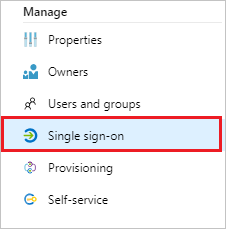
Browse to Entra ID > Enterprise apps > Trakopolis application integration page, select Single sign-on.
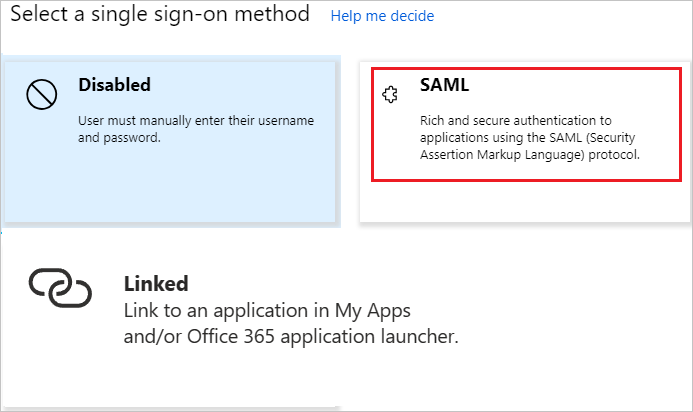
On the Select a Single sign-on method dialog, select SAML/WS-Fed mode to enable single sign-on.
On the Set up Single Sign-On with SAML page, select Edit icon to open Basic SAML Configuration dialog.
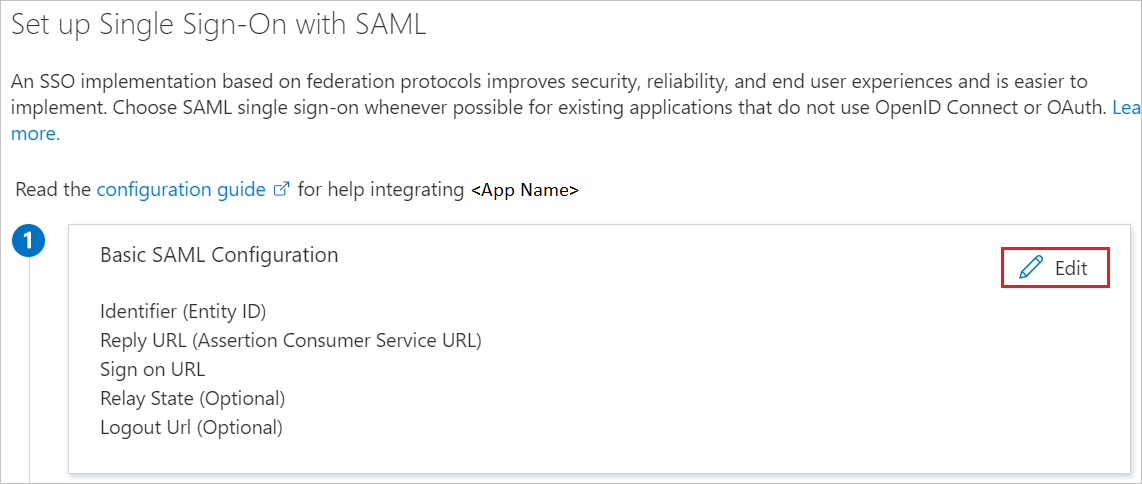
On the Basic SAML Configuration section, perform the following steps:
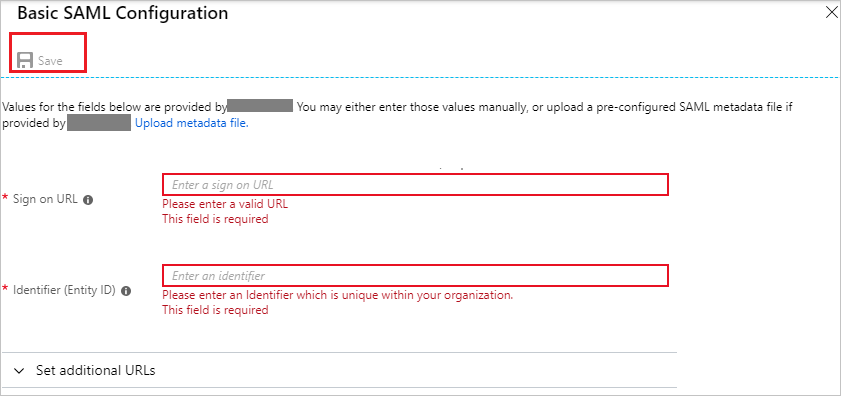
a. In the Sign on URL text box, type a URL using the following pattern:
https://<company name>.trakopolis.com/b. In the Identifier (Entity ID) text box, type a URL using the following pattern:
https://<company name>.trakopolis.comNote
These values aren't real. Update these values with the actual Sign on URL and Identifier. Contact Trakopolis Client support team to get these values. You can also refer to the patterns shown in the Basic SAML Configuration section.
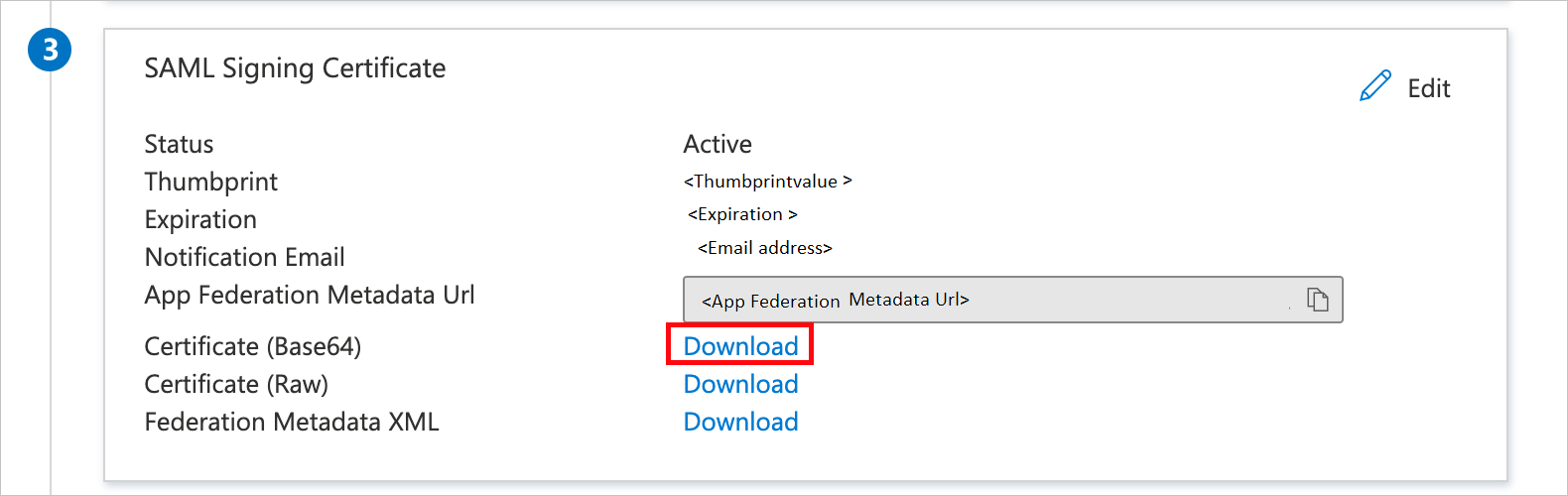
On the Set up Single Sign-On with SAML page, in the SAML Signing Certificate section, select Download to download the Certificate (Base64) from the given options as per your requirement and save it on your computer.
On the Set up Trakopolis section, copy the appropriate URL(s) as per your requirement.
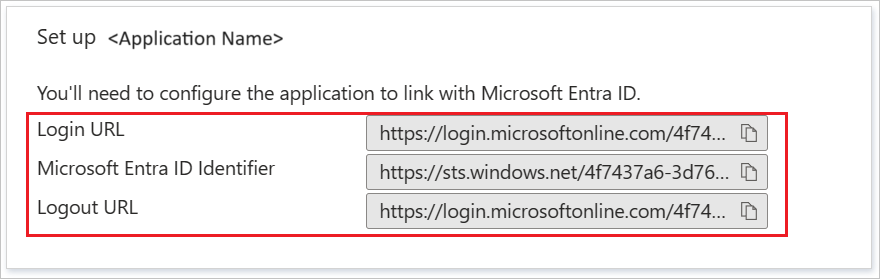
a. Login URL
b. Microsoft Entra Identifier
c. Logout URL
Configure Trakopolis Single Sign-On
To configure single sign-on on Trakopolis side, you need to send the downloaded Certificate (Base64) and appropriate copied URLs from the application configuration to Trakopolis support team. They set this setting to have the SAML SSO connection set properly on both sides.
Create and assign Microsoft Entra test user
Follow the guidelines in the create and assign a user account quickstart to create a test user account called B.Simon.
Create Trakopolis test user
In this section, you create a user called Britta Simon in Trakopolis. Work with Trakopolis support team to add the users in the Trakopolis platform. Users must be created and activated before you use single sign-on.
Test single sign-on
In this section, you test your Microsoft Entra single sign-on configuration using the Access Panel.
When you select the Trakopolis tile in the Access Panel, you should be automatically signed in to the Trakopolis for which you set up SSO. For more information about the Access Panel, see Introduction to the Access Panel.