Notă
Accesul la această pagină necesită autorizare. Puteți încerca să vă conectați sau să modificați directoarele.
Accesul la această pagină necesită autorizare. Puteți încerca să modificați directoarele.
Use Power Query to extract and transform data from external sources. Queries represent these extraction and transformation steps. Power Query queries use the M language and run through the M engine.
You can share and reuse queries across projects and Power Query product integrations. This article explains how to choose a sharing method.
| Your goal | Method |
|---|---|
| Copy a query into another editor session | Copy and paste |
| Transfer a script as text | Copy the M code |
| Keep personal scripts for reuse in Dataflow Gen2 | Recents & My Queries |
| Import logic another author shared | Shared Query module (Preview) |
| Enable sharing and provide access-controlled links to results | Share queries with other people in Dataflow Gen2 |
Copying query logic isn't the same as copying its data, transferring credentials, or granting source access. Review the copied query's dependencies and configure any connections it needs in the destination project.
Copy and paste
In the Queries pane, right-click the query you want to copy, and then select Copy. This action adds the query and its definition to your clipboard.
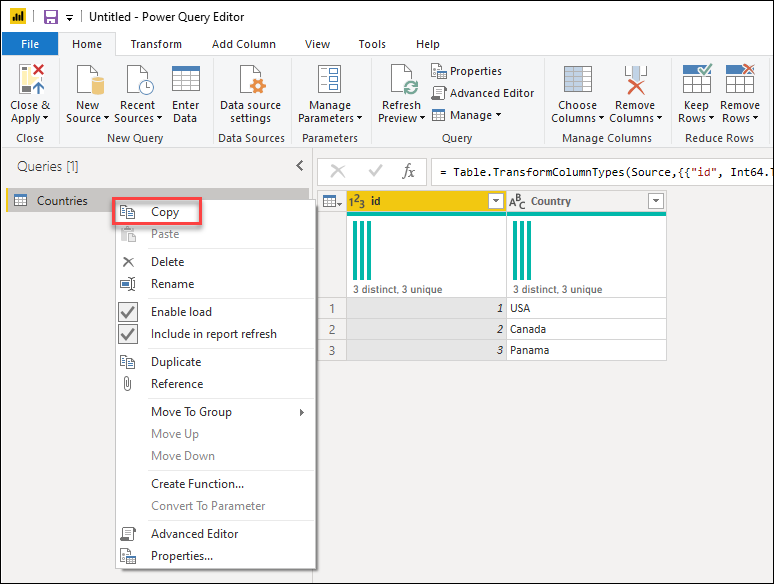
To paste the query, right-click an empty space in the Queries pane, and then select Paste.
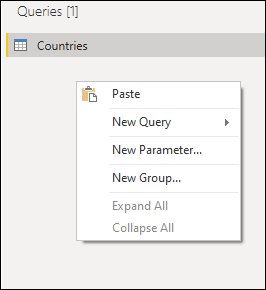
If the destination already has a query with the same name, the pasted query gets a numeric suffix in the format (#) to distinguish it.

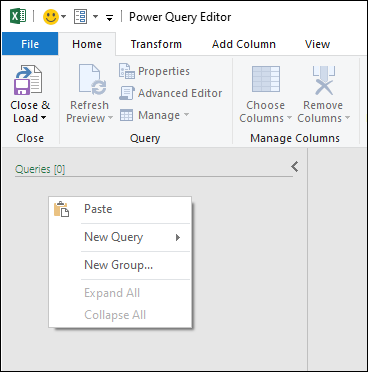
You can also paste queries between multiple instances and product integrations. For example, you can copy the query from Power BI Desktop, as shown in the previous images, and paste it in Power Query for Excel as shown in the following image.
Warning
Copying and pasting queries between product integrations doesn't guarantee that all functions and functionality work in the destination. Some functionality might be available only in the source product integration.
Copy the M code
You can also copy the full code of your query.
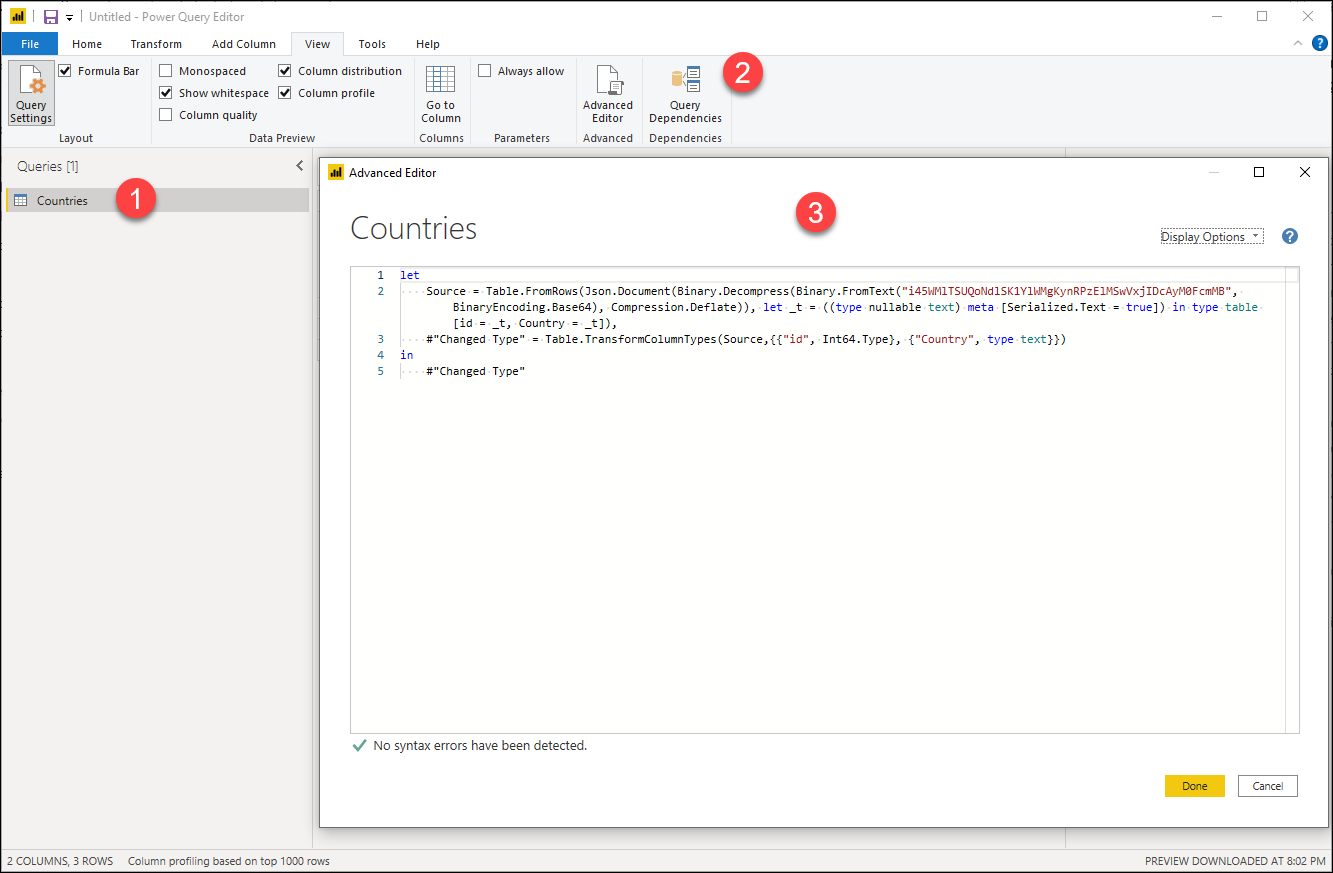
- Select the query that you want to share.
- In the ribbon, select the View tab and then select Advanced Editor.
- In the Advanced Editor window, select all the code and copy it.
With the code of your query in your clipboard, you can share this query through the means of your choice. The recipient of this code needs to create a blank query and follow the same steps as described in the previous paragraph. But instead of copying the code, the recipient will replace the code found in their blank query with the code that you provided.
Note
To create a blank query, open Get Data and select Blank query.
Other alternatives
Some Power Query product integrations might offer more ways to share queries such as but not limited to:
- In Microsoft Excel—Creating an Office Data Connection (.odc) to share with other users.
- In Power BI Desktop—Creating a Power BI Template (.pbit) to share with other users.
Read your product integration's documentation for its query sharing capabilities.
As an alternative, the modern Power Query user interface offers the capability to export Power Query templates. You can read more about the templates experience from the article on Power Query templates.