Poznámka
Na prístup k tejto stránke sa vyžaduje oprávnenie. Môžete sa skúsiť prihlásiť alebo zmeniť adresáre.
Na prístup k tejto stránke sa vyžaduje oprávnenie. Môžete skúsiť zmeniť adresáre.
Secure Shell (SSH) can be used to execute administrative commands remotely to a container. App Service provides SSH support directly into an app hosted in a Windows custom container.
Windows custom containers don't require any special settings for the browser SSH session to work.
Secure Shell (SSH) can be used to execute administrative commands remotely to a container. App Service provides SSH support directly into an app hosted in a Linux container (built-in or custom).
The built-in Linux containers already have the necessary configuration to enable SSH sessions. Linux custom containers require additional configurations to enable SSH sessions. To learn more, see Enable SSH.
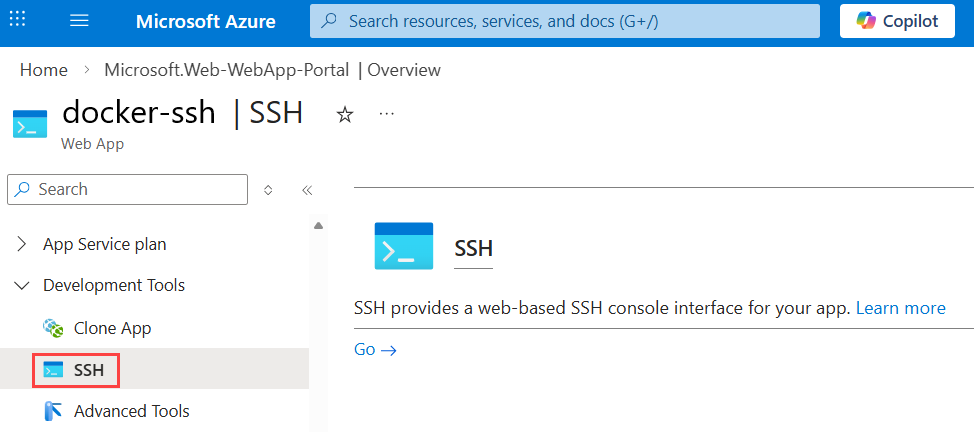
SSH sessions through the Azure CLI aren't supported for Windows App Service plans. Only Linux App Service plans are supported.
You can also connect to the container directly from your local development machine by using SSH and SFTP.
Open SSH session in browser
If you want to open a direct SSH session with your container, your app should be running.
Use the az webapp ssh command.
If you're not authenticated, you need to authenticate with your Azure subscription to connect. When you're authenticated, you see an in-browser shell where you can run commands inside your container.
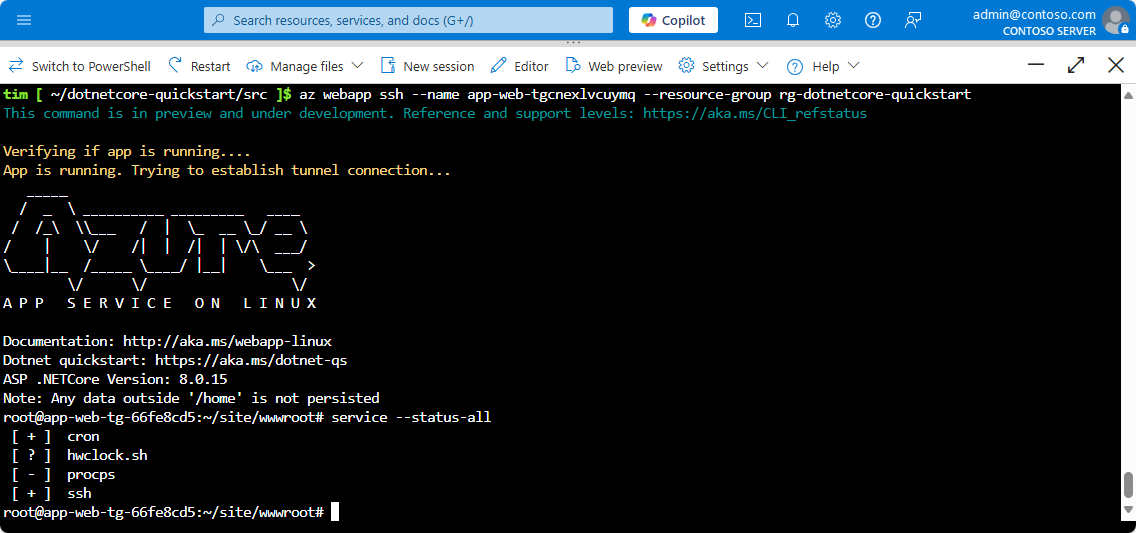
Open SSH session with Azure CLI
By using TCP tunneling, you can create a network connection between your development machine and Linux containers over an authenticated WebSocket connection. You can then open an SSH session with your container running in App Service from the client of your choice.
To get started, you need to install the Azure CLI. To see how it works without installing the Azure CLI, open Azure Cloud Shell.
Open a remote connection to your app by using the az webapp create-remote-connection command. Specify <subscription-id>, <resource-group-name>, and <app-name> for your app.
az webapp create-remote-connection --subscription <subscription-id> --resource-group <resource-group-name> -n <app-name> &
Tip
& at the end of the command is just for convenience if you're using Cloud Shell. It runs the process in the background so that you can run the next command in the same shell.
Note
If this command fails, make sure remote debugging is disabled by using the following command:
az webapp config set --resource-group <resource-group-name> -n <app-name> --remote-debugging-enabled=false
The command output gives you the information you need to open an SSH session.
Verifying if app is running....
App is running. Trying to establish tunnel connection...
Opening tunnel on addr: 127.0.0.1
Opening tunnel on port: <port-output>
SSH is available { username: root, password: Docker! }
Ctrl + C to close
Open an SSH session with your container using the client of your choice, through the local port provided in the output (<port-output>). For example, with the Linux ssh command, you can run a single command like java -version:
ssh root@127.0.0.1 -m hmac-sha1 -p <port-output> java -version
Or, to enter a full SSH session, run:
ssh root@127.0.0.1 -m hmac-sha1 -p <port-output>
When prompted, type yes to continue connecting. You're then prompted for the password. Use Docker!, which was shown to you earlier.
Warning: Permanently added '[127.0.0.1]:21382' (ECDSA) to the list of known hosts.
root@127.0.0.1's password:
After you're authenticated, you should see the session welcome screen.
  _____
  /  _  \ __________ _________   ____
 /  /_\  \___   /  |  \_  __ \_/ __ \
/    |    \/    /|  |  /|  | \/\  ___/
\____|__  /_____ \____/ |__|    \___  >
        \/      \/                  \/
A P P   S E R V I C E   O N   L I N U X

0e690efa93e2:~#
You're now connected to your connector.
Try running the top command.
top
You should be able to see your app's process in the process list. In the example output, it's the one with PID 263.
Mem: 1578756K used, 127032K free, 8744K shrd, 201592K buff, 341348K cached
CPU:   3% usr   3% sys   0% nic  92% idle   0% io   0% irq   0% sirq
Load average: 0.07 0.04 0.08 4/765 45738
  PID  PPID USER     STAT   VSZ %VSZ CPU %CPU COMMAND
    1     0 root     S     1528   0%   0   0% /sbin/init
  235     1 root     S     632m  38%   0   0% PM2 v2.10.3: God Daemon (/root/.pm2)
  263   235 root     S     630m  38%   0   0% node /home/site/wwwroot/app.js
  482   291 root     S     7368   0%   0   0% sshd: root@pts/0
45513   291 root     S     7356   0%   0   0% sshd: root@pts/1
  291     1 root     S     7324   0%   0   0% /usr/sbin/sshd
  490   482 root     S     1540   0%   0   0% -ash
45539 45513 root     S     1540   0%   0   0% -ash
45678 45539 root     R     1536   0%   0   0% top
45733     1 root     Z        0   0%   0   0% [init]
45734     1 root     Z        0   0%   0   0% [init]
45735     1 root     Z        0   0%   0   0% [init]
45736     1 root     Z        0   0%   0   0% [init]
45737     1 root     Z        0   0%   0   0% [init]
45738     1 root     Z        0   0%   0   0% [init]
Related content
You can post questions and concerns on the Azure forum.
To learn more about App Service for containers, see: