Poznámka
Na prístup k tejto stránke sa vyžaduje oprávnenie. Môžete sa skúsiť prihlásiť alebo zmeniť adresáre.
Na prístup k tejto stránke sa vyžaduje oprávnenie. Môžete skúsiť zmeniť adresáre.
Important
Lakebase Autoscaling is the latest version of Lakebase, with autoscaling compute, scale-to-zero, branching, and instant restore. For supported regions, see Region availability. If you are a Lakebase Provisioned user, see Lakebase Provisioned.
Learn how to use branches like Git branches, giving each developer an isolated branch for independent work, then resetting to stay in sync.
Prerequisites
- A Lakebase project with a
productionbranch (the default) - A
developmentbranch created fromproductionfor shared development work - Basic familiarity with SQL and Postgres
Set up your starting schema
Before creating your developer branch, set up a simple schema on the development branch. This serves as the shared starting point that all developers will fork from. When you create your personal branch, it instantly inherits this schema through copy-on-write.
- Navigate to your development branch in the Lakebase UI.
- Open the SQL Editor.
- Create a basic users table with sample data:
CREATE TABLE users (
    id SERIAL PRIMARY KEY,
    email TEXT NOT NULL UNIQUE,
    created_at TIMESTAMP DEFAULT NOW()
);

INSERT INTO users (email) VALUES
    ('alice@example.com'),
    ('bob@example.com'),
    ('charlie@example.com');
Create your developer branch
Each developer on your team can have a long-lived branch for ongoing work. Reset it periodically to stay in sync with the parent.
From your project's branch list, select the development branch, then click Create child branch. Enter a branch name (required) such as dev/alex (following the pattern dev/<your-name>) and click Create.
The branch is created instantly and includes all schemas and data from development through copy-on-write.
Your branch hierarchy:
production (root)
  └── development (has users table + data)
        └── dev/alex (instantly inherits users table + data)
Develop your feature
Point your application at your dev branch by updating the connection string in your .env file, then develop your feature using your normal workflow.
For example, adding user preference tracking to your application would involve updating your user model, generating a migration with your framework (Prisma, Alembic, Django, etc.), and running it on your dev/alex branch. Your migration file might contain:
ALTER TABLE users ADD COLUMN preferences JSONB DEFAULT '{}';
CREATE INDEX idx_users_preferences ON users USING GIN (preferences);
After running the migration, develop the preference feature in your application code and test the complete flow locally. Your branch is completely isolated. Changes don't affect production or other developers.
Review your changes
Before promoting to other environments, use schema diff to verify exactly what changed. Navigate to your dev/alex branch overview, click Schema diff, and compare against development.
The side-by-side comparison shows your new preferences column and index in green:
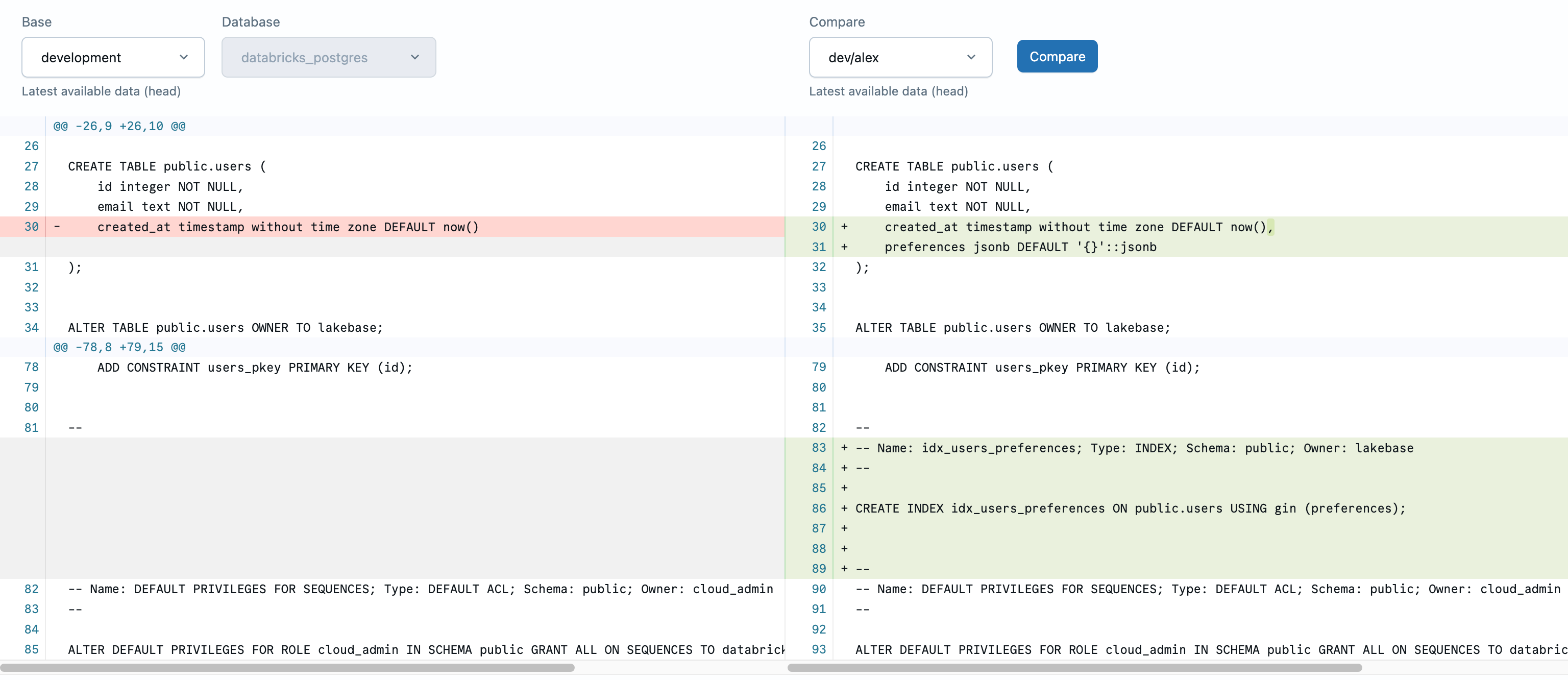
This verification step helps catch unintended changes before they reach production. For complete schema diff documentation, see Compare branch schemas.
Promote your changes
Promotion is not automatic. To promote your changes, run the same migration against your development branch that you already ran on dev/alex. There's no Lakebase-specific step involved. Your migration file is already in your codebase, so this follows your normal deployment process.
- Update your connection string to point to your
developmentbranch. - Run your migration against
developmentusing the same command you used ondev/alex. - Deploy your updated application code.
Because the migration was already validated on your personal branch, it should apply cleanly. Once promoted, other developers will see the updated schema when they reset their branches from development.
Reset and start fresh
When you're ready to start new work, reset your personal branch to stay in sync with development, which may have had changes from other developers. This gives you a fresh start from the current shared baseline.
Navigate to your dev/alex branch and click Reset from parent. The reset modal confirms that all databases and roles will be replaced with the latest data from development. This action is not reversible, so make sure you've promoted any changes you want to keep before confirming.
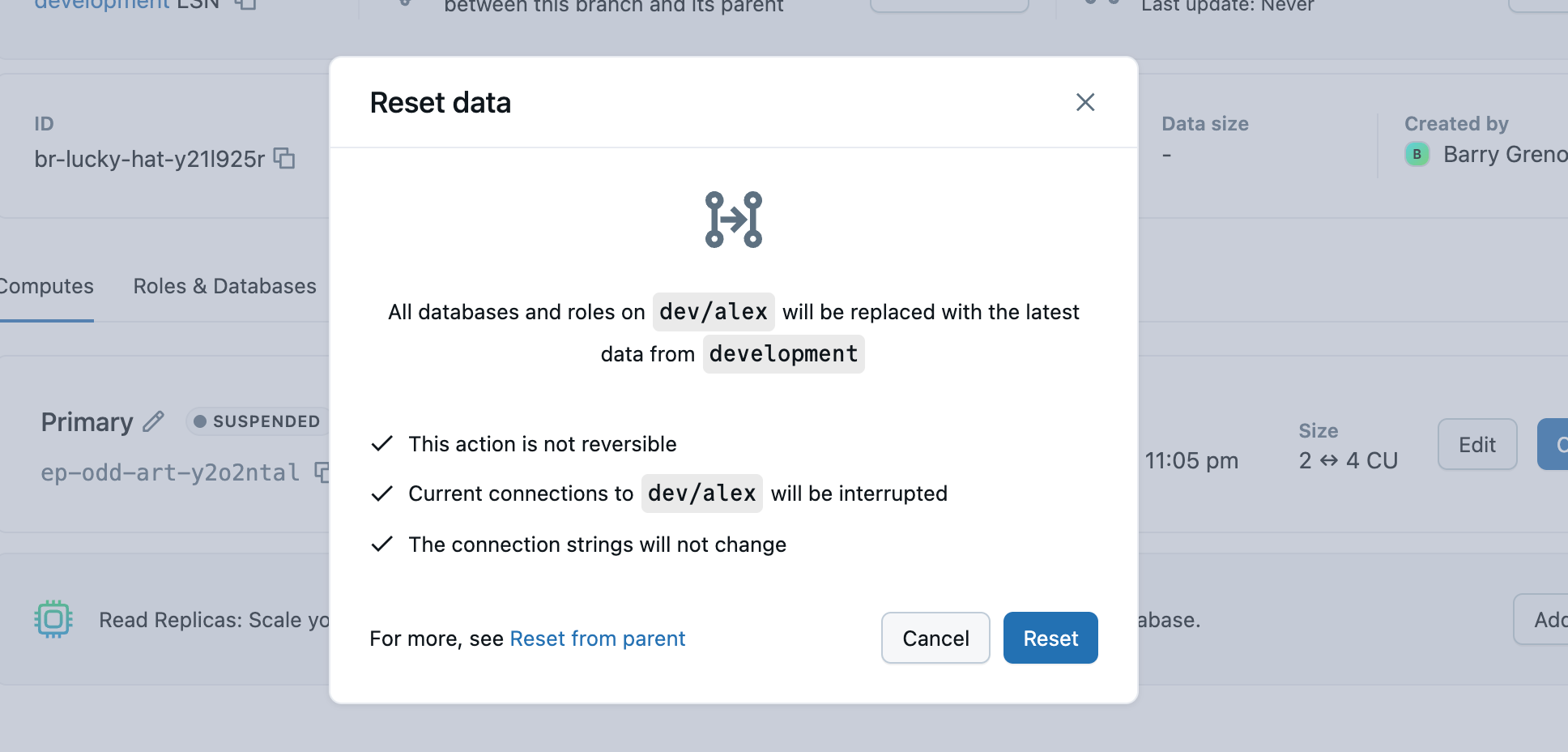
Your branch now matches development exactly, ready for your next task.
Best practices
- Use consistent naming: Follow the
dev/<name>pattern for developer branches. - Reset regularly: Keep your branch in sync with
developmentto avoid drift. - Protect production: Use protected branches to prevent accidental changes