Poznámka
Na prístup k tejto stránke sa vyžaduje oprávnenie. Môžete sa skúsiť prihlásiť alebo zmeniť adresáre.
Na prístup k tejto stránke sa vyžaduje oprávnenie. Môžete skúsiť zmeniť adresáre.
Note
This article describes features used in agents or agent flows powered by the standard harness.
Use test sets to evaluate and refine how your agent handles real-world response scenarios. This article explains how to modify a test set's name and settings, manage the user profile and connections used for authentication, edit or delete individual test cases, and remove entire test sets or results. These steps help you ensure evaluations reflect the right user contexts and maintain secure access to knowledge sources and tools.
You have a choice of three test methods, also referred to as graders, to evaluate agent responses: quality, similarity, and text match. For more information about the different test methods, see Test methods.
Edit the details of a test set
You can change the details of a test set, such as which account it uses for authentication and the test methods used.
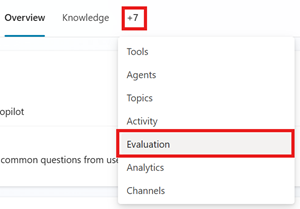
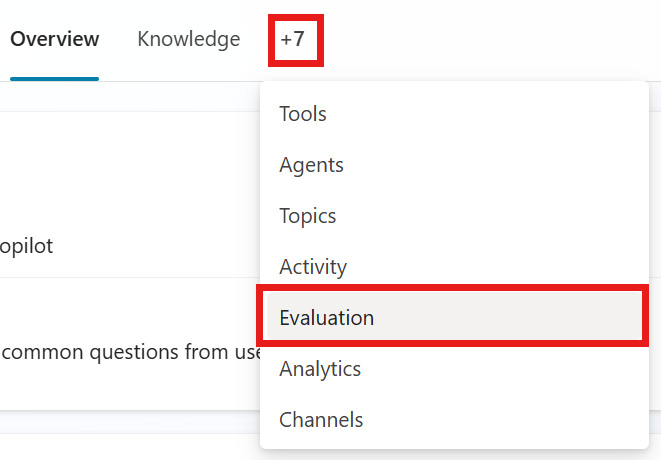
Go to your agent's Evaluation page.
Select the test set.
In the test set, select the test case you want to edit.
Optionally, change the name of the test set.
Add or modify the test methods. Each test method measures different values, and requires different configurations. To learn how to set up each test method, see Choose test methods.
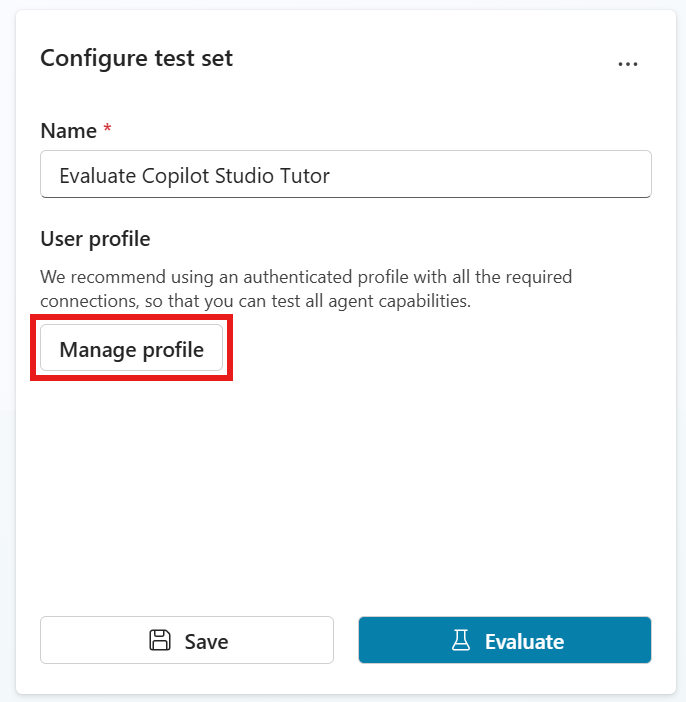
Test method Measures Test set type Scoring Configurations General quality How good is a test case's response(s) based on specific qualities Single response or conversation Scored out of 100% None Content safety Whether the test case's response contains harmful content, such as hate, violence, self-harm, or sexual content Single response or conversation Pass/fail Content type, Permitted content safety level Compare meaning How well the meaning of the test case's answer matches the expected answer Single response Scored out of 100% Pass score, expected answer Tool use Whether the test case used all or any the expected resources Single response Pass/fail Expected capabilities Keyword match Whether the test case used all or any of the expected keywords or phrases Single response or conversation Pass/fail Expected keywords or phrases Text similarity How well the text of the test case's answer matches the expected answer Single response Scored out of 100% Pass score, expected answer Exact match Whether the test case's answer matches the expected answer exactly Single response Pass/fail Expected answer Custom Whether the test case's response meets your defined criteria or expectations. Single response or conversation Pass/fail (passes the defined label criteria) Name, evaluation instructions, labels Select the current profile to manage its connections. Automated testing uses the authentication of the currently signed-in user. Learn more in Manage user profiles and connections.
Note
When Copilot Studio generates test cases or runs an evaluation, it uses the authentication credentials of a connected account to access your agent's knowledge sources and tools. Generated test cases can include sensitive data that the connected account can access. Any maker with access to the agent can also view the test sets linked to that agent.
Manage user profiles and connections
Tools run evaluations and connections by using the currently signed-in user profile. You can't select or connect by using a different user while you're signed in. To run an evaluation as a different user, sign out of Copilot Studio, sign in by using that user's account, and then run the evaluation.
Important
You can review and authenticate the connectors your agent uses for the currently signed-in user. Configure, review, and save these connections before you run an evaluation.
Test results show which user profile was used.
Note
When Copilot Studio generates test cases or runs an evaluation, it uses the authentication credentials of a connected account to access your agent's knowledge sources and tools. Generated test cases can include sensitive data that the connected account can access. Any maker with access to the agent can also view the test sets linked to that agent.
Agent evaluations that use user authentication require access through the Microsoft Copilot Studio connector. If your admin turns off this connection, you can't run tests by using the evaluation tool. For more information, see Copilot Studio connectors and data groups.
To manage connections for the currently signed-in user:
Open a test set, and then select the current profile.
For connections with a warning, select the connection. Change the existing connection to a working connection, select Reconnect to try to reestablish the existing connection, or select Create new connection to try a new connection. Working connections are marked with a green check.
For new connections, enter the requested connection details, then select Connect.
When all connections are working, select Save.
When the Manage profile and connections pop-up disappears, select Save to update the test set with the current user profile and connections.
Delete a test set or test result
You can delete a test case or test set that you no longer need.
- Go to your agent's Evaluation page.
- In the Test sets section, delete a test set by doing either of the following steps:
- Select the three dots (…) on the test set card, and then select Delete.
- Select the test set to open it, then select the three dots (…) in the Configure test set pane, and then select Delete.
- In the Recent results section, delete a test result by doing either of the following steps:
- Hover over the test result you want to delete, select the three dots (…) and then select Delete test.
- Select the test result to open it, then select the three dots (…) in the Evaluation summary pane, and then select Delete.