opomba,
Dostop do te strani zahteva pooblastilo. Poskusite se vpisati alispremeniti imenike.
Dostop do te strani zahteva pooblastilo. Poskusite lahko spremeniti imenike.
Applies to: ✅ Warehouse in Microsoft Fabric
This article describes methods for migrating from Azure Synapse Analytics dedicated SQL pools to Microsoft Fabric Data Warehouse.
Tip
For more information on strategy and planning your migration, see Migration planning: Azure Synapse Analytics dedicated SQL pools to Fabric Data Warehouse.
An automated experience for migration from Azure Synapse Analytics dedicated SQL pools is available using the Fabric Migration Assistant for Data Warehouse. The rest of this article contains more manual migration steps.
The following table summarizes methods for migrating the data schema (DDL), database code (DML), and data. The Option column links to details for each scenario.
| Option number | Option | What it does | Skill or preference | Scenario |
|---|---|---|---|---|
| 1 | Data Factory | Schema (DDL) conversion Data extract Data ingestion |
ADF/Pipeline | Simplified all in one schema (DDL) and data migration. Recommended for dimension tables. |
| 2 | Data Factory with partition | Schema (DDL) conversion Data extract Data ingestion |
ADF/Pipeline | Using partitioning options to increase read/write parallelism providing ten times the throughput vs option 1, recommended for fact tables. |
| 3 | Data Factory with accelerated code | Schema (DDL) conversion | ADF/Pipeline | Convert and migrate the schema (DDL) first, then use CETAS to extract and COPY/Data Factory to ingest data for optimal overall ingestion performance. |
| 4 | Stored procedures accelerated code | Schema (DDL) conversion Data extract Code assessment |
T-SQL | SQL user using IDE with more granular control over which tasks they want to work on. Use COPY/Data Factory to ingest data. |
| 5 | SQL Database Project extension for Visual Studio Code | Schema (DDL) conversion Data extract Code assessment |
SQL Project | SQL Database Project for deployment with the integration of option 4. Use COPY or Data Factory to ingest data. |
| 6 | CREATE EXTERNAL TABLE AS SELECT (CETAS) | Data extract | T-SQL | Cost effective and high-performance data extract into Azure Data Lake Storage (ADLS) Gen2. Use COPY/Data Factory to ingest data. |
| 7 | Migrate using dbt | Schema (DDL) conversion database code (DML) conversion |
dbt | Existing dbt users can use the dbt Fabric adapter to convert their DDL and DML. You must then migrate data using other options in this table. |
Choose a workload for the initial migration
When deciding where to start on the Synapse dedicated SQL pool to Fabric Data Warehouse migration project, choose a workload area where you can:
- Prove the viability of migrating to Fabric Data Warehouse by quickly delivering the benefits of the new environment. Start small and simple, and prepare for multiple small migrations.
- Allow your in-house technical staff time to gain relevant experience with the processes and tools that they use when they migrate to other areas.
- Create a template for further migrations that's specific to the source Synapse environment, and the tools and processes in place to help.
Tip
Create an inventory of objects to migrate, and document the migration process from start to finish so that you can repeat it for other dedicated SQL pools or workloads.
The volume of migrated data in an initial migration should be large enough to demonstrate the capabilities and benefits of the Fabric Data Warehouse environment, but not too large to quickly demonstrate value. A size in the 1-10 terabyte range is typical.
Migration with Fabric Data Factory
This section describes Data Factory options for users who are familiar with Azure Data Factory and Synapse pipelines. The drag-and-drop interface provides a simple way to convert DDL and migrate data.
Fabric Data Factory can perform the following tasks:
- Convert the schema (DDL) to Fabric Data Warehouse syntax.
- Create the schema (DDL) on Fabric Data Warehouse.
- Migrate the data to Fabric Data Warehouse.
Option 1. Schema and data migration - Copy data assistant and ForEach Copy Activity
This method uses Data Factory Copy data assistant to connect to the source dedicated SQL pool, convert the dedicated SQL pool DDL syntax to Fabric, and copy data to Fabric Data Warehouse. You can select one or more target tables (for TPC-DS dataset there are 22 tables). It generates the ForEach to loop through the list of tables selected in the UI and spawn 22 parallel Copy Activity threads.
- 22
SELECTqueries (one for each table selected) are generated and executed in the dedicated SQL pool. - Ensure you have the appropriate DWU and resource class to allow the queries generated to execute. For this case, you need a minimum of DWU1000 with
staticrc10to allow a maximum of 32 queries to handle 22 queries submitted. - Copying data directly from the dedicated SQL pool to Fabric Data Warehouse with Data Factory requires staging. The ingestion process has two phases:
- The first phase extracts data from the dedicated SQL pool into ADLS. This phase is called staging.
- The second phase ingests the staged data into Fabric Data Warehouse. Most of the ingestion time is spent in the staging phase, so staging has a significant effect on performance.
Recommended use
Using the Copy assistant to generate a ForEach activity provides a simple interface for converting DDL and ingesting selected tables from the dedicated SQL pool into Fabric Data Warehouse in one step.
However, this option doesn't provide optimal overall throughput. Staging and the need to parallelize reads and writes during the source-to-stage phase are the main sources of latency. Use this option for dimension tables only.
Option 2. DDL/Data migration - Pipeline using partition option
To improve throughput when you load larger fact tables with a Fabric pipeline, use a Copy activity for each fact table and enable partitioning. This configuration provides the best Copy activity performance.
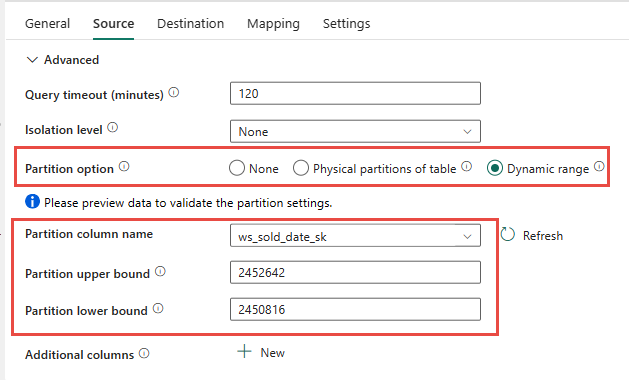
Use the source table's physical partitions when available. If the table isn't physically partitioned, specify a partition column and minimum and maximum values for dynamic partitioning. In the following screenshot, the pipeline Source options specify a dynamic partition range based on the ws_sold_date_sk column.
Partitioning can increase staging throughput. Consider the following guidance when you configure it:
- Depending on the partition range, the operation might generate more than 128 queries and use all concurrency slots in the dedicated SQL pool.
- You must scale to a minimum of DWU6000 to allow all queries to execute.
- As an example, for TPC-DS
web_salestable, 163 queries were submitted to the dedicated SQL pool. At DWU6000, 128 queries executed while 35 queries queued. - Dynamic partition automatically selects the range partition. In this case, an 11-day range for each SELECT query submitted to the dedicated SQL pool. For example:
WHERE [ws_sold_date_sk] > '2451069' AND [ws_sold_date_sk] <= '2451080')
...
WHERE [ws_sold_date_sk] > '2451333' AND [ws_sold_date_sk] <= '2451344')
Recommended use
For fact tables, use Data Factory with the partitioning option to increase throughput.
However, parallel reads require you to scale the dedicated SQL pool to a higher DWU so that it can execute the extraction queries. Partitioning improves the rate tenfold compared to not using partitioning. You can increase the DWU for more throughput, but a dedicated SQL pool allows a maximum of 128 active queries.
For more information on Synapse DWU to Fabric mapping, see Blog: Mapping Azure Synapse dedicated SQL pools to Fabric Data Warehouse compute.
Option 3. DDL migration - Copy data assistant ForEach Copy Activity
The two previous options are suitable for smaller databases. If you require higher throughput, use this alternative:
- Extract the data from the dedicated SQL pool to ADLS to reduce staging overhead.
- Use either Data Factory or the COPY command to ingest the data into your warehouse.
Recommended use
You can continue to use Data Factory to convert your schema (DDL). By using the Copy data assistant, you can select the specific table or All tables. By design, this method migrates the schema in one step, extracting the schema without any rows by using the false condition, TOP 0 in the query statement.
The following code sample covers schema (DDL) migration with Data Factory.
Code example: Schema (DDL) migration with Data Factory
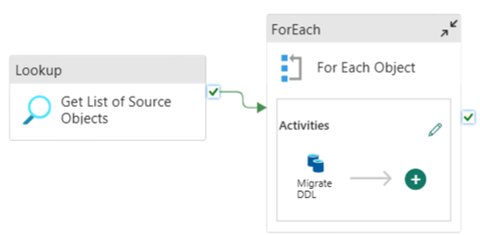
You can use Fabric Pipelines to easily migrate your DDL (schemas) for table objects from any source Azure SQL Database or dedicated SQL pool. This pipeline migrates the schema (DDL) for the source dedicated SQL pool tables to Fabric Data Warehouse.
Pipeline design: parameters
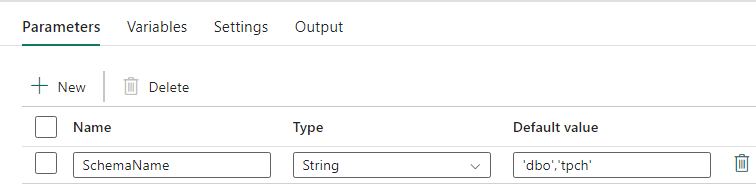
This pipeline accepts a parameter SchemaName, which you use to specify which schemas to migrate. The default schema is dbo.
In the Default value field, enter a comma-delimited list of table schema indicating which schemas to migrate: 'dbo','tpch' to provide two schemas, dbo and tpch.
Pipeline design: Lookup activity
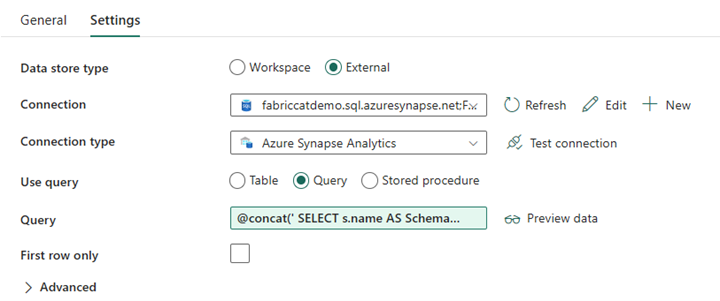
Create a Lookup Activity and set the Connection to point to your source database.
In the Settings tab:
Set Data store type to External.
Connection is your Azure Synapse dedicated SQL pool. Connection type is Azure Synapse Analytics.
Use query is set to Query.
Build the Query field by using a dynamic expression, so you can use the parameter
SchemaNamein a query that returns a list of target source tables. Select Query and then select Add dynamic content.This expression within the LookUp Activity generates a SQL statement to query the system views to retrieve a list of schemas and tables. It references the
SchemaNameparameter to allow for filtering on SQL schemas. The output of this expression is an array of SQL schemas and tables that the ForEach Activity uses as input.Use the following code to return a list of all user tables with their schema name.
@concat('
SELECT s.name AS SchemaName,
t.name  AS TableName
FROM sys.tables AS t
INNER JOIN sys.schemas AS s
ON t.type = ''U''
AND s.schema_id = t.schema_id
AND s.name in (',coalesce(pipeline().parameters.SchemaName, 'dbo'),')
')
Pipeline design: ForEach Loop
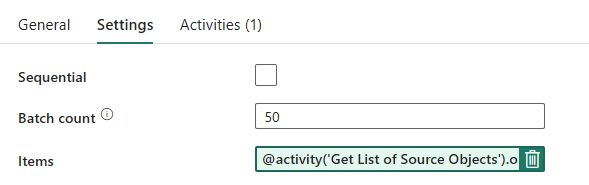
For the ForEach Loop, configure the following options in the Settings tab:
- Disable Sequential to allow multiple iterations to run concurrently.
- Set Batch count to
50, limiting the maximum number of concurrent iterations. - Use dynamic content in the Items field to reference the output of the LookUp Activity. Use the following code snippet:
@activity('Get List of Source Objects').output.value
Pipeline design: Copy Activity inside the ForEach Loop
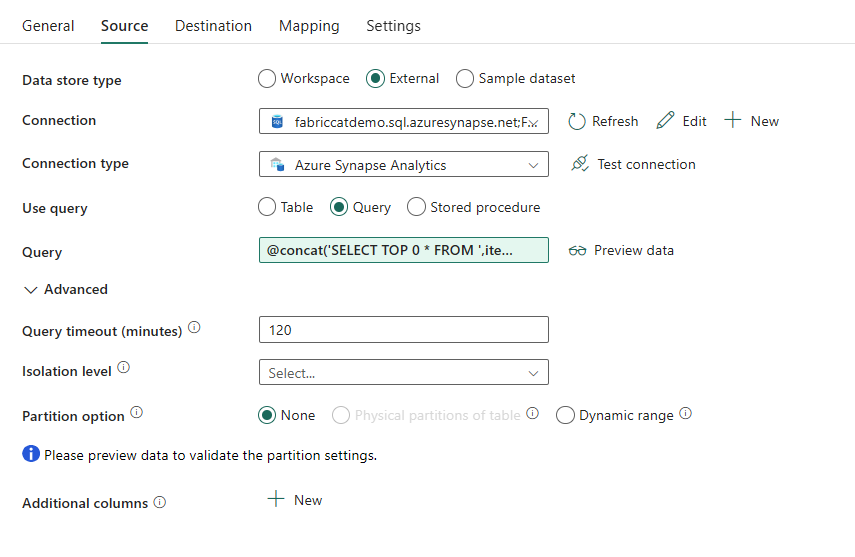
Inside the ForEach Activity, add a Copy Activity. This method uses the Dynamic Expression Language within pipelines to build a SELECT TOP 0 * FROM <TABLE> statement to migrate only the schema without data into a warehouse.
In the Source tab:
- Set Data store type to External.
- Connection is your Azure Synapse dedicated SQL pool. Connection type is Azure Synapse Analytics.
- Set Use Query to Query.
- In the Query field, paste the dynamic content query and use this expression which returns zero rows, but includes the table schema:
@concat('SELECT TOP 0 * FROM ',item().SchemaName,'.',item().TableName)
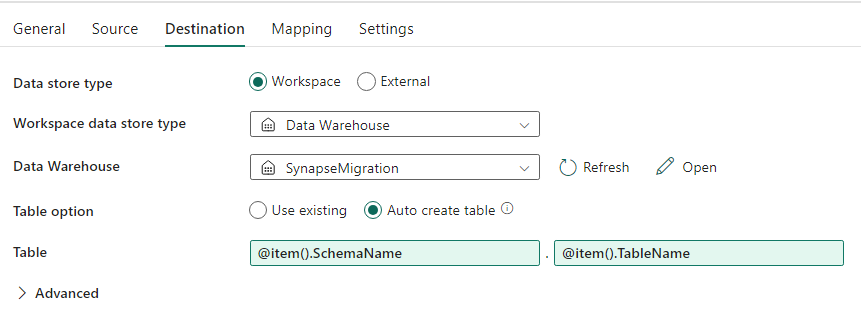
In the Destination tab:
- Set Data store type to Workspace.
- Set the Workspace data store type to Data Warehouse and set the Data Warehouse to the warehouse.
- The destination Table's schema and table name are defined using dynamic content.
- Schema refers to the current iteration's field,
SchemaNamewith the snippet:@item().SchemaName - Table references
TableNamewith the snippet:@item().TableName
- Schema refers to the current iteration's field,
Pipeline design: Sink
For Sink, point to your Warehouse and reference the Source Schema and Table name.
When you run this pipeline, you see your warehouse populated with each table in your source, using the correct schema.
Migration by using stored procedures in Synapse dedicated SQL pool
This option uses stored procedures to perform the migration to Fabric Data Warehouse.
You can get the code samples at microsoft/fabric-migration on GitHub.com. This code is shared as open source, so feel free to contribute to collaborate and help the community.
What Fabric Migration stored procedures can do:
- Convert the schema (DDL) to Fabric Data Warehouse syntax.
- Create the schema (DDL) on Fabric Data Warehouse.
- Extract data from Synapse dedicated SQL pool to ADLS.
- Flag unsupported Fabric syntax for T-SQL codes (stored procedures, functions, views).
Recommended use
This option is great for you if you:
- Are familiar with T-SQL.
- Want to use an integrated development environment for T-SQL development.
- Want more granular control over which tasks you work on.
You can execute the specific stored procedure for the schema (DDL) conversion, data extract, or T-SQL code assessment.
For the data migration, use either COPY INTO or Fabric Data Factory to ingest the data into your warehouse.
Migrate using SQL database projects
Fabric Data Warehouse supports the SQL Database Projects extension available inside of Visual Studio Code.
This extension is available inside Visual Studio Code. This feature enables capabilities for source control, database testing, and schema validation.
For more information on source control, see Development and deployment overview.
Recommended use
Use this option if you prefer to use SQL Database Project for your deployment. This option integrates the Fabric Migration stored procedures into the SQL database project to provide a seamless migration experience.
A SQL Database Project can:
- Convert the schema (DDL) to Fabric Data Warehouse syntax.
- Create the schema (DDL) on Fabric Data Warehouse.
- Extract data from Synapse dedicated SQL pool to ADLS.
- Flag nonsupported syntax for T-SQL codes (stored procedures, functions, views).
For the data migration, use either COPY INTO or Data Factory to ingest the data into your warehouse.
The Microsoft Fabric CAT team provides PowerShell scripts to extract, create, and deploy schema (DDL) and database code (DML) through a SQL database project. For a walkthrough, see microsoft/fabric-migration on GitHub.
For more information on SQL Database Projects, see Get started with the SQL Database Projects extension and Build a database project from the command line.
Migration of data with CETAS
The T-SQL CREATE EXTERNAL TABLE AS SELECT (CETAS) command provides the most cost-effective and optimal method to extract data from Azure Synapse dedicated SQL pools to Azure Data Lake Storage (ADLS) Gen2.
What CETAS can do:
- Extract data into ADLS.
- This option requires you to create the schema (DDL) in your warehouse before ingesting the data. Consider the options in this article to migrate schema (DDL).
The advantages of this option are:
- The migration submits only a single query per table against the source Synapse dedicated SQL pool. This query doesn't use up all the concurrency slots, and it doesn't block concurrent customer production ETL or queries.
- You don't need to scale to DWU6000, as only a single concurrency slot is used for each table, so you can use lower DWUs.
- The extract runs in parallel across all the compute nodes, and this feature improves performance.
Recommended use
Use CETAS to extract the data to ADLS as Parquet files. Parquet files provide the advantage of efficient data storage with columnar compression that takes less bandwidth to move across the network. Since Fabric stores the data as Delta parquet format, data ingestion is 2.5x faster compared to text file format, since there's no conversion to the Delta format overhead during ingestion.
To increase CETAS throughput:
- Add parallel CETAS operations, increasing the use of concurrency slots but allowing more throughput.
- Scale the DWU on Synapse dedicated SQL pool.
Migration via dbt
This section describes the dbt option for customers who already use dbt in their Synapse dedicated SQL pool environment.
What dbt can do:
- Convert the schema (DDL) to Fabric Data Warehouse syntax.
- Create the schema (DDL) on Fabric Data Warehouse.
- Convert database code (DML) to Fabric syntax.
The dbt framework generates DDL and DML (SQL scripts) on the fly with each execution. By using model files expressed in SELECT statements, dbt translates the DDL/DML instantly to any target platform by changing the profile (connection string) and the adapter type.
Recommended use
The dbt framework uses a code-first approach. Migrate the data by using options listed in this document, such as CETAS or COPY/Data Factory.
By using the dbt adapter for Microsoft Fabric Data Warehouse, you can migrate existing dbt projects that target different platforms such as Azure Synapse dedicated SQL pools, Snowflake, Databricks, Google BigQuery, or Amazon Redshift to a warehouse with a simple configuration change.
To get started with a dbt project that targets Fabric Data Warehouse, see Tutorial: Set up dbt for Fabric Data Warehouse. This document also lists an option to move between different warehouses and platforms.
Data ingestion into Fabric Data Warehouse
For ingestion into Fabric Data Warehouse, use COPY INTO or Fabric Data Factory, depending on your preference. Both methods are the recommended and best-performing options, as they have equivalent performance throughput, given the prerequisite that the files are already extracted to Azure Data Lake Storage (ADLS) Gen2.
Design your process for maximum performance by considering the following factors:
- With Fabric, there's no resource contention when loading multiple tables from ADLS to Fabric Data Warehouse concurrently. As a result, there's no performance degradation when loading parallel threads. The maximum ingestion throughput is limited only by the compute power of your Fabric capacity.
- Fabric workload management provides separation of resources allocated for load and query. There's no resource contention while queries and data loading execute at the same time.