opomba,
Dostop do te strani zahteva pooblastilo. Poskusite se vpisati alispremeniti imenike.
Dostop do te strani zahteva pooblastilo. Poskusite lahko spremeniti imenike.
Microsoft Intune app protection policies work with Microsoft Entra Conditional Access to help protect your organizational data on devices your employees use. These policies work on devices that enroll with Intune and on employee owned devices that don't enroll. Combined, they're referred to as app-based Conditional Access.
App-based Conditional Access with client app management adds a security layer that makes sure only client apps that support Intune app protection policies can access Exchange Online and other Microsoft 365 services.
Tip
In addition to app-based Conditional Access policies, you can use device-based Conditional Access with Intune.
Requirements
 Licensing requirements
Before you create an app-based Conditional Access policy, you must have a Microsoft Entra ID P1 or P2 license. Users must also be licensed for Microsoft Entra ID. For more information, see Microsoft Entra pricing.
 Roles requirements
Your account must have one of the following roles in Microsoft Entra:
- Security administrator
- Conditional Access administrator
 Device platform requirements
- Android
- iOS/iPadOS
Supported apps
A list of apps that support app-based Conditional Access can be found in Conditional Access: Conditions in the Microsoft Entra documentation.
App-based Conditional Access also supports line-of-business (LOB) apps, but these apps need to use Microsoft 365 modern authentication.
How app-based Conditional Access works
App-based Conditional Access works by requiring a broker app to register the device with Microsoft Entra ID. The broker app can be Microsoft Authenticator on iOS, or Company Portal on Android. During authentication, Microsoft Entra ID checks whether the app is on the policy-approved list before granting access. The following diagram illustrates this process:
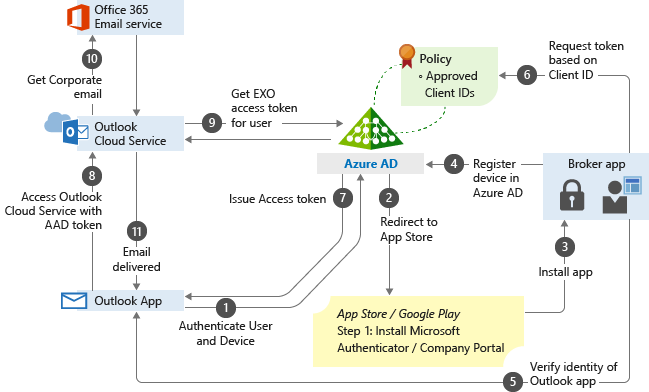
For a detailed technical overview, see Client apps in the Microsoft Entra documentation.
Create app-based Conditional Access policies
Conditional Access is a Microsoft Entra technology. The Conditional Access node you access from the Microsoft Intune admin center is the same node you access from Microsoft Entra ID, so you don't need to switch between them to configure policies.
Before you create Conditional Access policies, you need to have Intune app protection policies applied to your apps.
Important
This section walks through the steps to add a simple app-based Conditional Access policy. You can use the same steps for other cloud apps. For more information, see Plan Conditional Access deployment.
Sign in to the Microsoft Intune admin center.
Select Endpoint security > Conditional Access > Create new policy.
Enter a policy Name, and then under Assignments, configure Users and groups to apply the policy to users and groups. Use the Include or Exclude options to add your groups.
Under Assignments, configure Target resources. Apply the policy to Cloud apps. Use the Include or Exclude options to select the apps to protect. For example, choose Select apps, and select Office 365.
Select Conditions > Client apps to apply the policy to apps and browsers. For example, select Yes, and then enable Browser and Mobile apps and desktop clients.
Under Access controls, configure Grant. For example, select Grant access > Require approved client app and Require app protection policy, then select Require one of the selected controls.
Under Enable policy, select On, and then select Create.